

When an email fails, first identify what you expected to happen: connect an account, receive a message in CRM, or send a message. Receiving and sending use different settings, so isolating the issue prevents changes to a part that is working. For example, if messages are in Gmail but not CRM, check incoming access and sync. If CRM lists a message under Sent but the customer did not receive it, check outgoing status and delivery with the provider.
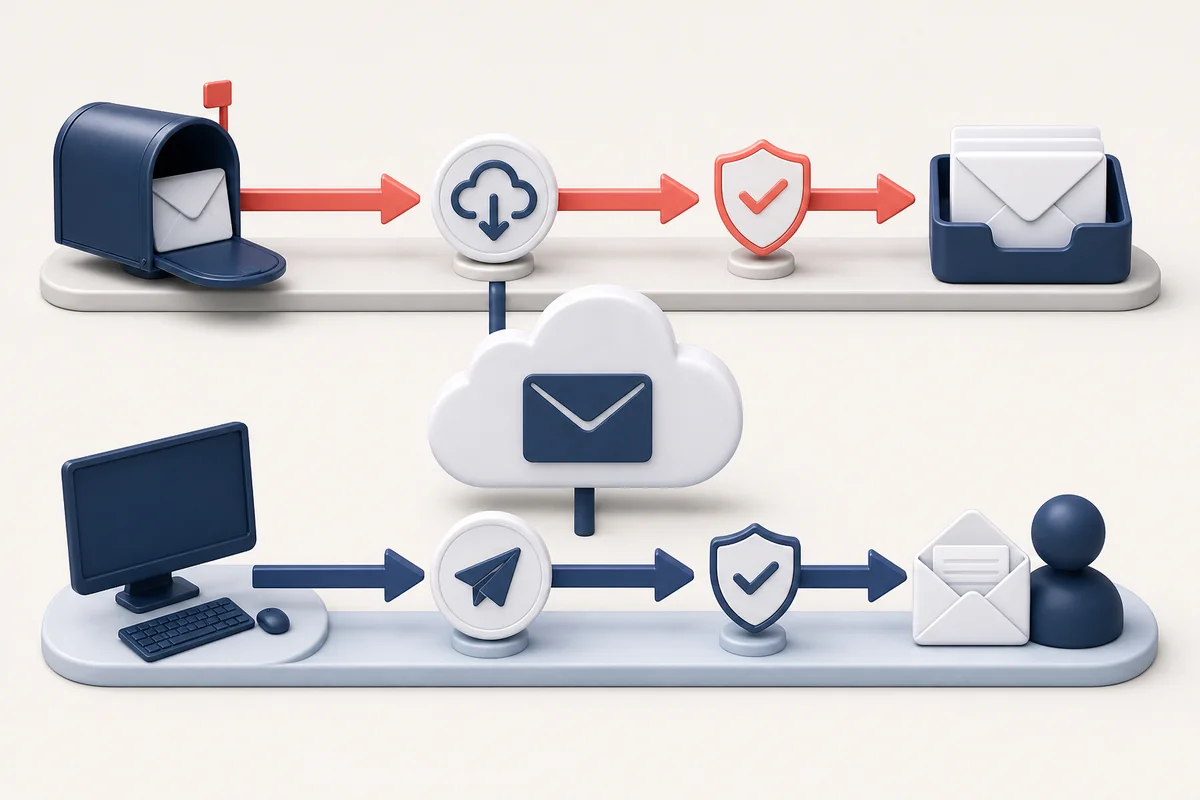
Find where the message stops
| What you see | What to check first |
|---|---|
| You cannot add the account or access is denied. | Provider, authorization or credentials, and account permissions. |
| The message is in the provider mailbox but not CRM. | Incoming or Incoming/Outgoing account type, inbox status, authorization, and sync. |
| CRM records the message, but the recipient says it never arrived. | Outgoing status, provider rejection or bounce, spam, and recipient-domain policies. |
Check the connected account
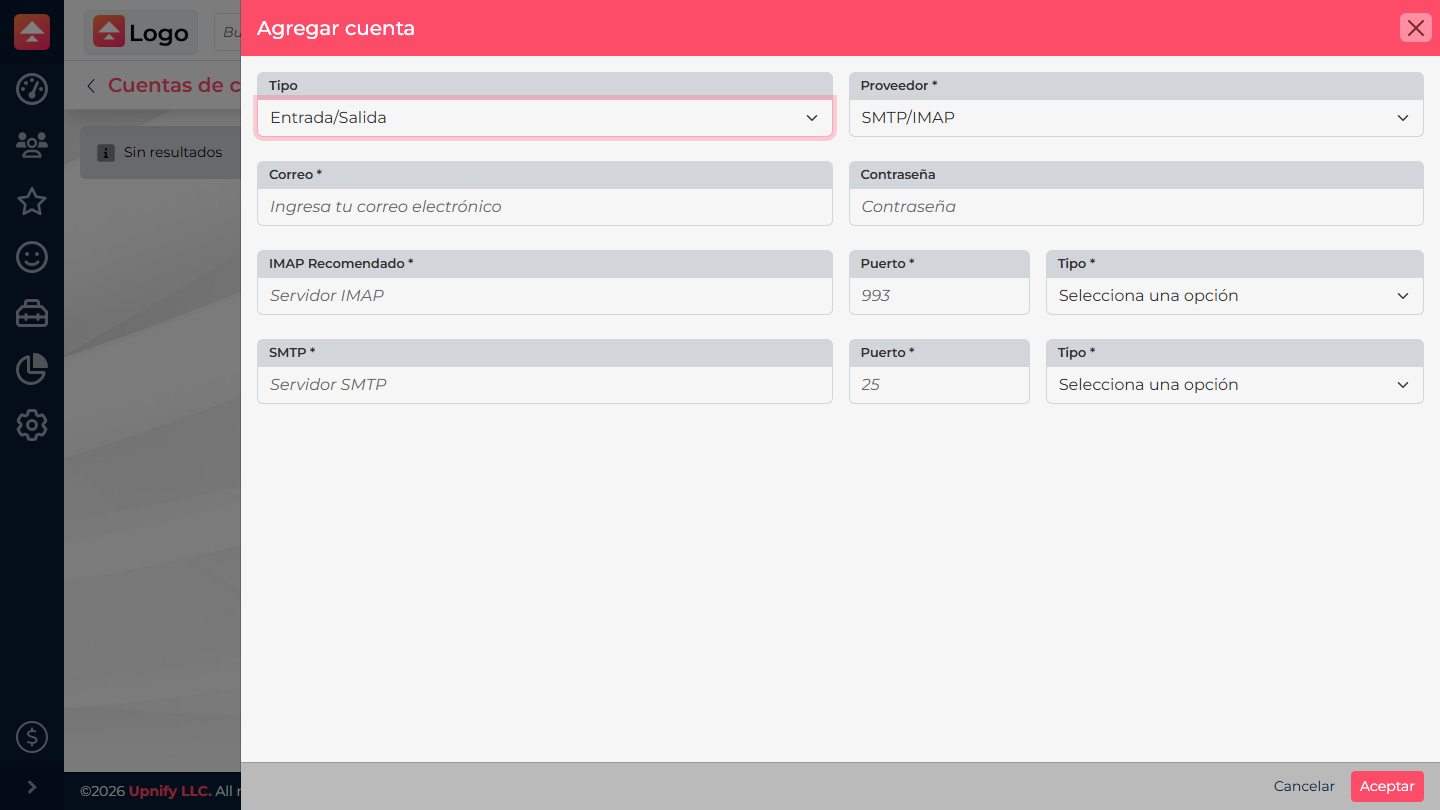
- Open the user menu and go to Personal settings > Email accounts. Find the affected account and check its Type and Status. CRM can report incoming and outgoing errors separately.
- If messages are missing, confirm the type includes Incoming and that the message exists in the provider mailbox. Open My email and select Sync. Also check spam, quarantine, and folders your provider does not sync.
- If you cannot send, confirm the type includes Outgoing and that this account is selected as the sender. For Google or Microsoft 365, check that authorization is still valid. For a manually configured account, ask your provider administrator to confirm the correct server, port, security, and credentials.
- If the provider changed the password, multifactor authentication, or an access policy, authorize the account again or update its credentials using the configured method. Do not send passwords or API keys in a support ticket.
If CRM says the email was sent but it did not arrive
- Under My email > Sent, find the message and check its status. CRM processing the request does not mean the destination server delivered it or the recipient read it.
- Check that the address is correct and ask the recipient to look in spam or quarantine.
- Review the provider error if CRM shows one, and ask your email administrator whether the destination domain blocks or limits the message. Test with an address you control only after confirming the first attempt is not still pending.
When you contact support
Include user, provider, account type, affected operation (incoming or outgoing), date and time with time zone, status, and the exact error. Mask personal addresses and never include passwords, tokens, or API keys. Do not delete the account before recording these details.
Include user, provider, account type, affected operation (incoming or outgoing), date and time with time zone, status, and the exact error. Mask personal addresses and never include passwords, tokens, or API keys. Do not delete the account before recording these details.