

The quote is prepared within an opportunity: its products, amounts, and documents belong to that transaction. From the same record, you can generate a PDF, email it to the contact, and return later to review the file or activity. For example, after agreeing on a service package, the salesperson can send the proposal and later check which version was shared.
Keep in mind: generating a document does not create a separate quote or convert the opportunity into a sale. The file is attached to the opportunity where the proposal was prepared.
Prepare the quote
- In CRM, open Opportunities and select the relevant record.
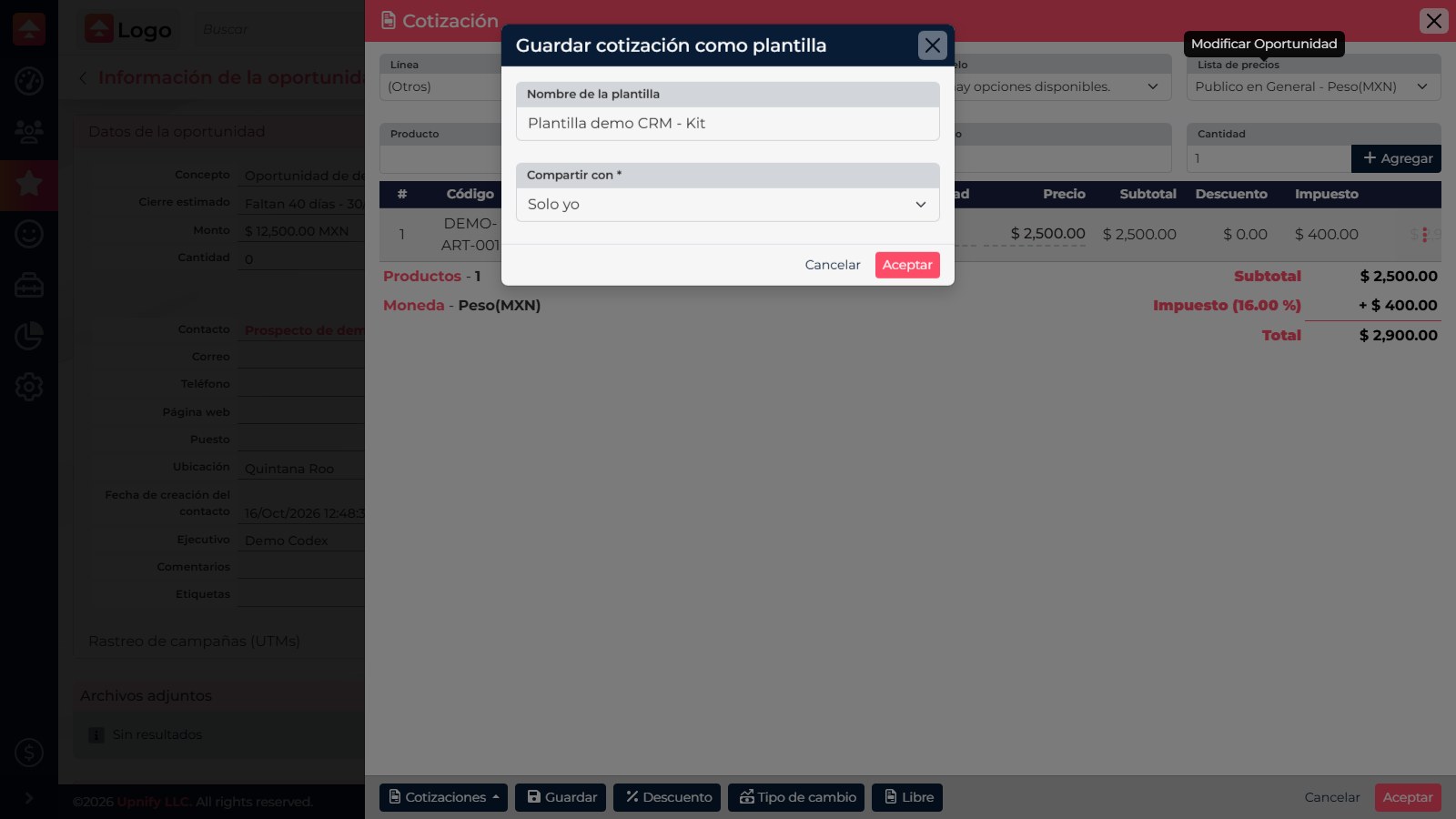
- Choose Modify > Quotation. Add the products, review the price list, quantities, discounts, and taxes, then save the quote.
- Before generating a document, confirm that the total matches what you agreed with the customer. The file reflects the information prepared in the quote editor.
Generate the document
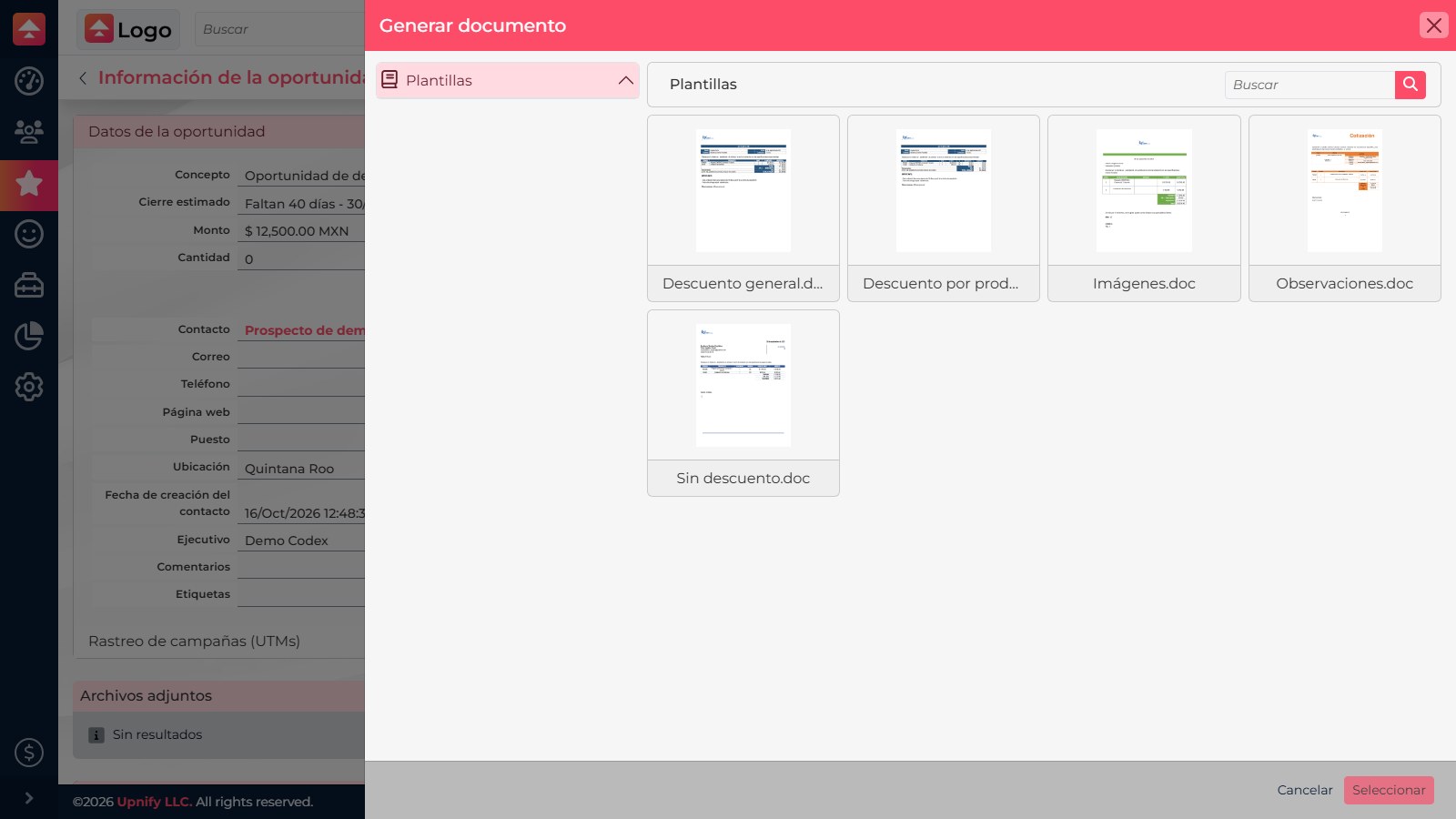
- On the opportunity record, find Attached files and select Generate document.
- Choose the quote format you need and select Select. The format controls the document layout and tags; it does not change quote calculations.
- Review the options shown by the generator and confirm creation. CRM creates the document, usually as a PDF, and adds it to the opportunity's attachments.
Send it and find it later
- Under Attached files, open the document actions and select View file to review it before sending.
- When it is ready, choose Send by email. In the email editor, check the recipient, subject, message, and attachment; send only after confirming the details.
- To reopen the PDF, return to the opportunity and view its Attached files. To review quote-related sales activity, open Follow-up history and filter for quotes.
If Generate document or Send by email is missing, ask your administrator to check your document permissions. If a format is not listed, confirm that it is in Tools > Documents and Images > Formats and visible to you.