

Customers and companies are different CRM records: a customer is the person your team works with, while a company represents the organization they belong to. Choosing the right import type makes the customer list easier to use and keeps tax details on the appropriate record.
Prepare each file with the columns you plan to use. If you have both lists, decide whether to import companies separately or use the advanced option to create companies while importing contacts.
Import customers
- Open Tools > Mass import > New import and choose Customers.
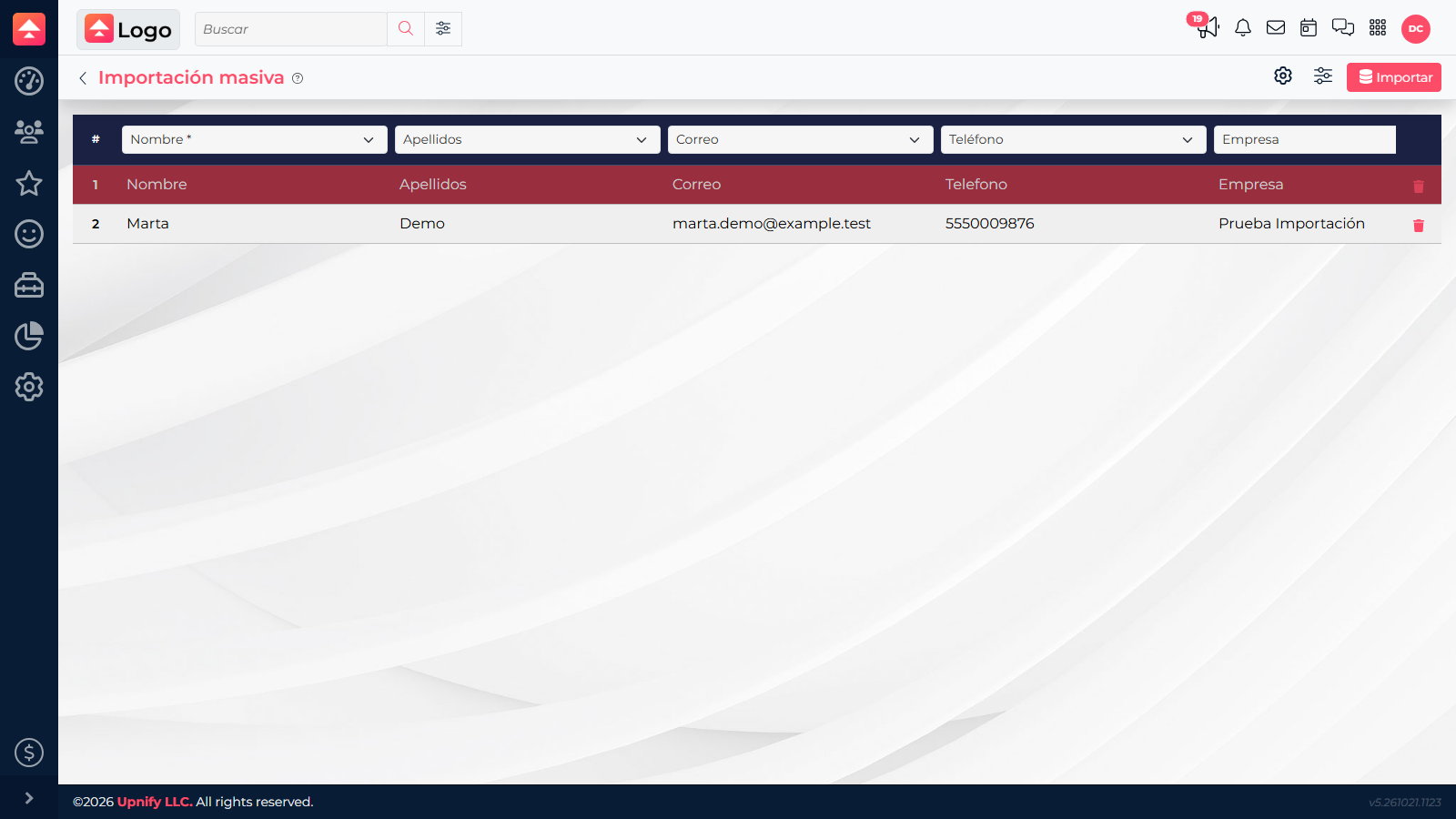
- Select the file and map personal and sales columns to CRM fields. Skip columns you do not need.
- For Mexican tax details, map only information you have confirmed, such as legal name, RFC, tax ZIP code, tax regime, or CFDI use. Check that each value belongs to the right recipient.
- Open Advanced settings to set tags, source, and owner. Choose whether existing contacts are updated or ignored and select the unique matching field.
- Review the mapping and select Import. Then open a few customers and confirm that their details are on the expected records.
Import companies
- Start another import and choose Companies. Use a company file, not the customer file.
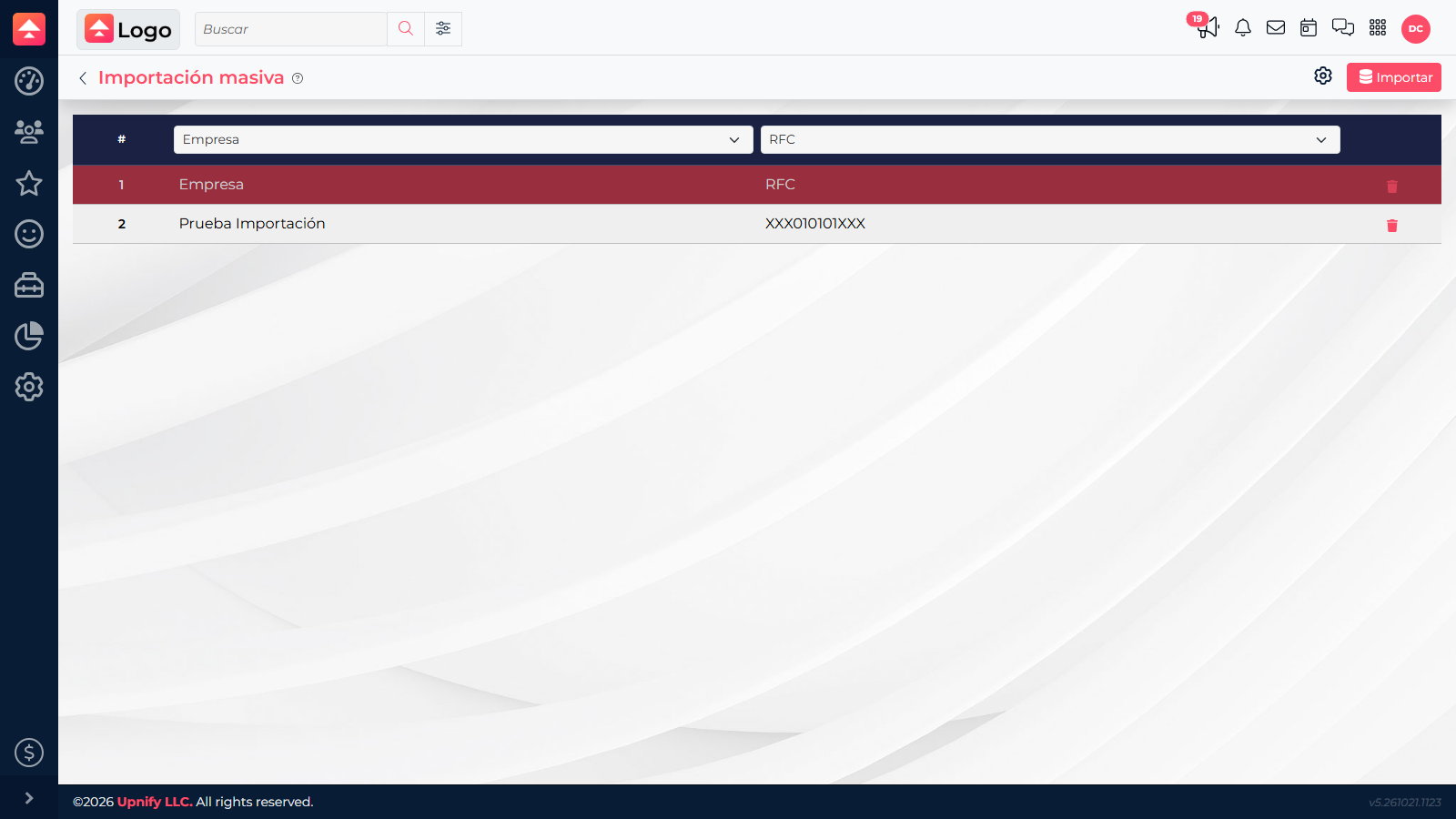
- Map the company name and other available details, such as tax and location information. Make sure the name identifies the organization, not a contact person.
- Review the columns and confirm the import. Then search CRM for a few companies to check that the expected details were saved.
- To link customers to companies, open the customer record and select the matching company. If you chose Create companies in contact import settings, verify the resulting relationship.
Templates and review
Download the sample files for customers and companies. If the file has headers, enable Ignore first row and choose the correct separator.
Example: if a new account has several contacts, import the companies first and then the customers, or use the advanced option to create them. Verify each person-company relationship so your team can work with a clear customer list.
We did not load records into the demo account. Before a real import, review sample rows and confirm what should happen to existing contacts.