

Importing an opportunity is different from importing a sale. An opportunity is an open sales process that can still move through phases; a sale is a closed transaction to keep in your history. Keeping them separate prevents your active pipeline from being mixed with historical results.
Use a separate file for each record type and check that related contacts already exist or can be identified in the data.
Import opportunities
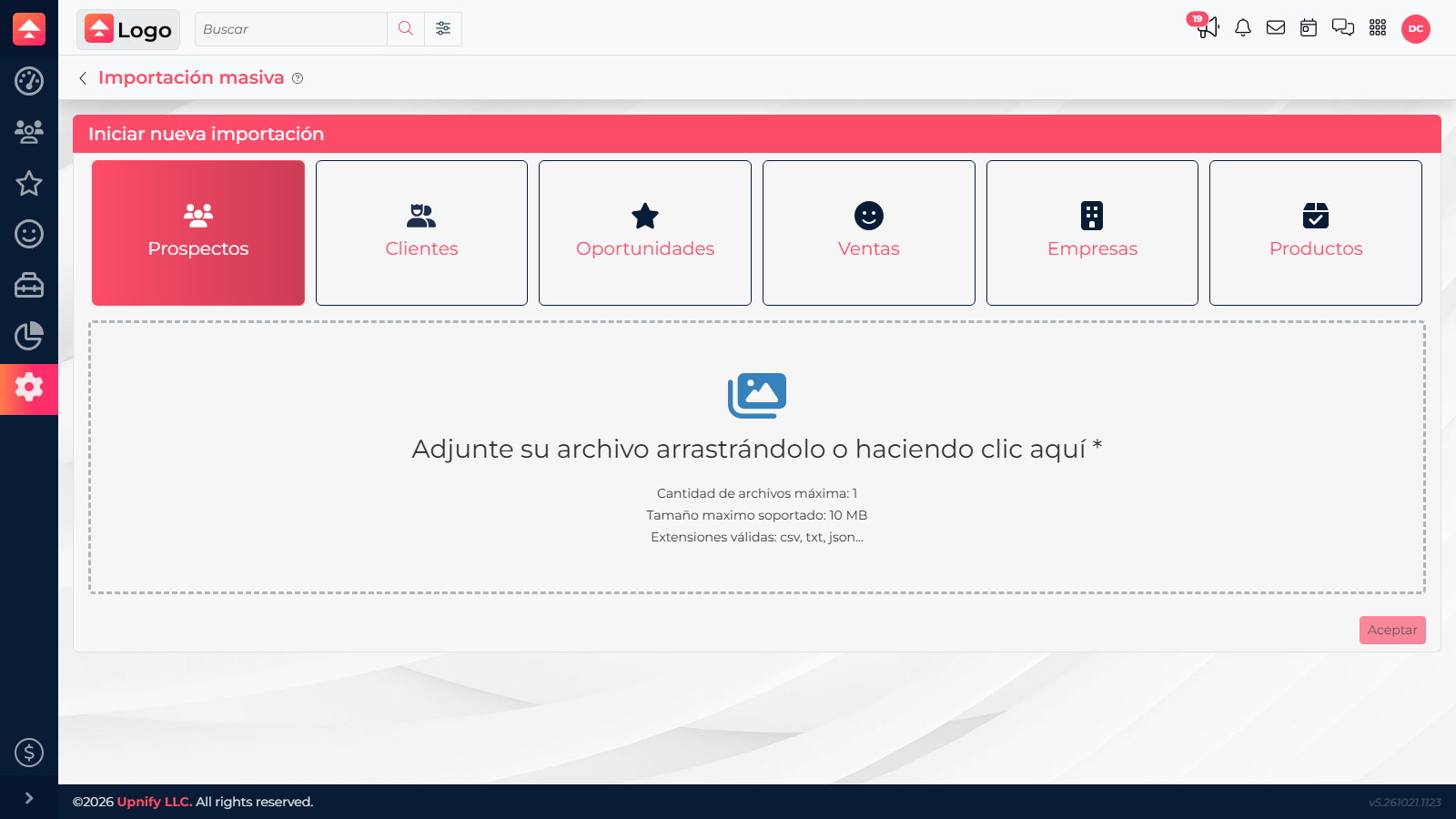
- In Tools > Mass import > New import, choose Opportunities.
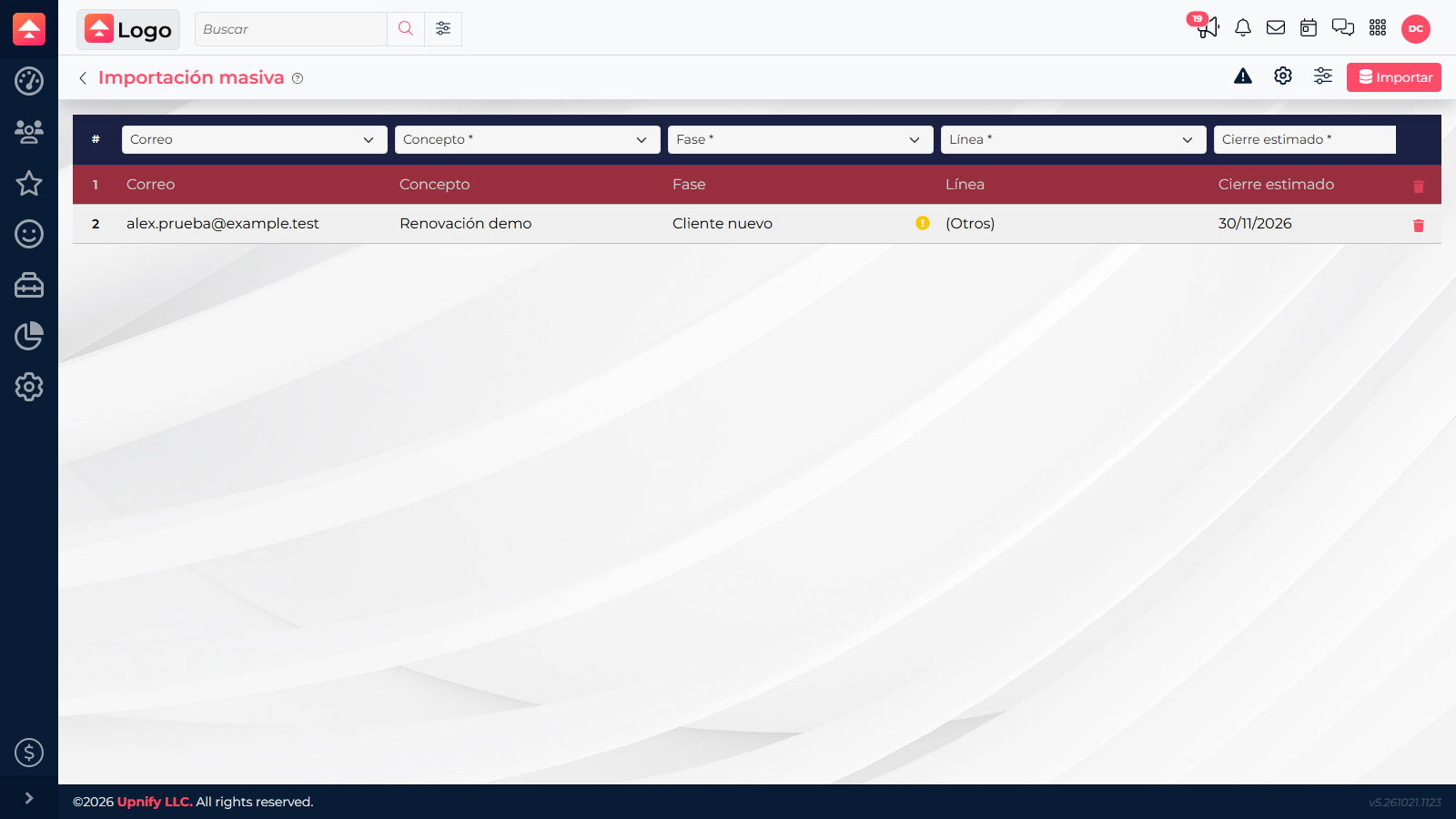
- Map the columns. Required fields are Concept, Phase, Line, Estimated close, and Certainty. Check that the phase and line exist in CRM.
- Link each opportunity to the right prospect or customer using an identifier in your file. Check owner, amount, currency, and exchange rate if included.
- Open Advanced settings and confirm the owner and other applicable options. Return to mapping if a required field is unassigned.
- Review the preview and select Import. Then open a few opportunities and check phase, contact, and estimated close date.
Import closed sales
- Start another import and choose Sales. Do not choose Opportunities for transactions that have closed.
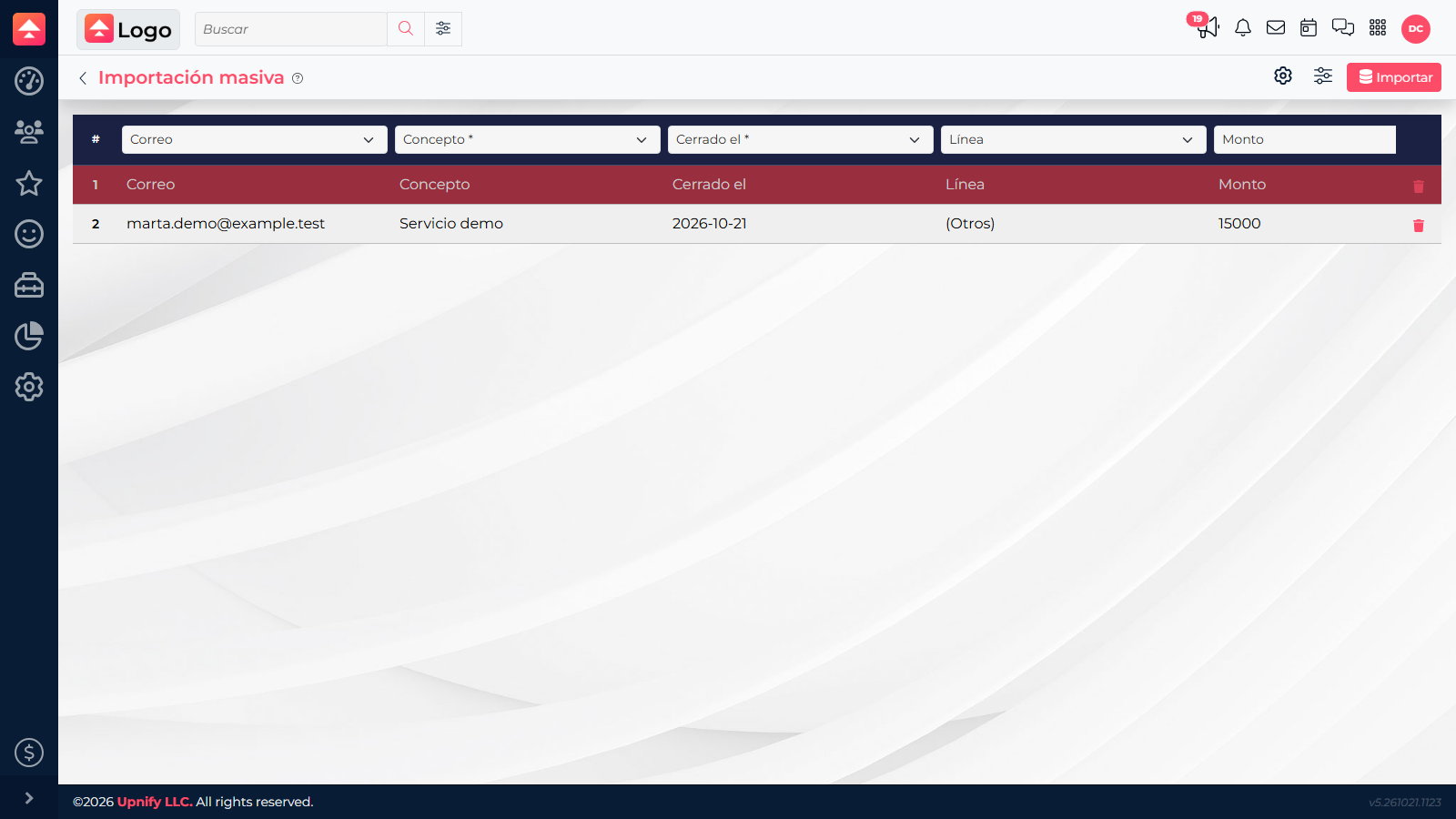
- Map Concept and Closed on, and identify the contact the sale belongs to. Also check the owner and currency and amount details.
- Review each relationship carefully: linking a historical sale to the wrong contact changes the sales history your team will see.
- Confirm the map and select Import when ready. Then review several records in the sales list and their contact records.
Templates and verification
Download the opportunity sample and sales sample. If your file has a header, enable Ignore first row and choose the correct separator.
Example: during a migration, import negotiations that are still open as opportunities and closed transactions as sales. If a deal still awaits a decision, do not mark it as a sale just to keep it in CRM.
We did not import files into the demo account. If the result reports errors, review the flagged rows before processing the file again.