

As the catalog grows, editing each product separately takes time and can create inconsistencies. Importing loads multiple records from a file; exporting downloads records; bulk actions change selected products in the catalog.
These are different tasks
Import loads data from a file; export downloads records; bulk actions edit selected catalog products.
Import loads data from a file; export downloads records; bulk actions edit selected catalog products.
Import products
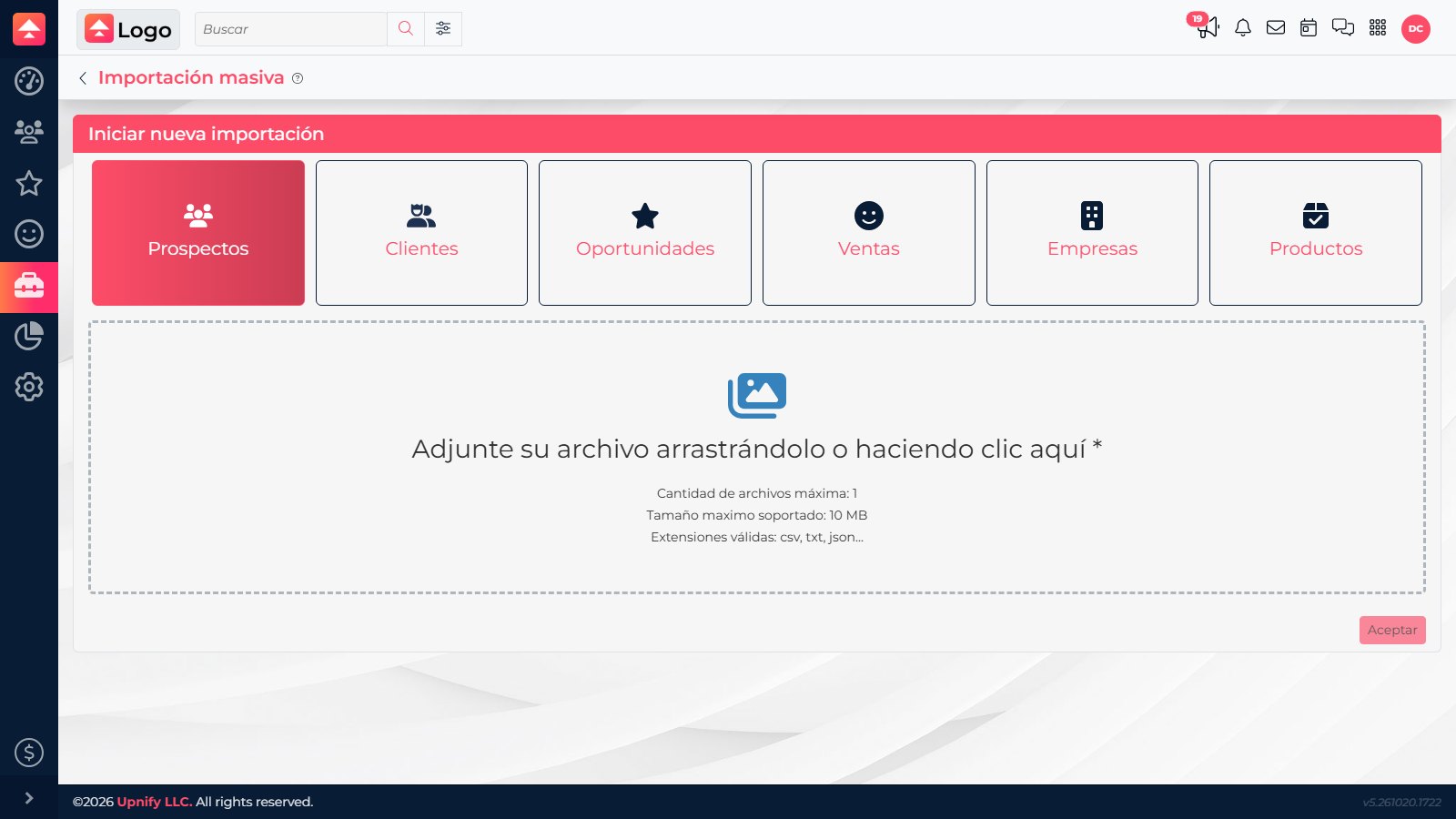
- Open Tools > Bulk import > New and choose Products.
- Prepare a CSV with one product per row, clear headers, and a consistent identifier such as product code or SKU. Include only the fields to load: name, unit, cost, price, line, brand, model, or taxes as applicable.
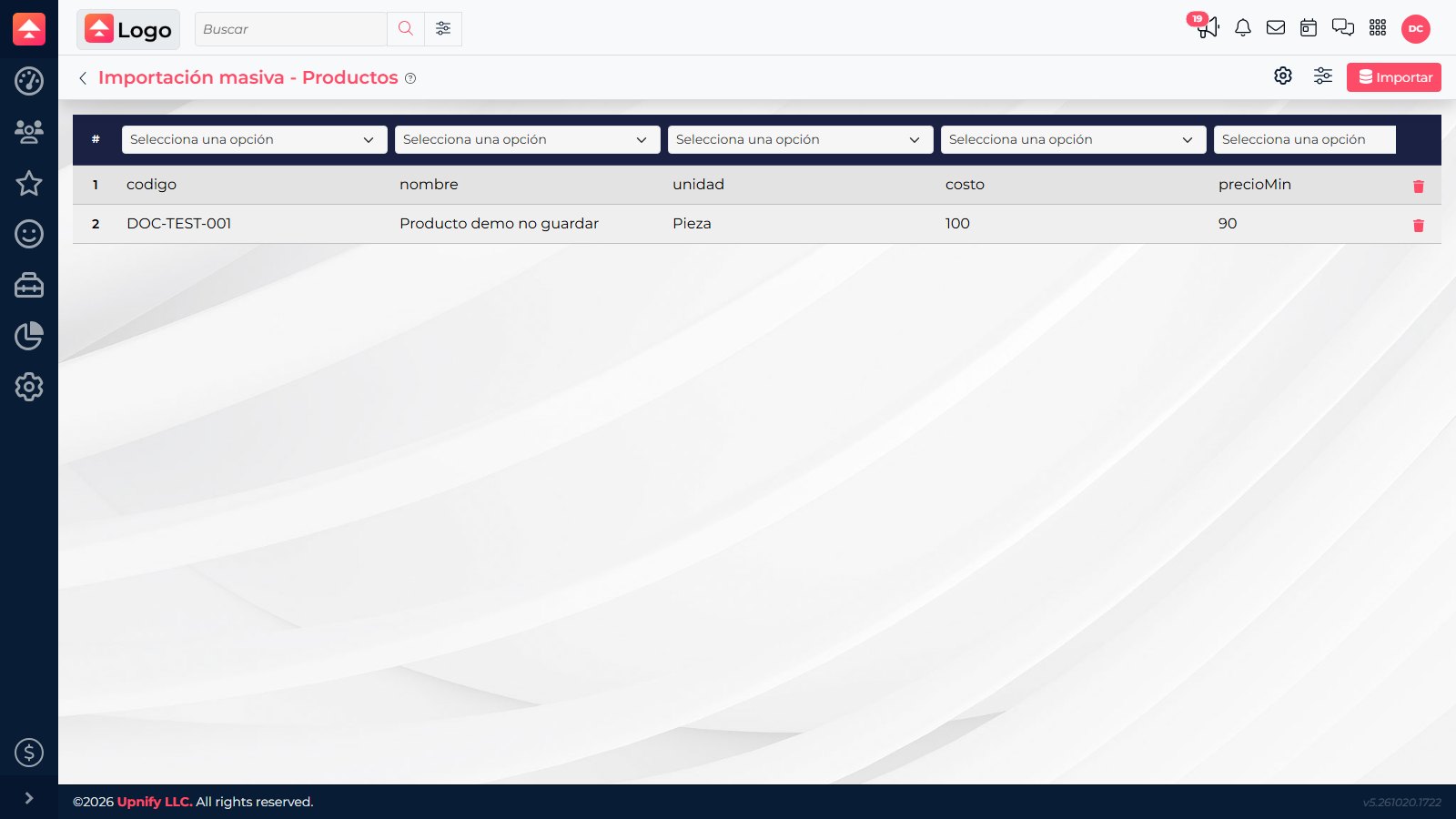
- Select the file and map each header to the correct Upnify field. Leave unused columns unmapped; check code, price, and currency carefully.
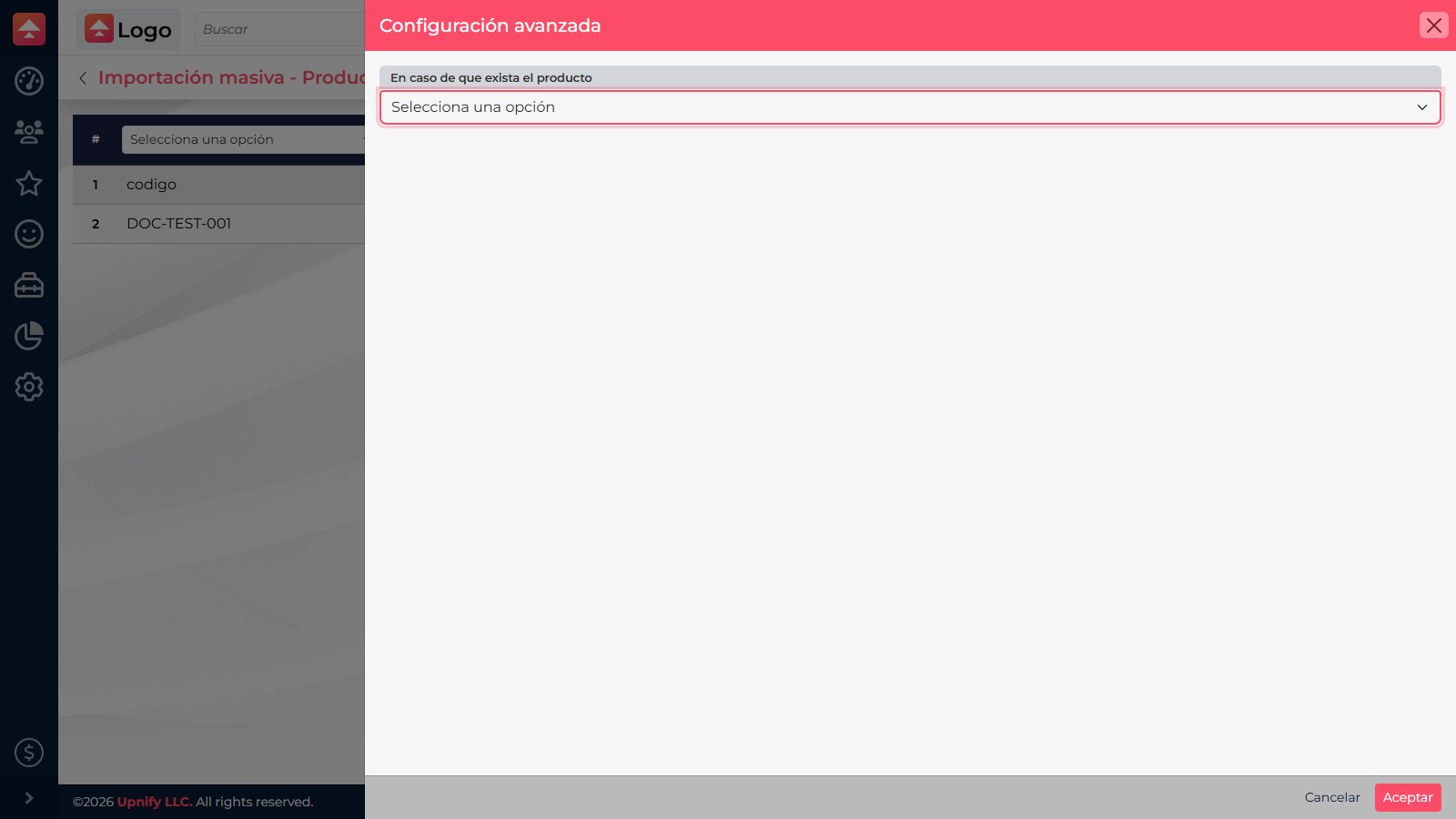
- Open Advanced settings. Under If the product exists, choose whether to ignore or update the existing product. Test a few rows first if you are unsure which fields the file will change.
- Review the sample rows and duplicate handling, then start the import. Check the result and fix errors before reloading affected rows.

Export records
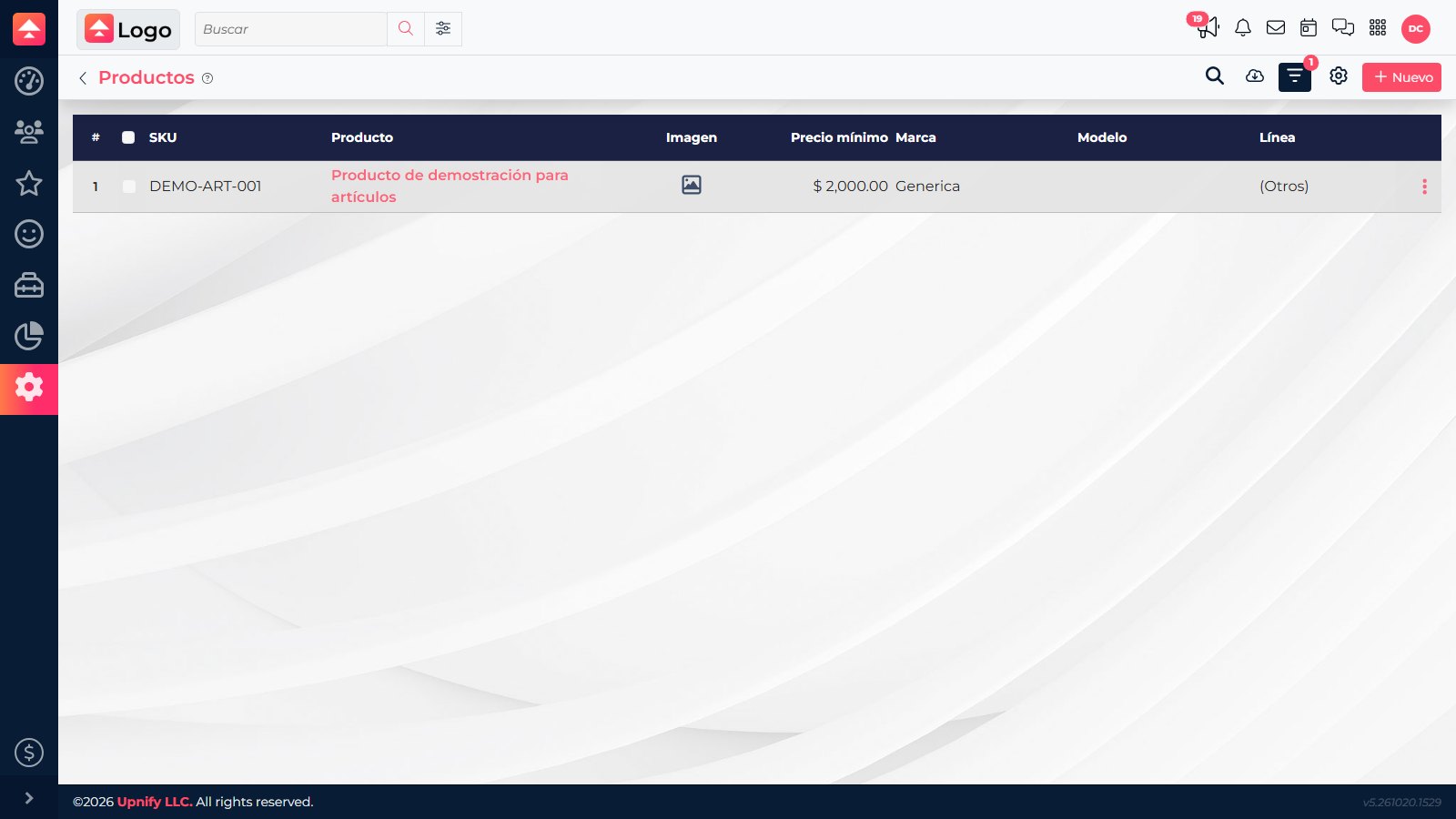
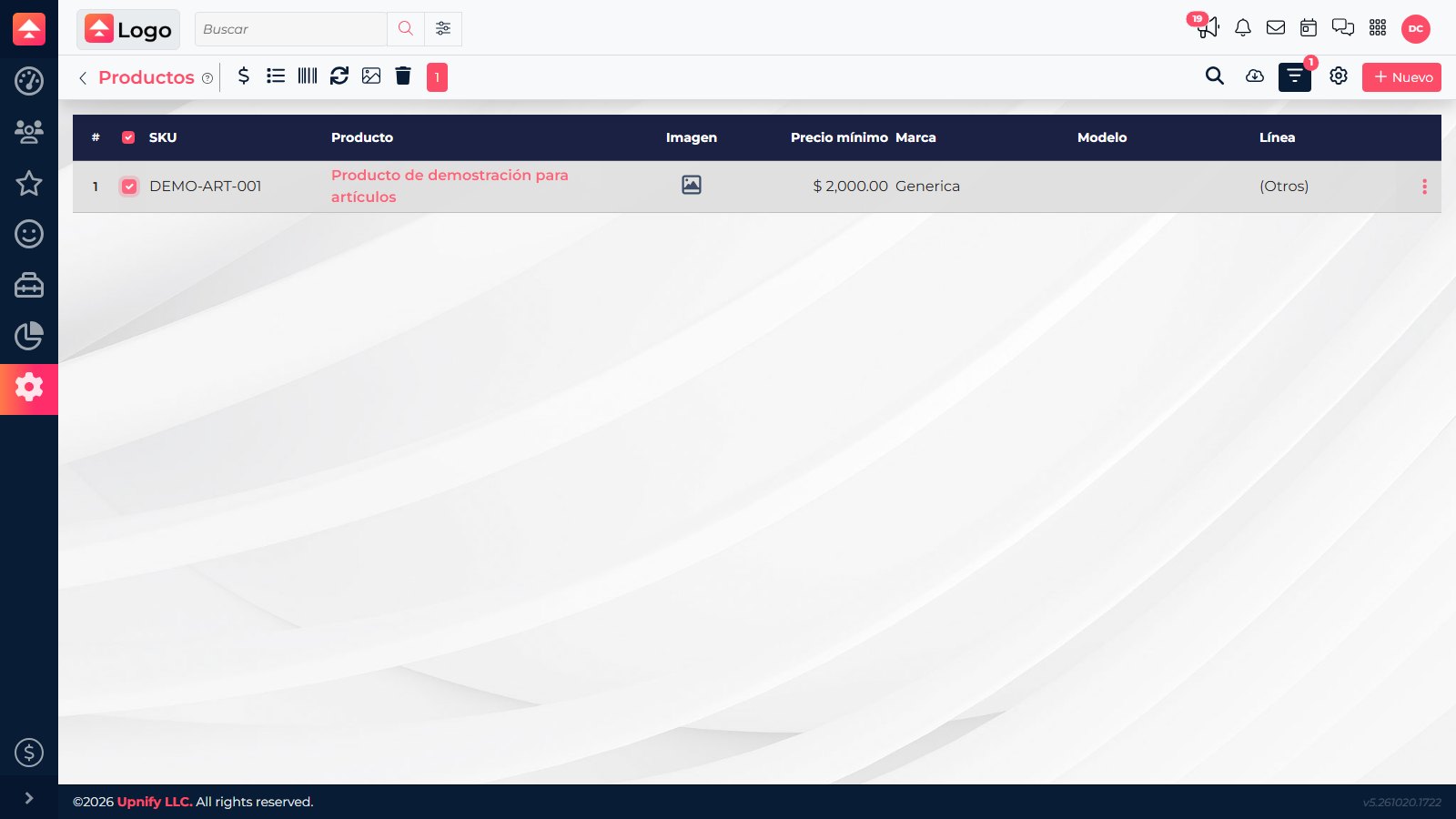
To download products, open Catalogs > Products and use the catalog download option. For contacts, opportunities, customers, or sales, open Tools > Bulk export, add an export, and choose an available record type and format. Download products from their catalog screen.
Make bulk changes
- Filter products in the catalog and select only those that need the same change.
- Use available actions to update price, line, brand, or status; you can also assign images or remove products.
- Review the summary and confirm. Open a few records afterward to verify the result.
Before confirming: keep a reference export and test the import with a small file. Check codes, currency, taxes, and blank fields.