

Prospect import lets you add potential customers without entering each one individually. After an event, for example, you can load collected contacts, assign them to a sales rep, and tag them for follow-up in a campaign or report.
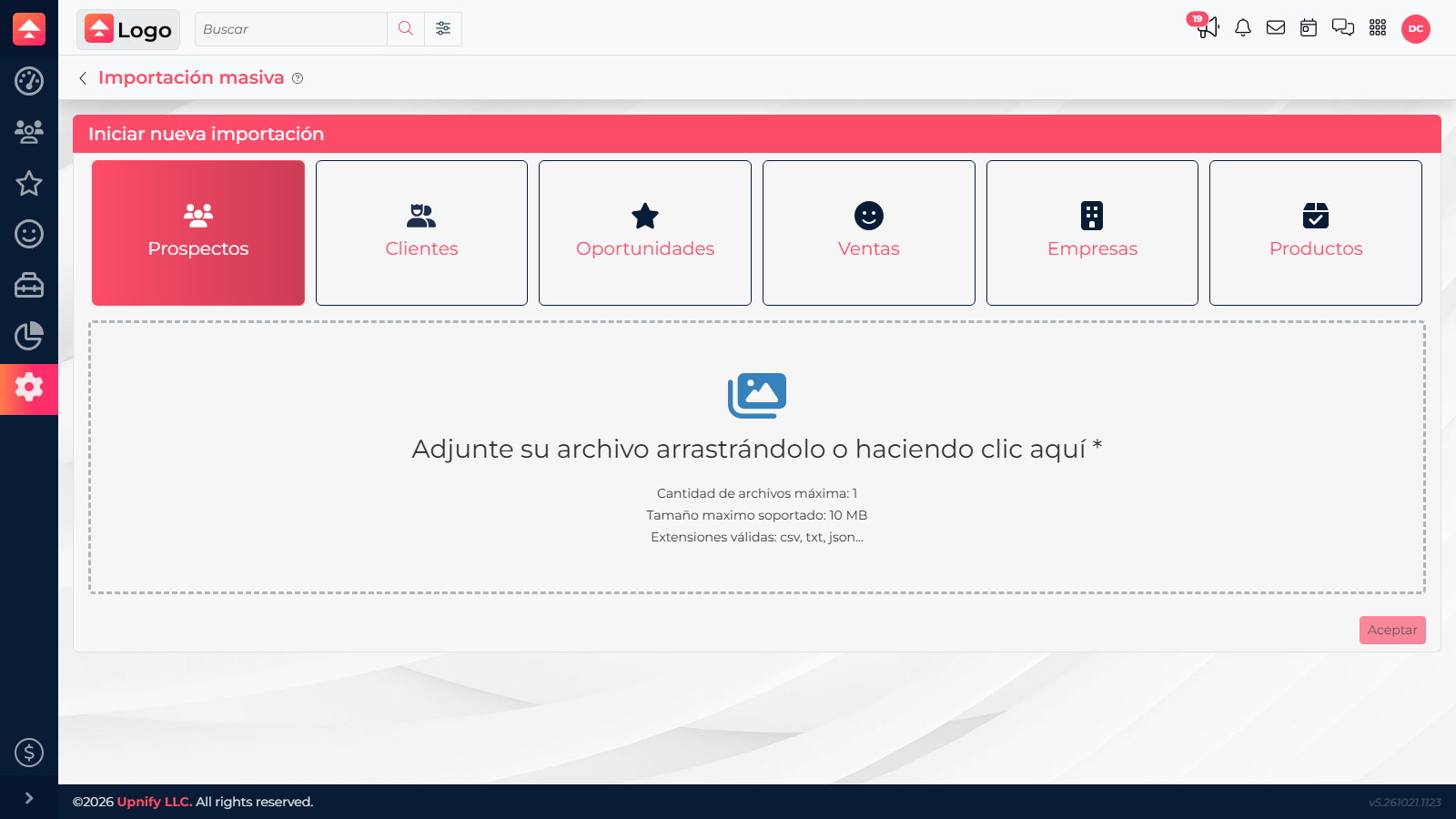
Prepare the file using the importer's column guide. It accepts one CSV, TXT, or JSON file up to 10 MB.
Start and map columns
- In CRM, open Tools > Mass import and select New import.
- Choose Prospects. Confirm the type: this is different from importing customers or sales.
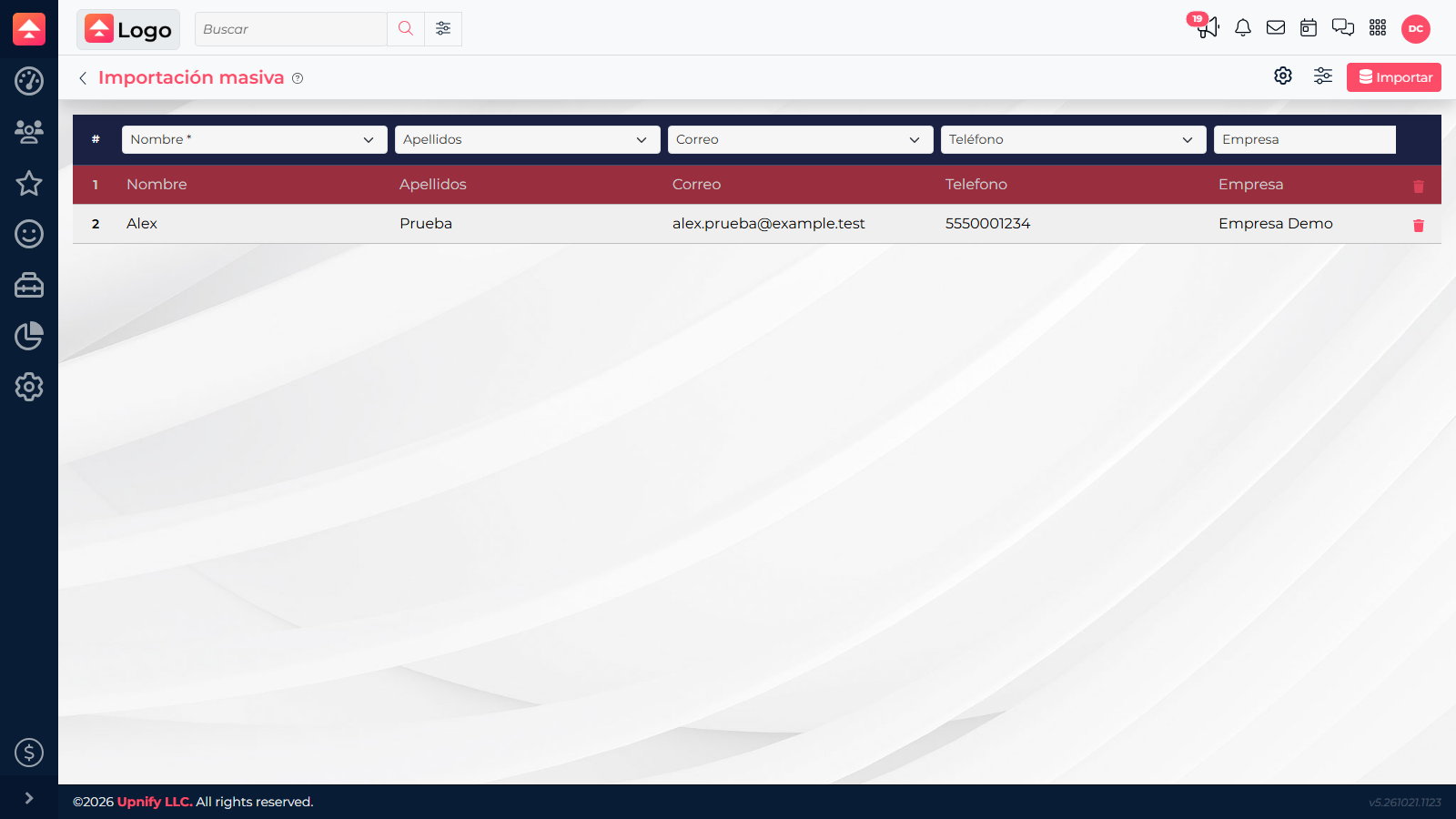
- Select the file. If it has headers, choose the right separator and enable Ignore first row.
- Map each column to its CRM field. Choose Skip column for data you do not need. Check names, email, phone, and the identifier you will use to match duplicates.
Set assignment and update behavior
Open Advanced settings before importing. You can set tags, source, phase, country, and owner; decide whether companies are created; and choose what happens when a contact already exists.
- Use a tag such as October trade show to find the group later, add it to a campaign, or review its results.
- Assign an owner if you know which rep will follow up. If you expect your distribution rules to assign records, confirm how they apply before continuing.
- Under If the contact already exists, choose update or ignore and select the unique field used to match records. Updating can change an existing record.
- If you are not sure two rows belong to the same person, verify the identifier before allowing automatic updates.
Review and finish
- Check the map and advanced options. Return to column mapping if a field is assigned incorrectly.
- Select Import only when ready to process the file. We did not run an import in the demo account.
- When complete, review the result and open a few prospects to confirm their owner, phase, and tags.
Template: download the prospect sample file. Screenshots show the Spanish interface.