
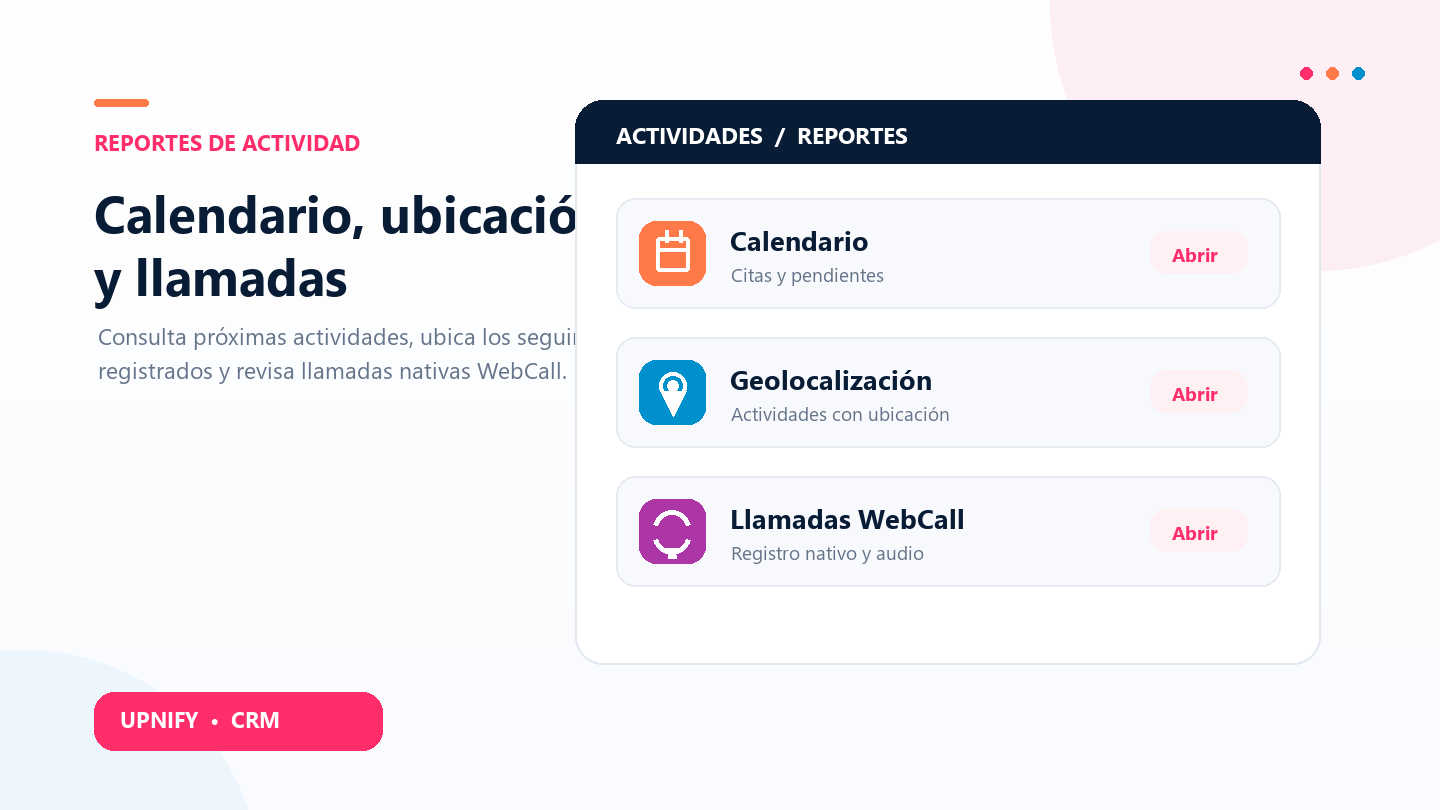
The Calendar, Geolocation, and WebCall reports answer different questions: which CRM activities are scheduled or overdue, where in-person activities were recorded, and how calls made through a phone integration performed. Reviewing them together helps coordinate work without confusing a pending appointment with a completed call or a mapped activity.
Review the team Calendar
The Calendar report is a table of activities scheduled in CRM. Use it to prepare for a demo, confirm who owns each follow-up, and find overdue or incomplete activities.
- In CRM > Reports, open Calendar.
- Choose a type—reminder, call, visit, task, or appointment—or leave it unrestricted to see the full schedule.
- Filter by status, completion, period, group, or executive. To review the team, leave group and executive set to All.
- Select Apply. Created shows when the activity was entered; Start and End show when it is scheduled. Status shows whether it is active or overdue, and Completed shows whether it was marked done.
- Check the contact, company, and subject to understand the follow-up. Apply again after changing a filter.
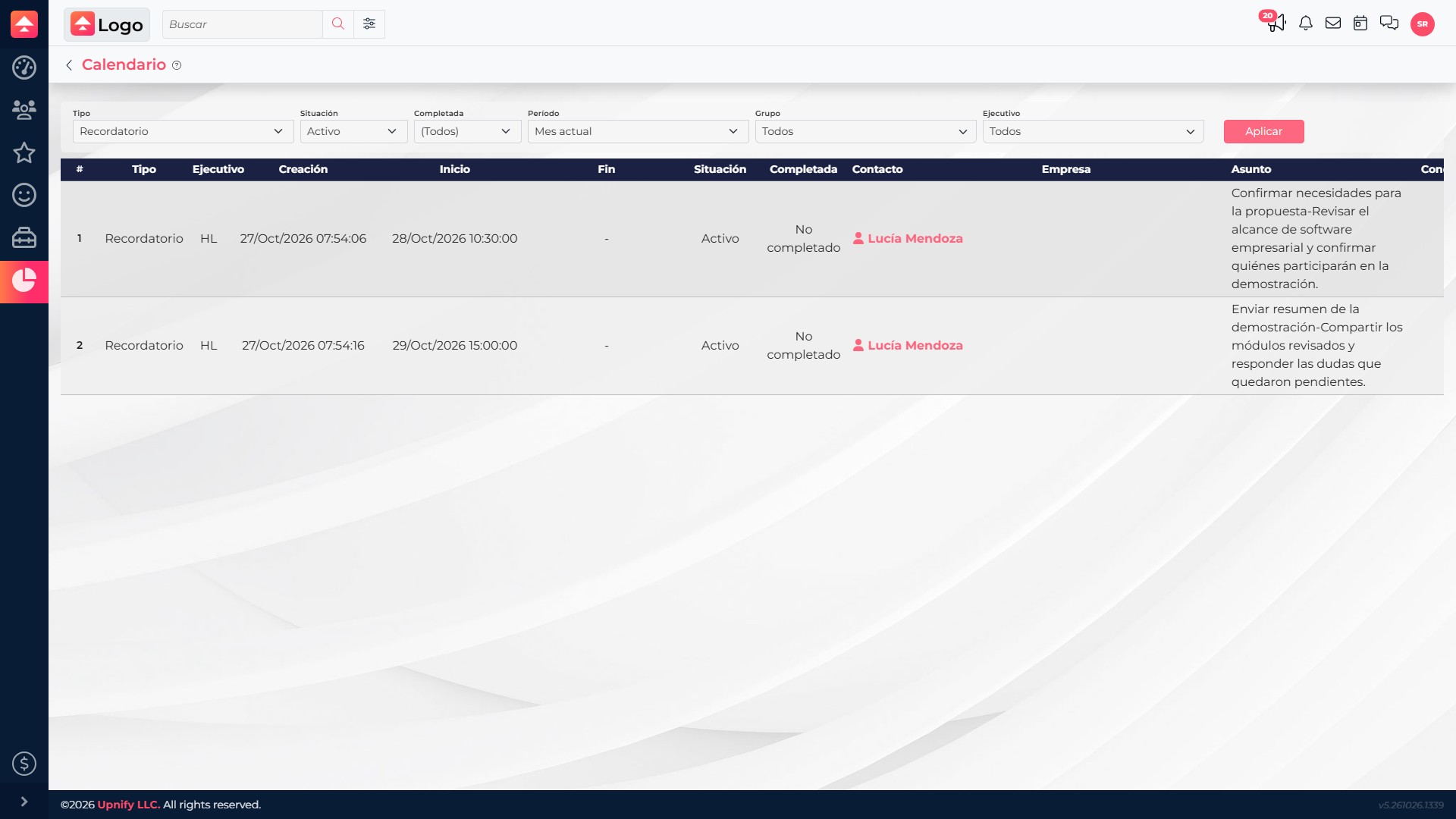
Example: before a demo, a supervisor filters this month’s reminders and checks that one person will confirm requirements and another will send a recap. If an item is overdue, they can review the record and coordinate the next step.
Understand Geolocation
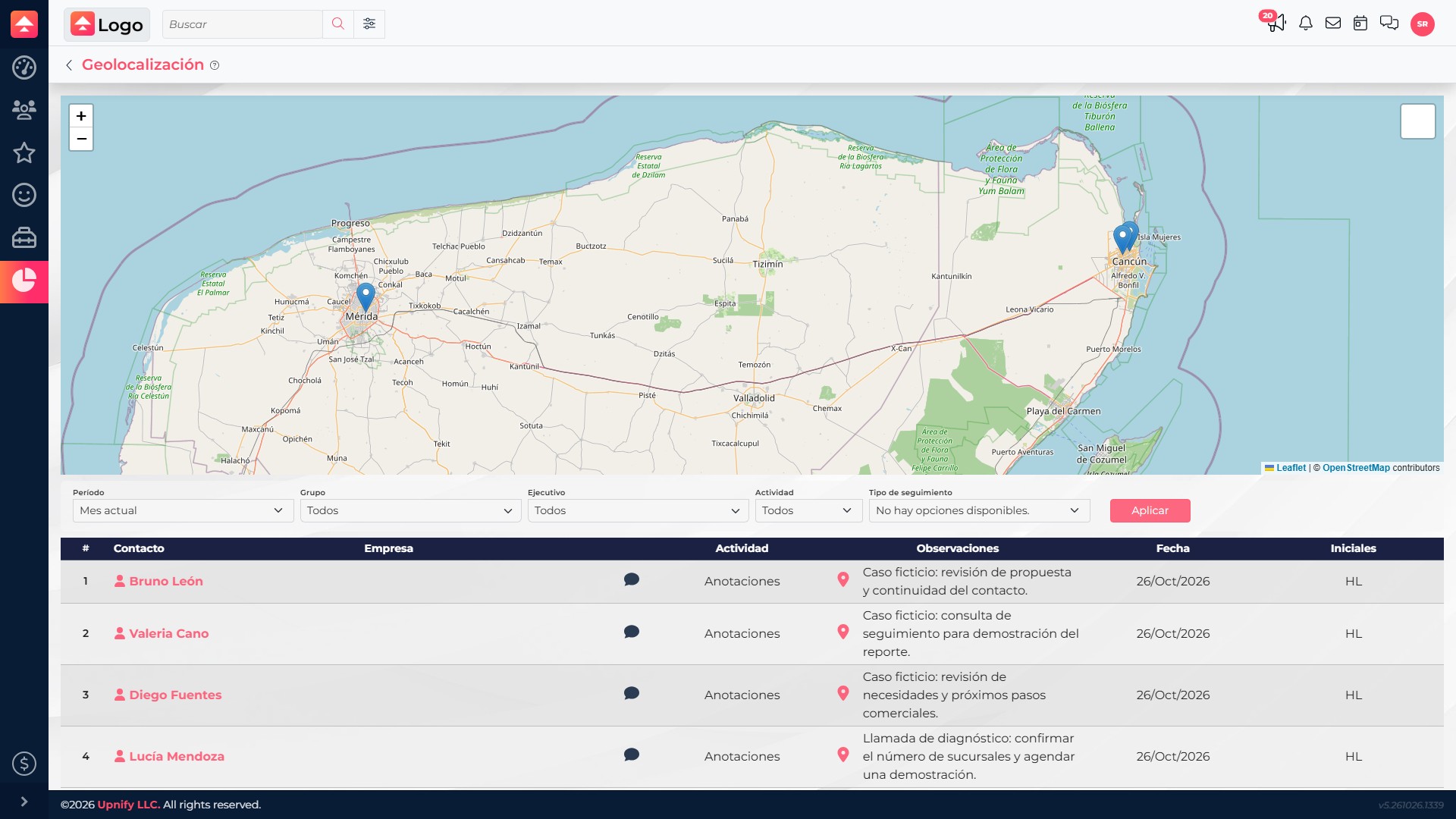
Geolocation combines a map with a table of activities that have coordinates. It helps you see where visits or in-person follow-ups were recorded, who entered them, when, and what they noted. It is not a live tracker: each marker belongs to a saved activity with a location.
- Open CRM > Reports > Geolocation.
- Narrow the period and, if needed, the group, executive, activity, or follow-up type; select Apply.
- Select a marker to review the contact, date, notes, and the initials of the person who recorded the activity.
- Use the table below to match each marker with its contact, company, activity, and comment.
What the WebCall report shows
The WebCall report analyzes calls made through WebCall or GoToConnect. Depending on the selected platform, it lets you group by executive or group, compare duration bands, and review total minutes, average duration, and cost.
- Open the WebCall report under Reports and choose a period.
- Select WebCall, GoToConnect, or all platforms. Group by executive to review one person or by group to compare teams.
- Compare call counts and duration bands: under 30 seconds, 30–60 seconds, 1–5 minutes, 5–10 minutes, and over 10 minutes.
- Use minutes, average, and cost as context, and open available details to locate the calls behind the result.
This report does not automatically count every CRM activity labeled “call.” A call made outside Upnify or a scheduled call is not the same as a WebCall record. If the report is unavailable or has no results, ask your administrator to confirm that integration and access are enabled.
For a complete review, start with Calendar to see what is scheduled, use Geolocation to inspect recorded in-person activities, and then use WebCall to analyze calls made through the integration. Keep the same period and team when comparing. To inspect one activity, also see the activity log and history.