
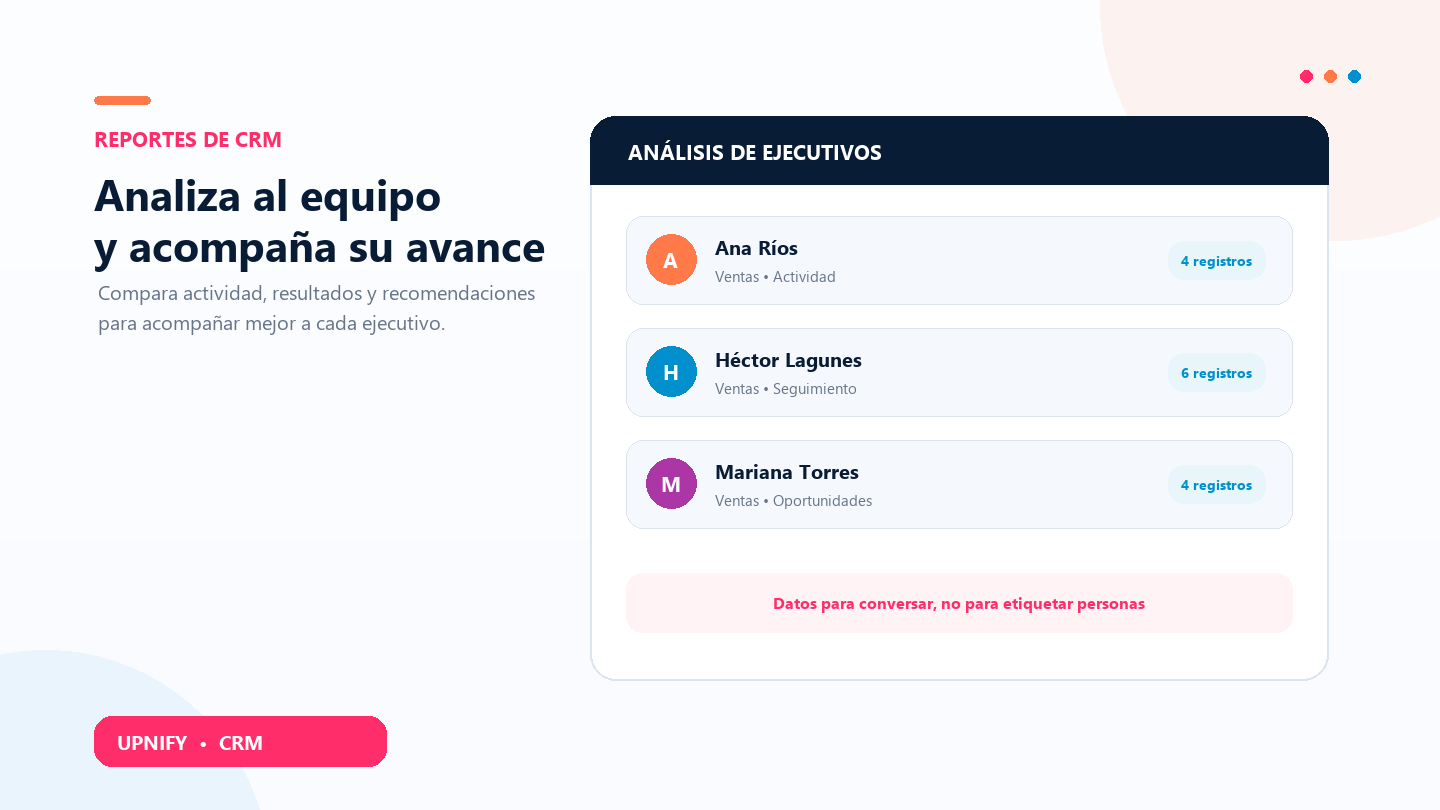
The Executive Analysis report helps you review how the team is working and prepare more informed follow-up conversations. It brings together indicators for each person and lets you open an AI report with comparisons, charts, and recommendations. Use it to identify what to recognize, where someone may need support, and which data to verify—not as a stand-alone ranking.
The analysis uses information available in CRM and depends on records being assigned and up to date. Check the selected group first, then read each indicator in context.
Open an executive analysis
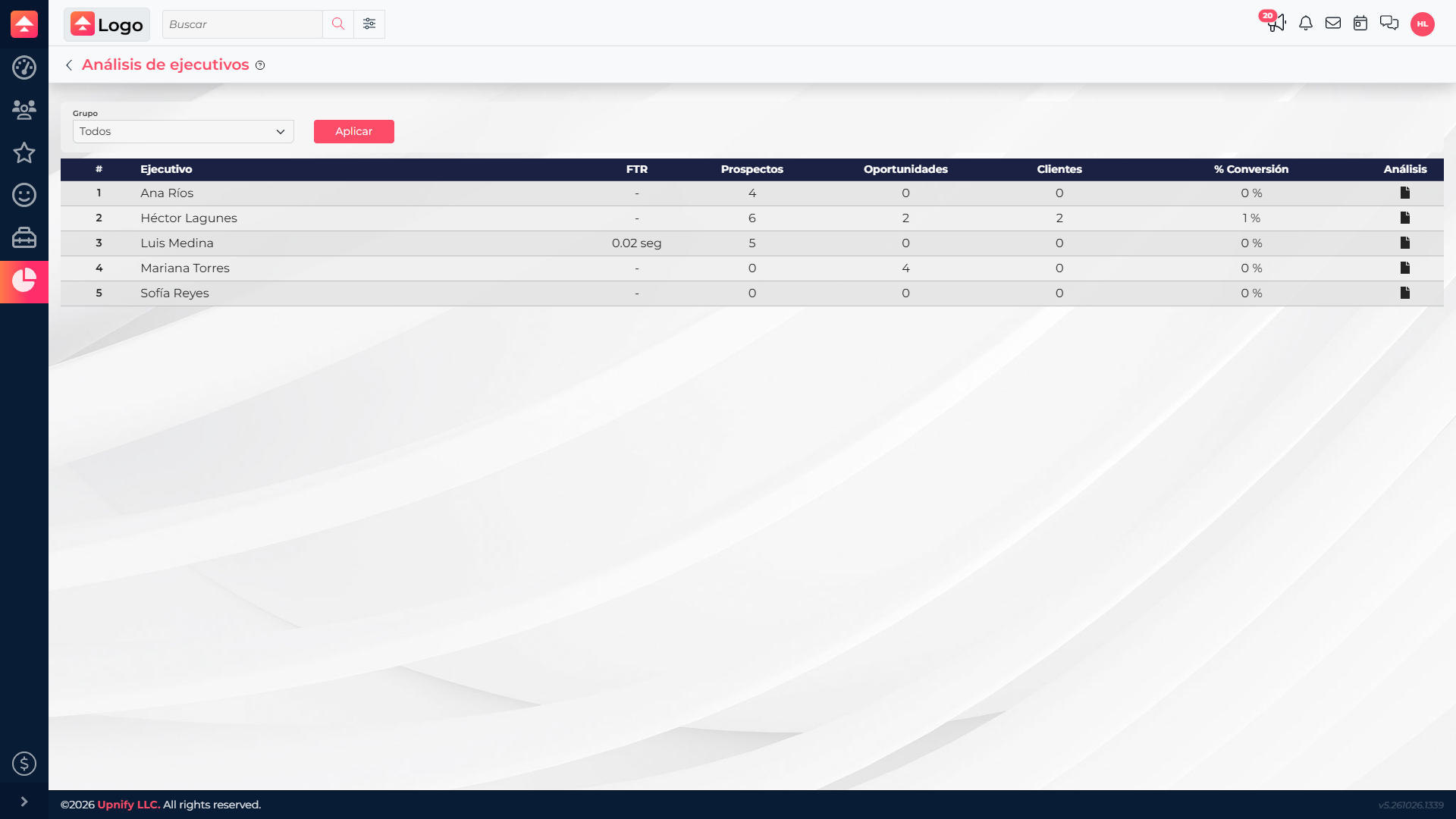
- In CRM, open Reports and choose Executive Analysis.
- To review only part of the organization, select a Group and click Apply. The table will show the people covered by that filter.
- Find the executive and select the icon in the Analysis column. The report for that person opens.
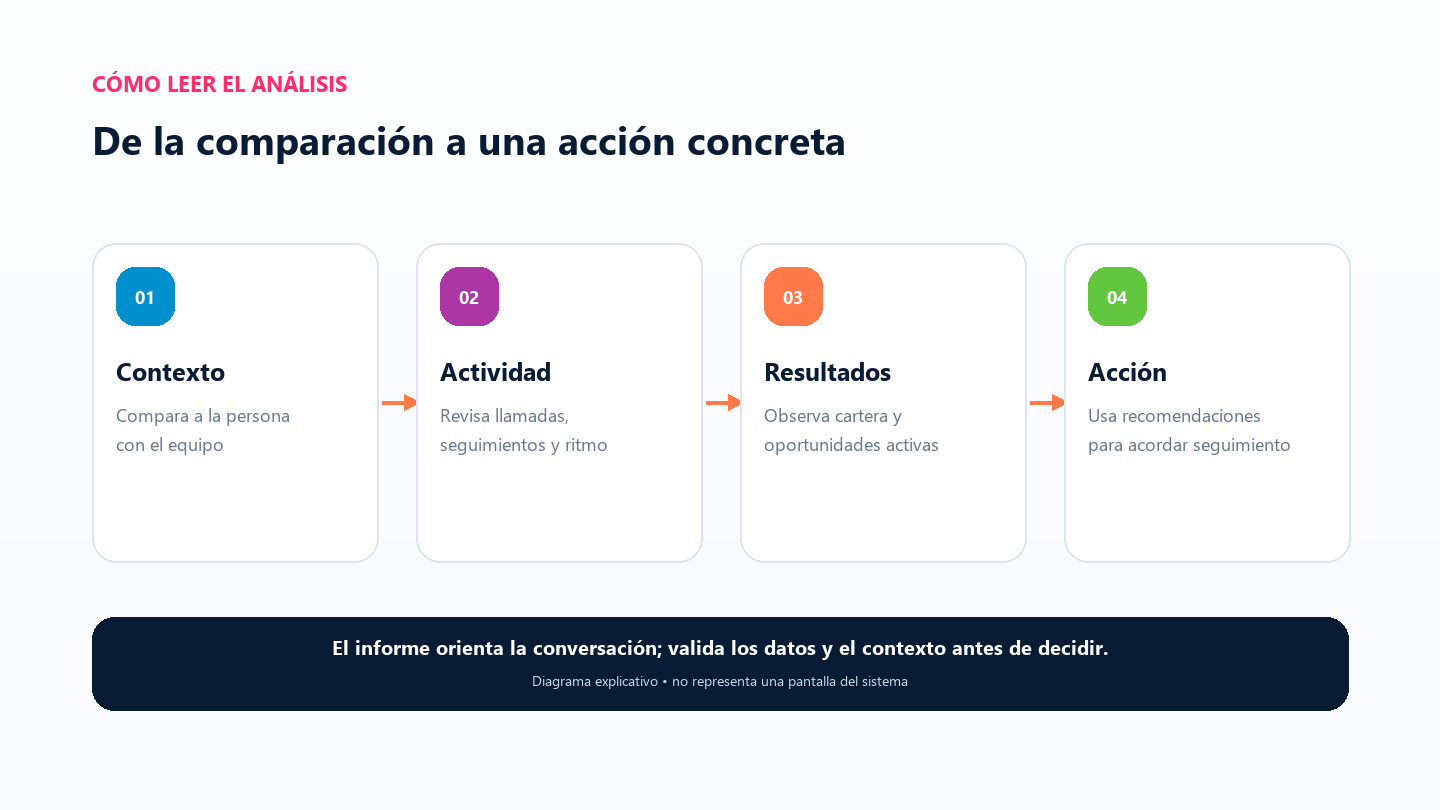
- Read the overall comparison first, then review the charts and recommendations. To refresh an existing report, use Regenerate in the panel.
The report may show a recent version already available; Regenerate requests a new reading of the information. Use it when the context has changed in a meaningful way, rather than simply repeating the same review.
What the report contains
| Report section | How to use it |
|---|---|
| Performance comparison | Adds context to one person’s results compared with the team. Read the explanation together with CRM data; a difference alone does not explain its cause. |
| Activity | Helps you review the pace of calls, follow-ups, and other included actions. Use it to discuss work habits and workload. |
| Business results | Shows signals related to accounts, opportunities, or sales. For a stage or period with a precise definition, open the corresponding specialized report. |
| Goal progress | Relates observed activity to goals available for that person. Check that the goal and its period are still current. |
| Recommendations | Suggests follow-up actions. Treat them as ideas to discuss with the person and the circumstances of their contacts, not as automatic instructions. |
Read the table without jumping to conclusions
The table includes FTR (first-response-time indicator), prospects, opportunities, customers, and a conversion percentage. FTR refers to how quickly the first response recorded by the system occurred. Portfolio counts represent records that meet the report’s conditions; they do not necessarily equal activity created during a selected period. Do not compare them as though every number measured the same time range.
For production between dates, use the activity-by-period report. For a conversion rate defined by sales stages, use the conversion report. The percentage in this view is a report-specific indicator: do not replace it with a standard rate or compare it with an external formula without checking its definition.
Example
A sales manager reviews the Sales group before a weekly meeting. One executive has several open opportunities but few recent follow-ups. The manager opens the analysis, checks the recommendation against those opportunity records, and agrees with the executive to prioritize two contacts that week. At the next review, they confirm progress in CRM. The report helped prepare the conversation; the decision also relied on the records and the executive’s context.
The analysis helps find signals; specialized reports confirm figures; a conversation with the person explains context that the data cannot show.