

Linking a contact to a company brings people from the same organization together. This helps you understand who is involved in a purchase, find other contacts in the account, and review their information without creating duplicate company records.
The Company field connects a person to the organization where they work. The Related contacts section records other people connected to that person, such as an assistant or colleague involved in a conversation.
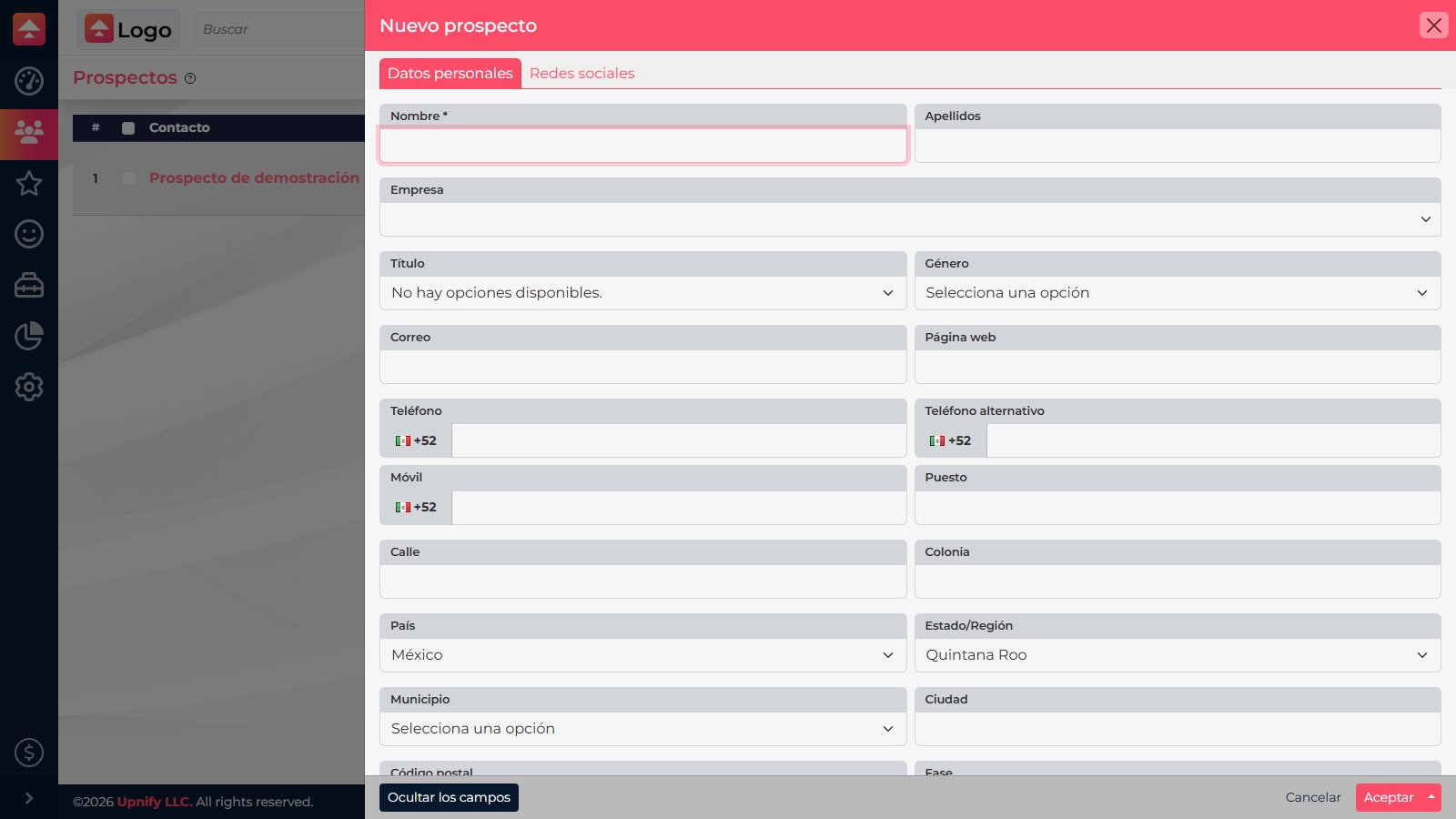
Link a company from the contact record
- In Prospects or Customers, find the person and open the record. Select Modify. You can also add this detail when creating a contact.
- In Company, type the full name or part of it to search the catalog. Select the existing company from the list; choosing a result links the record to that organization.
- Review the other details and select Accept. When you return to the record, confirm that the company name appears.
If the company is not listed
First open Companies and select New. Add the organization using the name your team recognizes and save the available details. Then return to the contact, select Modify, search for the company you just created, and select it. If a similar name already appears, confirm that it is not the same organization before adding another record.
Review a company’s contacts
From Companies, open the organization record and review its Contacts section. Find the associated people there and open each record to review its information and follow-up. For example, if both Procurement and Finance take part in an account, link both contacts to the same company; do not mark them as related contacts unless that separate relationship applies.

Keeping one record for each organization makes its contacts easier to find and gives your team consistent business context.