

Some CRM mailboxes were set up years ago with SMTP for sending and POP for receiving. If an account still appears connected, do not remove it immediately. First identify its provider, who uses it, and whether messages remain on the server. A move without review can interrupt sending or leave history outside the mailbox.
Goal: maintain continuity while confirming whether the provider supports IMAP or modern authorization, then test the new connection before retiring the old one.
What SMTP/POP means
| Protocol | Typical use | What to check |
|---|---|---|
| SMTP | Sending messages | Whether the provider still allows authenticated sending from CRM. |
| POP | Downloading incoming messages | Whether the client leaves a server copy or downloads messages exclusively; this depends on provider and client settings. |
| IMAP | Accessing and synchronizing the server mailbox | Whether it is enabled and allowed by provider policy. |
Review an existing account
- In Personal settings > Email accounts, find the older account and note its address, mode, and status. Do not copy passwords into documents or screenshots.
- Ask your administrator which provider hosts it, whether it is still in use, and whether its history remains in the mailbox or on a device that downloads messages through POP.
- Confirm with the provider whether IMAP and authenticated SMTP are available, or whether it supports authorization such as Gmail or Microsoft 365 API.
- If the account still works and no tested alternative is ready, keep the configuration while preparing the transition. Coordinate with the mail administrator before changing or deleting credentials.
Plan the migration
- Protect history: verify where older messages are stored and whether the provider keeps a copy. POP behavior varies by client and its settings.
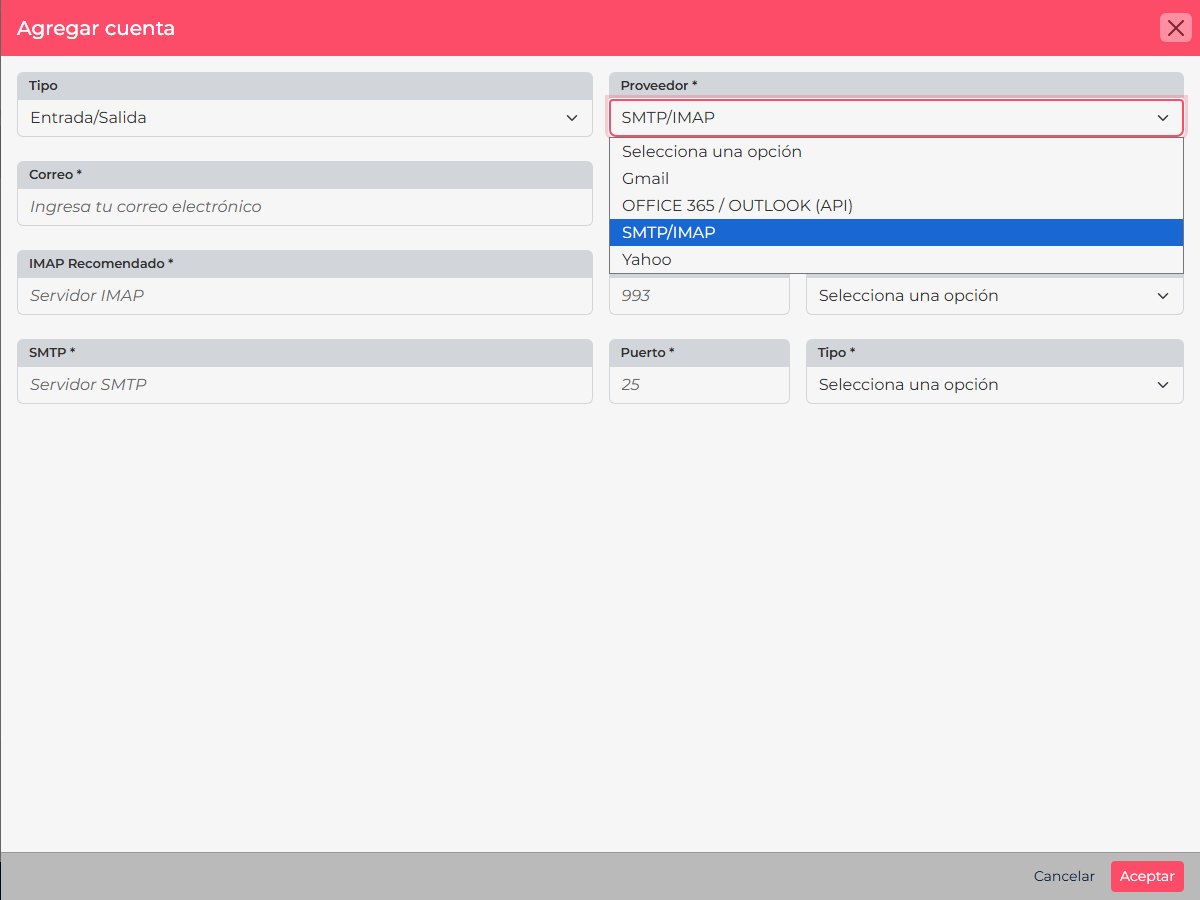
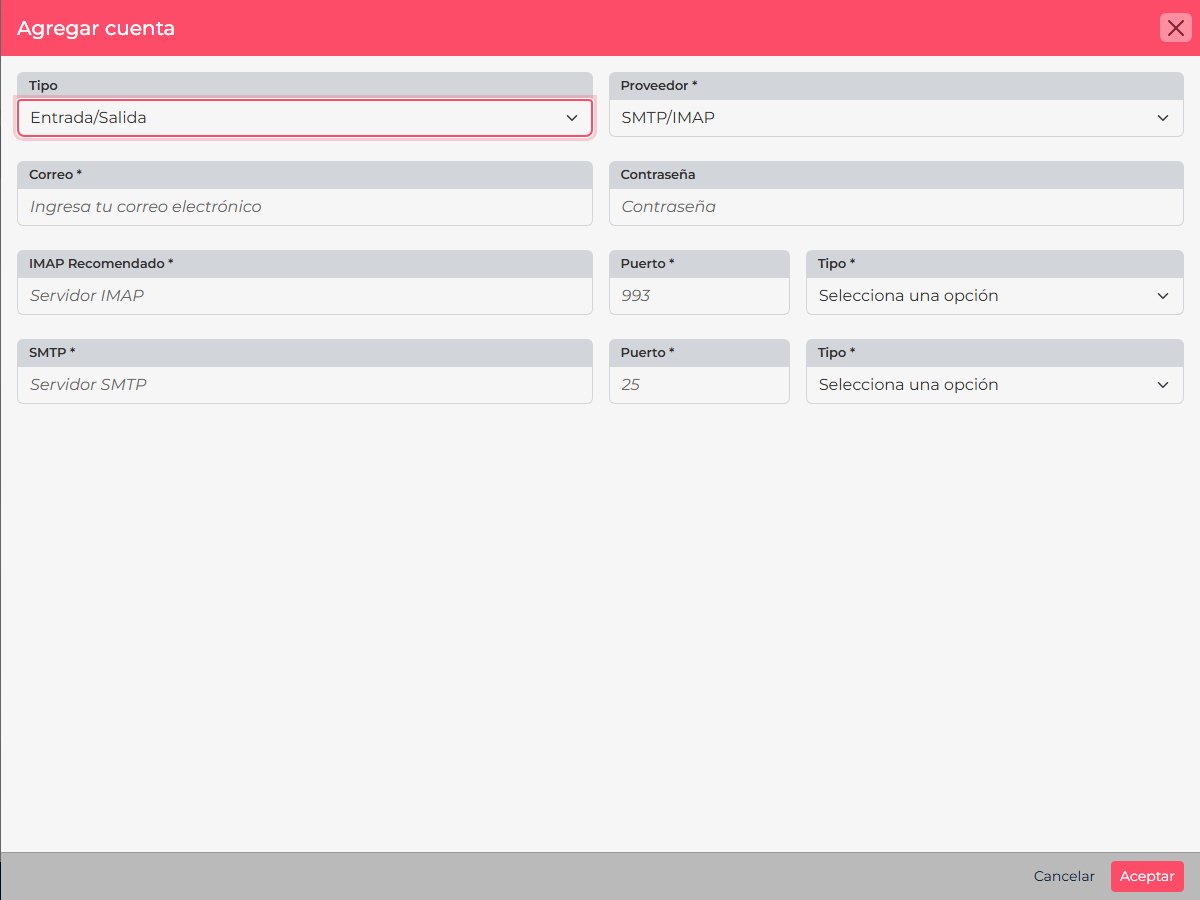
- Choose the replacement: use Gmail or Microsoft 365 authorization when applicable, or configure SMTP/IMAP with the provider’s current settings.
- Test before retiring the old setup: if your organization allows a new connection, first verify sending and receiving with a controlled mailbox.
- Coordinate the change: notify people who use the address, avoid keeping two sending paths active if they could create duplicate replies, and switch the agreed workflow.
- Remove the old connection only after: confirming the new method works and needed history is backed up or still available.
Exchange Online note
If the legacy account belongs to Exchange Online, confirm its authentication method before migrating: Microsoft retired Basic authentication for POP, IMAP, and SMTP AUTH in Exchange Online. A password that worked before may no longer be accepted. Review Microsoft’s official documentation and use a method the provider still supports.
Compatibility note: the demo account’s new-account form does not offer SMTP/POP; it does show SMTP/IMAP. If your organization has an existing POP connection, review its status and available options before changing it.
For current setup, see SMTP/IMAP, Gmail, or Microsoft 365 through the API.