

The Files and images library brings together resources the team can reuse across CRM and Suite workflows. Knowing what belongs in each section helps prevent files from being uploaded to the wrong place and makes it easier for campaigns, quotes, and flows to find the right materials.
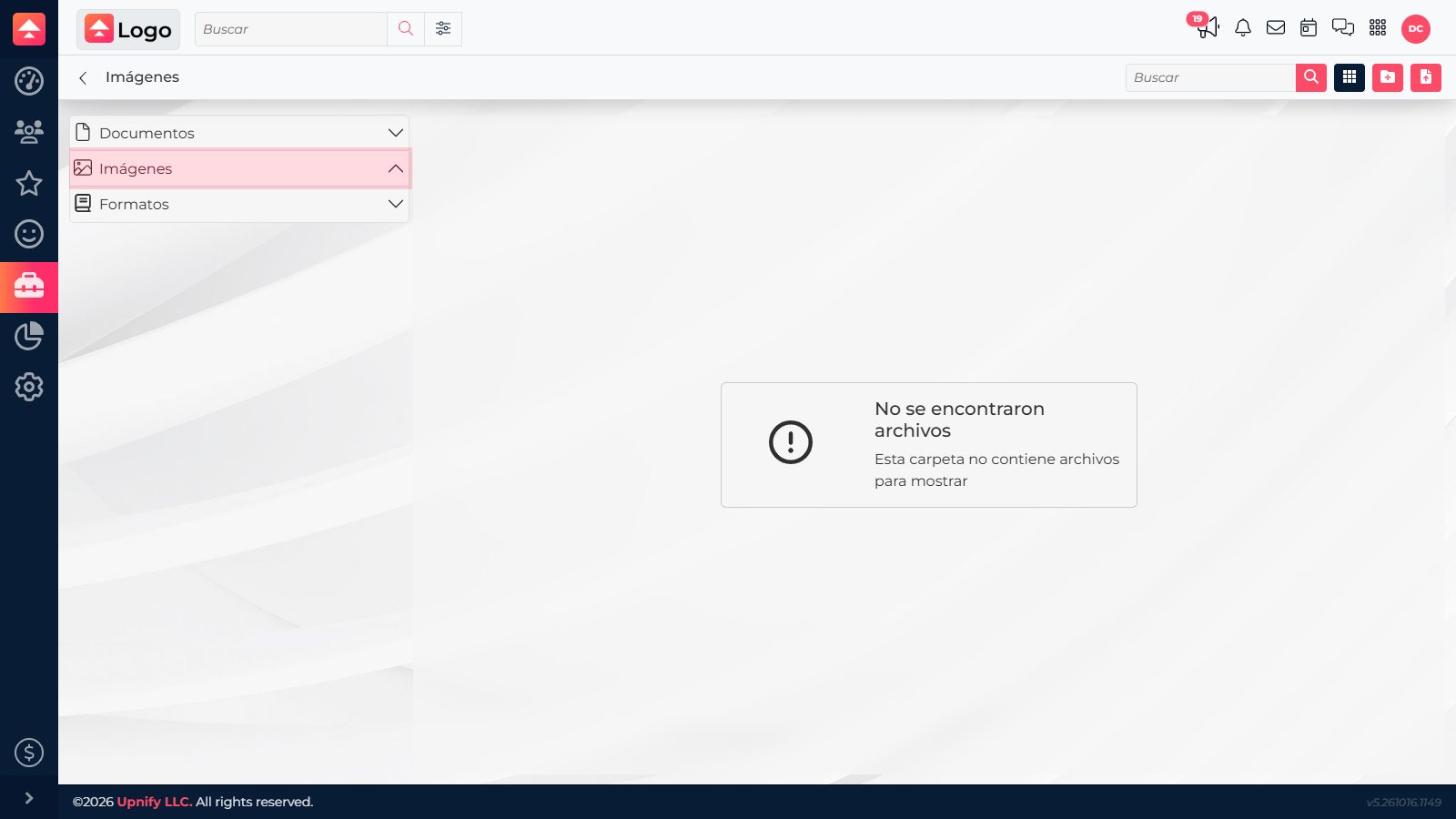
What belongs in each section
| Section | Purpose | Examples |
|---|---|---|
| Documents | Store files for reference or for attaching to a business record later. | Quote attachments, proposals, product information sheets, and documents sent by email. |
| Images | Organize visual resources to insert into communications and workflows. | Logos and images for campaigns, templates, and Flow task formats. |
| Formats | Store reusable layouts that serve as the basis for generated documents. | Formats for creating CRM quotes and Flow reports. |
A Format is different from a finished document: when a workflow supports it, the system uses the layout to prepare a file with information from the record. For example, you can choose a quote format when creating a proposal from CRM. In Flow, available formats are used for the relevant reports or tasks.
Organize the library for your team
- In CRM, open Files and images from the tools menu.
- Choose Documents, Images, or Formats before uploading. Each section has its own folders.
- Create folders named for their purpose or team, such as “Campaigns,” “Quotes,” or “Flow reports.”
- Open the destination folder and use the upload option for the right resource type. Check the name before confirming so it is easy to find later.
- Use search and switch between list and grid views to find resources. Depending on the resource and your access, file actions let you open, rename, move, replace, or download it.
The library contains reusable resources. If a document must be linked to a specific contact, opportunity, quote, or sale, attach it from that record under Attached files.
Before replacing or deleting a resource, confirm that the team is not using it in a campaign, template, format, or flow. Clear names and the right destination folder help prevent duplicates and keep a reliable version available.