

Lines, brands, models, and units turn a large catalog into options the team can search and quote consistently. Setting them up in advance helps prevent duplicate products and distinguish versions with different prices or terms.
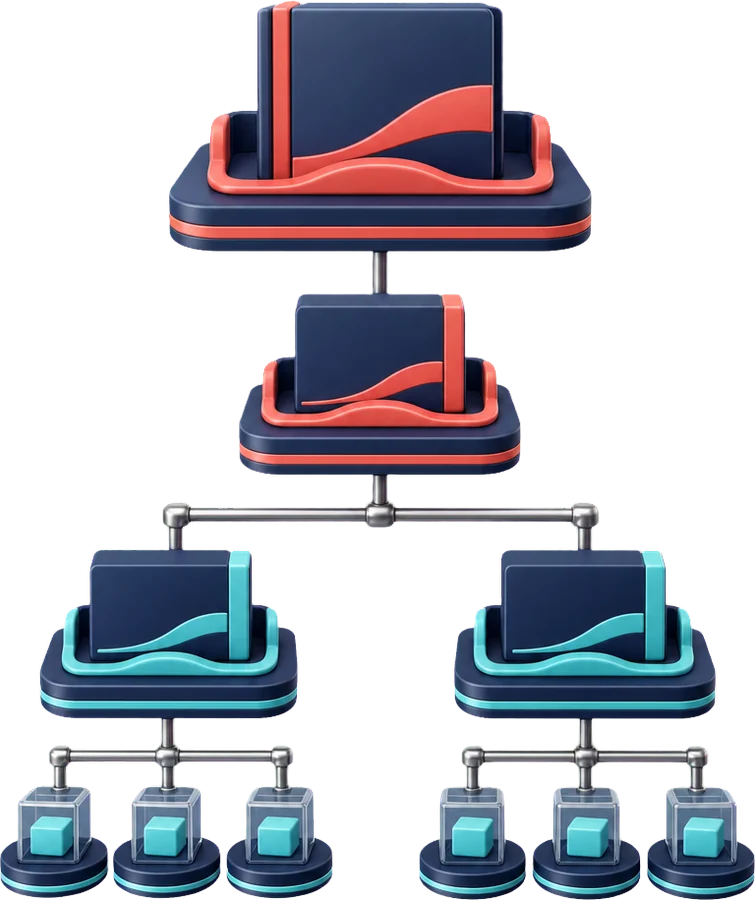
What each field means
| Field | Purpose | Example |
|---|---|---|
| Line | Groups products into a family and can have a parent line and sublines. | Software > Subscriptions |
| Brand | Identifies the commercial brand and can be associated with the lines where it is offered. | In-house brand |
| Model | Distinguishes a variation and is associated with one or more brands. | CRM Pro |
| Unit | Shows the quantity or period used to sell a product or service. | User / month |
In the quote panel, the line helps narrow the catalog; available brands can depend on the selected line, and models are filtered by brand. The unit clarifies how to interpret the quoted quantity.
Set up the catalogs in order
- Units: in Settings > Units, create sales units such as item, hour, user, or month. Use a consistent naming convention throughout the catalog.
- Lines: in Settings > Lines, create product families. Leave the parent line empty for a top-level family, or select one to create a subline. Enter the commission according to your company sales policy.
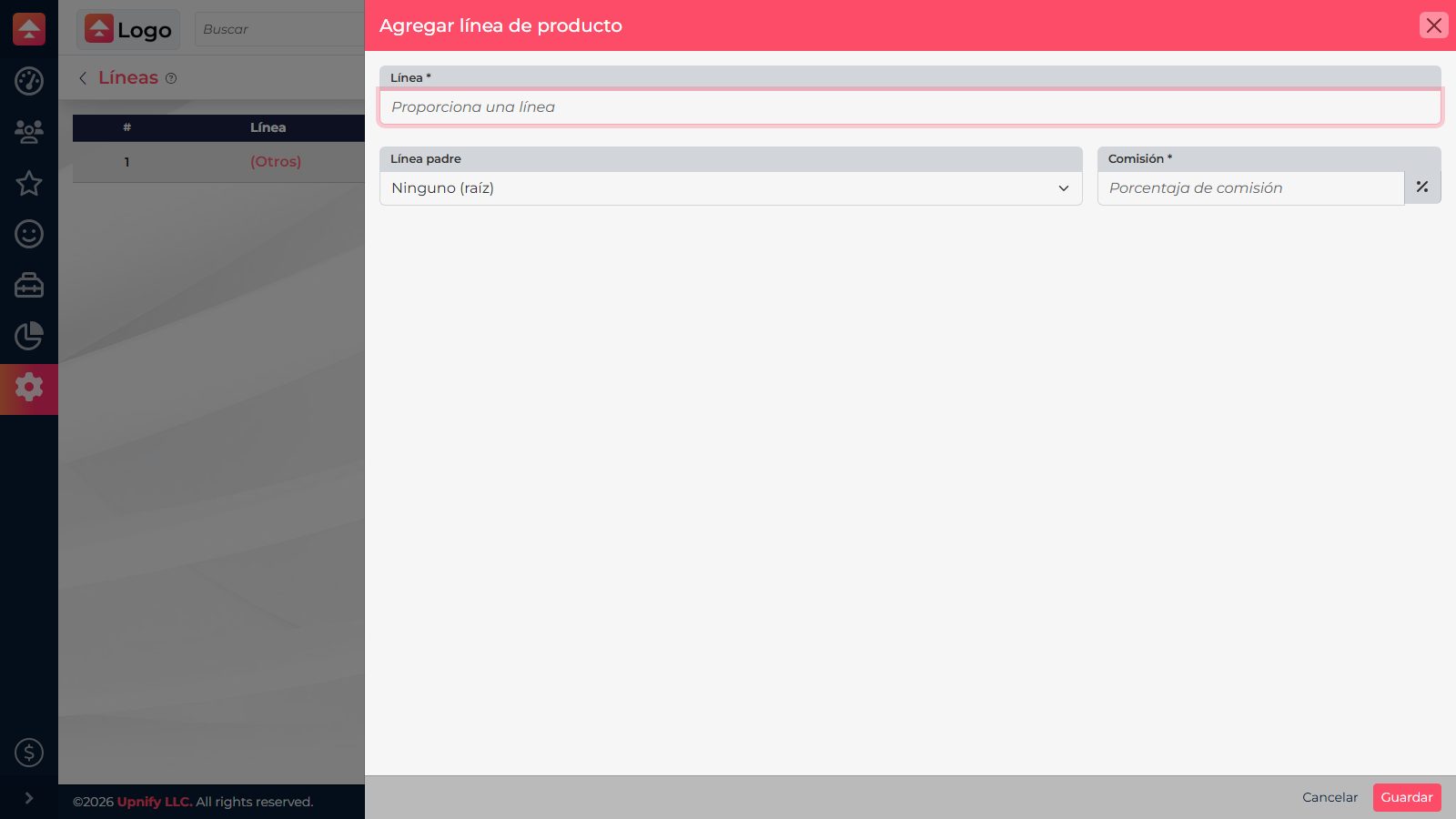
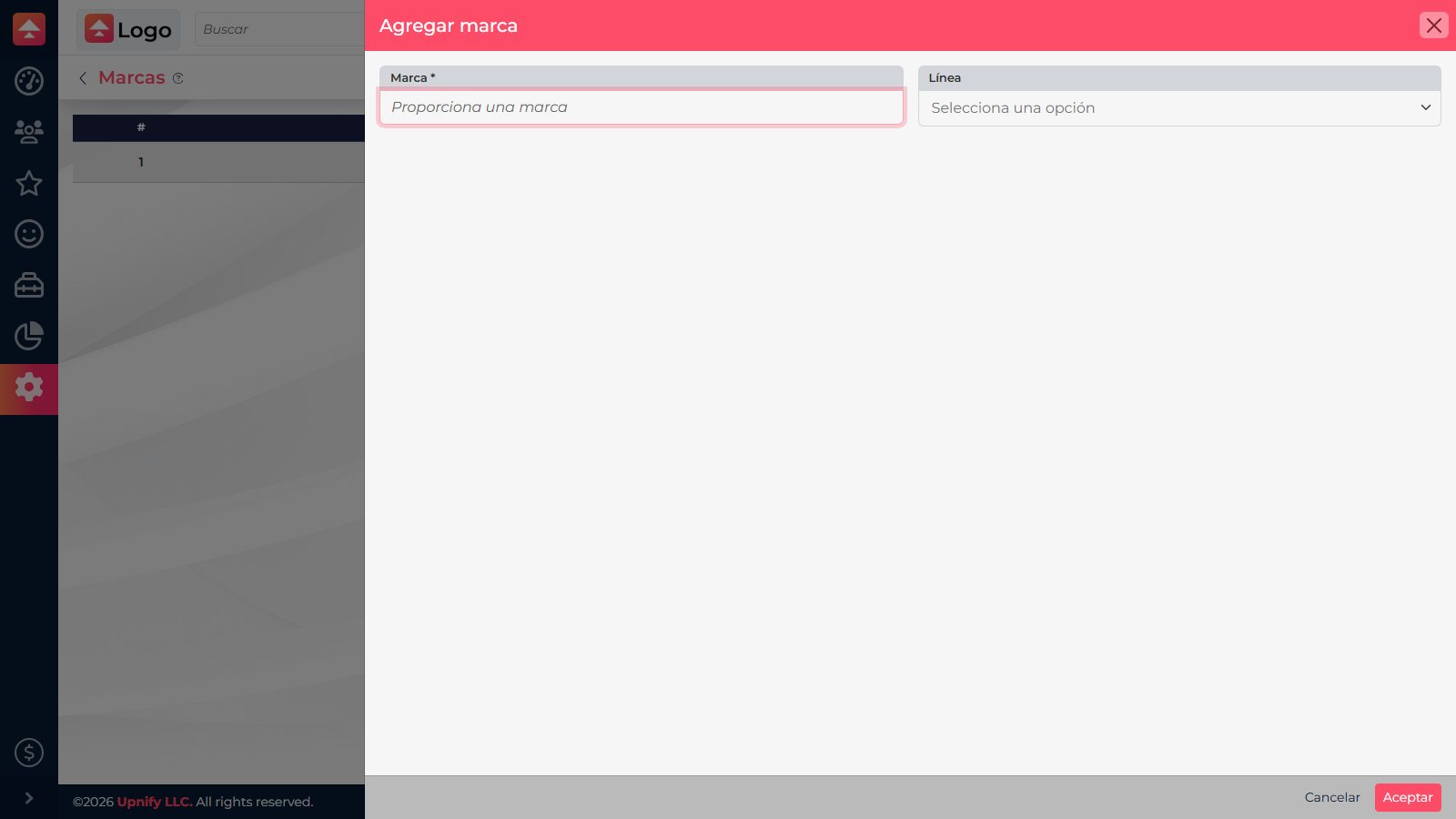
- Brands: in Settings > Brands, enter the name and select the lines where that brand is offered. A brand can be linked to more than one line.
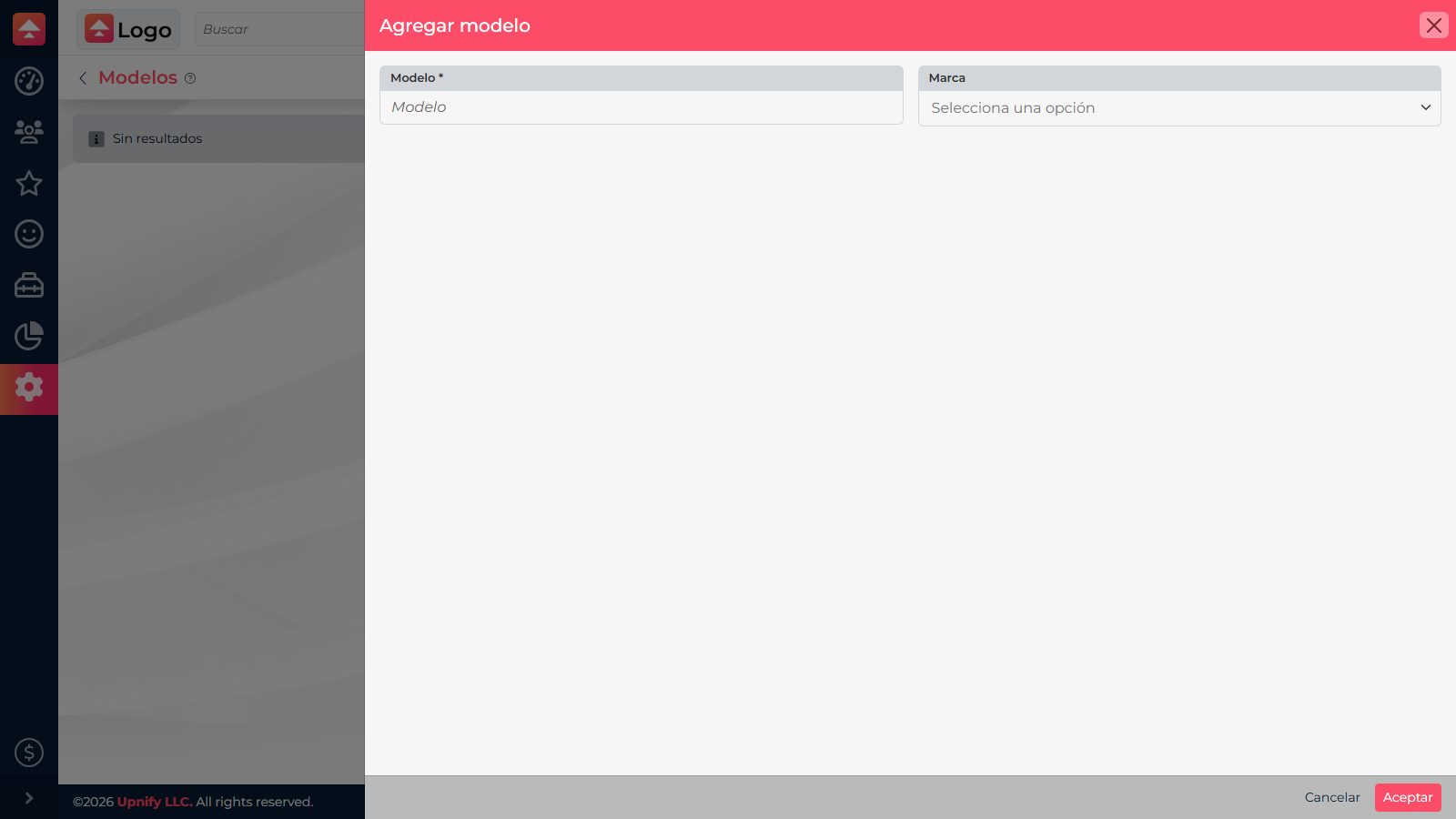
- Models: in Settings > Models, enter the variation and assign it to the appropriate brand or brands.
- When creating or editing a product, select its unit, line, and brand; add a model when applicable.
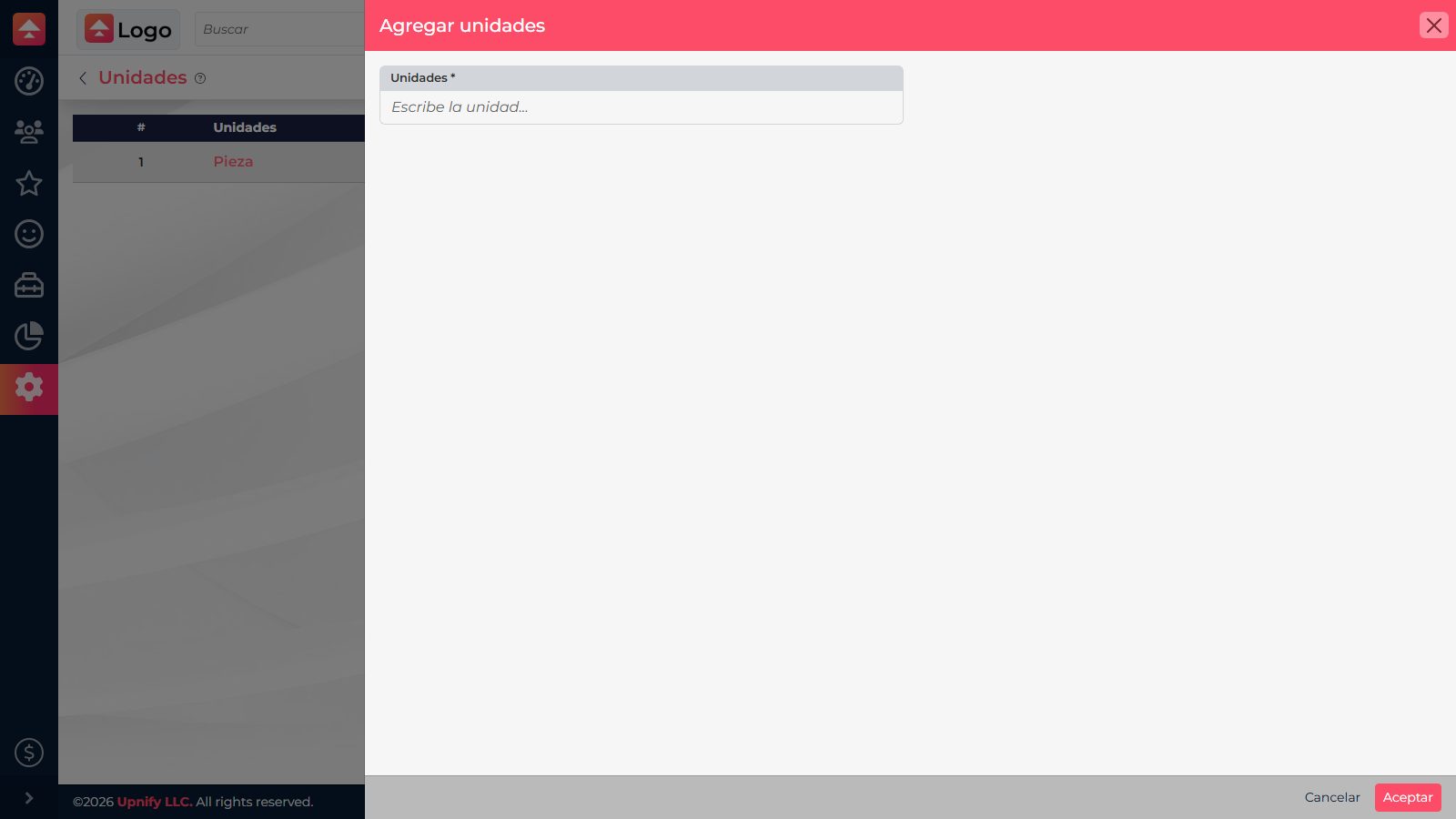
Example: for a subscription, you could create the line \u201CSoftware,\u201D the subline \u201CCRM,\u201D the brand \u201CIn-house brand,\u201D the model \u201CCRM Pro,\u201D and the unit \u201Cuser / month.\u201D Each product can use that combination, so the team can find it without relying on individual naming habits.
Check the relationships in a quote
Open an opportunity and launch the quote panel. Select a line and check which brands appear; then select a brand and review its models. If an option is missing, confirm that the brand is linked to the line, the model to the brand, and the product to an active unit.