

Reviewing a campaign helps you confirm whether a send reached the intended audience and where the next message may need improvement. In CRM, you can stop an entire sequence or pause one contact; a bulk email campaign has different send states and actions. Choosing the right level prevents you from stopping more communication than necessary.
Deactivating a sequence stops the entire journey. In its contact list, you can pause or resume one person without stopping everyone else. For a bulk campaign, check its send status; the option to cancel it appears only in the states the system allows.
Manage a sequence
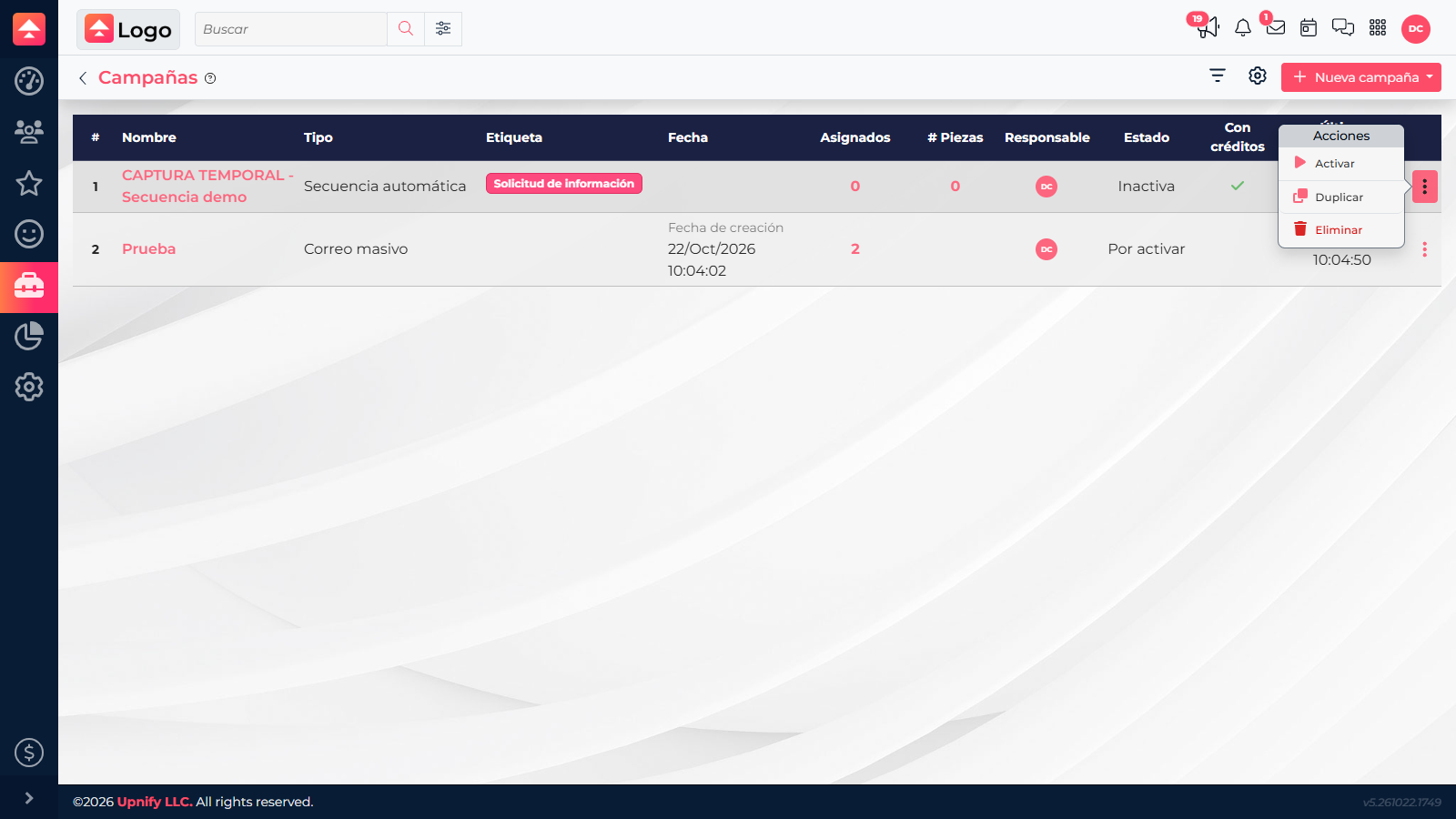
- Go to Tools > Campaigns and find the sequence by name, or use the type and status filters.
- To stop or resume the entire sequence, open the row menu and choose Deactivate or Activate. Check the Status column after confirming.
- If you only need to stop one person, open the number in the Assigned column. In that contact's menu, choose Pause. To let them receive the remaining pieces again, choose Restore.
- Restart starts that contact's journey again. Use it only when you want them to go through the pieces from the beginning.
Assign contacts to a sequence
Along with starting a sequence through a tag, you can manually add existing contacts to an active sequence. For example, add people who have completed a demo and should receive the follow-up you agreed on.
- Open Prospects, Opportunities, or Customers, then filter the list to find the right records.
- Select one or more records and choose Add to campaign from the action bar.
- In the Campaign field, choose the active sequence and select Accept. Then open the sequence's Assigned column to confirm the contacts appear.
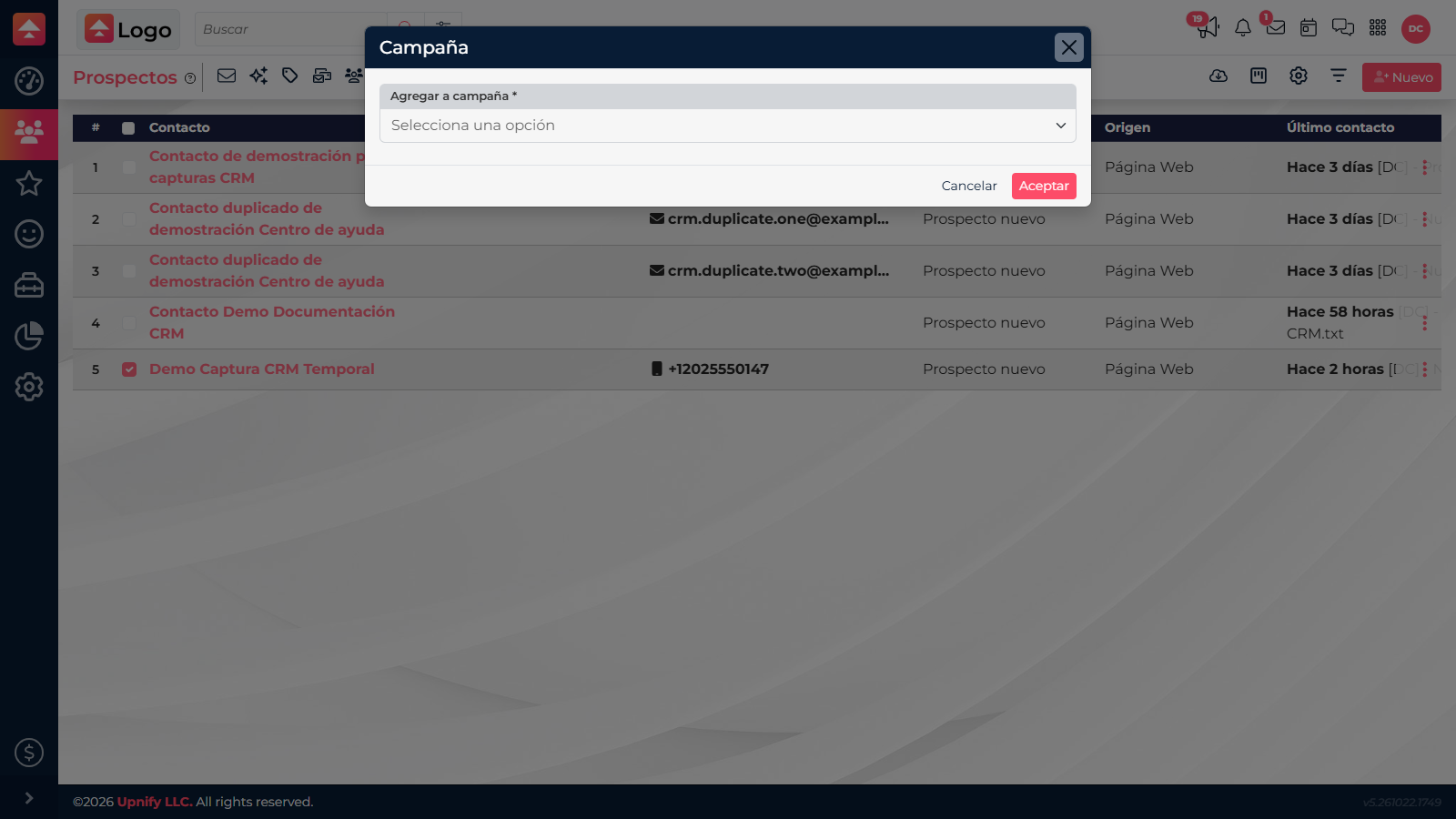
Before accepting, confirm the audience and first message are correct: added contacts may begin the journey according to the days configured for each piece.
Review results
- For a sequence, open the number in Pieces. Each piece shows how many messages were sent, had an error, or remain.
- Click a count to open the corresponding list. For errors, review the latest error and the contact's email details before correcting or retrying.
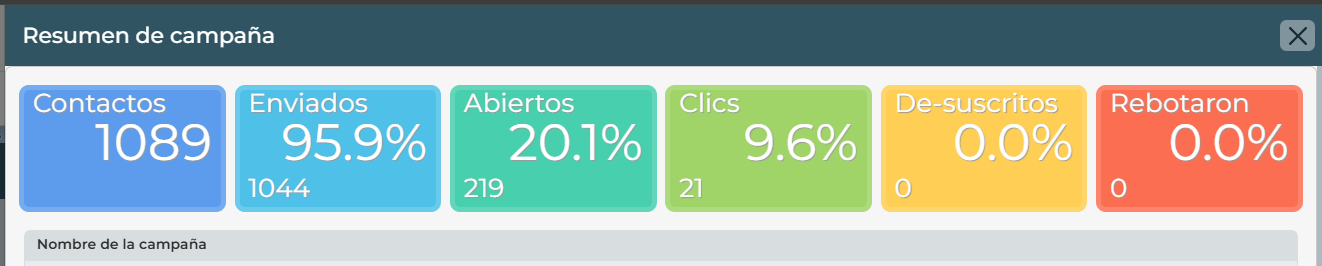
- For a bulk email campaign, open its available summary to review total contacts, sent messages, opens, clicks, unsubscribes, and bounces. These metrics help evaluate delivery and engagement, but do not replace reviewing the content and audience.
- To check an individual case, open the sent-contact list and use the email status filter to distinguish validated, spam-flagged, and invalid addresses.
What you can do with a bulk campaign
The list distinguishes campaigns that are Pending to activate, Approved, In progress, or Sent. If a campaign is approved and has not started, its row menu offers Cancel. Once it is in progress, the screen shows its progress and does not offer the same pause control as an automatic sequence.
For example, if a promotion is no longer valid, deactivate the sequence to stop new messages and review enrolled contacts. If it is a bulk send that is still approved, check whether Cancel is available before it starts. Then review the summary and errors before preparing your next communication.