
If your website uses WordPress and Elementor, you can send form submissions to Upnify CRM so your team can follow up from each lead record. This avoids retyping contact details and helps your team keep the lead's source and initial sales stage organized.
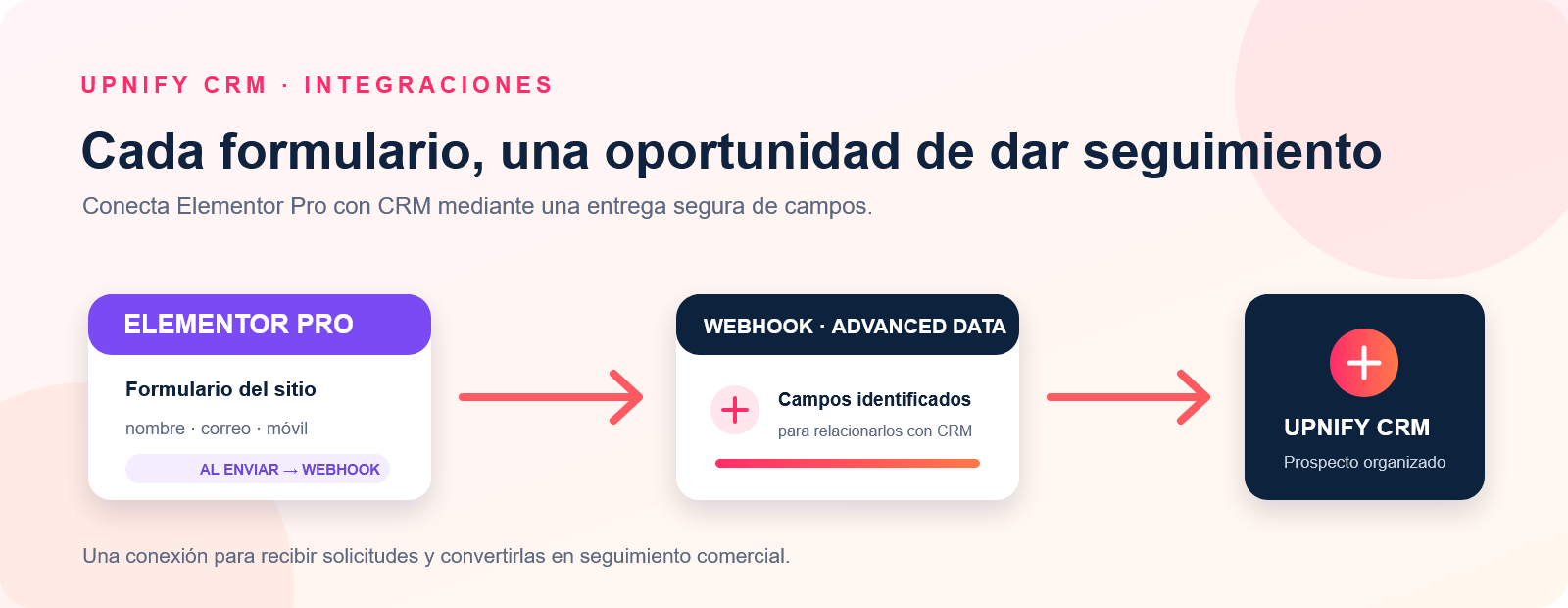
For example, a request-a-demo page can ask for a visitor's name, email, mobile number, and company. Once submitted, CRM creates the lead with those details so the sales team can continue the conversation without copying the information by hand.
You need permission to manage CRM integrations and access to edit the form in WordPress. Receiving submissions through a webhook requires Elementor's Form widget and Webhook action, which are Elementor Pro features. Include an email address or valid mobile number so the lead can be identified and contacted.
1. Create the integration in Upnify CRM
- In CRM, open Settings > Integrations > API and select Add integration.
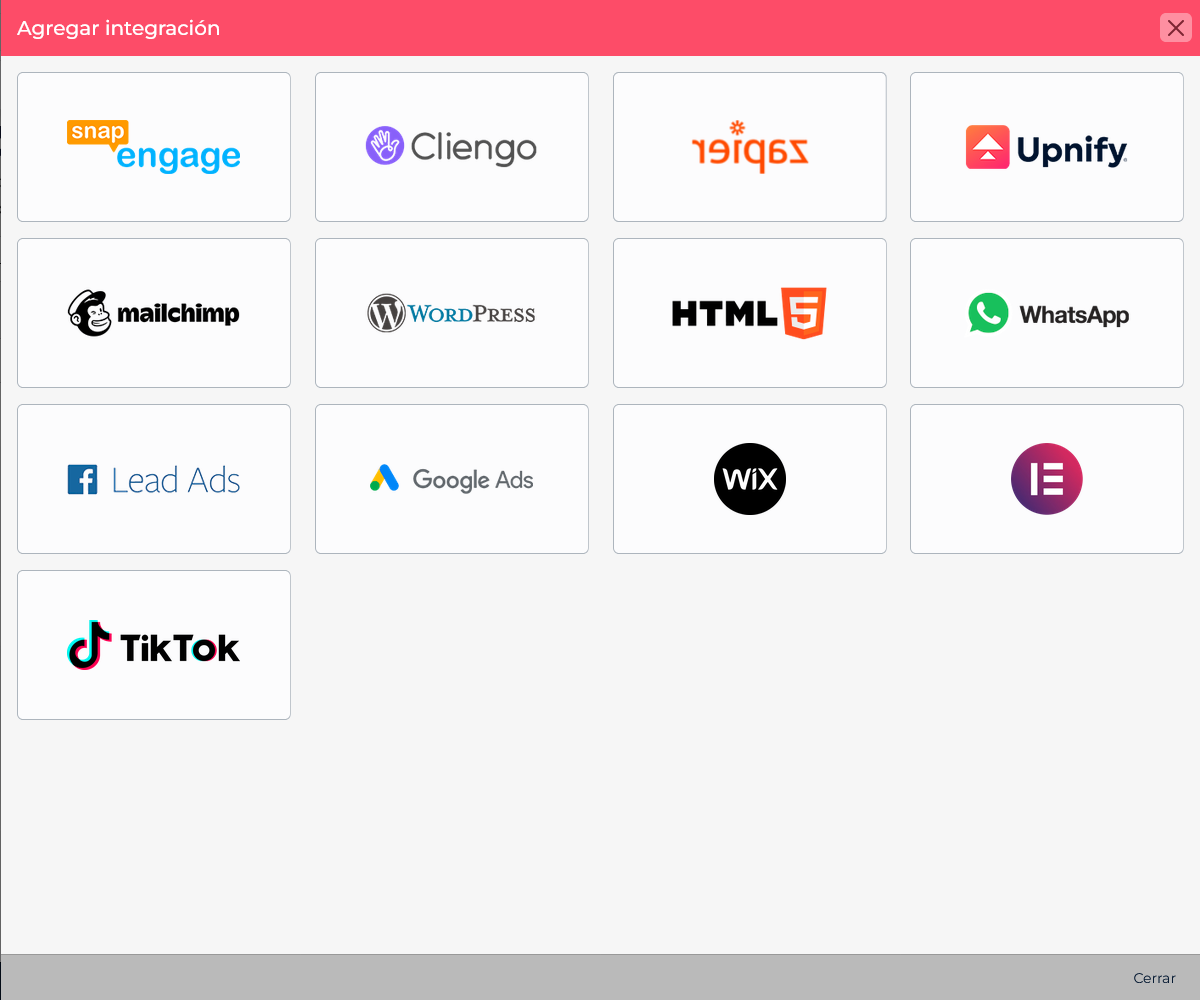
- Choose Elementor from the catalog.
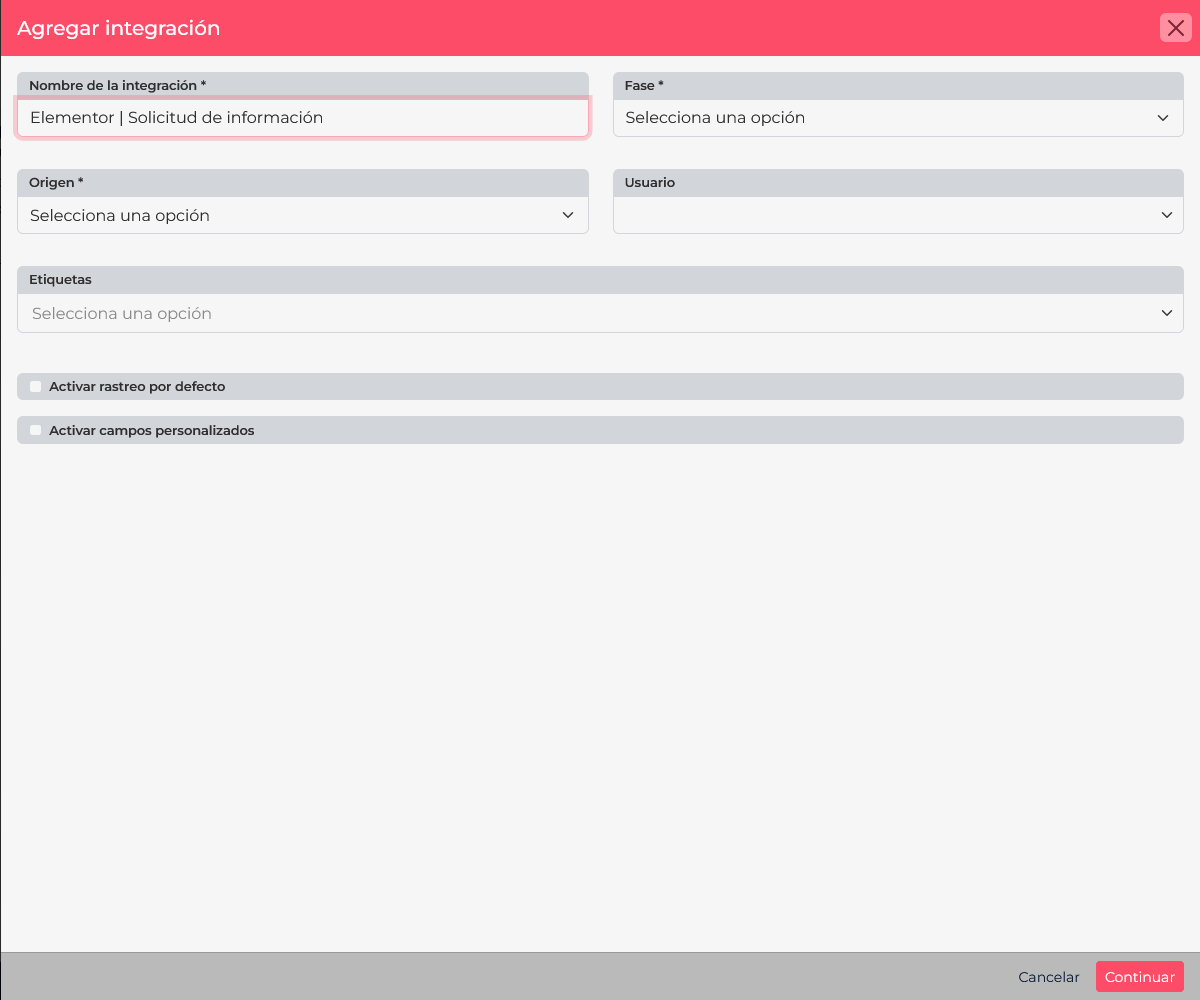
- Enter a name that identifies the website or form, such as Elementor | Information request.
- Select the Stage and Source to assign to incoming leads. These fields are required. If your process needs them, you can also assign an owner or tags and enable tracking or custom fields.
- Select Continue to save the integration. CRM will then show the field-mapping configuration and the URL that receives form submissions.
Copy the URL generated by CRM and store it securely. It identifies your integration and allows information to be sent to your account, so do not publish it on a public page or share it with people who do not configure the connection.
2. Match Elementor fields with CRM fields
In CRM's field-mapping setup, each row connects a CRM field with an external parameter sent by Elementor. Select the CRM Field, enter the external parameter, and select Add. Repeat this for each value you want to save. You may set a default value for a classification field that is the same for every submission; do not use a default to replace personal information the visitor should provide.
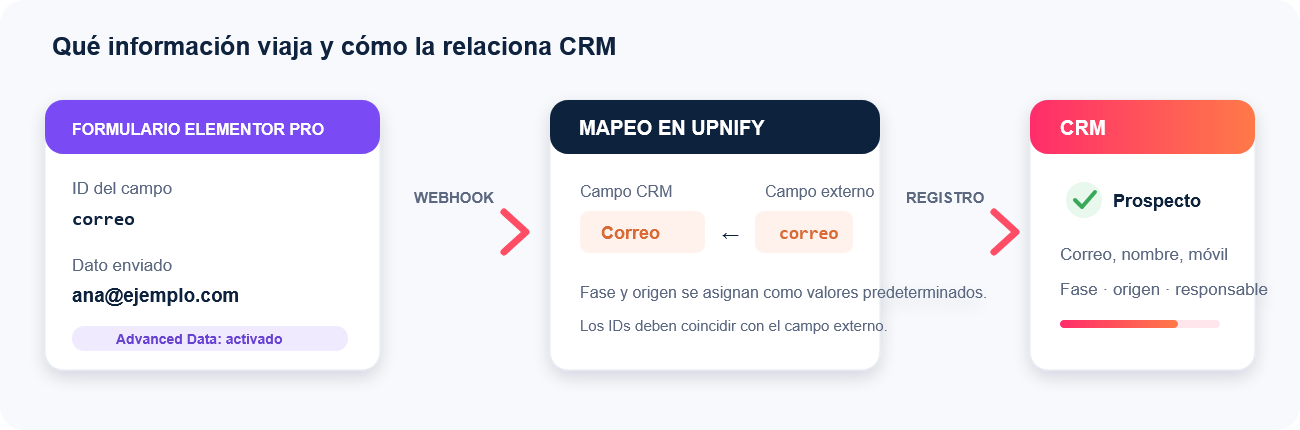
| CRM field | Suggested Elementor field ID |
|---|---|
| First name | nombre |
| Last name | apellidos |
correo | |
| Mobile | movil |
| Company | empresa |
| Comments | comentarios |
These IDs are examples chosen for clarity. You can use different ones, but enter the same value in Elementor and in CRM's external-parameter field. Elementor sends the fields inside its fields data when Advanced Data is enabled, and CRM reads those field IDs to apply the mapping. To receive a custom field, create it in CRM first and then add its mapping.
3. Configure the form and webhook action in Elementor
- In WordPress, edit the page containing the form and select the Form widget.
- Under Content > Form Fields, open each field you want to send and go to its Advanced tab. In ID, enter the external parameter configured in CRM, such as
nombre,correo, ormovil. Keep each ID unique and do not use spaces. - Under Content, open Actions After Submit, add Webhook, and expand its settings.
- Paste the URL generated by CRM into Webhook URL. Enable Advanced Data so Elementor sends an object whose fields are identified by their IDs. This matters because the basic format can rely on visible field labels, which may no longer match if someone edits the form's wording.
- Save or update the page.
Elementor's official guides explain Actions After Submit and the Webhook action and how to configure the Form widget and its field IDs. For how form fields are processed through webhooks, see the Elementor developer documentation for forms.
4. Test the form and confirm CRM received the lead
- If possible, test on a staging page or test environment first. Submit a request with information you can recognize.
- In CRM, search for the lead and confirm that it has the selected stage and source.
- Open the lead record and check that the name, email, mobile number, and other values appear in the right fields. If you assigned an owner or tags, verify those too.
- After the test succeeds, check that the live form uses the same URL and settings.
If the form also sends email notifications, confirmation messages, or redirects visitors, you can keep those actions. Webhook is added as another post-submission action; it does not replace the others.
If the lead does not appear or its details are mismatched
| What you see | What to check |
|---|---|
| The form does not send information | Confirm that the Form widget and Webhook action are available in your Elementor version, that the action is added, and that the page was saved. |
| CRM does not receive the lead | Check that the full URL generated by CRM was pasted and that the form includes a valid email address or mobile number. |
| The lead arrives, but some details are missing | Enable Advanced Data and compare each Elementor field ID with its external parameter in CRM. |
| A value appears in the wrong CRM field | Check that Elementor IDs are unique and that each external parameter is mapped to the intended CRM field. |
| The stage or source is unexpected | Edit the integration in CRM and check its default values. |
The integration handles the initial intake and organization. Your team can continue working with each lead in CRM as usual.
Elementor: Form widget · Elementor: Actions After Submit · Upnify API: receive leads through an integration