
This integration lets CRM receive Stripe invoice information and create a sale record linked to the customer and configured product. To use it safely, understand which event it processes, prepare the product catalog, and verify the result before treating an invoice as paid.
What this integration does—and does not do
Stripe sends CRM a notification when an invoice is created, and the integration uses that invoice information to create a sales record. The configured event is invoice.created. It means invoice created; it does not confirm that the customer has paid. Stripe has separate events for an invoice being created and an invoice being paid.
invoice.created must not be used on its own to confirm collection. Check the payment status in Stripe and record or reconcile payment using your company’s process.This integration processes Stripe invoices. It is not a payment button or a bank-transfer integration.
Before you start: map your products
The Stripe option is shown only when the company license and the user permissions allow it. If it is missing from the catalog, ask the Super Administrator to check access and the plan before continuing.
Prepare the CRM product that corresponds to each Stripe product. In the CRM product record, set the Code field to the Stripe product ID beginning with prod_. The connector matches by product ID, not by the display name or the price ID beginning with price_.
Complete this mapping before enabling the webhook, and check each character. If Stripe sends an invoice for a product CRM cannot find in its catalog, the record cannot be matched correctly. See also how to link your Stripe product catalog to CRM.
1. Create the CRM integration and copy its URL
In CRM, open System > Integrations > API and select Add integration. Choose Stripe and enter the name, customer phase, opportunity phase, and origin. If appropriate, assign an owner and a tag. These values help CRM classify records created from invoices.
Save the integration. CRM displays a generated receiving URL for this setup. Copy it from CRM: the URL identifies the connection and must be treated as private information. Do not paste it into public documentation, screenshots, open chats, or repositories.

2. Set up the endpoint in Stripe Workbench
In Stripe, open Workbench > Webhooks and create an event destination for your own account. Choose the Snapshot payload format and, if prompted, the appropriate API version. The CRM integration expects the event object and its data in data.object; Snapshot provides that full object.
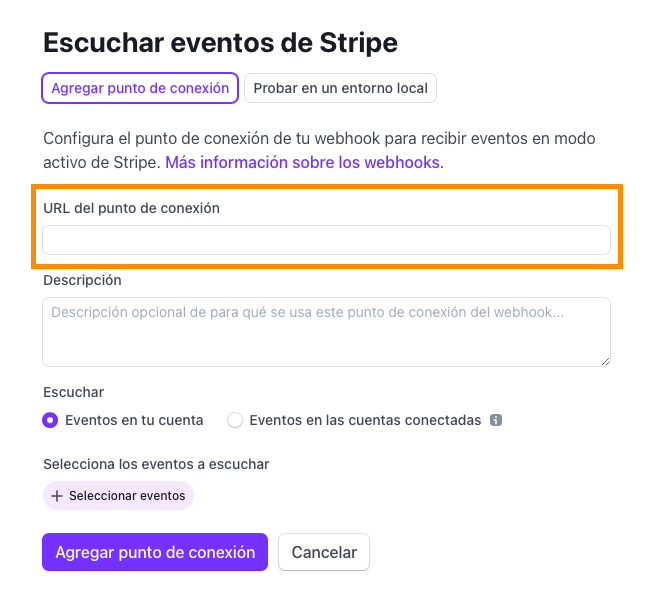
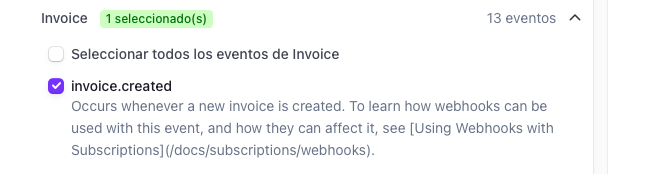
Continue with Webhook endpoint as the destination type. Paste the private URL copied from CRM into Endpoint URL and enter a description such as “Upnify CRM - invoices.” In the event list, select only invoice.created, the event used by this integration, and save the destination.
3. Verify a delivery before relying on it
In Workbench, confirm that the destination is enabled and event deliveries show a successful response. Then check CRM to confirm that the sale was created with the expected customer, product, amount, and date. If you test in Stripe test mode, make sure the event was sent to the destination for that mode; a test delivery alone does not prove that the live endpoint is configured.
A typical flow is: Stripe creates an invoice for “Professional Plan”; the event reaches CRM; CRM finds the product whose Code matches the prod_... ID and creates the sales record for the customer. The team can review the sale in CRM and separately verify in Stripe whether the invoice was paid.
invoice.created and invoice.paid as separate events. This connection uses the first. Do not switch to invoice.paid expecting the same result; it is not the event configured for the Upnify integration.Currency, amounts, and multi-product invoices
Before using the integration operationally, compare a representative Stripe invoice with the resulting CRM sale, including amount and currency. The connector converts the received amount by dividing it by 100. Carefully validate currencies that do not use two decimal minor units and any special currency setup.
Also, because the first product line is processed, do not assume an invoice with multiple lines will be itemized in CRM. If that matches your billing model, ask Support to confirm compatibility and test a representative case before depending on the connection.
If a delivery fails or you need to resend it
In Workbench, open the delivery and review its response code. Connection errors often mean the destination is unavailable; 4xx errors usually require checking the URL or access; and 5xx errors require reviewing server-side processing. Fix the cause before testing again.
Stripe can automatically retry a failed delivery and also lets you resend an event. Before a manual resend, search for the invoice in CRM. If the sale already exists, do not resend until you confirm how to prevent a duplicate record. Check both the Stripe invoice and CRM sale history.
Official documentation
See Stripe’s current guide to creating an event destination in Workbench and the event catalog to compare invoice.created with invoice.paid.