
Recording a call helps the contact history show what you discussed and what the team will do next. CRM can start a call through a Softphone connected to your provider or through WebCall, Upnify\u2019s built-in dialer. The calling method and audio handling depend on which option you use.
A follow-up saves your notes and agreements. With WebCall, the audio recording is also added automatically to the contact\u2019s follow-up. Recordings from an external phone provider depend on that provider.
Softphone and WebCall: what is the difference?
| Option | Where the call takes place | What CRM saves |
|---|---|---|
| Softphone | CRM opens the phone application or service configured for your computer. The conversation takes place through your external provider. | You can record the duration, outcome, and comments in CRM follow-up. If your provider offers call recordings, check that service\u2019s integration and settings for access. |
| WebCall | You place and answer the call in Upnify\u2019s built-in dialer. | The audio recording is saved automatically as a follow-up in the contact record. You can also open the follow-up while the call is active and write your notes. |
Record notes during the call
Open the contact record and start the call using the option available to your user. While you talk, open the follow-up from the relevant call control:
- Softphone: select the call timer shown in Upnify.
- WebCall: in the dialer, select the follow-up button with the comment icon.
The Add follow-up form opens. Enter the information you want to keep in Comments. You can write during the conversation so you do not have to rely on memory afterward.
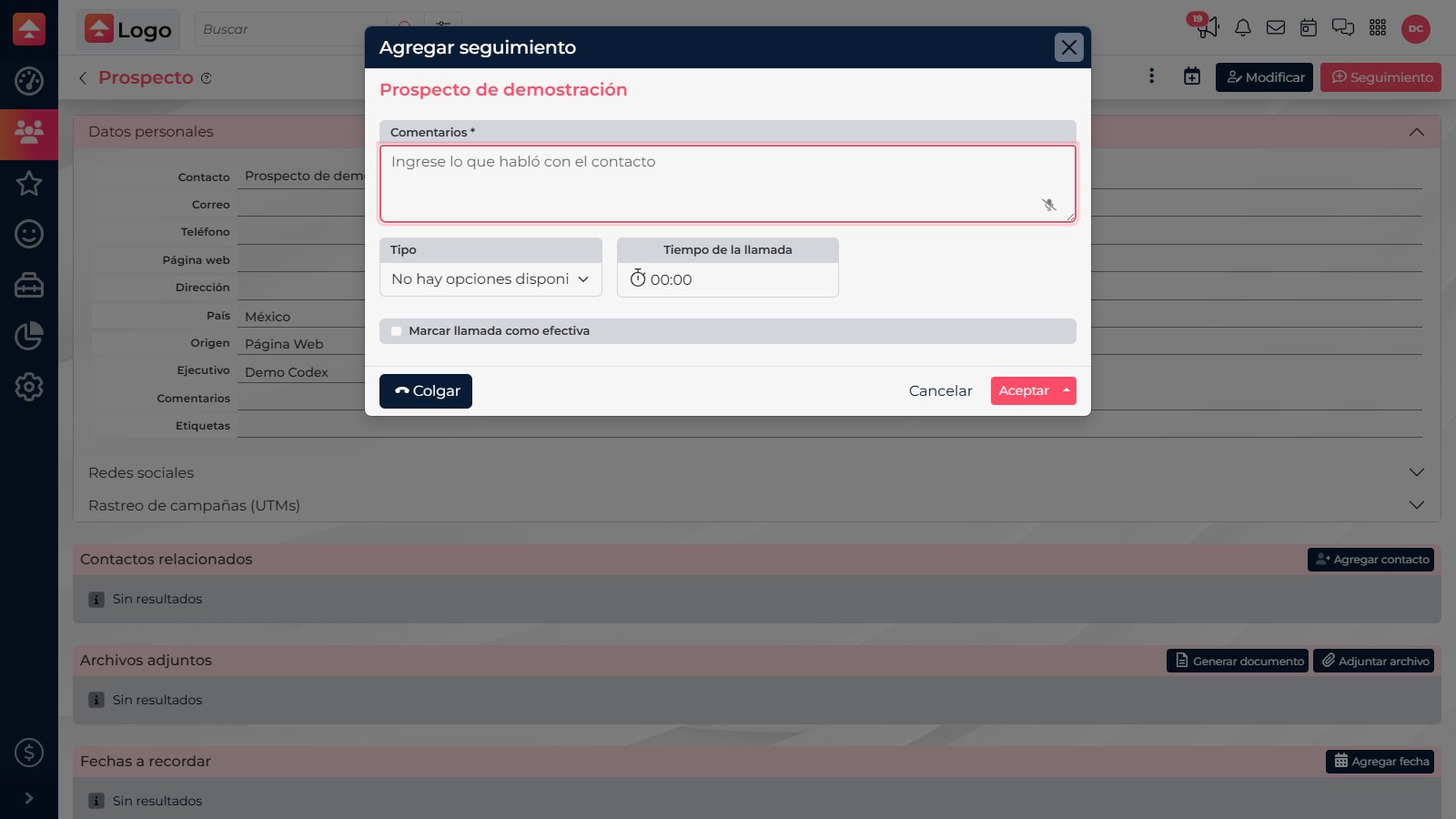
The screenshot is in Spanish.
- Summarize why you called and what you discussed.
- Record the contact\u2019s response, including important agreements, questions, or objections.
- State what happens next, who will handle it, and when.
- Select Effective call only if you reached the person. If they did not answer, leave it unchecked; add the attempt if it is useful to your team.
- Select Accept to save the comments in the contact\u2019s follow-up.
If you add the note after hanging up
Open the contact record, go to Follow-ups, and select Add follow-up. Write the summary and select Accept to save it. For WebCall, check the follow-up for the recorded audio as well. For Softphone, ask your provider where its recordings are stored; CRM does not automatically attach them the way it does for WebCall.
Example of a clear note
\u201CI reviewed the quote sent yesterday with Ana. She confirmed the price and asked to move delivery to November 5. I will send the revised version tomorrow before noon and call her Thursday to confirm she has reviewed it.\u201D
This note explains the reason for the call, the contact\u2019s response, and the next steps. If the commitment needs a due date or owner, also create the relevant activity from the contact record.
Record facts and agreements related to the contact. Do not include passwords, banking details, or other sensitive information that is not needed.