

Recording collections lets you compare what was expected with what the customer has paid. You can spot a pending installment, confirm receipt, and give the team a clear record for follow-up.
Review and record a collection on the sale
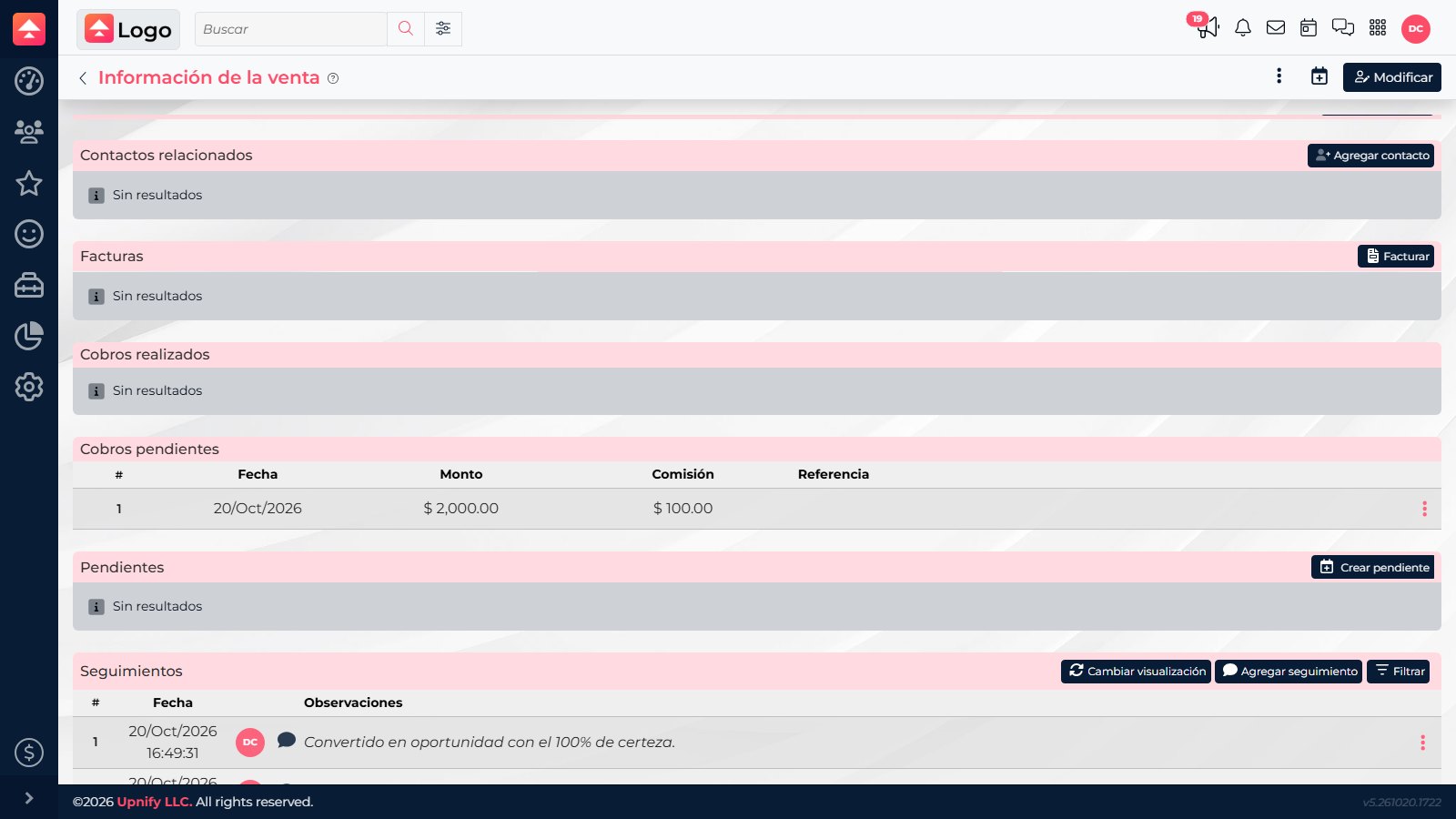
- Open Sales transactions, find the sale, and open its details.
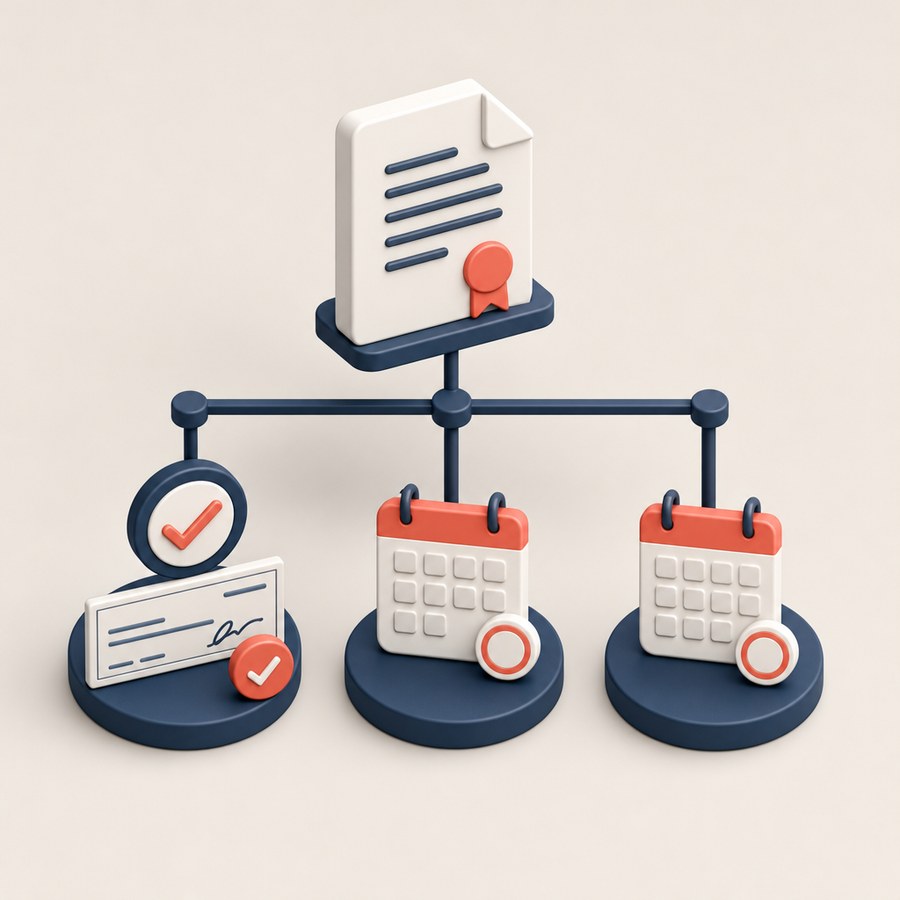
- Review Pending collections and Completed collections. The first shows what is expected; the second keeps recorded payments.
- On the row for a payment you received, open its action menu and choose the option to mark it as received or paid.
- Enter the actual receipt date, amount, and an available reference. Confirm the currency and sale before saving.
- Make sure it appears under Completed collections and the pending balance has updated.
Review collections across sales
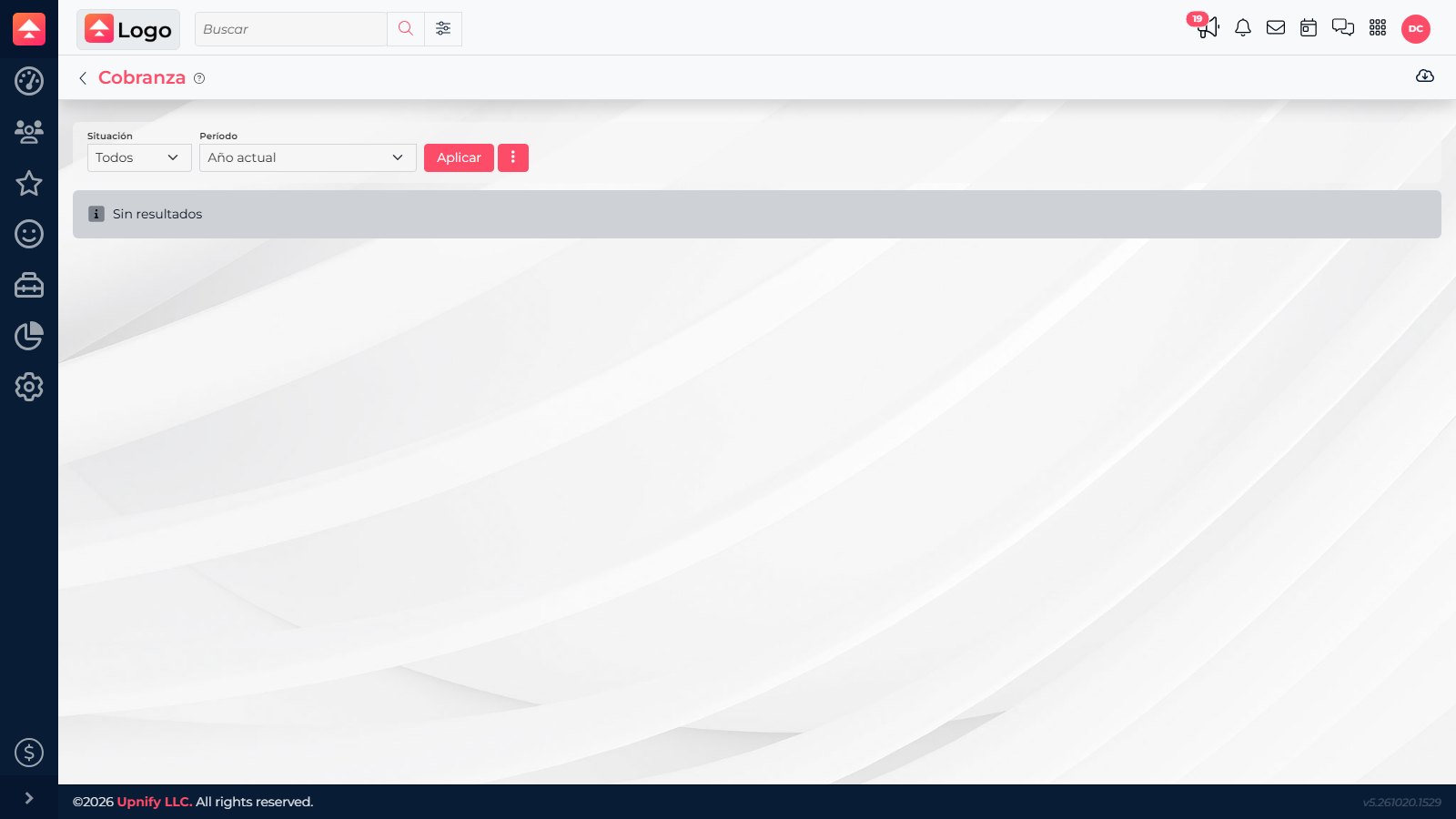
Open CRM > Payments (shown as Cobranza in Spanish), filter by Status and Period, and select Apply. Review contact, concept, installment, amount, balance, date, reference, and status. The concept links to the sale details.
If the money has not arrived
Do not mark a payment as received just because its expected date has arrived. Leave it pending and follow up with the customer; update it after confirming receipt. You can set a payment schedule when creating a sale.
Payment and invoice are different
Marking a collection records payment in CRM; it does not create an invoice or replace the tax-invoicing process.
Marking a collection records payment in CRM; it does not create an invoice or replace the tax-invoicing process.