

An opportunity brings together the context for a potential sale: who is involved, what you proposed, its current stage, and what still needs to happen. Recording each conversation and commitment helps the team coordinate follow-up, keep the forecast current, and resume the process without asking the contact to repeat information.

Review the opportunity status
- Open Opportunities and select the opportunity name or contact to open the record.
- Review the stage, confidence, amount, estimated close date, and company in the summary. These details provide context before you read the history.
- Confirm who owns the opportunity and what happened most recently. If the amount, date, or stage no longer reflects the conversation, update it while editing the opportunity or recording the next follow-up.
Review the follow-up history
Follow-up history contains notes recorded for the opportunity. Each entry lets you check its date, the team member who recorded it, its follow-up type, and the note. Select Change view to switch how you review the entries. Use the filter to narrow them by follow-up type or search for words in the notes.
Read recent entries together: a call may answer a question, a note may record a decision, and another activity may show what someone promised to send. The newest note may not contain the full context by itself.
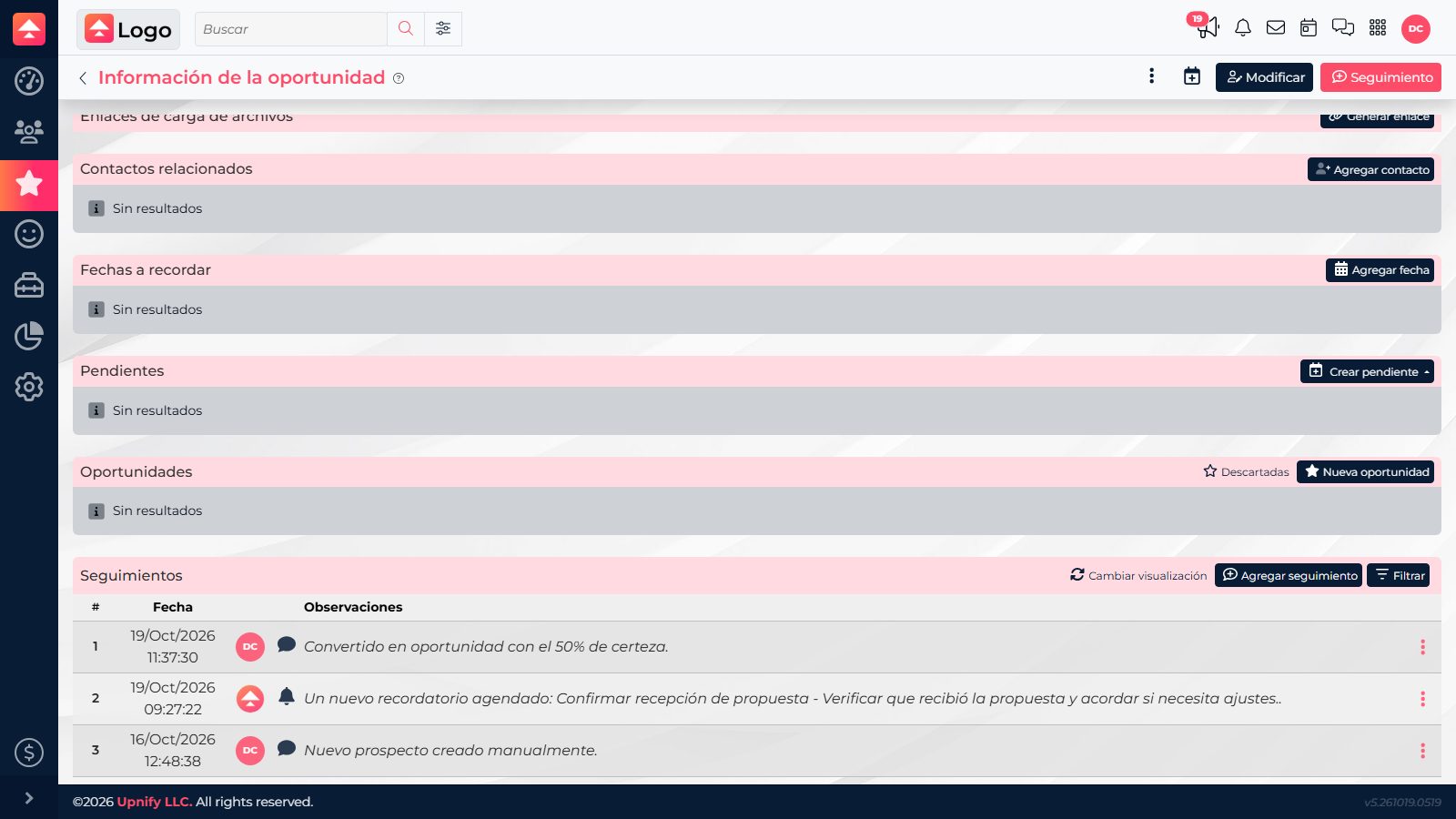
Record what happened and make the next step clear
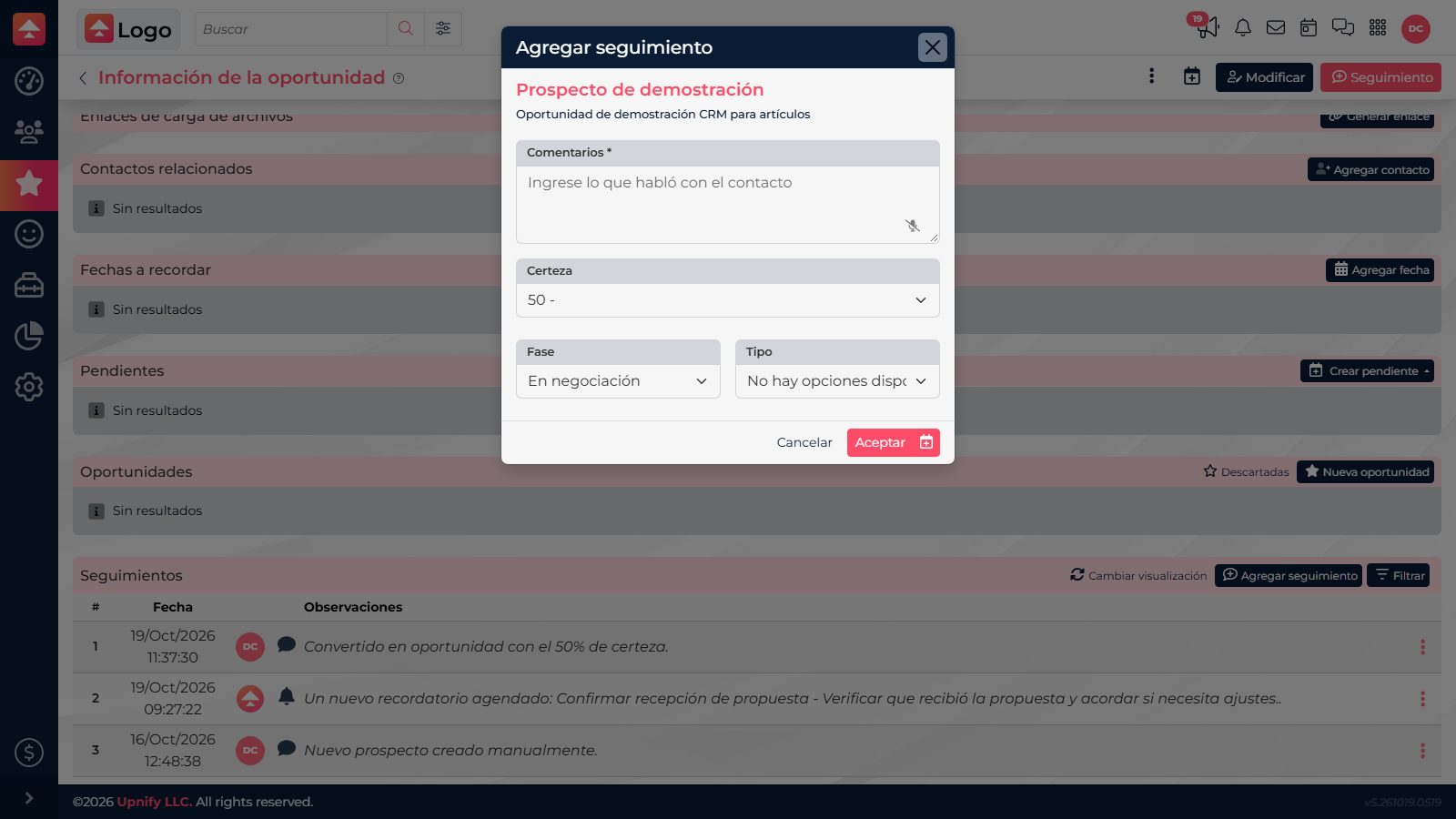
Select Add follow-up to save the result of an interaction. The note is required; write what you discussed, how the other person responded, and what you agreed to do. When appropriate, update the stage, follow-up type, or confidence as well.
If the next action has not happened yet, schedule it separately from the button options: you can create a reminder, appointment, call, visit, or task. This keeps the history focused on what happened and the Pending activities section focused on what remains to be done.
Review pending actions
The Pending activities section shows upcoming activities tied to the opportunity, including their date, type, subject, and owner. Check it before contacting the customer to avoid duplicating a call or delivery that is already scheduled. If the commitment changes, edit or complete the pending activity so the team has current information.