
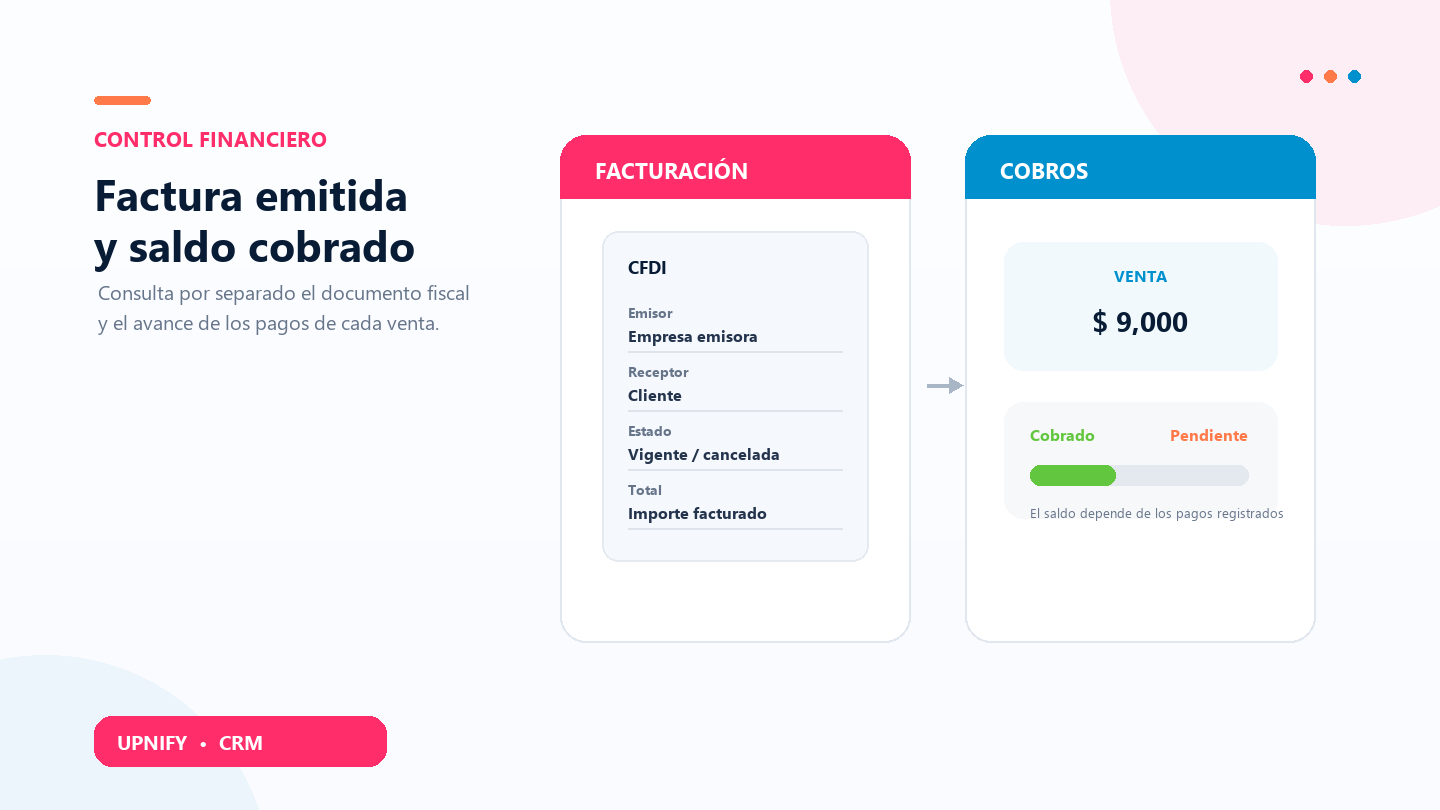
The Invoicing and Collected vs. pending reports answer different questions. Invoicing helps you review issued tax documents and their amounts; Collected vs. pending shows how much of CRM sales has been collected and how much remains due.
Keeping these views separate prevents confusing an invoice with a payment. A sale can have an outstanding balance even if an invoice exists, and a sale without an invoice will not appear as an issued tax document. Use the report that matches your billing or collections question.
Review issued invoices
- In CRM, open Reports, go to Sales, and select Invoicing.
- Set the period and available filters for document status, payments, currency, executive, or other dimensions you need.
- Select Apply to review the results. Use the table to inspect amounts and groupings.
- To verify an individual document, open its invoice record from the view or use the invoicing module, depending on your account permissions.
This report helps review issued tax documents, invoiced amounts, and the statuses included in the query. If no documents match the selected dates or filters, there are no rows to analyze. Check the period, selected status, and whether invoice records exist.
Review collected and pending sales
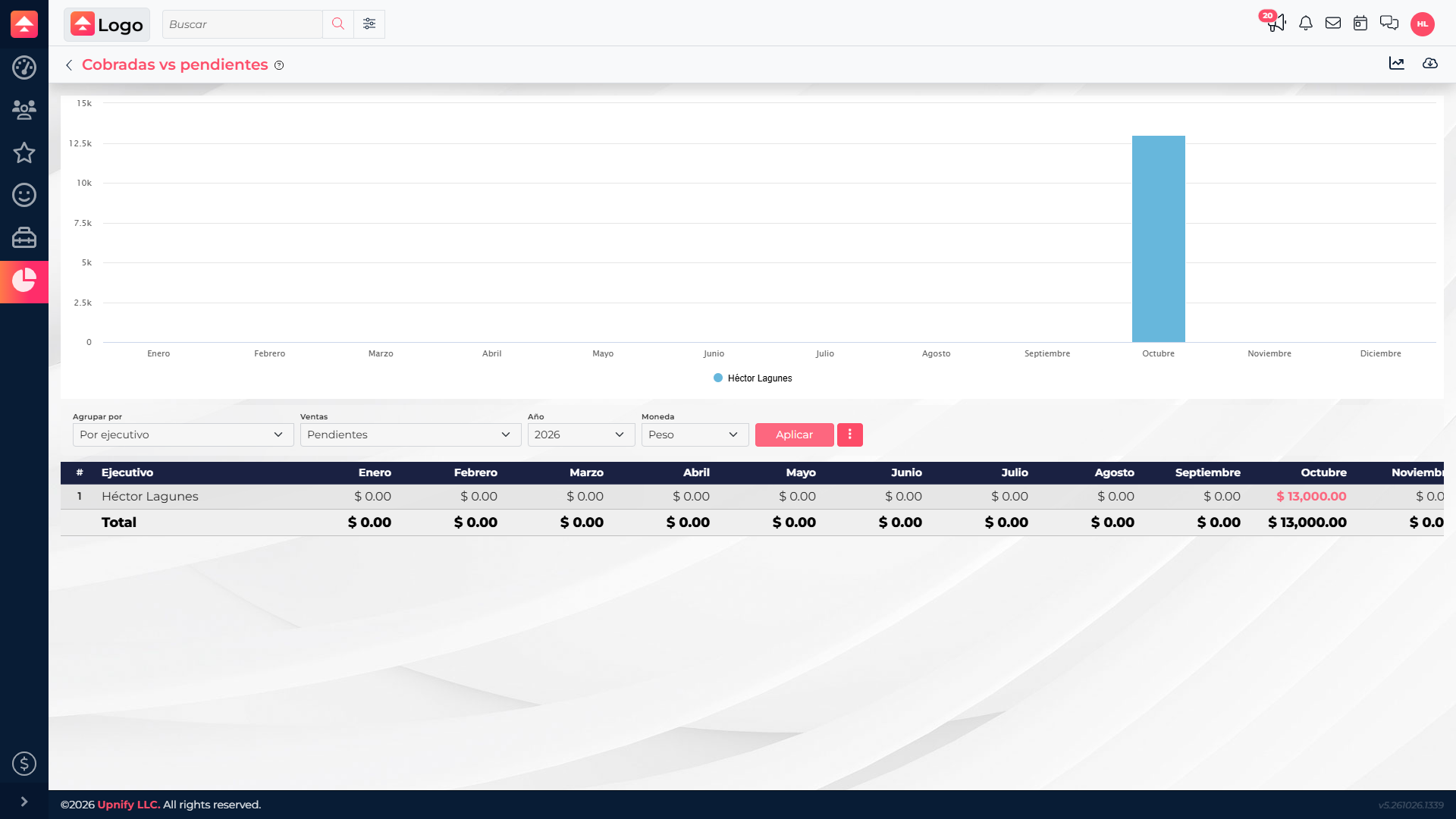
- Open Collected vs. pending in the sales reports.
- Choose the year or period, currency, and report type. To see both states together, select Collected vs. pending; other available options may show completed, pending, or effectively collected sales.
- Choose a grouping such as executive, group, or product line if you want to compare owners or teams.
- Select Apply and compare collected amounts with the outstanding balance.
Read the outstanding balance
The pending amount is the portion of the sale that is not yet covered by payments recorded in CRM. Adding a payment can change the sale balance and the report result. If a balance seems incorrect, verify that payments are recorded on the correct sale and that the period filter matches the question you are asking.
| If you need to know… | Use… | Then check… |
|---|---|---|
| Which invoices were issued and for how much? | Invoicing | Invoice date, status, amounts, and filters. |
| How much remains to be collected from sales? | Collected vs. pending | Sale, recorded payments, remaining balance, and owner. |
| Does a pending sale already have an invoice? | Both reports separately | Find the invoice in Invoicing and review the sale balance in Collected vs. pending. |
Tips for follow-up
- Keep period and currency consistent when comparing teams or months.
- If a balance looks wrong, open the sale and verify its recorded payments and application.
- Use Invoicing to review tax documents and Collected vs. pending to follow up on payments; one report does not replace the other.
- If the invoicing report has no results, confirm that invoices were issued for the selected period and that filters are not excluding them.
These two views help you answer separately what was invoiced and what remains to be collected, then relate both queries when following up on a specific sale.