
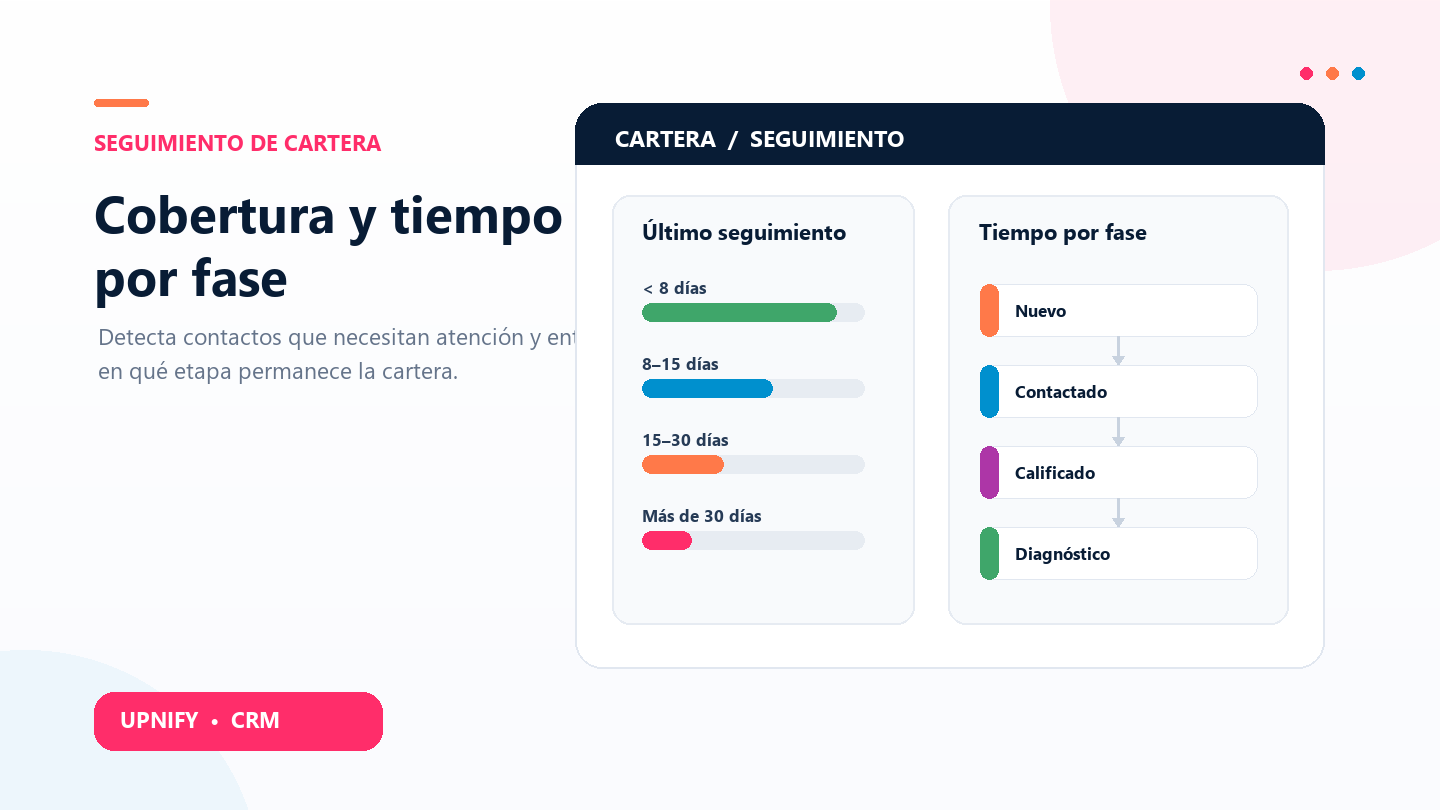
The Coverage and Time per phase reports help you spot two different risks: records that have gone several days without a follow-up and records that remain in one stage for a long time. Use them to prioritize whom to contact and find where sales progress is slowing down.
Review portfolio coverage
The Coverage report groups prospects, opportunities, or customers by the number of days since their last recorded follow-up. You can group results by executive or group and see both totals and age ranges. This helps each owner quickly identify which part of the portfolio needs attention.
- In CRM > Reports, open Coverage.
- Choose the entity you want to review: prospects, opportunities, or customers.
- Select By executive to compare owners or By group to compare teams. Filter by group or executive to focus on part of the portfolio.
- Select Apply. Compare totals with the ranges: under 8 days, 8–15, 15–30, 30–60, 60–90, and over 90 days.
- Select a linked row or range count to open the records behind the result and plan follow-up.
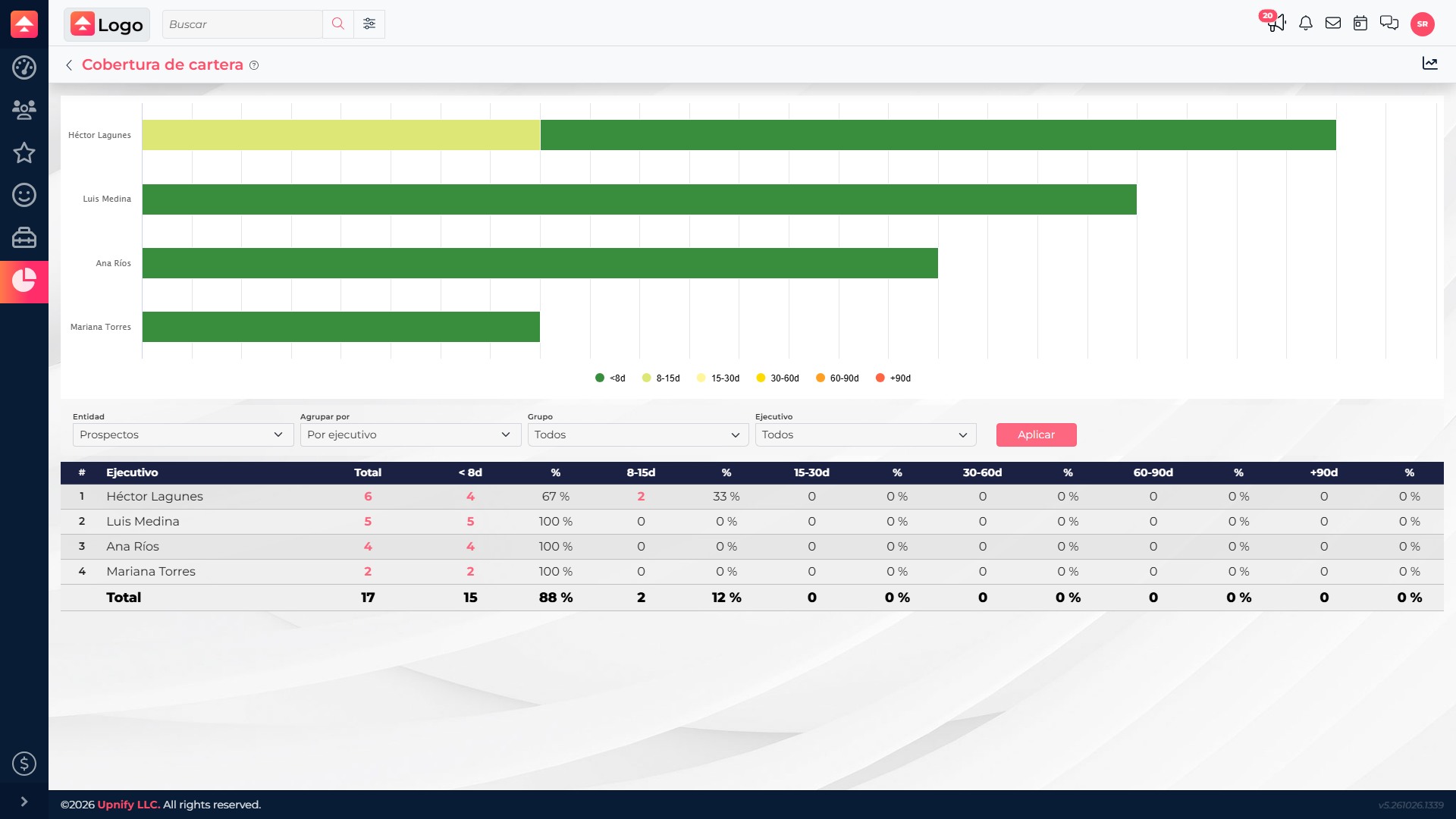
Percentages make it easier to compare owners or groups with different portfolio sizes. For example, 10 contacts without a recent follow-up carry a different risk in a portfolio of 20 than in one of 200. Consider the percentage alongside the total and review a sample of records before setting priorities.
Read the ranges carefully
| Range | Practical reading | What to check |
|---|---|---|
| Under 8 days | Recent follow-up | Whether there is a clear next step when the process needs one. |
| 8–15 days | May need another review | Priority, outstanding commitment, and agreed date. |
| 15–30 days and higher ranges | More time without a recorded activity | Whether the contact is still active, an activity was not recorded, or follow-up should be closed. |
The date comes from the last follow-up recorded in CRM. If a conversation happened outside the system and was not entered, Coverage cannot take it into account. A longer range is a signal to review, not an automatic conclusion that the contact was abandoned.
Review time per phase
Time per phase, under Influence, shows how many prospects, opportunities, or customers are in each phase and the average time associated with records in that phase. Use it to find stages where work is accumulating or progress is taking longer than expected.
- In CRM > Reports > Influence > Time per phase, choose the entity: prospects, opportunities, or customers.
- Choose Radiography or Historical. Set the period and, when relevant, narrow by group, source, or visit number; choose a grouping such as executive, group, source, or sales floor.
- Select Apply. Each phase in the table combines a record count with the average accumulated time reported for those records. Review totals and filter context as well.
- Open a linked value to inspect the records behind the result.
Combine coverage and time per phase
Use both reports to tell whether the issue is a lack of follow-up, a delay in one stage, or both. If a stage contains records with a long time in stage and Coverage also shows several days since follow-up, review those contacts first. If time in stage is high but follow-up is recent, the team may be in touch but need to resolve a decision, requirement, or internal task.