
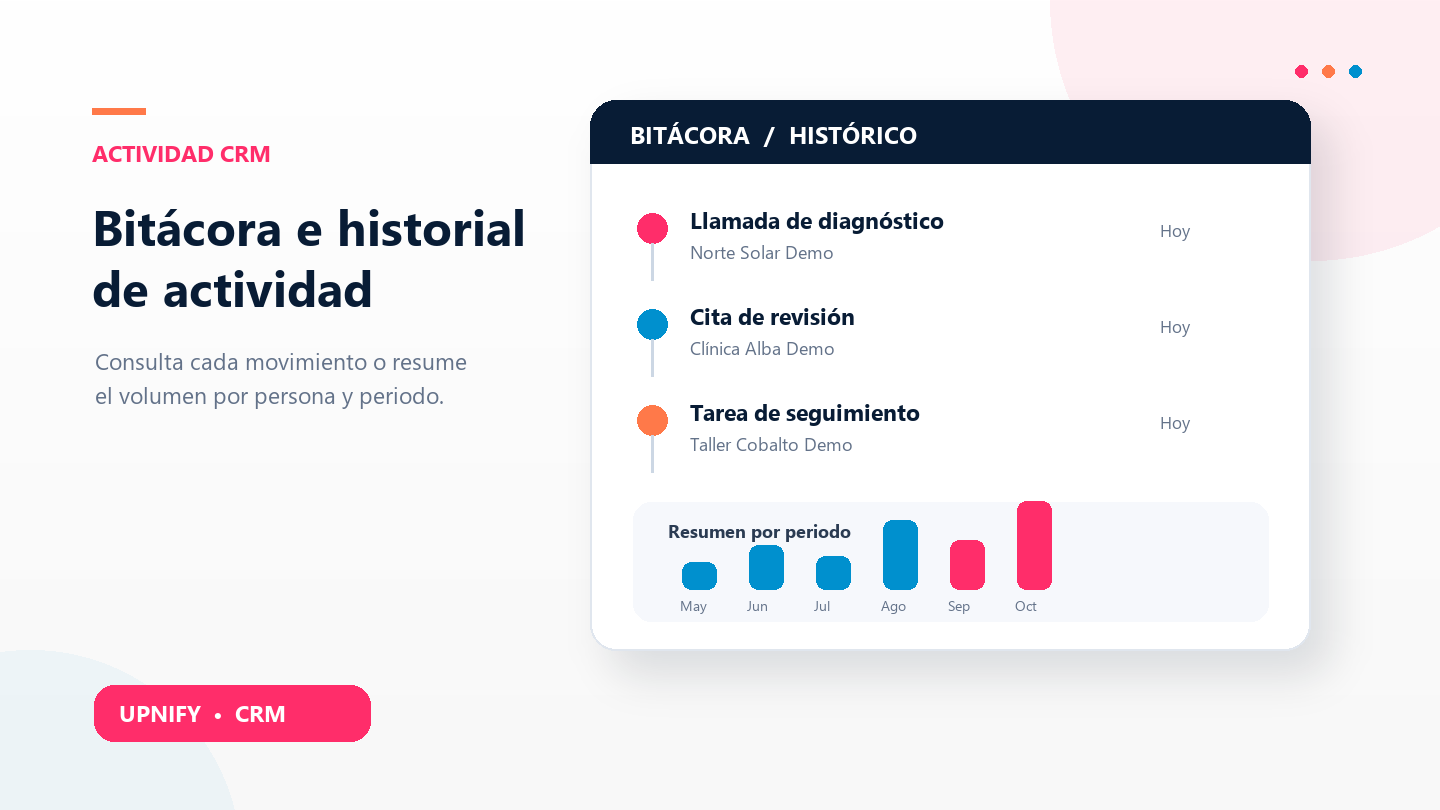
When someone asks what follow-up a contact received, review the actual entries: what happened, when, and who handled it. The Activity Log finds those events in one report. History answers a different question: how the count of one activity changes over time.
Review entries in the activity log
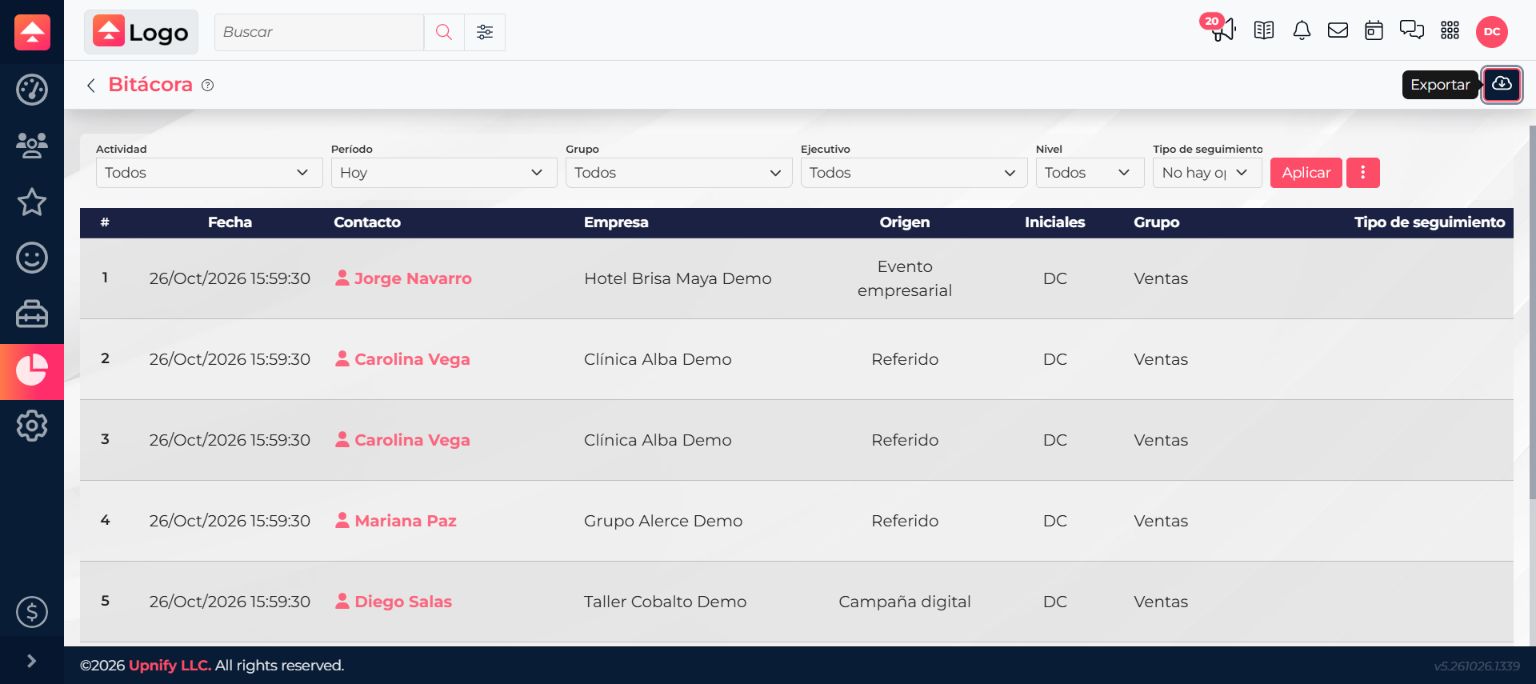
- In CRM, open Reports and choose Activity Log under activities.
- Set the period. Start with a short range and expand it if needed.
- Filter by activity type, group, or executive. To investigate a call, select calls and the approximate dates.
- Review the rows. Each represents a recorded activity and may include its date, contact, owner, and comment.
- For more context, open the contact from the table link.
Example: confirm a prospect follow-up
If a prospect says they expected a call, search for their name or narrow the log to calls and the approximate dates. Check the date, owner, and comment. If the call is missing, confirm the range and type; the report reflects activities saved in CRM.
Review History
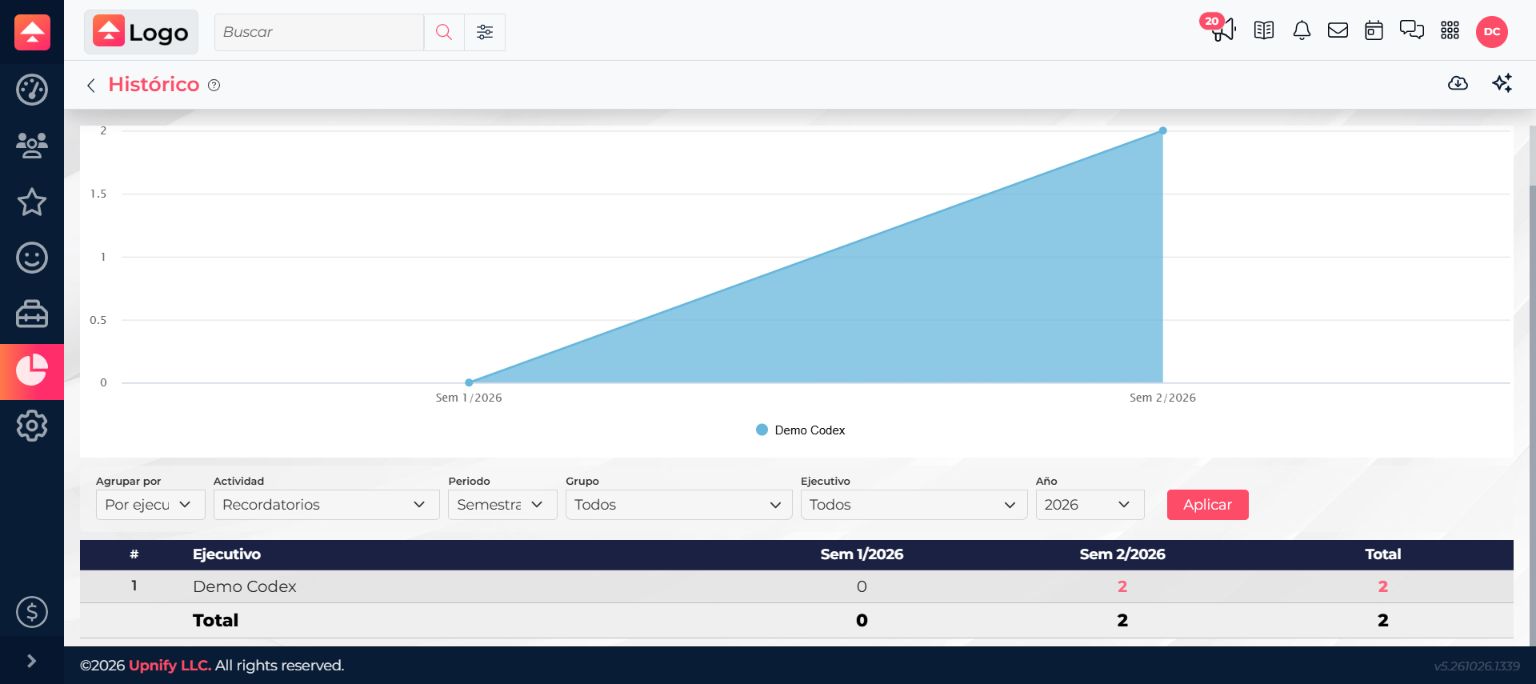
The History report shows how one selected activity is distributed over time. Choose its type, an available interval—such as weekly, biweekly, monthly, or quarterly—and the year, group, or executive.
- Open Reports > History.
- Select the activity and date range or year.
- Choose a grouping interval and optionally filter by group or executive.
- Compare totals. Selecting a number may open its detail when available.
Difference from a contact record's history
A contact record brings together that person's relationship and follow-up. The log searches activities across contacts; History summarizes counts. For one person, open the contact record. To investigate team work or a period, use reports.
If you cannot find an activity
- Expand the date range or confirm the year.
- Temporarily remove group, executive, or type filters.
- Confirm the activity was saved in CRM and matches the selected type.
- In History, check the grouping interval.