

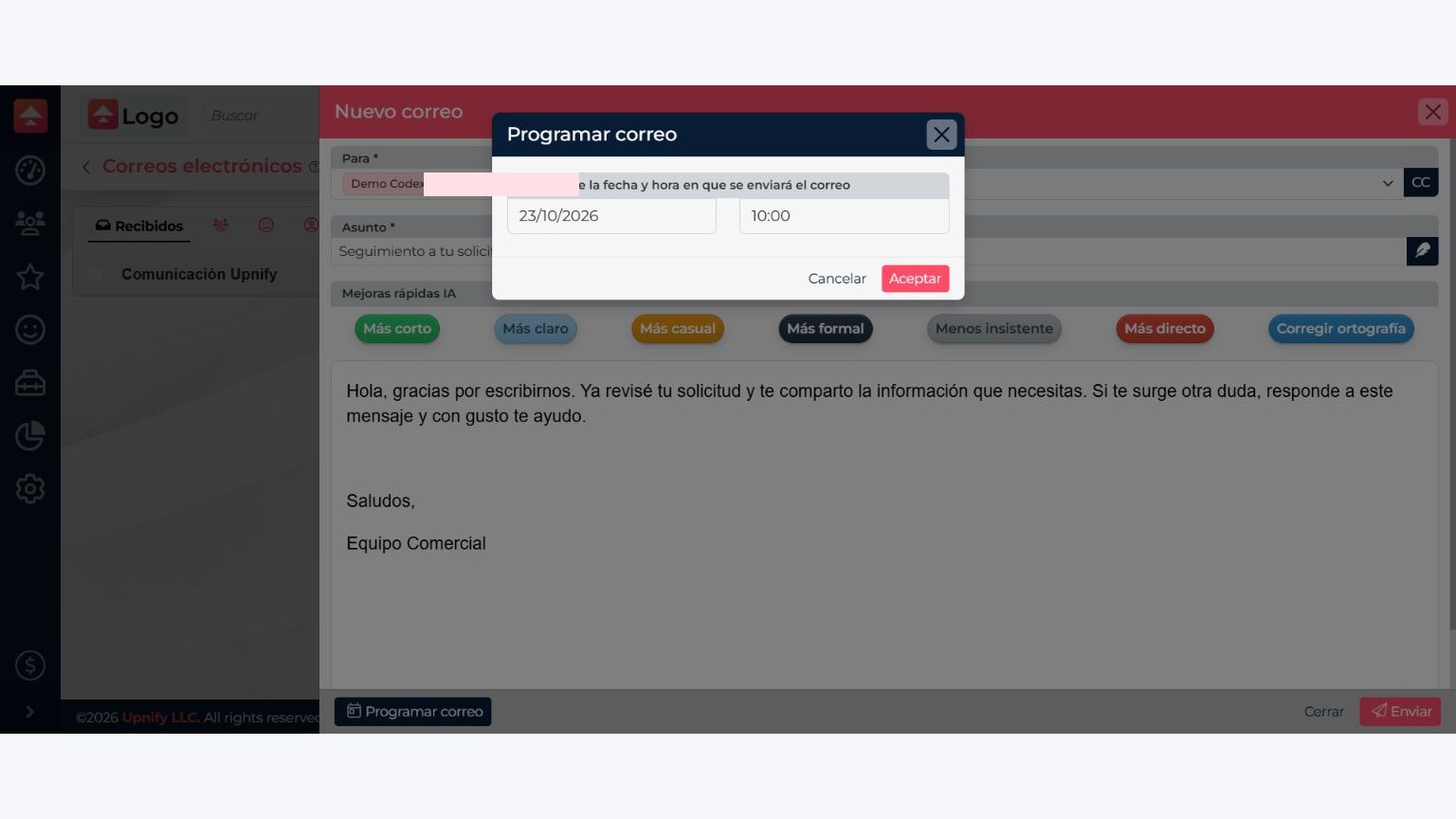
Scheduling an email lets you prepare a follow-up and send it at a more useful time, even when you are offline. For example, finish a proposal in the afternoon and schedule a reminder to reach the customer early on the next business day.
Review and manage scheduled messages
- Open My email and select the Sent tab. Messages waiting for their send time show the Scheduled status.
- Open the message options. You can select Edit scheduled email, Send now, or Delete. If you edit it, review the date, time, and content before saving. Deleting requires confirmation.
- After the scheduled time, check the message under Sent and confirm its status. To analyze activity and results, go to Reports > Communications > Sent emails.
Scheduled does not mean delivered
Scheduled means CRM is holding the message for a future date. After it is sent, review its status and any provider error. If it stays pending or shows an error, do not send it again until you confirm whether the first attempt went out.
Scheduled means CRM is holding the message for a future date. After it is sent, review its status and any provider error. If it stays pending or shows an error, do not send it again until you confirm whether the first attempt went out.