

Before creating an invoice from a sale, CRM needs to know who is issuing it, which branch is used, and which series and number belong to that branch. Setting these details up once helps your team avoid re-entering them and keeps tax information consistent.
Have the certificate and private-key files used for invoicing, their password, and your company tax details ready. The test account has no issuers configured; the images show the real forms without saving tax data.
Register the issuer
- In CRM, open Settings > Electronic invoicing. If you cannot see it, ask your administrator to confirm your permission to configure invoicing.
- Select Add issuer. Upload the certificate and private key, enter the requested password, and select Validate so the system can read the certificate details.
- Check the company name, RFC, and tax regime that are populated. If a value does not match your tax records, stop and use the correct certificate before saving.
- Save the issuer. If the form lets you configure a branch, series, and number at the same time, you can enter an initial setup here or do it later.
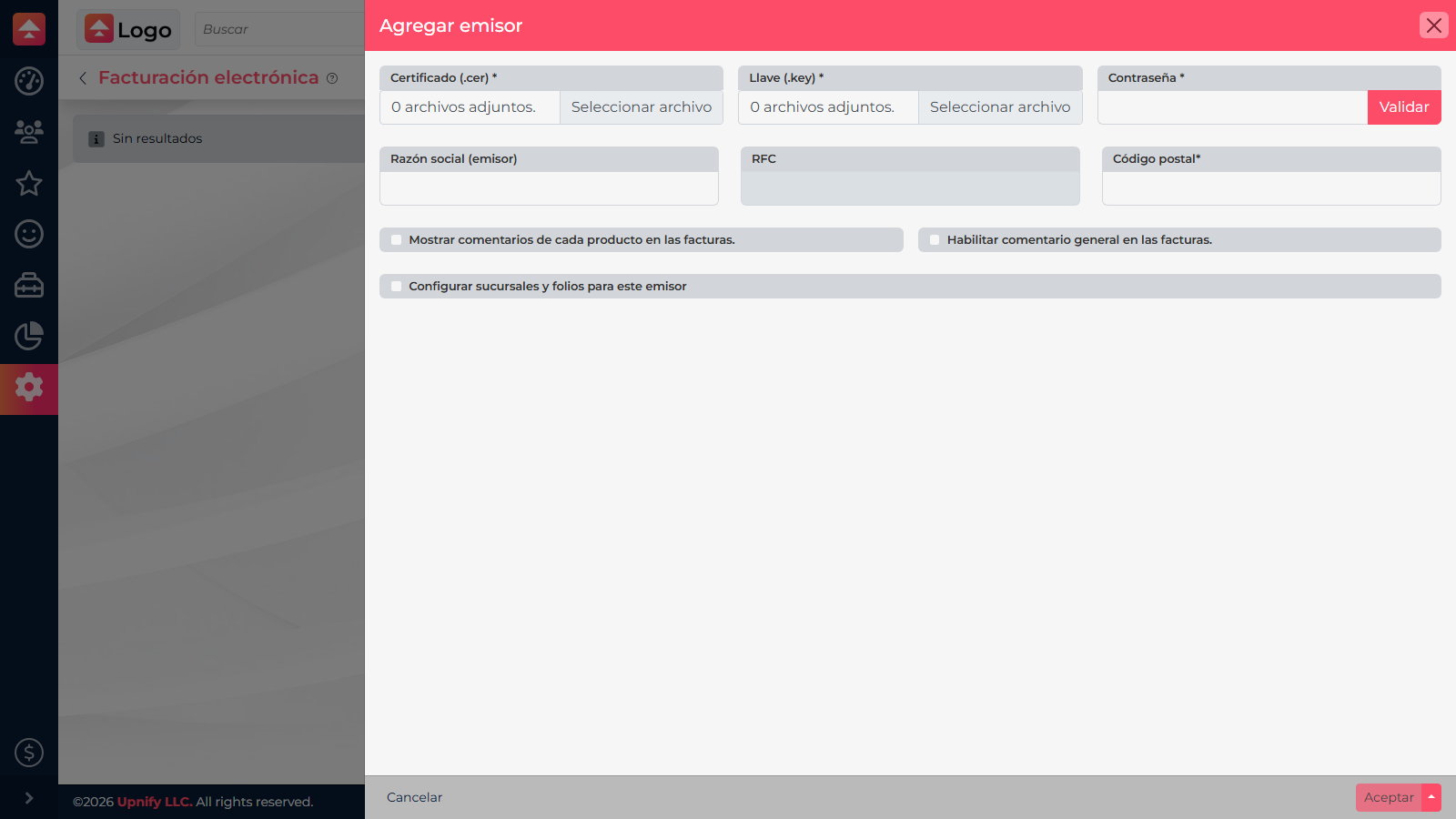
Add a branch, series, and number
- In the issuer list, open Branches for the issuer you saved and choose to add a branch.
- Enter a name your team recognizes, such as Head office or Monterrey, and provide the applicable tax ZIP code. Save the branch.
- Open that branch's numbering settings and add the series, tax regime, and starting number supplied by the person responsible for invoicing.
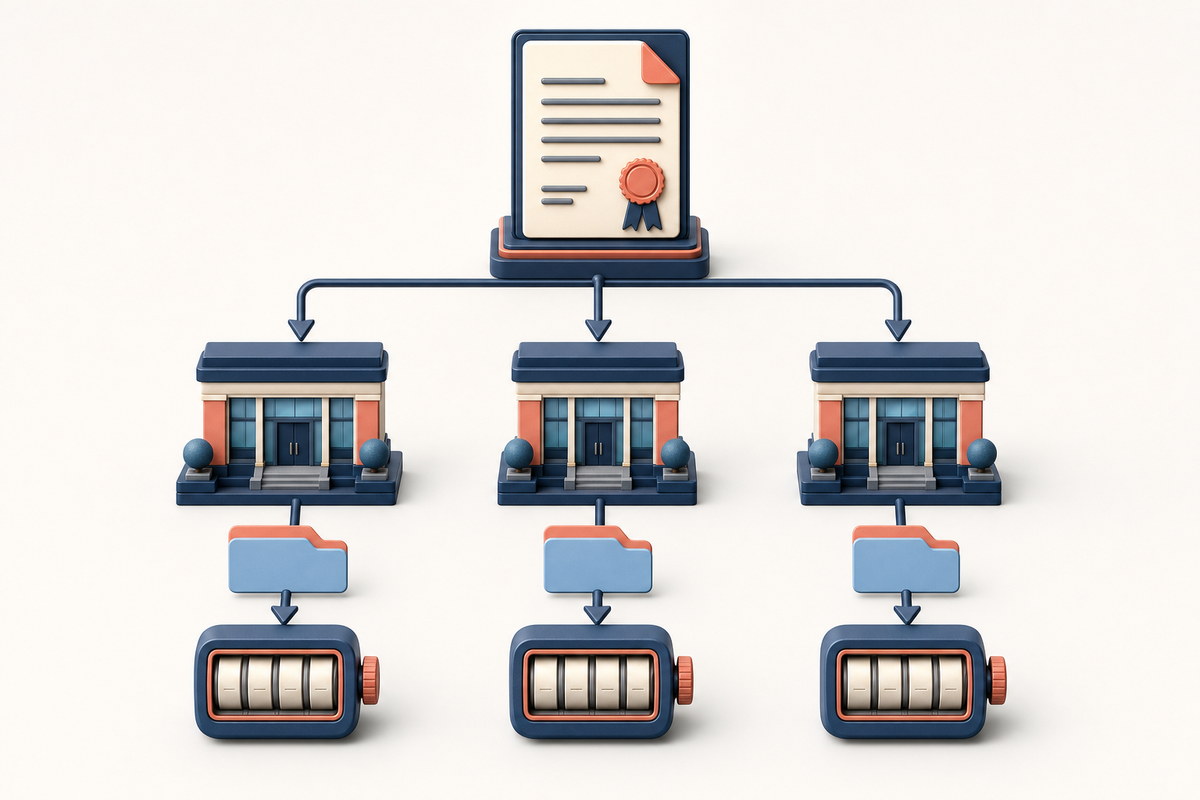
- If you use several branches or series, add an entry for each combination your business uses. Confirm current numbering before reusing a series or number.
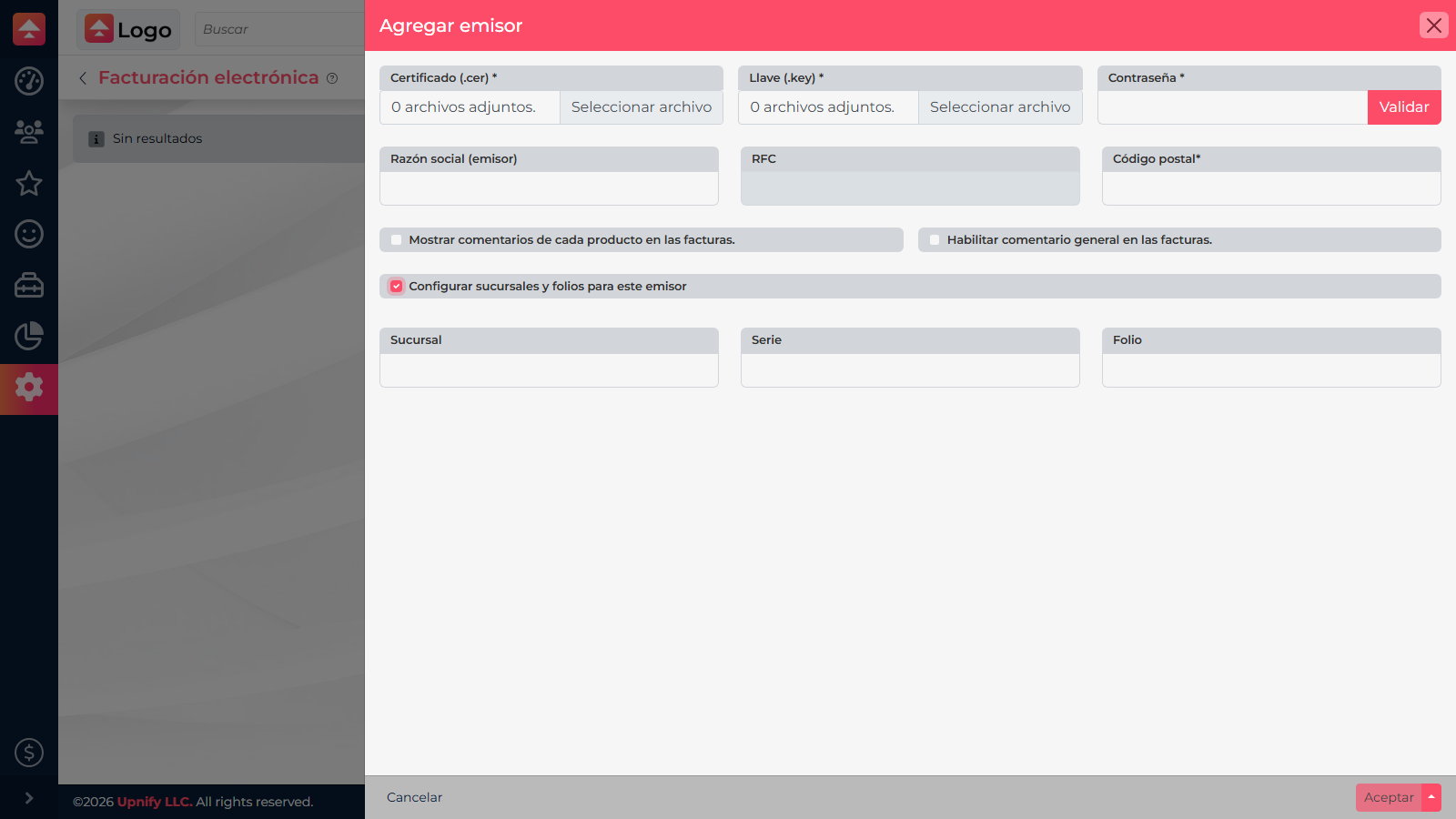
Verify the setup
Return to the issuer and confirm its branch and series appear. When you prepare an invoice from a sale, CRM should let you choose the configured details. If an option is missing, check that the branch and numbering were saved under the right issuer, are active, and invoicing is enabled for your account.
Example: if your head office and northern branch invoice separately, register both and assign the series and numbering managed by your team. When invoicing a sale, choose the branch that will issue the document.