

A sale may change after it is recorded. A customer may request a different quantity, agree on a new date, or revise the amount. Keeping the record current helps pending collections, history, and reports reflect the latest agreement.
Before you edit
If the sale is invoiced or the edit action is unavailable, use the billing process or ask your account administrator. Do not create a duplicate sale to correct a field.
If the sale is invoiced or the edit action is unavailable, use the billing process or ask your account administrator. Do not create a duplicate sale to correct a field.
Edit a sale
- In CRM, open Sales transactions and find the record. You can also open the contact profile and follow the link in its history.
- Open the sale and select Edit (Modificar in Spanish). Verify the contact and concept.
- To change products, open Quote (Cotización). Review the line items and adjust available products, quantities, and prices. Add catalog items that are now part of the agreement and remove only those that no longer apply.
- Review subtotal, discounts, taxes, and total. Confirm the currency and price list match the agreement.
- Update Closed on with the actual sale close date. It differs from an open opportunity’s estimated close date. Change the amount or commission only when appropriate and authorized.
- If payment terms changed, open Payment schedule, review expected dates and amounts, save, and check the result on the sale details.
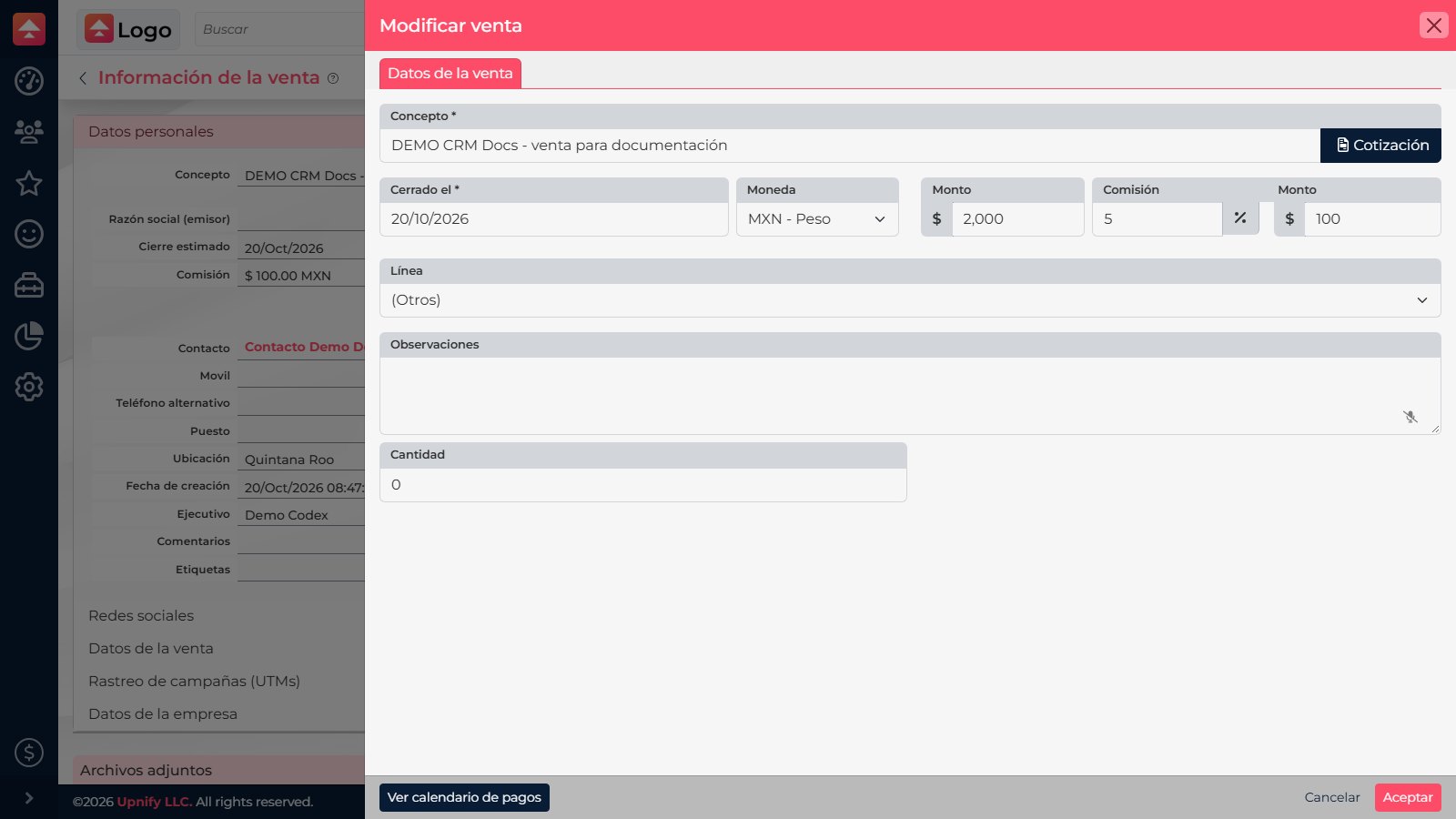
Example: the order quantity changed
A sale was recorded for five licenses, but the customer confirms seven. Update the quantity in the quote and check the total and scheduled collections. If the close date also changed, update that field separately before saving.
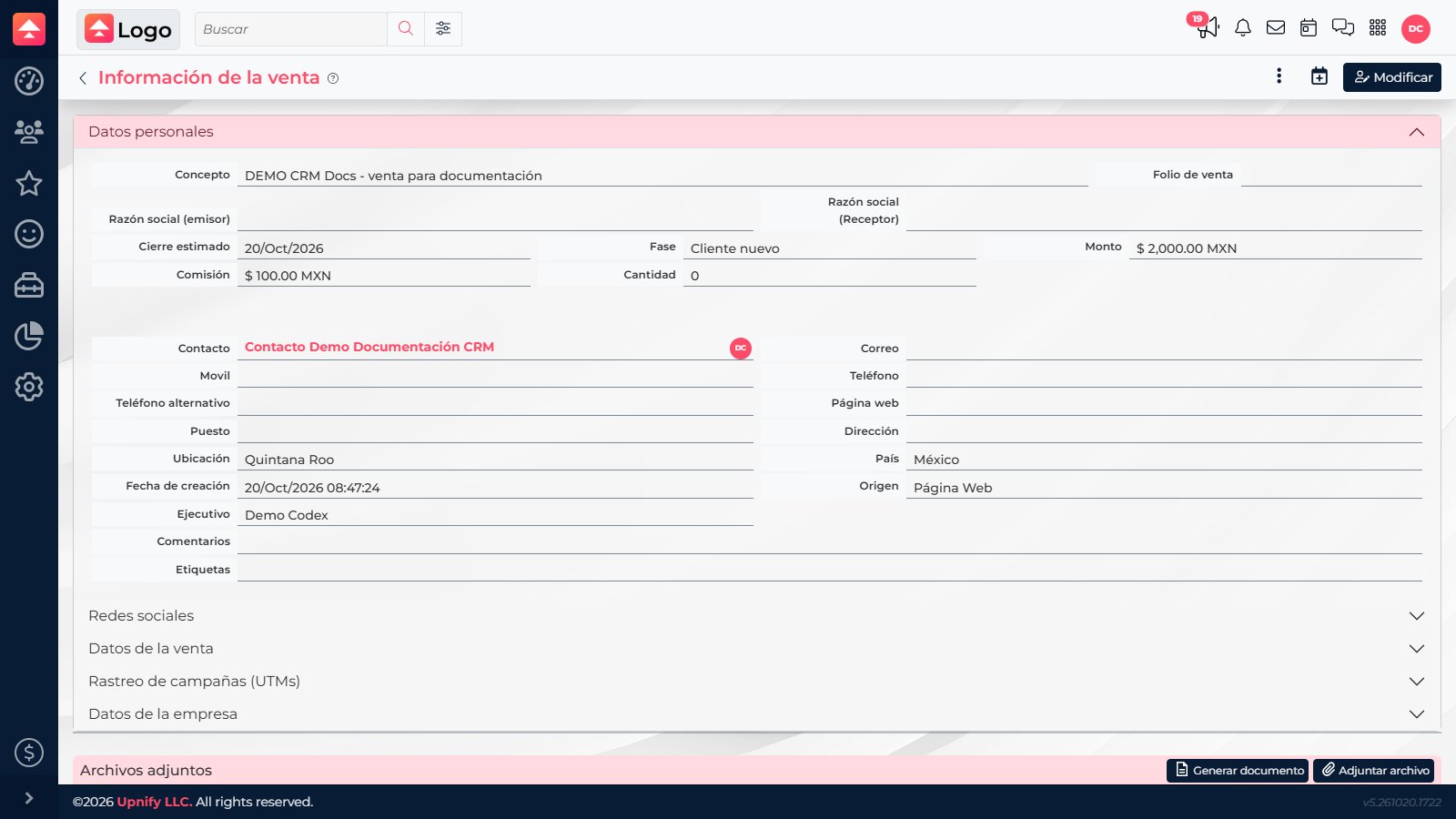
When finished: confirm the close date, amount, and collection schedule match the updated agreement. Each date has a different purpose and must be changed in its own section.