
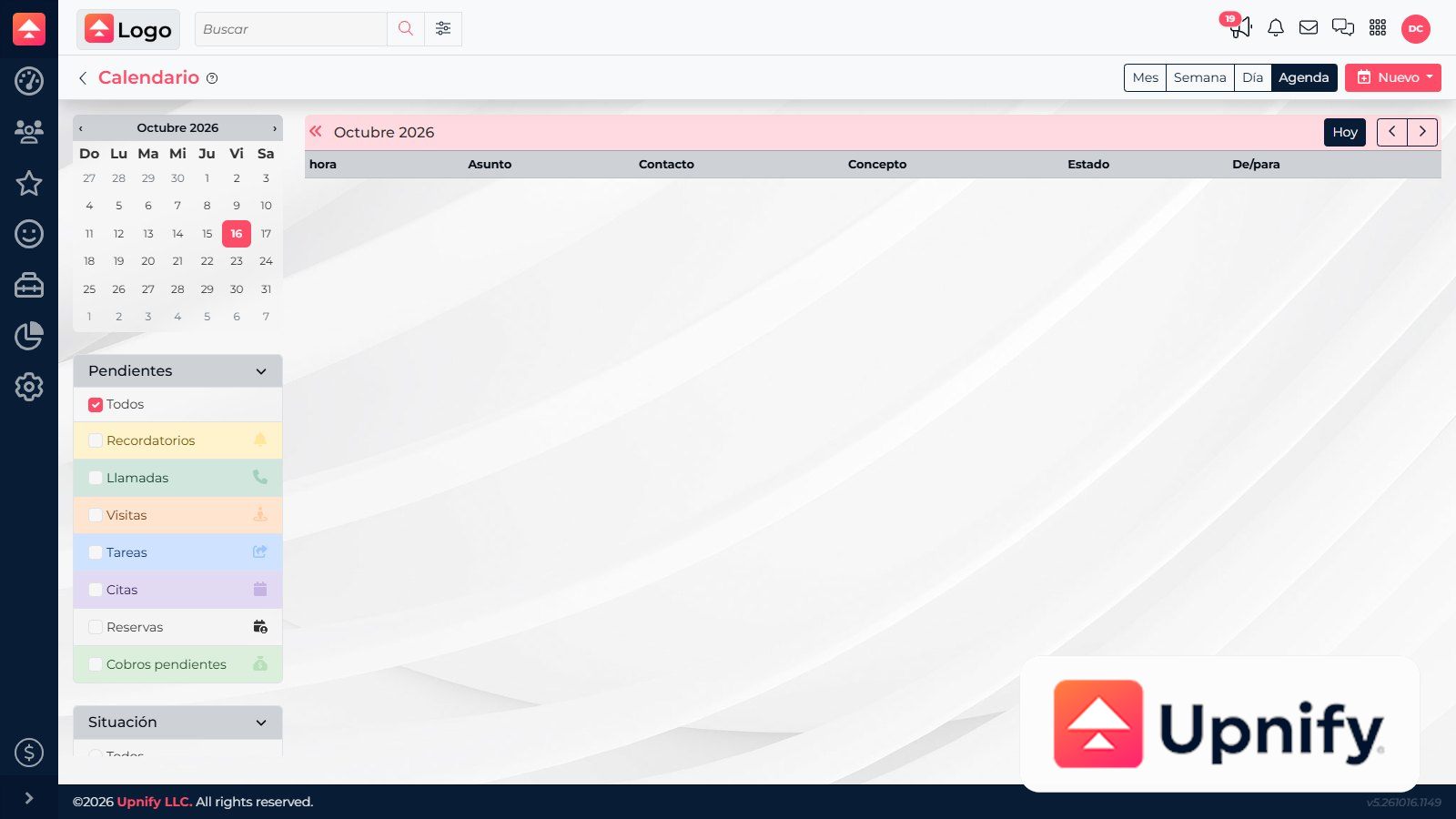
The calendar brings activities together so you can plan your day and spot upcoming or overdue work. Views change how they are displayed; filters help you find specific types and statuses.
Choose a view
| View | When to use it |
|---|---|
| Month | Plan the period and spot busy weeks. |
| Week | Organize near-term work by day in more detail. |
| Day | Review activities scheduled for one day. |
| Agenda | Read a chronological list and review activity details. |
Filter activities
In the calendar panel, select one or more types, such as reminders, calls, visits, tasks, appointments, or reservations. Use status filters to show all, active, completed, or overdue activities. To find a specific item, combine type with the date range and status.
View team activities
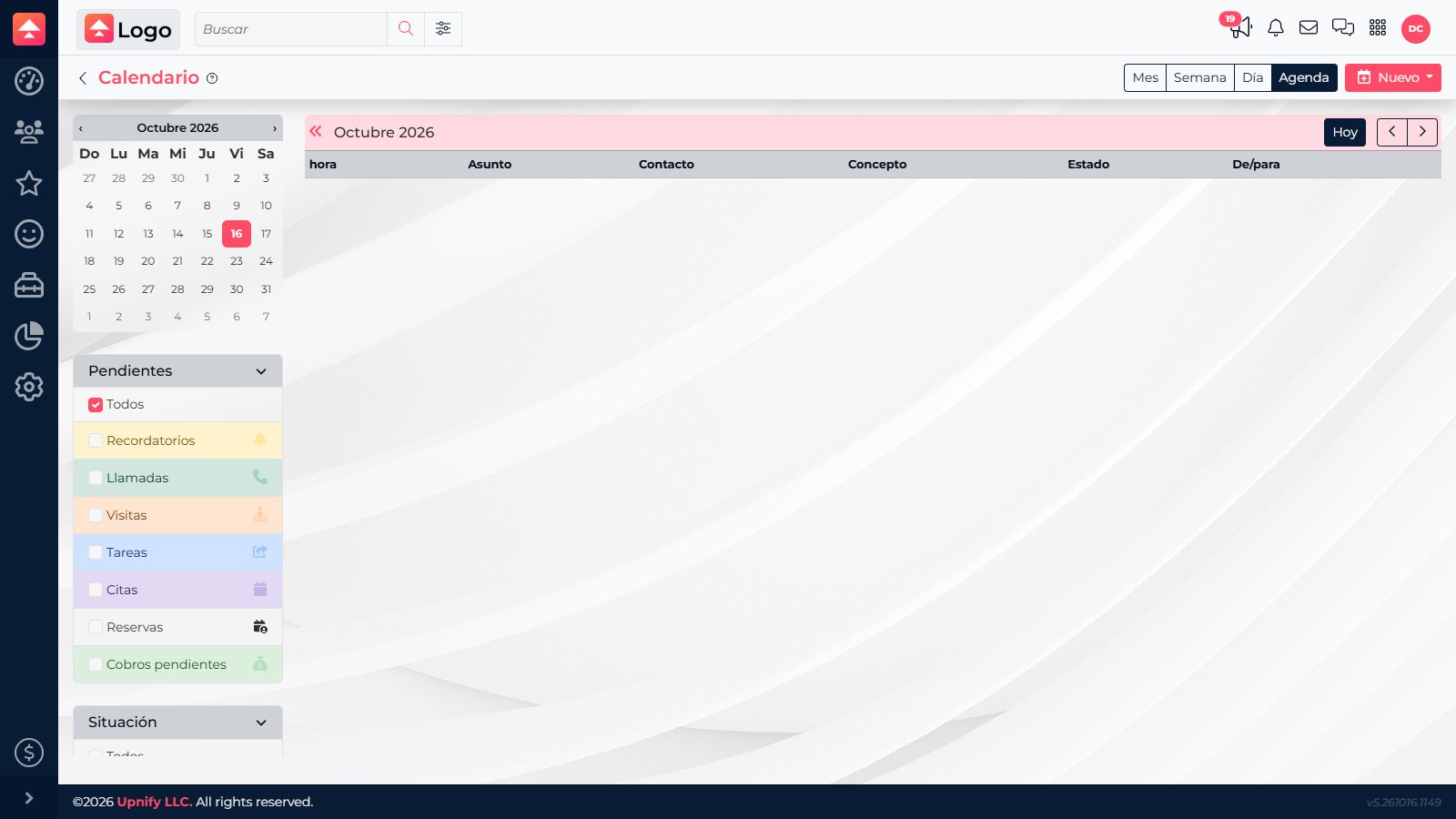
The calendars area may show your agenda and others available to you. Select the person’s or group’s calendar when it appears. If you cannot see someone, your access scope, sharing settings, or calendar availability may explain it.
Visibility depends on permissions
Seeing a calendar does not necessarily mean you can edit every activity in it. To reassign or change an activity, check that you have permission for the action and the related record.
Seeing a calendar does not necessarily mean you can edit every activity in it. To reassign or change an activity, check that you have permission for the action and the related record.
If something is missing
- Clear type or status filters.
- Check the date range and selected view.
- Make sure you are viewing the intended calendar.
- If the activity should be visible, ask an administrator to review team viewing permissions.