

Sending from CRM keeps an email close to the prospect, customer, or opportunity you are working on. You can review it in the sales follow-up and recover the context before your next touchpoint. For example, after a call you can send the proposal you discussed and reply from the same inbox when the prospect responds.
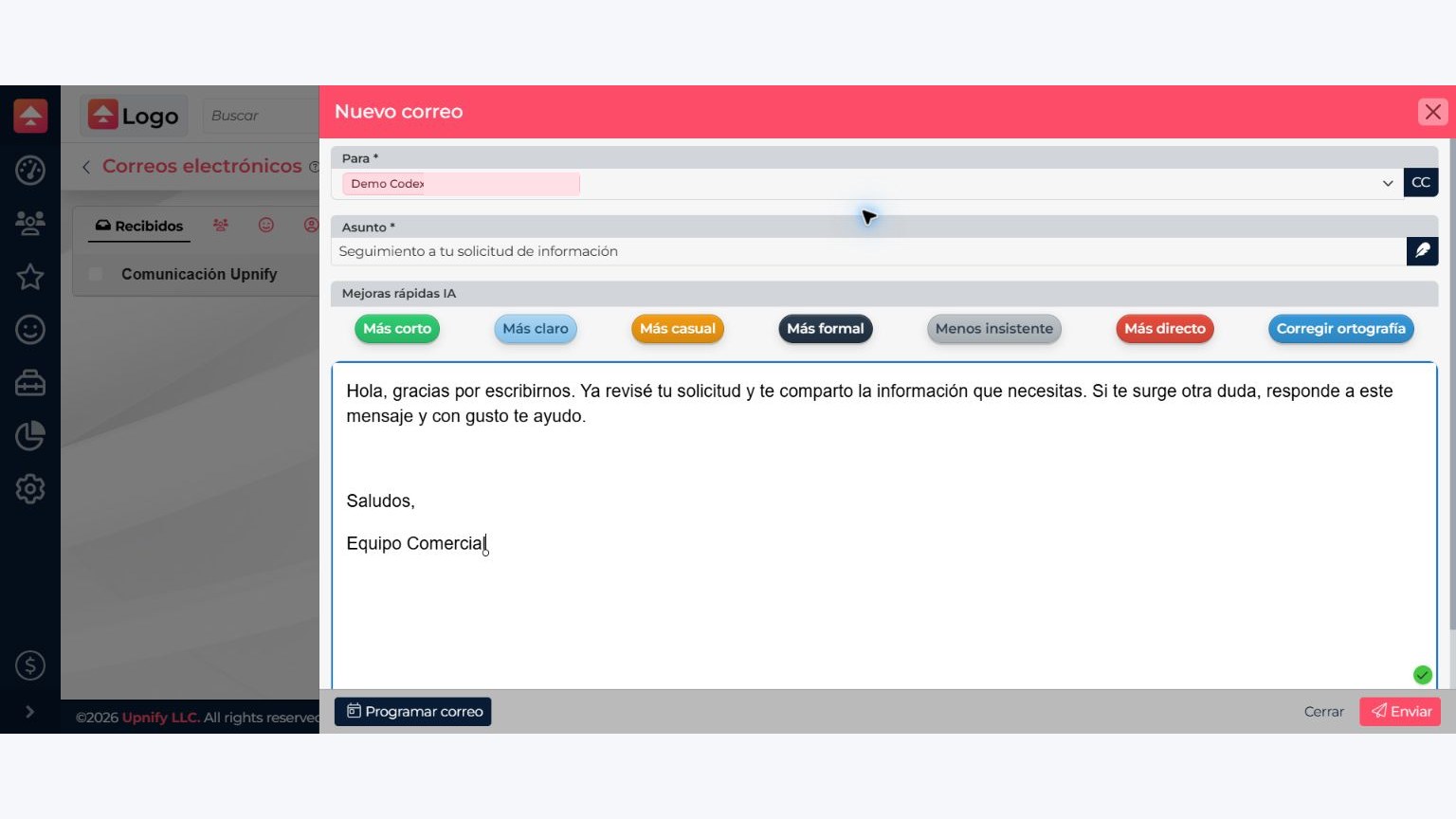
Reply to a message
- In My email, open Received and select the message you want to answer.
- Choose Reply to answer the sender, or Reply all when everyone in the conversation should receive your response.
- CRM prepares a message with the conversation context. Verify the recipients, write your reply, attach files if needed, and select Send.
Check the result
Look for the message under Sent. If you replied from a contact record, return to its history to confirm the email was linked to the follow-up. A sent status means CRM processed the request; it does not by itself confirm that the recipient’s mailbox accepted or read the message.
Look for the message under Sent. If you replied from a contact record, return to its history to confirm the email was linked to the follow-up. A sent status means CRM processed the request; it does not by itself confirm that the recipient’s mailbox accepted or read the message.