
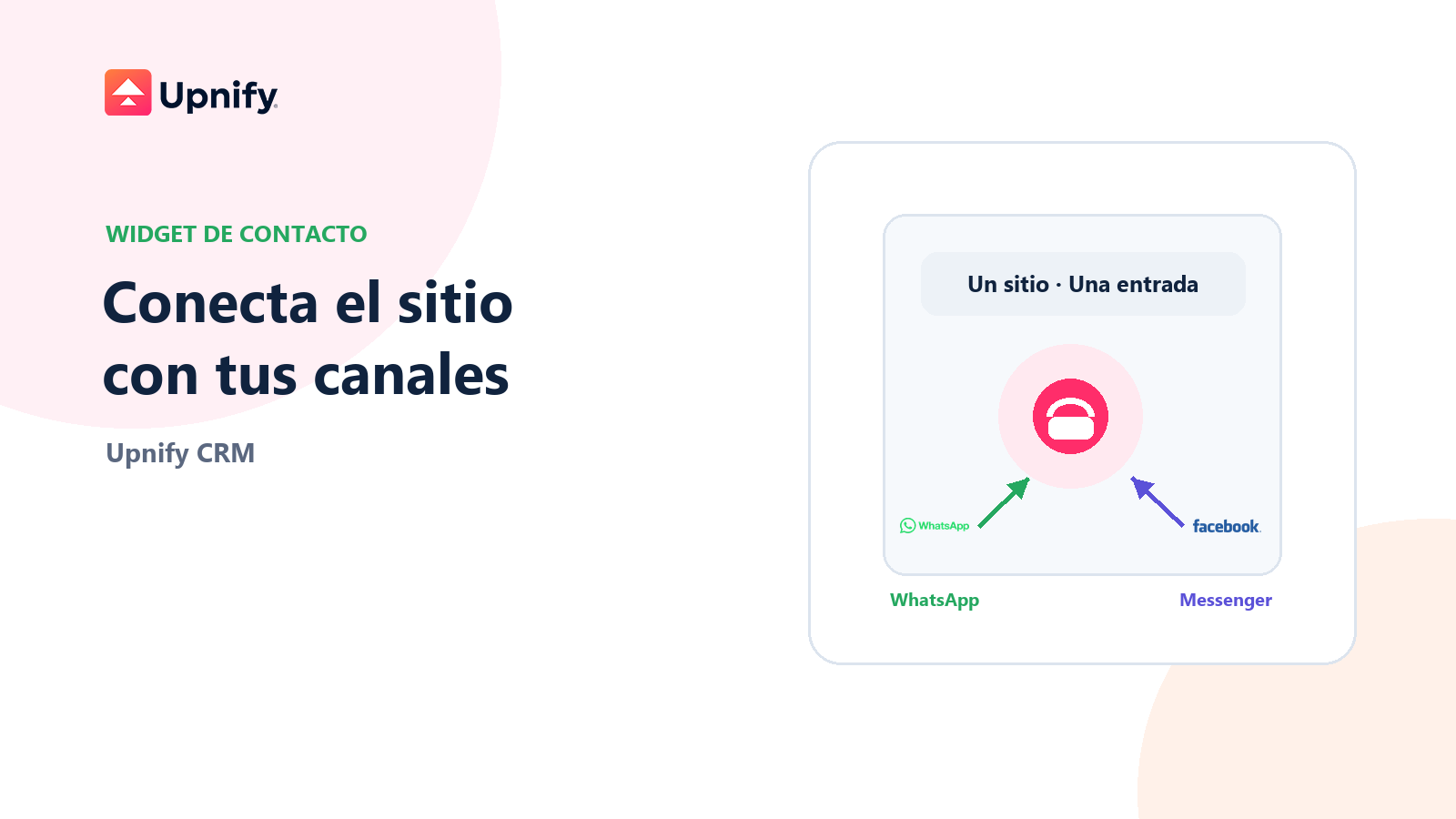
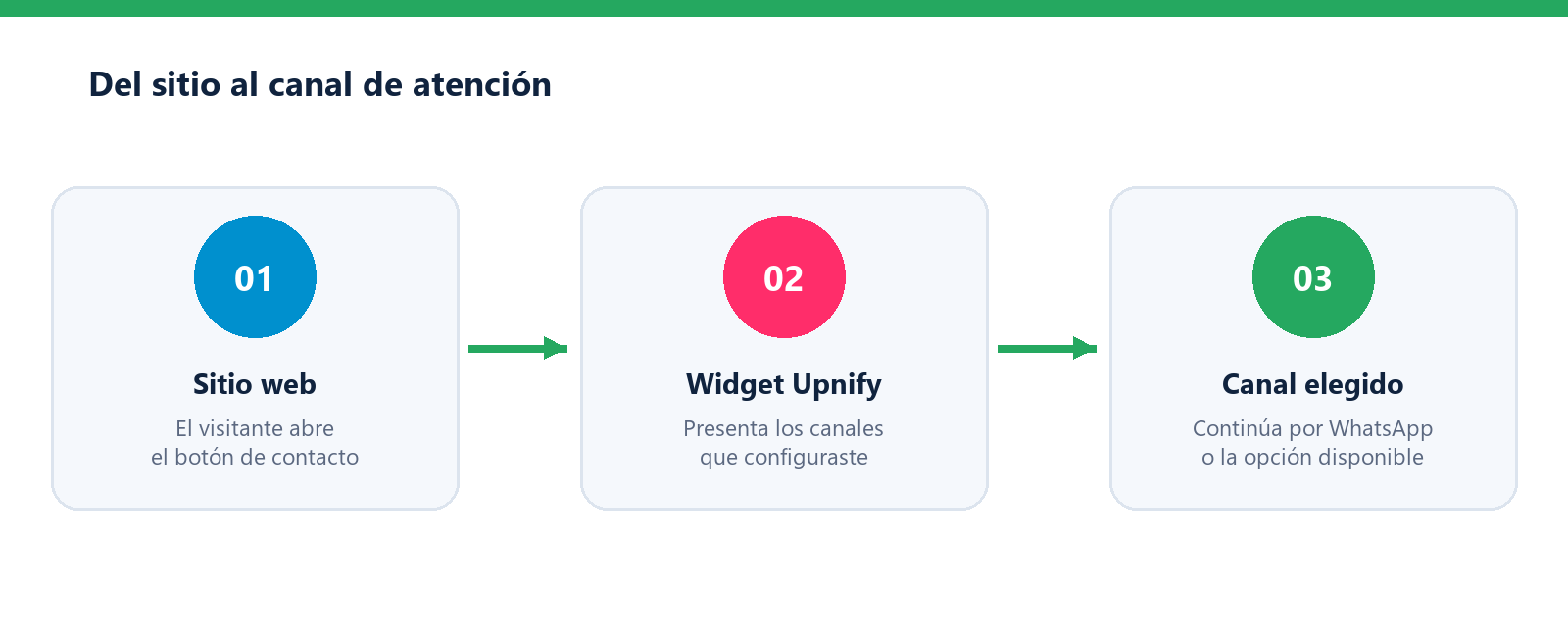
A contact widget helps visitors start a conversation without having to search for your company’s contact details. In Upnify CRM, you can configure a floating button with the channels available to your account and let each visitor continue through the selected channel.
Before you start
- You need permission to manage CRM integrations and access to edit the website code, or help from the person who manages it.
- Have the WhatsApp support number and country code ready. For the Facebook option, prepare your Page URL and its ID.
- The widget provides a contact route. It does not replace a WhatsApp Business Platform connection, Meta-approved templates, or a messaging campaign.
Configure the widget in CRM
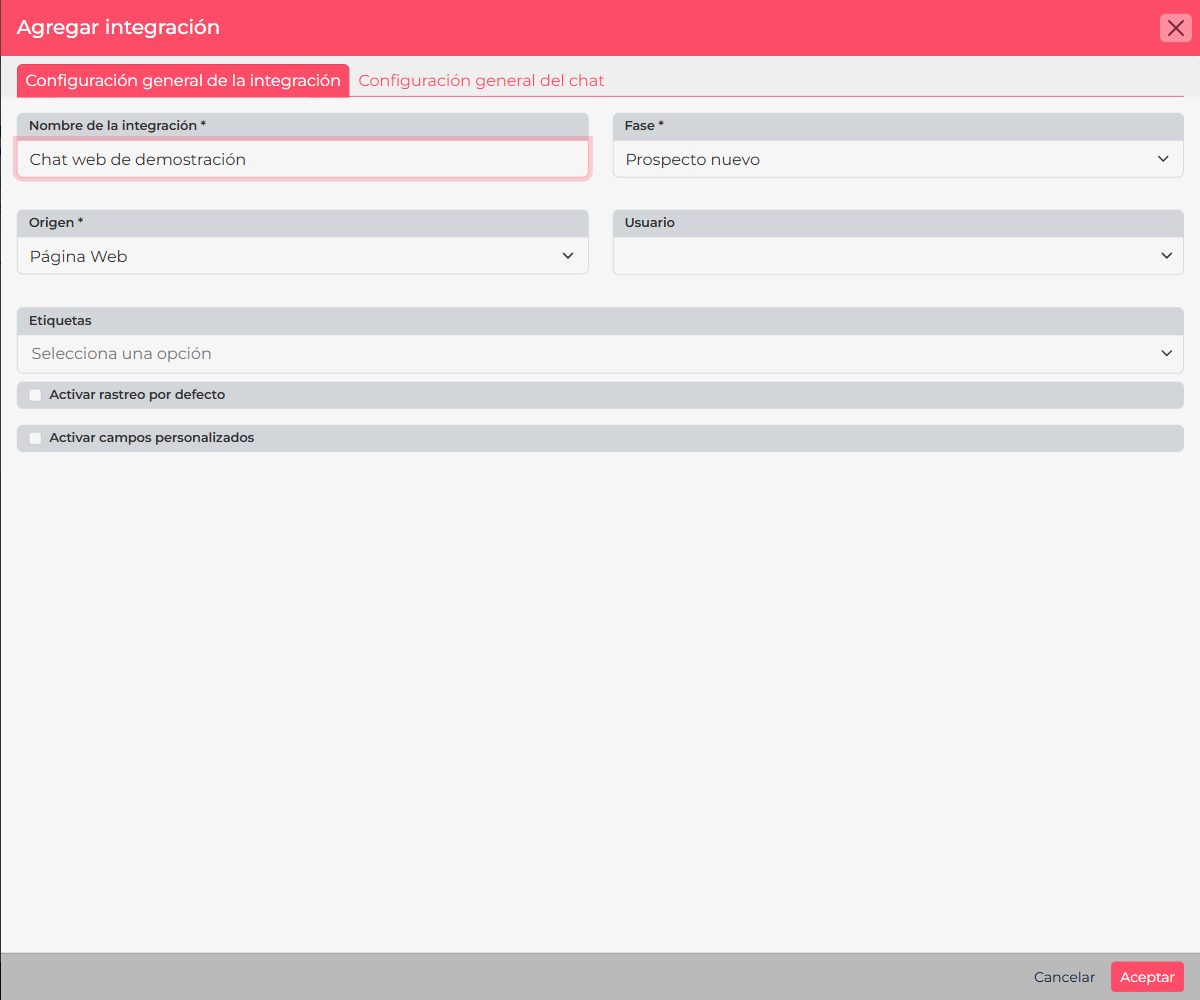
- Open CRM > Settings > Integrations > API and add a Chat integration.
- In the general settings, choose a name that identifies the website, such as Home page widget. Set the stage, source, tags, and owner that should apply to contacts received through this channel, using the available options.
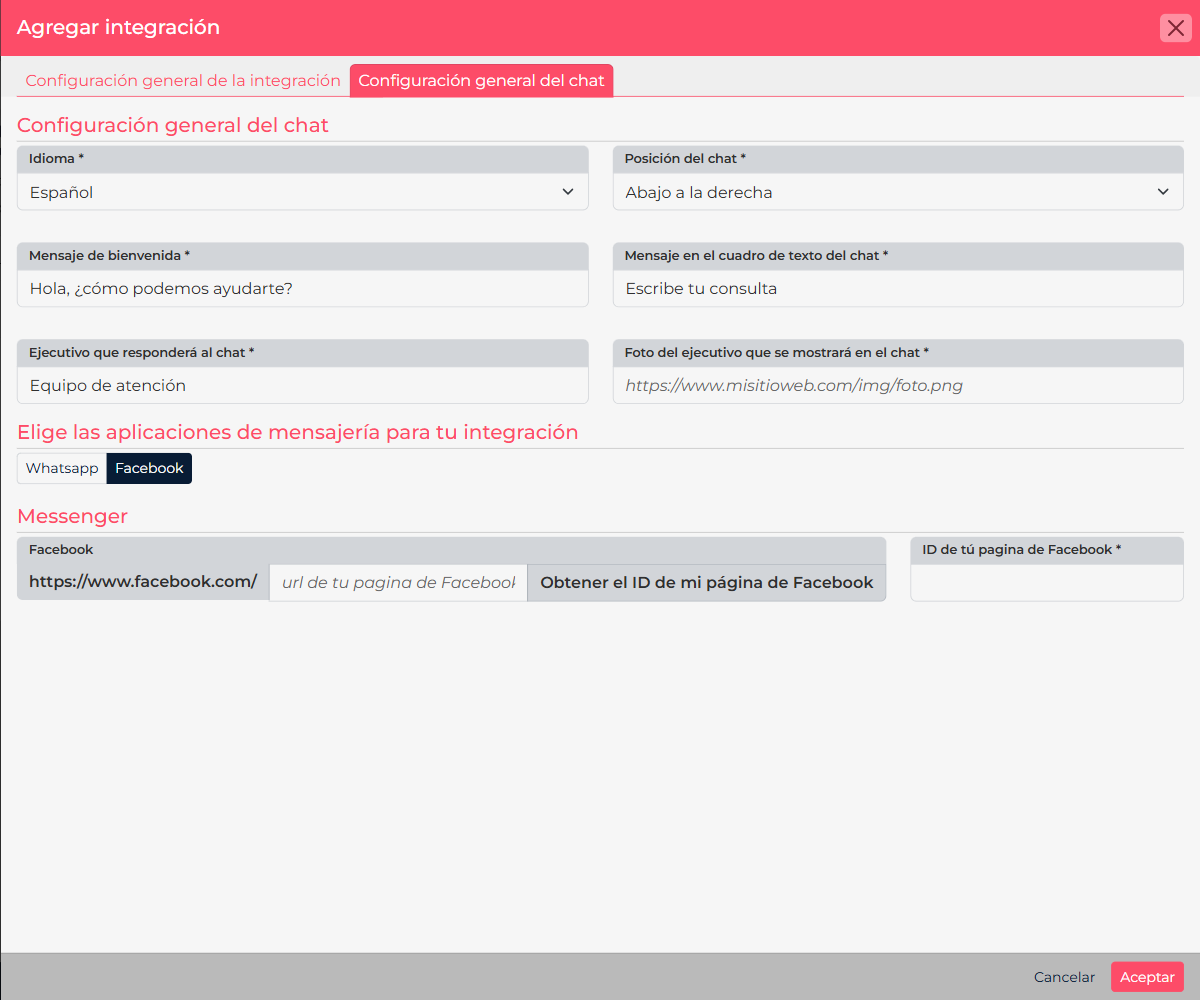
- Choose the language and button position, then enter the greeting and text shown in the message box. You can set the name and image of the person or team that will respond.
- Enable WhatsApp and enter the support mobile number in the format shown by the form. If you enable Facebook, enter the Page address and the requested Facebook ID.
- Save the integration. CRM will show the widget code. Copy it and keep the complete snippet.
Install it and check the visitor journey
- Ask the website administrator to add the generated code once to the pages where the button should appear, at the location recommended by the site administrator.
- Start on a test page or review the site in a private browser window. Confirm that the button appears in the selected position and that the greeting is readable on desktop and mobile.
- Open each channel. For WhatsApp, confirm that the button opens the correct number. For Messenger, confirm that it opens the Page direct messages. These are conversation links; they do not submit lead-capture forms.
- If you use Messenger, verify the full flow from a private window and a mobile device before announcing it.
For a direct WhatsApp link, official documentation says to use a complete international-format number without plus signs, brackets, or dashes: WhatsApp’s click-to-chat instructions.
Example and troubleshooting
A company adds the widget to its services page. It configures WhatsApp as a channel, a short greeting, and the source Website. Before promoting the page, the team tests from a phone that has not saved the number and confirms the message reaches sales support.
- The button does not appear: check that the complete code is installed, the integration was saved, and the website is not blocking the script.
- The channel opens the wrong destination: check the number, Page URL, or ID entered in CRM.
- The contact arrives with different details: review the integration’s stage, source, tags, and owner.
- Messenger does not open the conversation: check that the Page and its identifier are correct, then test from a mobile device and a private window. This button should take visitors to direct messages; it does not submit Lead Ads forms.
To embed a CRM-generated form on a page, see How to generate and install an Upnify HTML form.