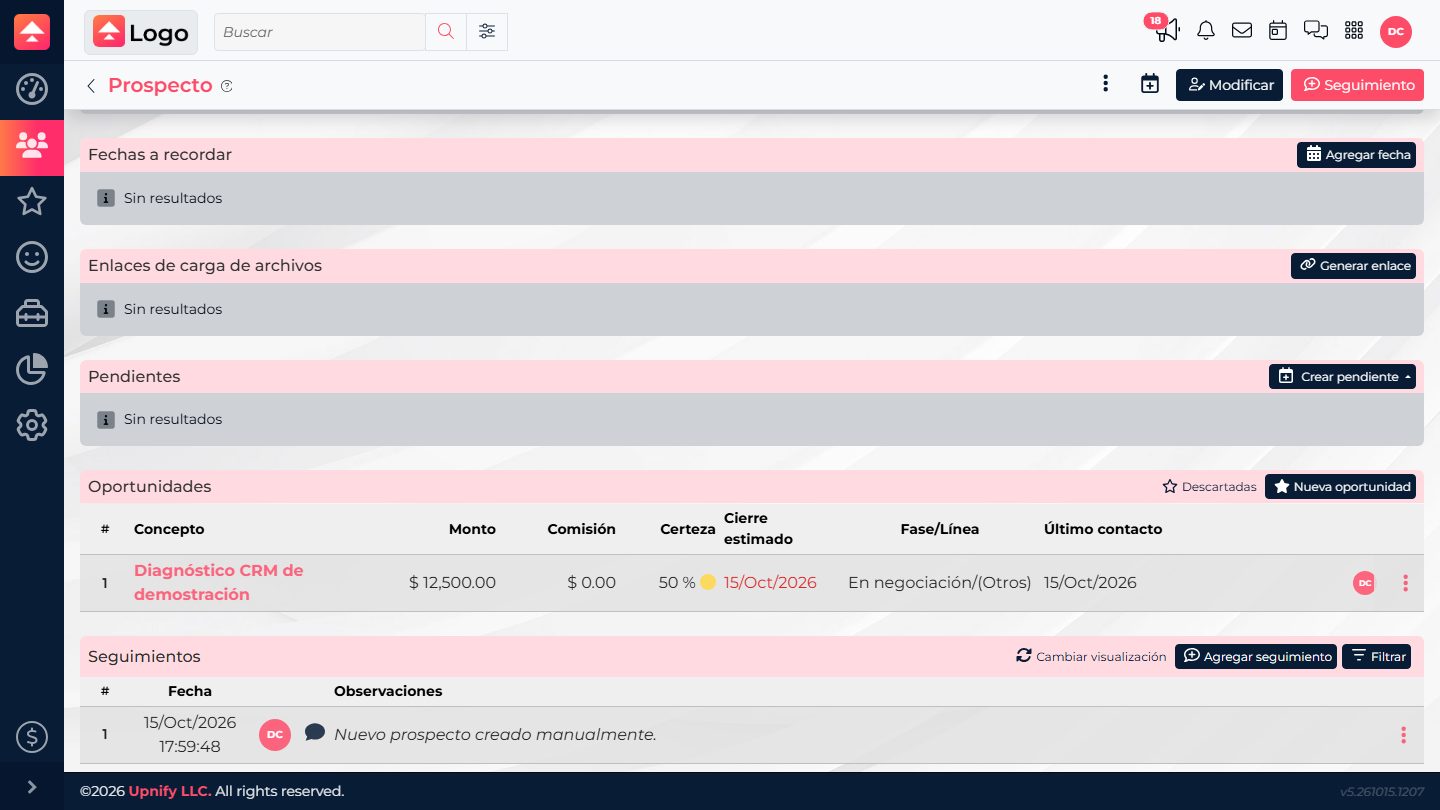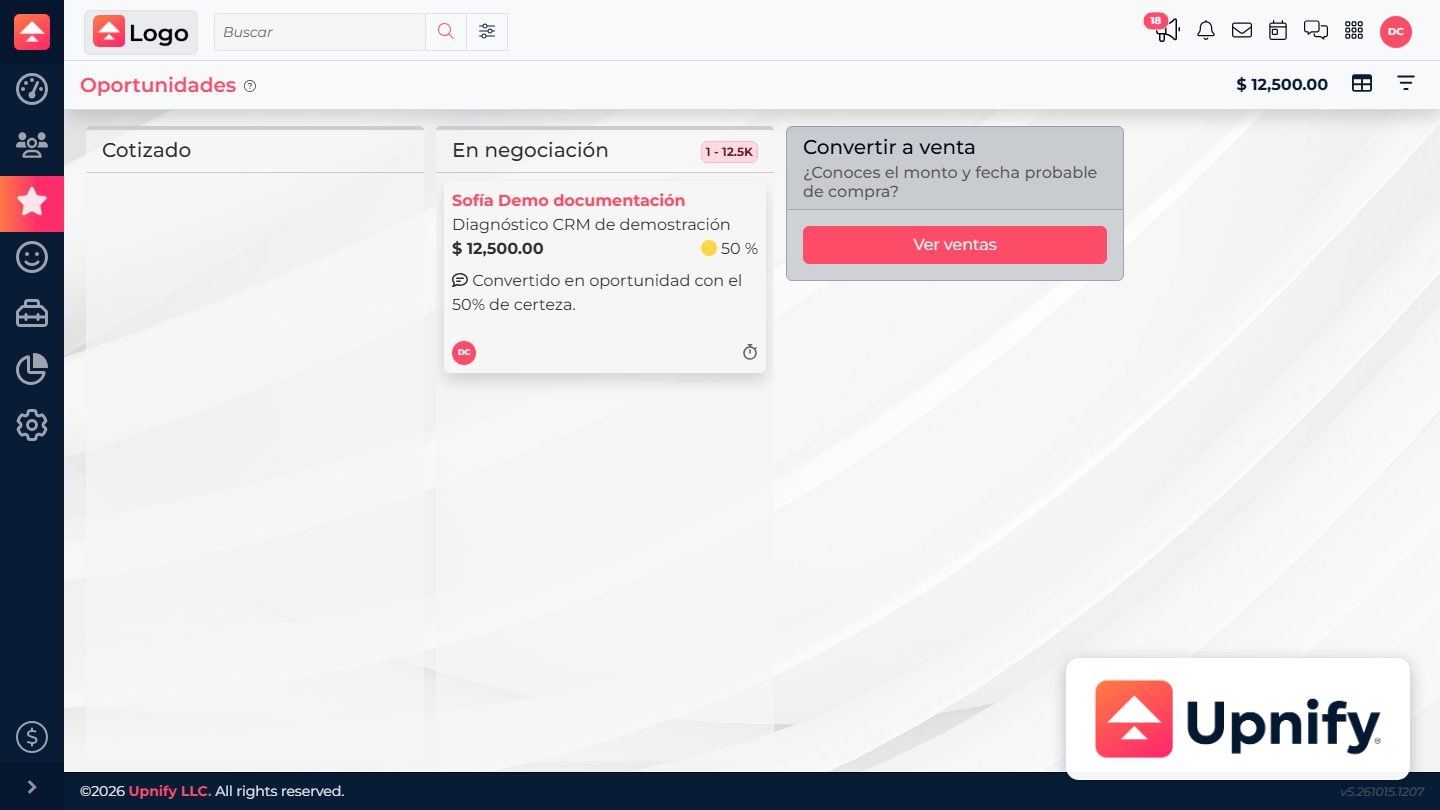
Upnify CRM offers different views of the same sales work. A list helps you review multiple records and find one; a record details page brings together the context for a person or opportunity; Kanban helps you understand how a process is moving through phases. Changing views does not create another record; it only changes how you review it.
Think of the workflow this way: open a section from the menu, find the record in a list, open its details for context, and use Kanban when you want to review progress by phase.
What each view is for
| View | Use it to | What you will find |
|---|---|---|
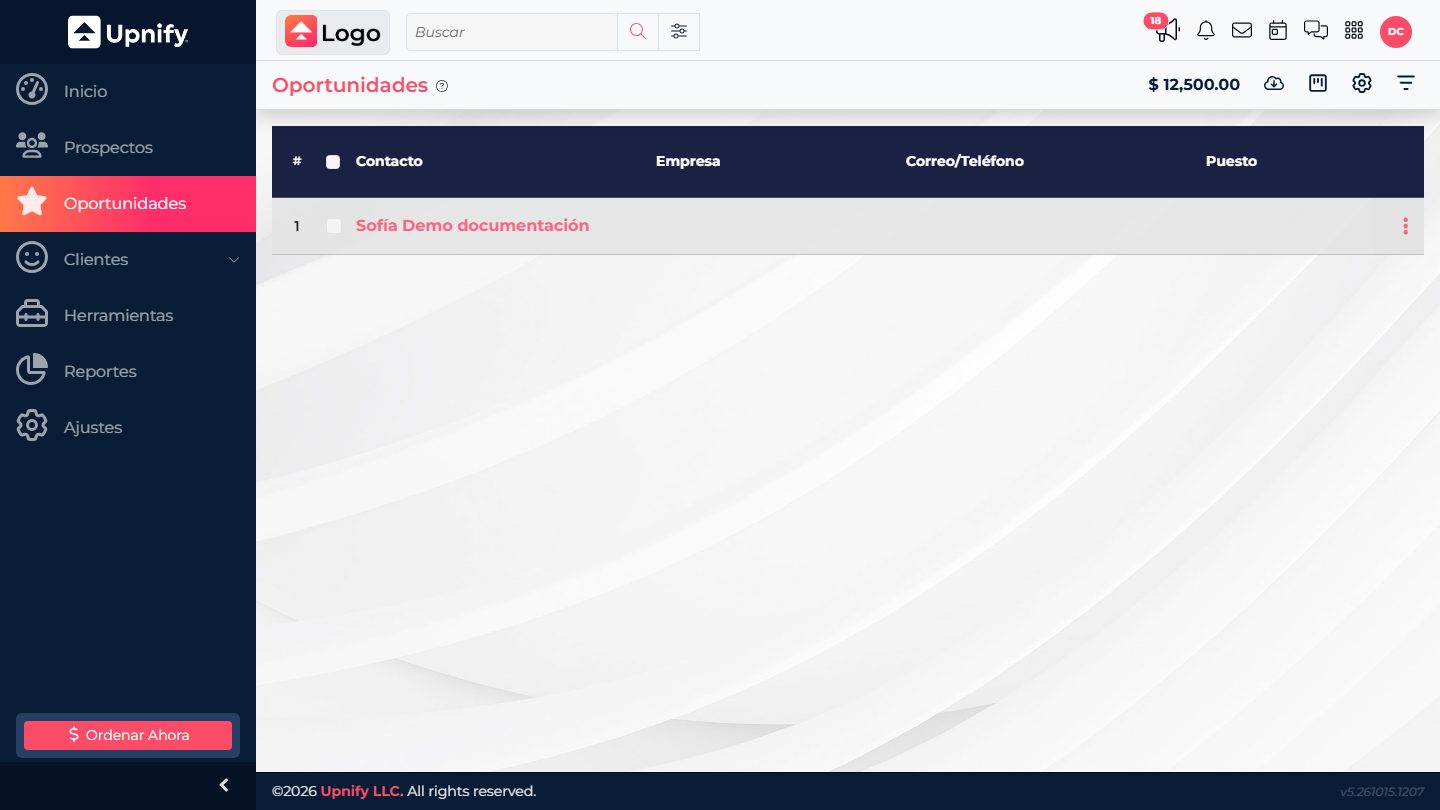
| List | Compare multiple records or start a search. | Rows, columns, and actions available for that record type and your permissions. |
| Record details | Understand one person or opportunity in detail. | Record information, history, pending tasks, and available related records. |
| Kanban | Review progress through process phases. | Cards grouped into columns that represent configured phases. |
Move through a list and open record details
- Open a section from the side menu. For example, open Prospects to review contacts in progress or Opportunities to review potential deals. You can also use Customers when the contact has that sales relationship.
- Find the record in the list. If there are many results, use the search or filters in the header; the article on searching and filtering explains that workflow in more detail.
- Select the person's or opportunity's name to open its details. There you can review information that may not fit in a row, such as history, pending tasks, and related records.
- Return to the list with the back arrow at the top when you finish reviewing. From the list, you can open another record or switch sections.
The screenshots show the Spanish-language interface; labels may differ in your account.
Review progress in Kanban
- Open a supported list, such as Opportunities, and look for the Kanban view control in the header.
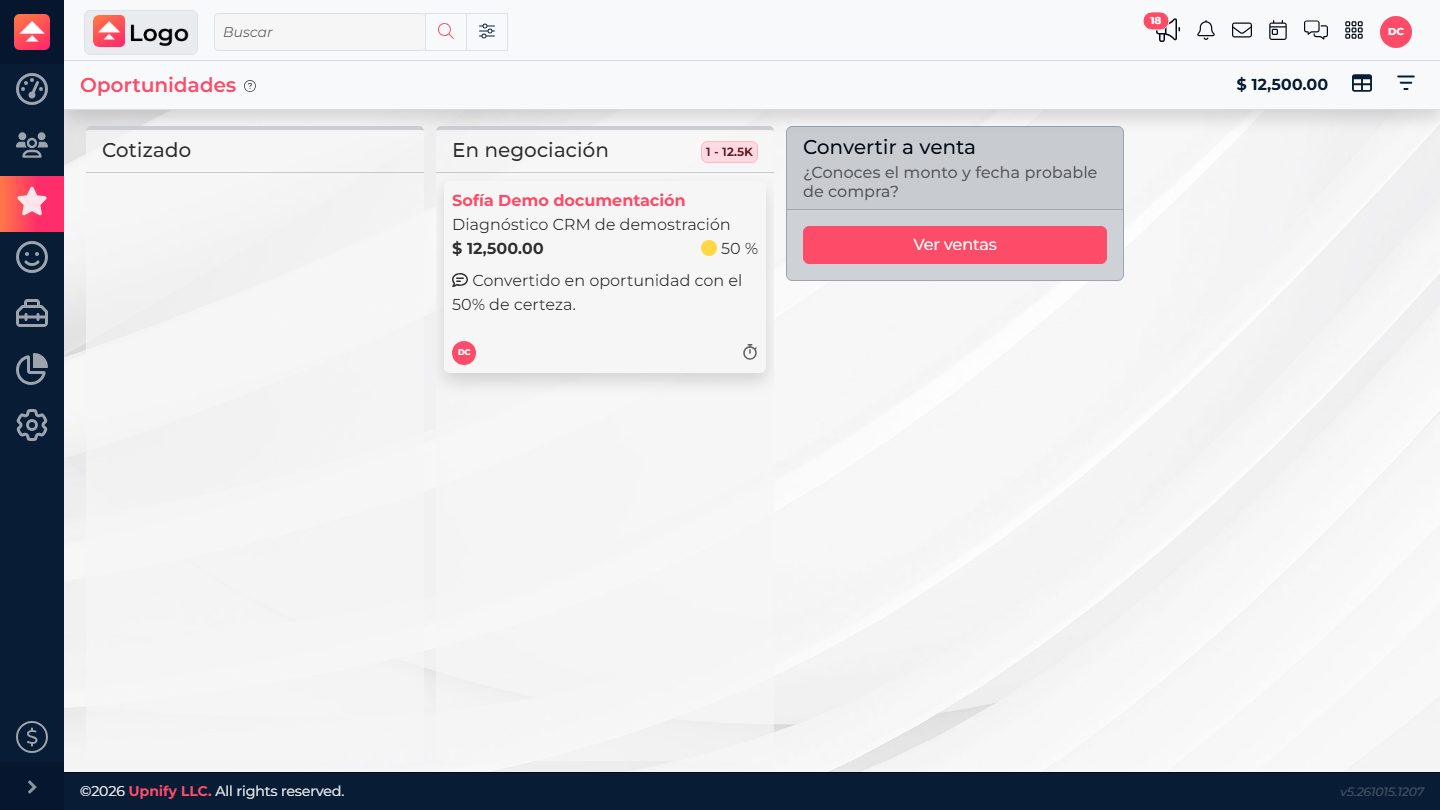
- Read the columns from left to right: each one corresponds to a process phase. Cards show a summary of each opportunity; open a card if you need its details.
- If your user has permission and the workflow allows it, you can move a card to another column to change its phase. Do this only after confirming that the phase matches the deal's actual status.
Important: changing a phase updates the opportunity's process and may trigger actions configured for that phase. If you are only reviewing progress, you do not need to move the card.
Choose a view based on your task
- Use the list to find, compare, or review multiple records.
- Open record details when you need the history and related information for one record.
- Use Kanban to understand how opportunities are distributed across phases.
Visible sections and actions can vary based on your user permissions, account setup, and record type. For example, a prospect's details can show information about the person and related opportunities in one place.