
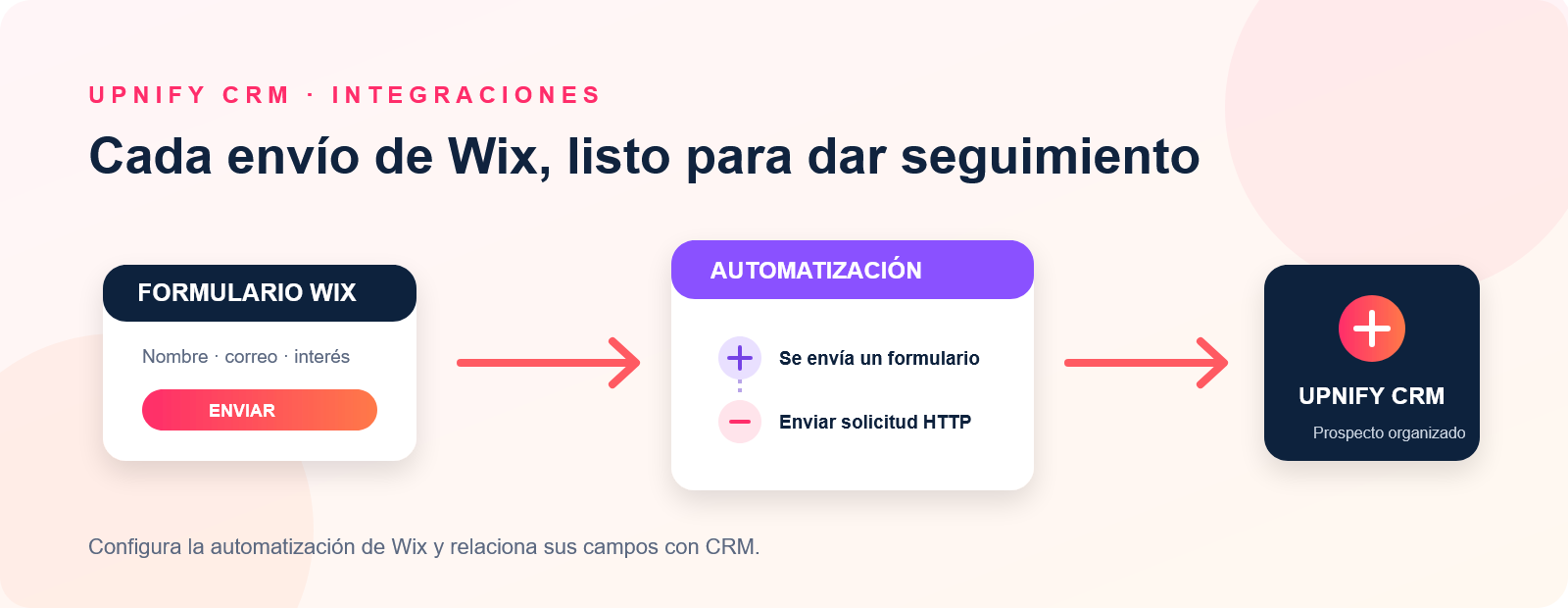
When someone submits a form on your Wix site, you can send their information to Upnify CRM and follow up alongside your other leads. First create a Wix integration in CRM, then set up a Wix automation to send an HTTP request whenever the form is submitted.
You need permission to manage CRM integrations and Wix automations. The form must include an email address or mobile phone. The HTTP request action must be available on your Wix account, and you need permission to configure webhooks.
1. Create the Wix integration in CRM
- In Upnify CRM, open Settings > Integrations > API and select Add integration.
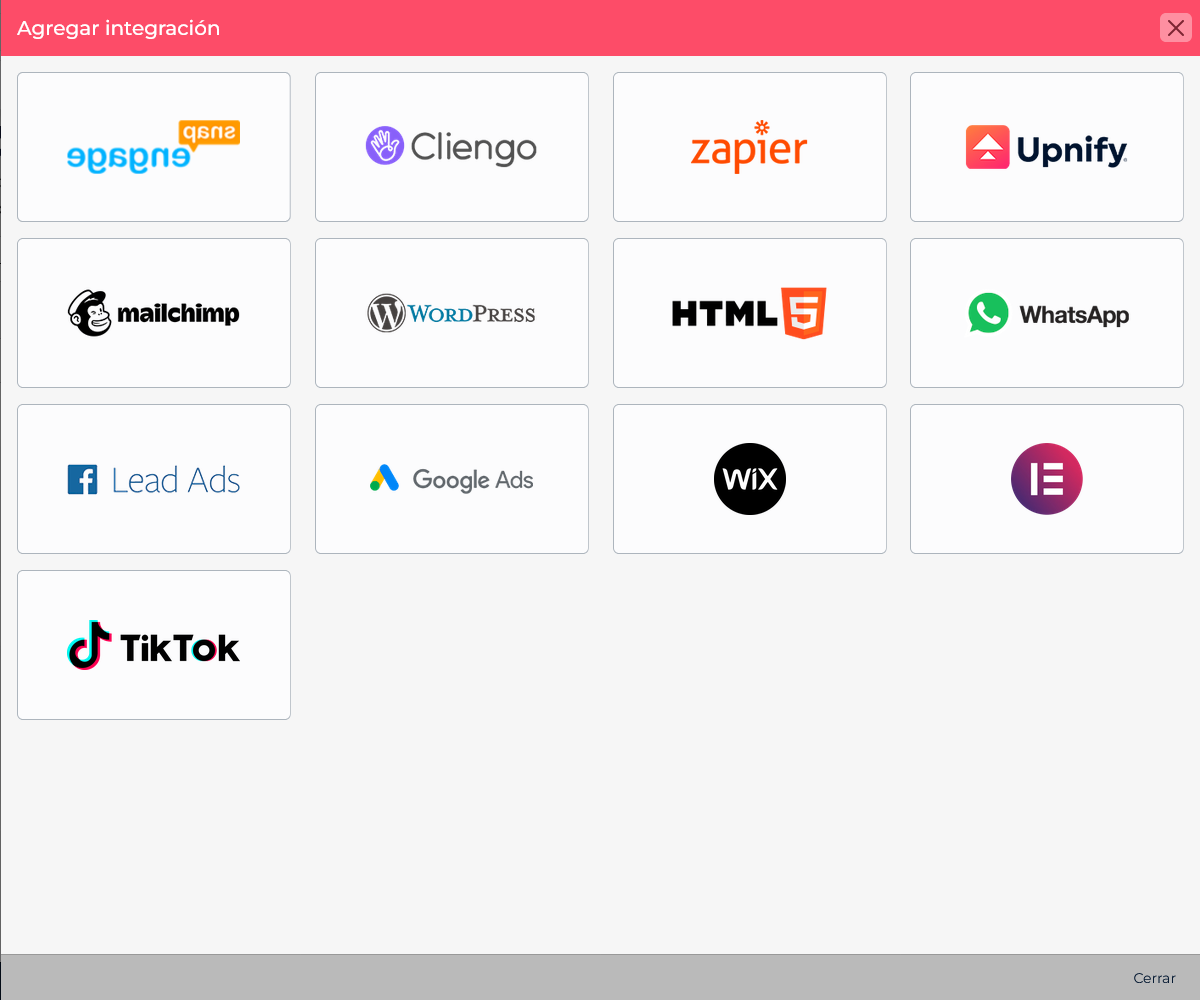
- Choose the Wix card.
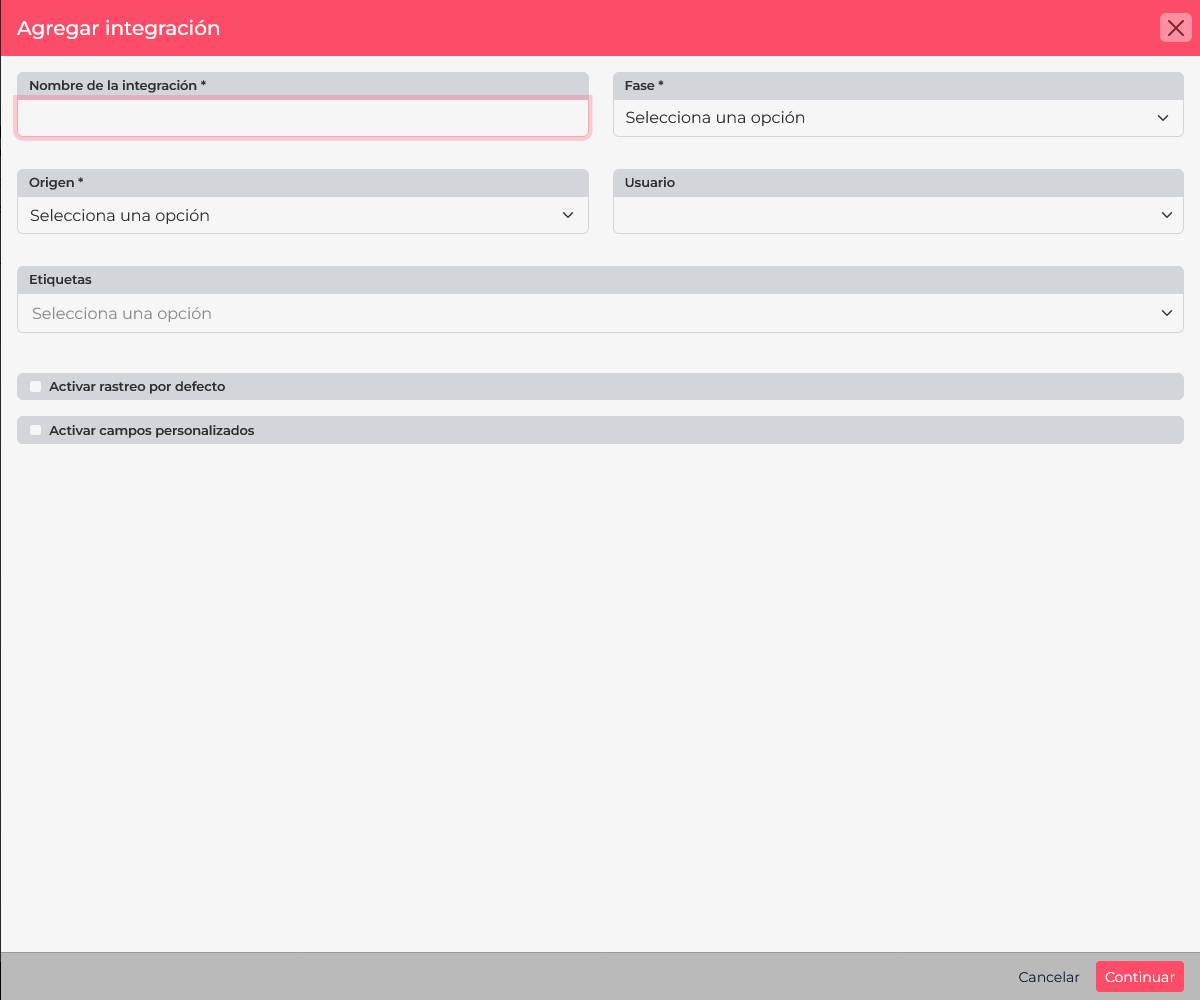
- Give it a name that identifies the site or form, such as Wix | Demo request.
- Choose the Stage and Source for incoming leads. You can also assign a user or tags if needed.
- Select Continue. CRM saves the connection and displays the controls for mapping external fields to Upnify fields.
2. Map the fields Wix will send
On the mapping screen, select the CRM field that should receive each value and enter the name of the external parameter Wix will send. For example, map the Upnify email field to the key correo and mobile to movil. If Wix uses a different key, such as email, enter it exactly as it appears in the request body.
You can set a default value when the form will not send information that your process requires. Do not use defaults to invent personal data; use them only for classification fields that should be the same for every submission from that form.
Write down the parameter names you configured. You will use them when setting up the request body in Wix. The API needs each request to include an email address or mobile phone to process the contact.
3. Create an automation in Wix
- In the Wix dashboard, open Automations and select Create Automation.
- Choose Start from Scratch, name the automation, for example Send form leads to Upnify, and select the Form submitted trigger. If the site has multiple forms, specify which form starts the flow.
- Add an Action step and select Send HTTP request.
- Under Method, select POST. Under Webhook URL, paste the complete URL generated by the Wix integration in CRM.
- For the request body, send all automation data or choose only the fields you need. When choosing fields, give each one a key that matches the CRM mapping parameter and select the Wix value that contains that information.
- Use Preview request body to review the result before activation. Wix can send the body directly or nest it under
data; Upnify's Wix integration supports both structures.
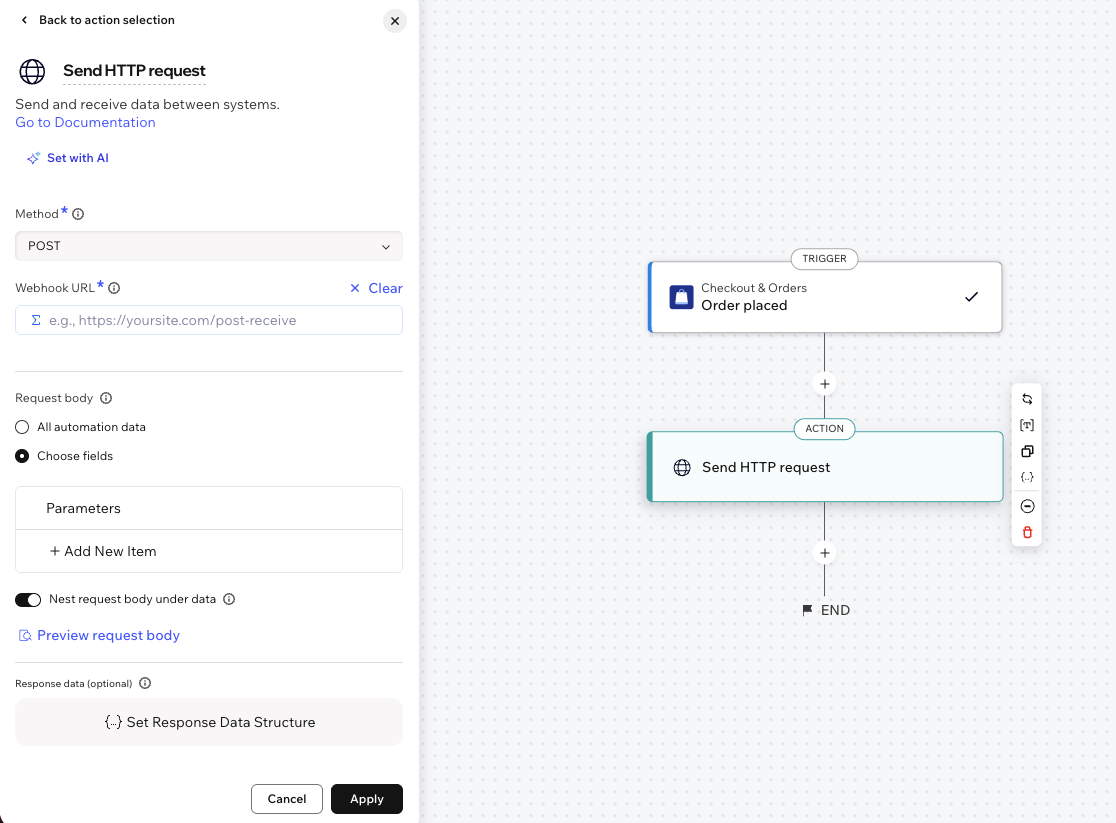
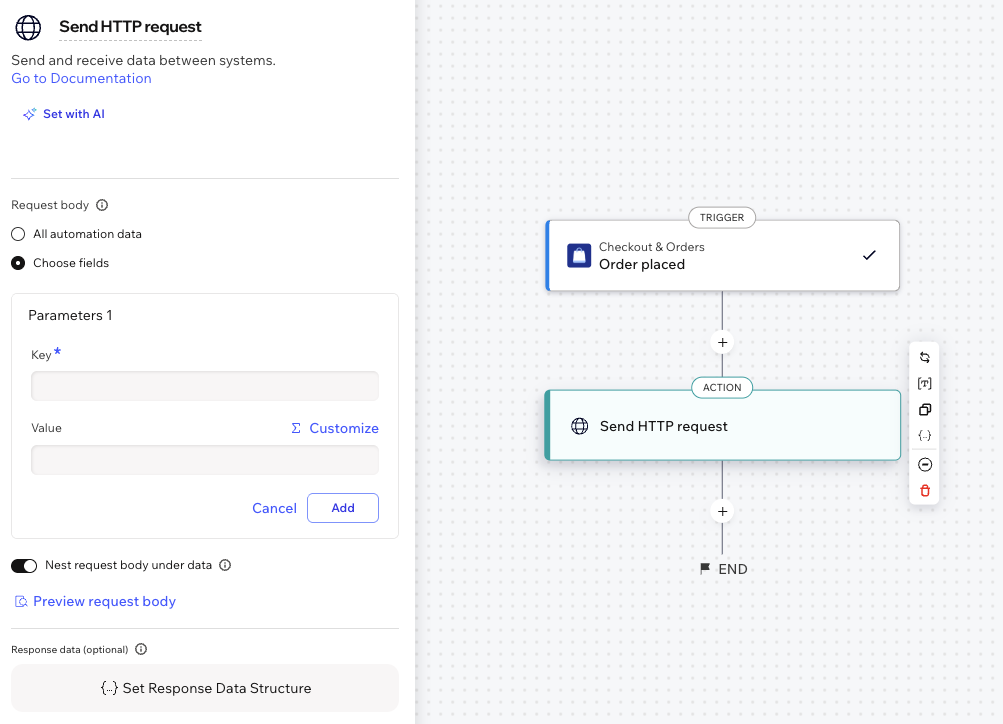
The official Wix guide to sending data through an HTTP request explains the method, URL, field selection, and body preview. For the form submission trigger, also see the official Wix Forms automation guide.
4. Test and activate the automation
- Save the automation as a draft first and confirm that its trigger is connected to the right form.
- Submit a test through the form and check in Wix that the automation ran and the request body contains the expected fields.
- Find the contact in CRM. Confirm its stage, source, and that email, mobile, name, and other data arrived in the right fields.
- When the test looks correct, activate the automation. Wix does not send requests while it is inactive or saved as a draft.
If the lead does not appear or fields do not match
| What you see | What to check |
|---|---|
| The automation does not run | Make sure it is active and its trigger is connected to the correct form. |
| Wix runs the flow but CRM does not create a contact | Confirm that the body includes email or mobile and the full URL belongs to the Wix integration. |
| CRM creates a lead with empty or mismatched fields | Compare Wix request-body keys with the external parameters configured in CRM mapping. |
| Fields are nested under data | The Upnify Wix integration supports both direct data and data nested under data. Check the preview to confirm the structure and keys. |
To see which information CRM processes and which response confirms contact registration, consult the official Upnify API documentation. An HTTP 200 response alone is not enough if both email and mobile are missing.