
The prospect integration lets a website, app, or external system send requests directly to Upnify CRM. Use it when lead capture already happens elsewhere—for example, in a booking platform, ad system, or custom form—and your sales team needs to follow up without copying records by hand.
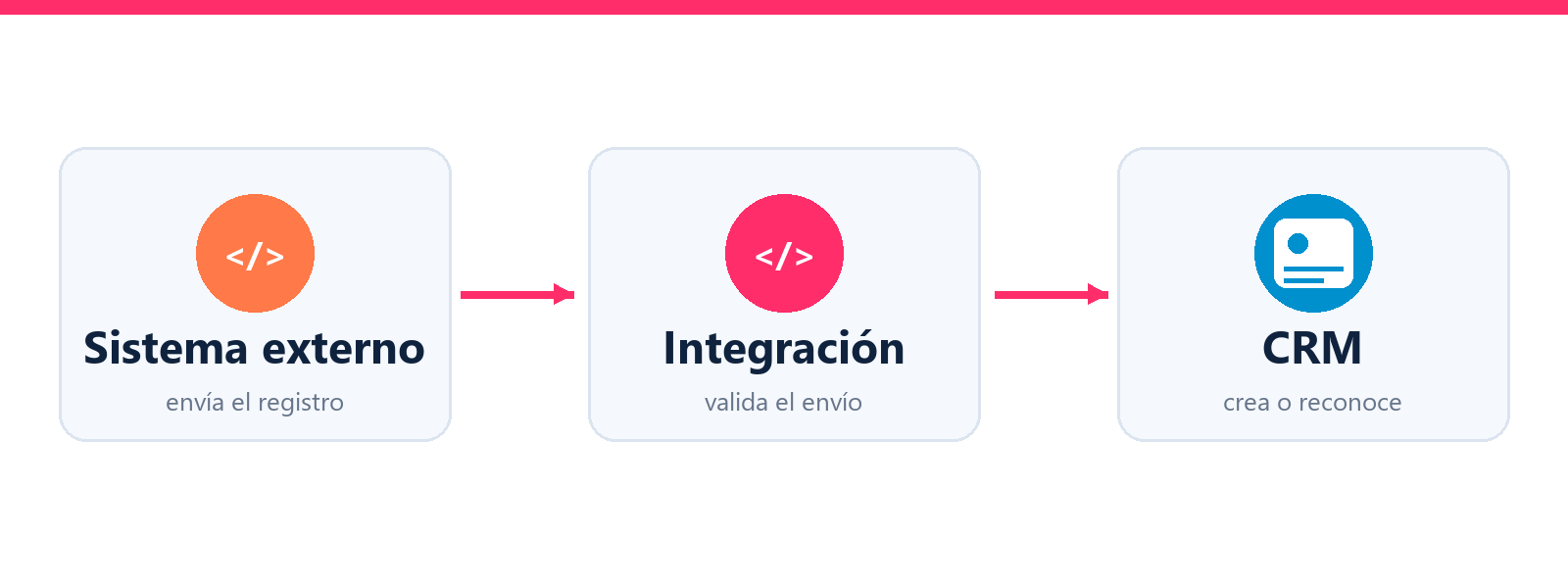
1. Create a prospect integration
- In CRM, open Settings > Integrations > API and select Add integration.
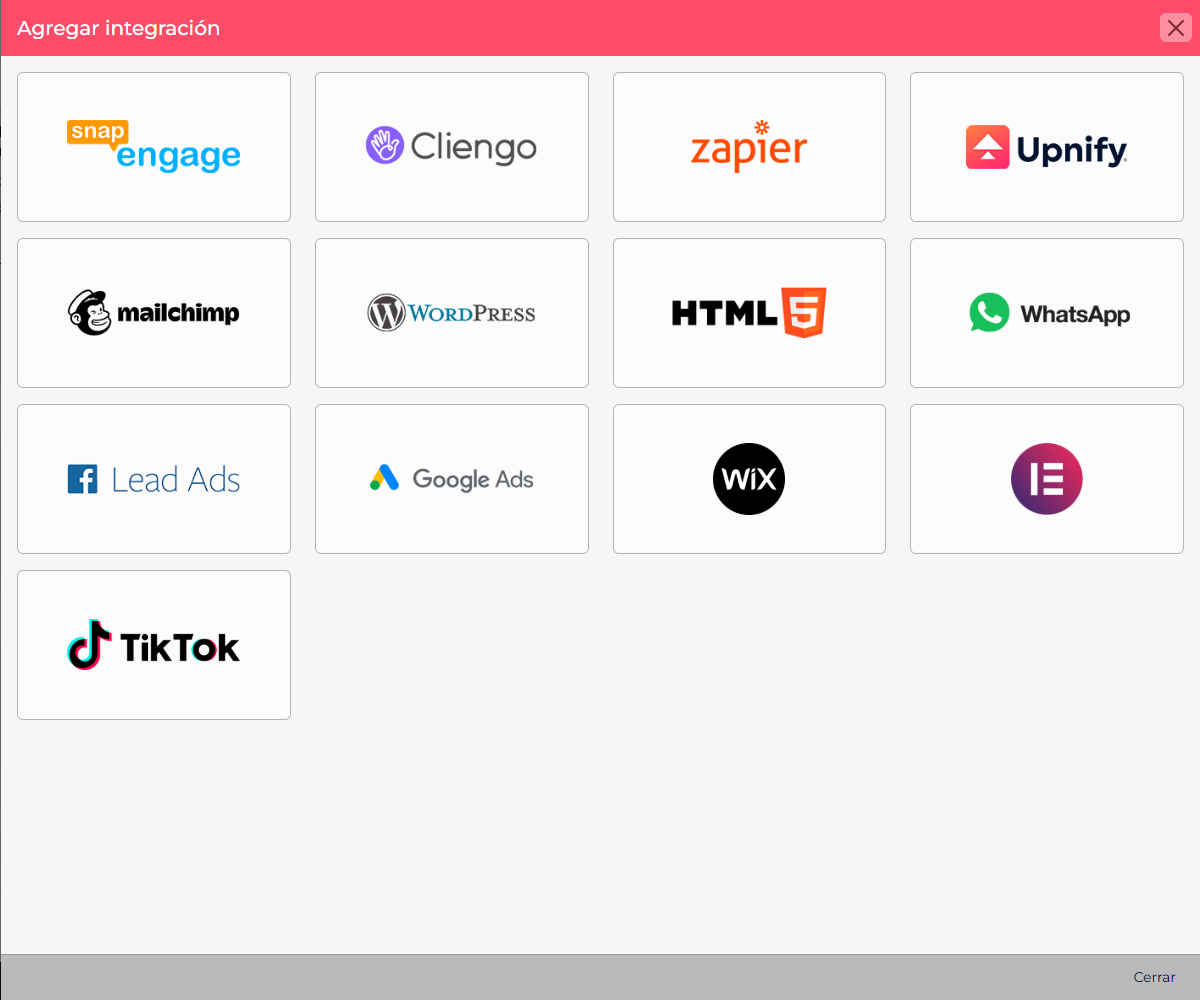
- Choose Upnify in the catalog and select Prospect integration.
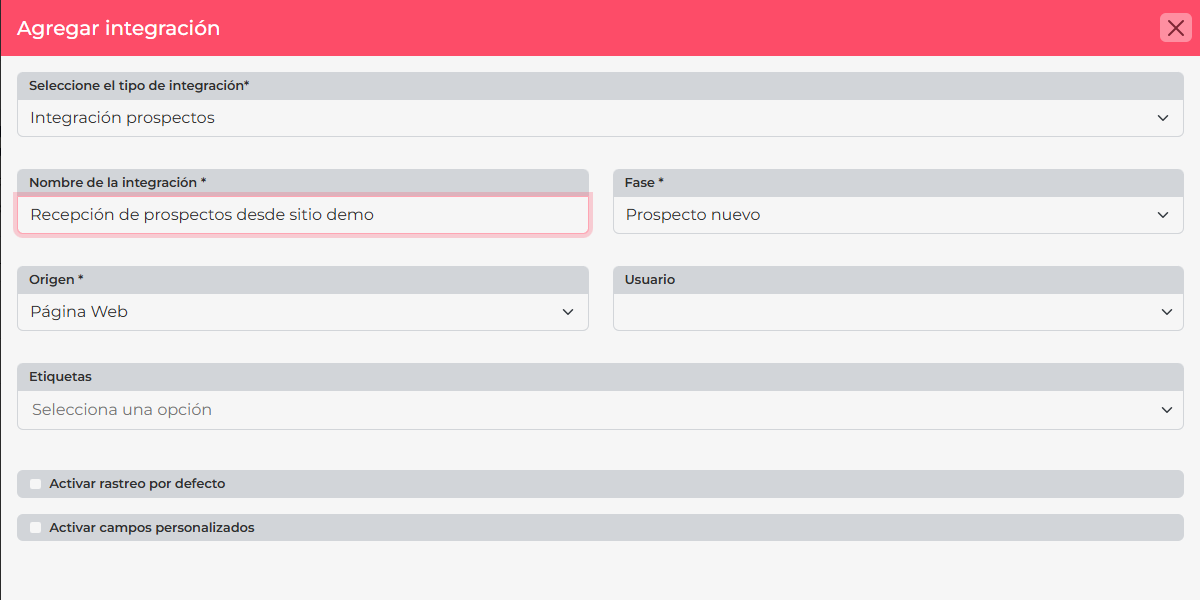
- Name it after its source, such as Website bookings. Set the stage, source, tags, and owner CRM should apply, according to the options available.
- Save. CRM displays the receiving URL. Share it only with the system that will send the data.
2. Send data from the source system
The API accepts POST requests at https://api.upnify.com/integraciones/. Send JSON and include at least an email address or mobile number to identify the contact. This example shows the structure; replace the token on your server and use a unique identifier for every new request.
POST https://api.upnify.com/integraciones/INTEGRATION_TOKEN
Content-Type: application/json

{
  "trid": "00000000-0000-4000-8000-000000000001",
  "nombre": "Claudia",
  "apellidos": "Gomez",
  "correo": "claudia@example.com",
  "empresa": "Example Trading",
  "comentarios": "Requests a product demo."
}
You can also send documented fields such as phone, job title, or city. Agree with the administrator which values the integration should provide and which should come from its settings.
3. Check the response and prevent duplicate requests
Do not consider the record confirmed merely because the connection responded. Check the result and confirm that details includes the contact identifier. If both email and mobile are missing, the API may return without an HTTP error and still not insert the contact.
- Use a different
tridfor each new request. - When retrying the exact same request, reuse its
trid; the API can mark it as duplicated without processing it again. - Do not reuse a
tridfor a different request.
If the email or mobile already belongs to a contact, the submission may register a new request and run configured recurrence actions; it does not mean every contact field is replaced. Confirm with your technical team which CRM endpoint is appropriate when changing existing data.
Example
An agency receives demo requests from an event platform. When someone registers, its server sends name, email, company, and interest to the integration. The sales team finds the contact in CRM and follows up using the stage, source, tags, and owner defined for that source.
Before going live
- Run a controlled test and confirm the contact appears with the expected values.
- Check what happens when the same email or mobile is submitted again; do not assume the request replaces the entire record.
- Keep the credential out of public browser code and decide who can rotate it if it is exposed.
See the official documentation for POST /integraciones/:token for fields, responses, and retries.