

SMS messages are useful for a brief update when you want to reach a contact without relying on them to open an email. For example, you can confirm a call time or let someone know that you sent a quote. In CRM, you can write the message from the contact record, use a template, and review how the send was recorded.
Send an SMS from a contact record
- Open the prospect or customer record you want to message.
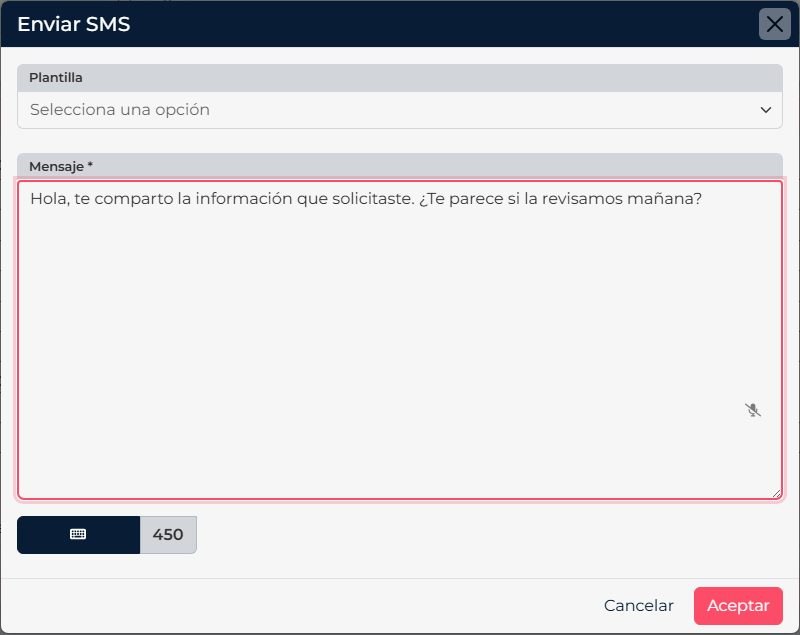
- From the contact actions menu, select Send SMS.
- If you have a saved template, choose it in Template. CRM inserts its content; you can also write a new message.
- Check the mobile number and message. The send form allows up to 450 characters.
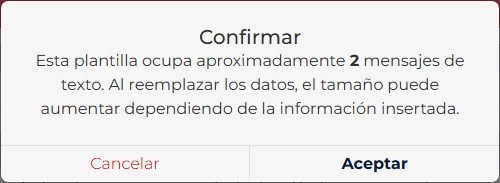
- Select Accept. Before processing the send, CRM displays a confirmation with the approximate number of text messages the content will use. If it takes more than one, it may use more credits.
- Confirm only after checking the number and message.

Check the status in CRM
- Open Reports and select SMS sent.
- Use the period, user, send type, or status filters to narrow results. You can distinguish manual from automated sends and filter sent or unsent messages.
- Find the contact and review the recipient, message, and date to confirm which record you are viewing.
Check SMS credits
Check the balance in Suite licensing, not in the contact form. Go to Licensing > Add-ons and look for Mass SMS Delivery. If you cannot access this section, ask your super administrator to review the company balance.
Keep the pre-send estimate in mind: a long message or special characters may use multiple SMS segments. If the balance is too low, ask an administrator to review the credits before trying again so you do not send a duplicate.
The screenshots show CRM in Spanish. Control names follow the language selected for your account.