

If your company already uses Mailjet to deliver email, connect it to CRM to send messages from a contact record and other communication tools. This connection uses Mailjet credentials; it is not the same as signing in with your Mailjet account password or connecting an inbox.
Before you start
Have an authorized sender address or domain and the Mailjet API Key and Secret Key. Mailjet displays the secret when it is generated, so store it securely. See Mailjet’s official setup guide.
Have an authorized sender address or domain and the Mailjet API Key and Secret Key. Mailjet displays the secret when it is generated, so store it securely. See Mailjet’s official setup guide.
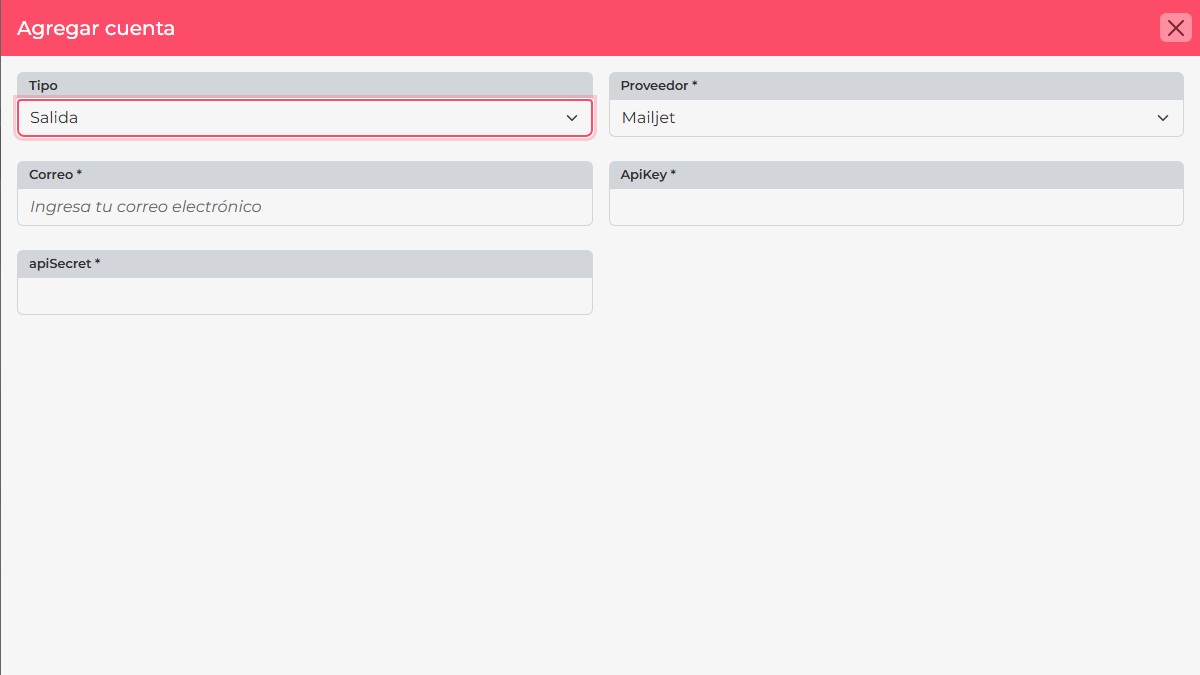
Add Mailjet in CRM
- Open your profile menu and go to Personal adjustments > E-mail Accounts.
- Select New. Set Type to Output, then choose Mailjet as the Provider.
- Enter the authorized sending address in E-mail, then paste the matching Mailjet ApiKey and apiSecret. Do not use your Mailjet sign-in password.
- Select Accept. If CRM validates the details, the account appears in the E-mail Accounts list.
- Send a test message to an internal address you control. Check the sender and confirm delivery before contacting customers.
The Mailjet option has dedicated API fields, so you do not need to enter SMTP server or port values on this screen. You can manage the signature, Reply to address, and Mark as Default in the account’s additional settings when available.
If the account does not become active
Confirm that the sender address is authorized in Mailjet, both keys belong to the same Mailjet workspace, and the pasted values contain no extra spaces or line breaks. If you reset the Secret Key, update the saved CRM credential too.
Confirm that the sender address is authorized in Mailjet, both keys belong to the same Mailjet workspace, and the pasted values contain no extra spaces or line breaks. If you reset the Secret Key, update the saved CRM credential too.