

The SendGrid-Api-Key option lets CRM send email using a SendGrid API key. It can help when your company manages outbound email through SendGrid and wants to use a verified sender identity. This connection is for outgoing email; it does not add an inbox for receiving messages.
Before you begin
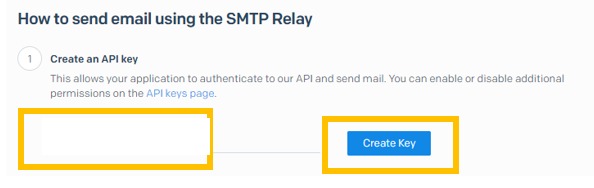
Verify the sender identity or domain you plan to use in SendGrid, then create an API key with mail-sending permission (Mail Send). The key name only helps you recognize it in your account; the key itself is the secret value SendGrid displays when you create it. Store that value securely. See SendGrid’s official API key guide.
Verify the sender identity or domain you plan to use in SendGrid, then create an API key with mail-sending permission (Mail Send). The key name only helps you recognize it in your account; the key itself is the secret value SendGrid displays when you create it. Store that value securely. See SendGrid’s official API key guide.
Connect SendGrid in CRM
- In SendGrid, create the key from Settings > API Keys. Give it a recognizable name, such as Upnify CRM, and limit its permissions to sending email when the screen allows it.
- Copy the API key’s secret value when it is created and store it securely. Do not copy only the name shown in the list: it is not the key, and SendGrid does not display the secret value again later.
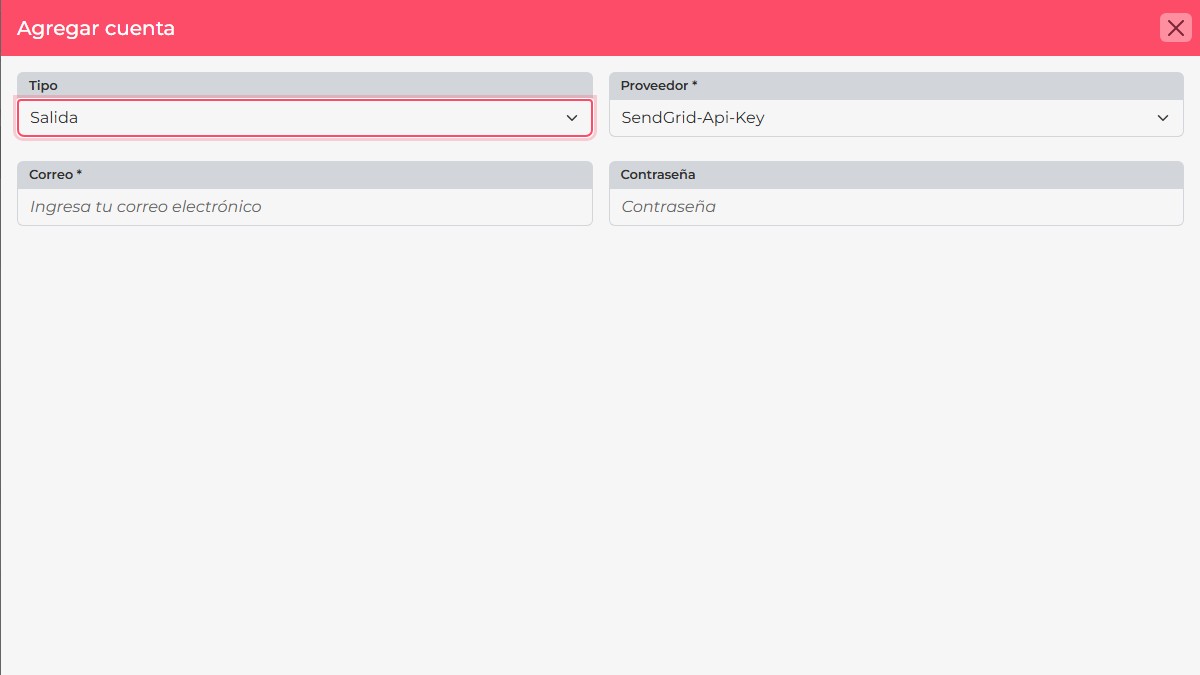
- In CRM, open your profile menu and go to Personal adjustments > E-mail Accounts. Select New.
- For Type, choose Output. For Provider, select exactly SendGrid-Api-Key; CRM may also show a separate option named SendGrid.
- In E-mail, enter the sender address you verified in SendGrid. In Password, paste the API key’s secret value. Do not use your SendGrid sign-in password or the name you gave the key.
- Select Accept. If the account saves, confirm that it appears in the list and send a test message to an address you can check.
Do not confuse the key name with the key
The API key name is only a label to identify the key in SendGrid; do not use it as the secret value in CRM. Also, SendGrid’s standard SMTP Relay authentication uses the literal username
The API key name is only a label to identify the key in SendGrid; do not use it as the secret value in CRM. Also, SendGrid’s standard SMTP Relay authentication uses the literal username
apikey and the API key as the password. This article covers CRM’s specific SendGrid-Api-Key provider, whose current form asks for E-mail and Password. If CRM rejects the setup, check that the key allows Mail Send and that your sender is verified; do not guess at names or passwords. See SendGrid’s official SMTP Relay authentication.If you change or revoke the API key, update this account’s password in CRM and send another test message. Treat the key like a password: do not include it in screenshots, emails, or chats.