

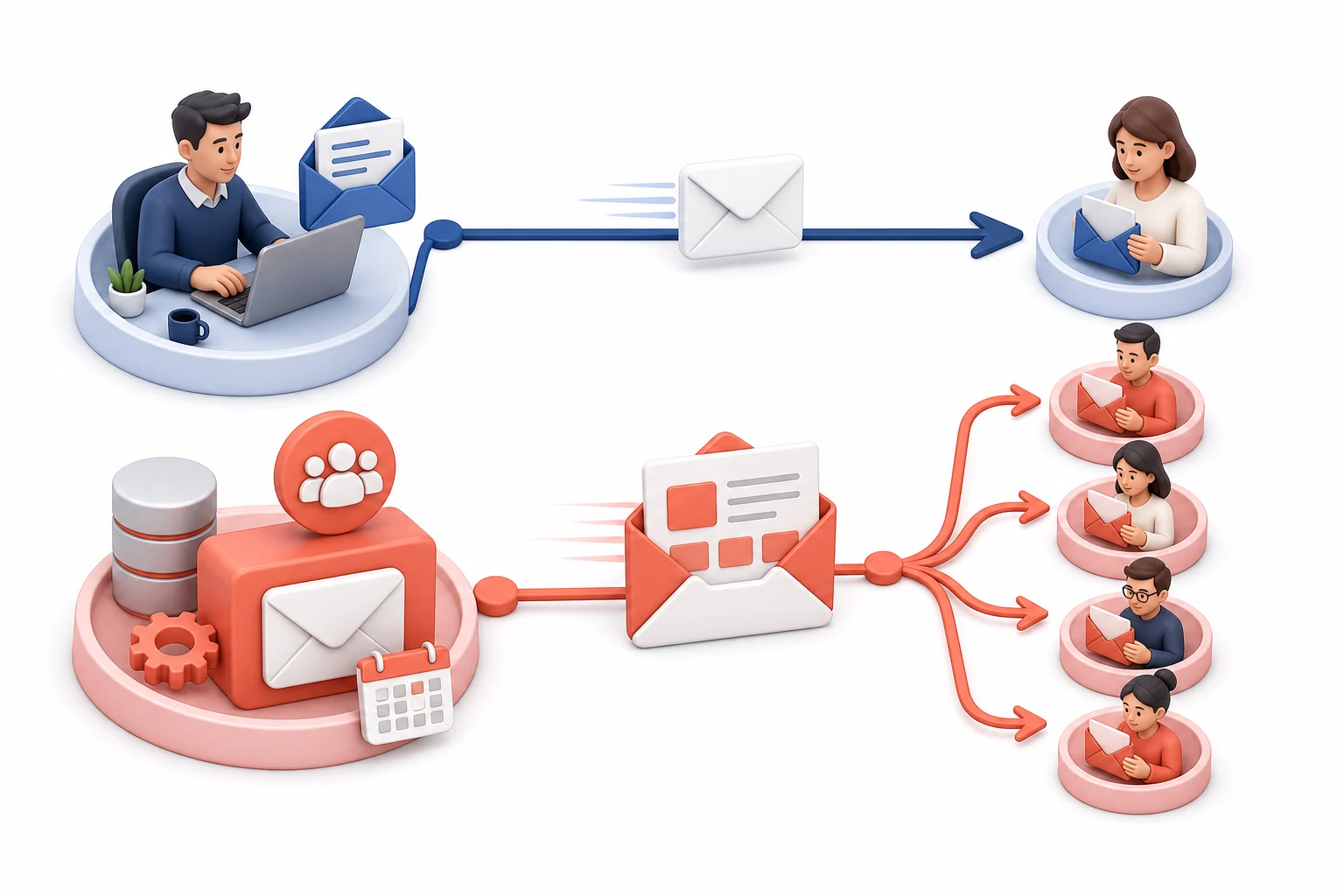
CRM supports two different email tasks: writing to one person from a work account and sending a campaign to a group of contacts. For campaigns, the system may show a managed account named E-mail Blast with the provider SalesUp! - Upnify. It belongs to the campaign service; each user does not connect it with a personal mailbox password.
What it is used for
Use an email campaign when you need to share the same invitation, update, or content with a defined group—for example, an announcement for prospects with a particular tag. The managed account keeps that bulk send separate from an individual user’s email.
If E-mail Blast appears under Personal adjustments > E-mail Accounts, its provider is shown as SalesUp! - Upnify. CRM identifies it as a campaign account: you cannot edit or delete it from that list, and it is not offered as the sender for an individual email.
Create and prepare a campaign
- Open CRM > Tools > Campaigns and select New campaign > E-mail Blast.
- Enter a campaign name and, when needed, set its send date and time.
- Choose whether the sender is each contact’s owner or a specific executive. This determines the displayed sender; it does not change who manages the bulk delivery service.
- Add a subject and prepare the message with a template or in the editor. Review the preview and links before sending.
- Open the campaign contact list and add the intended audience: prospects, opportunities, customers, or records matching your filters. Check the count and segmentation before scheduling or activating it.
To reply to an individual conversation or email a person from a contact record, use a personal account configured in CRM. For a bulk message, create a campaign from Tools > Campaigns. The managed account does not replace your mailbox setup.
If you cannot see the campaign option, ask your administrator to check whether your user has access to Communications. Before activating a send, verify the audience, tags, and content; changes to these criteria can affect many recipients.