

From a contact record, you can prepare a WhatsApp message and keep the activity associated with the contact history. This is useful when a prospect asks for a quick reply or when you want to continue a conversation without losing sales context.
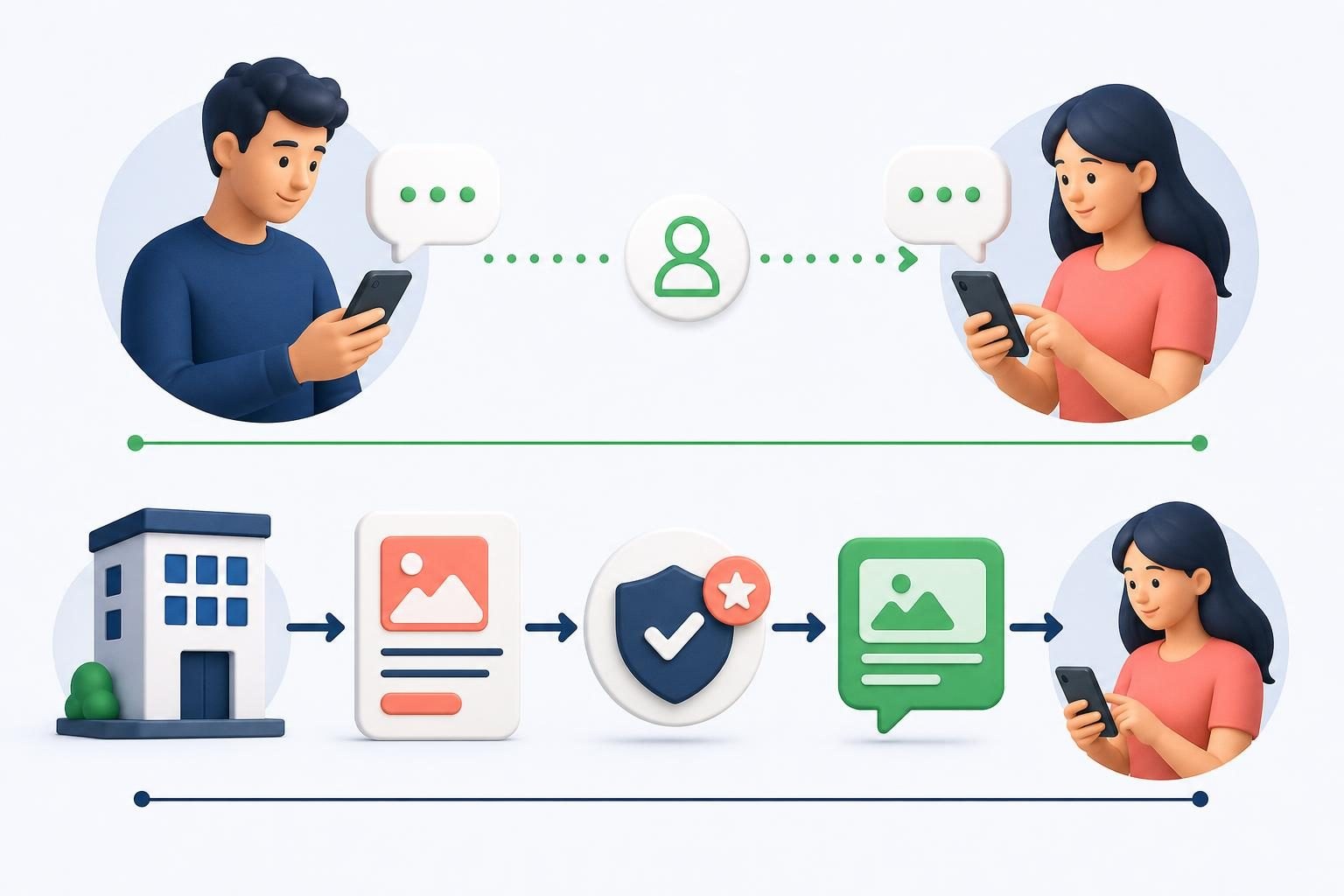
Key difference: Send WhatsApp from a contact prepares a message and opens WhatsApp or WhatsApp Web. Meta-approved templates belong to a connected WhatsApp Business channel and are managed separately. Saving a template in CRM does not make it Meta-approved.
Prepare a WhatsApp message from a contact record
- Open the prospect or customer record and confirm the mobile number is correct.
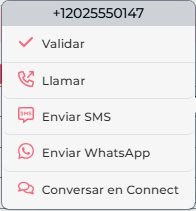
- Open the contact actions menu and select Send WhatsApp.
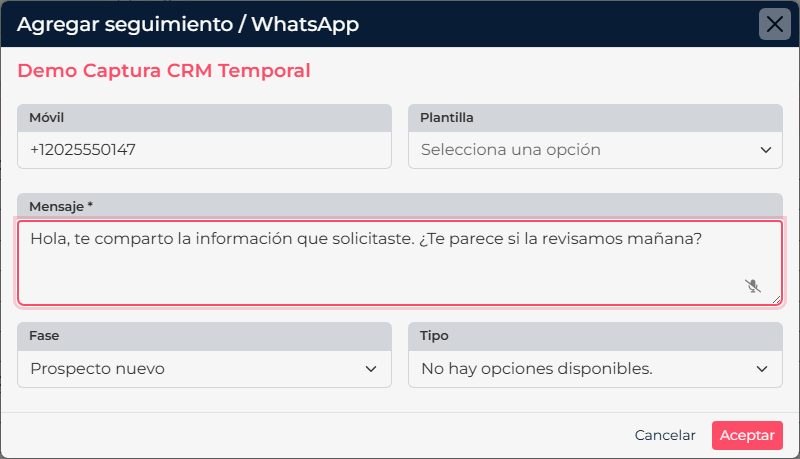
- In the form, choose a reusable CRM template if it helps, or write a message. Review the text and personalized values before continuing.
- Select Accept. CRM opens the WhatsApp app or WhatsApp Web configured for your user with the recipient and message prepared.
- In WhatsApp, review the conversation and select its send button. Return to CRM to review the activity recorded in the contact history.
When to use Meta-approved templates
If your company has connected a WhatsApp Business channel, manage its official templates in CRM > Settings > Integrations > WhatsApp Business. Open the relevant channel and go to its templates section. This flow is tied to the integration and Meta approval; it is separate from reusable CRM templates in CRM > Tools > Templates.
| Option | What it does | When to choose it |
|---|---|---|
| WhatsApp from a CRM contact | Prepares a message in the app or WhatsApp Web and records an activity in CRM. | To manually continue a conversation with a contact. |
| Meta-approved template | Uses a template associated with a connected WhatsApp Business channel and its approval process. | When your operation uses the official integration and needs a channel template. |
Keep in mind: the activity CRM adds to the history records the action started from the contact. It is not a substitute for the send confirmation in WhatsApp. For the official channel, verify that the template and channel are available in the integration.
Screenshots show CRM in Spanish. Control names follow the language selected for your account.