Upnify Engage brings together tools that turn website activity into useful interactions: forms, content and other widgets, event registrations, and connections to external services. Understanding how these pieces fit together helps you know where to configure each one and where to review results.
How the pieces fit together
| Area | What it does | Example |
|---|---|---|
| Sites | Registers the web pages that will use Engage. | The company website. |
| Widgets | Add an interaction: form, chat, video, download, calendar, course, event, ticket, or social link, depending on the enabled feature. | A form collects details; WebChat starts a conversation. |
| Events | Organizes activities and their registrations or attendance. | An invitation to a seminar. |
| Integrations | Connects external services when a workflow needs them. | Connect Zoom for a virtual event. |
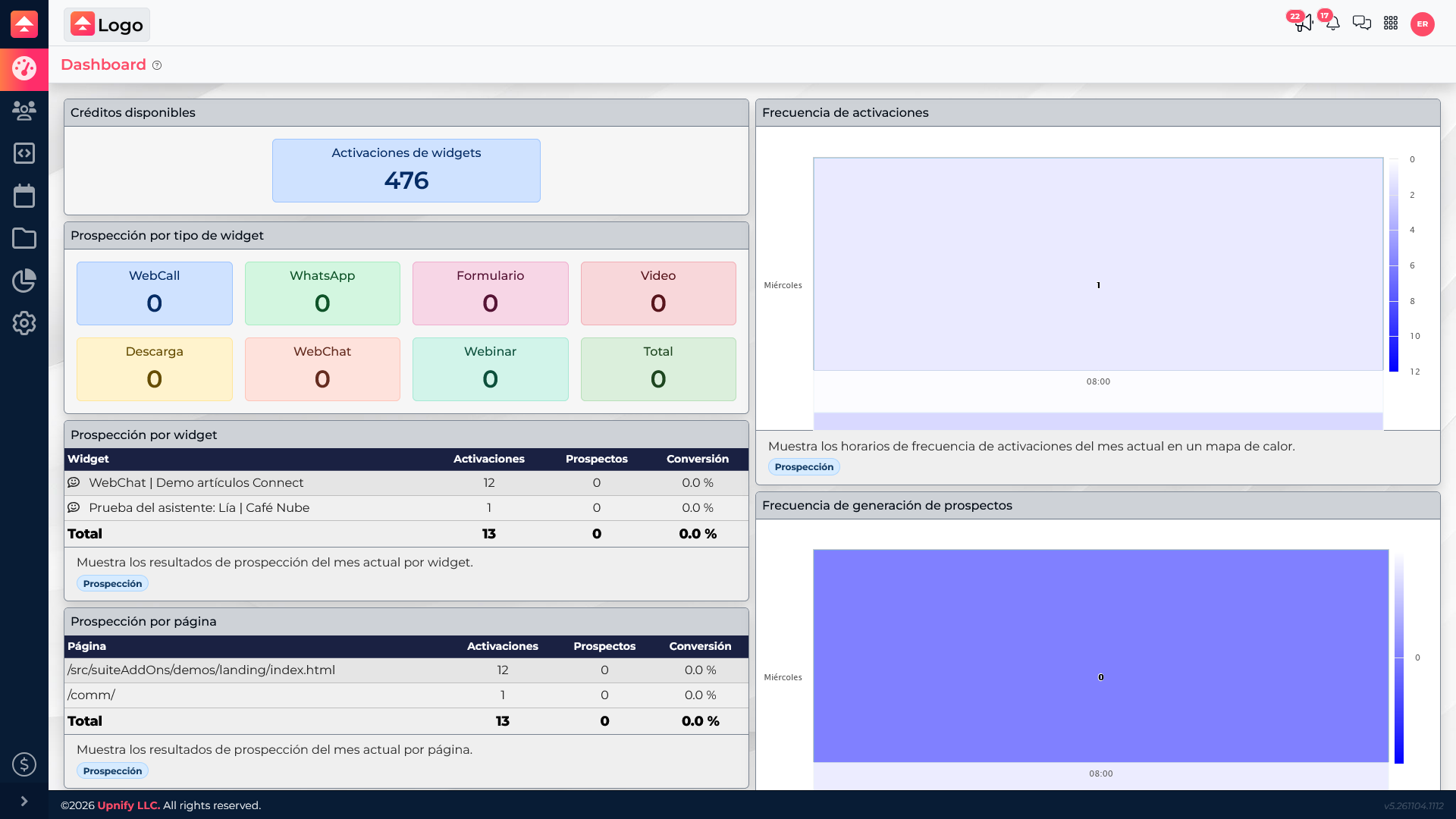
| Dashboard | Summarizes activity recorded by widget and page. | Find which page generates activations. |
1. Register and integrate the site
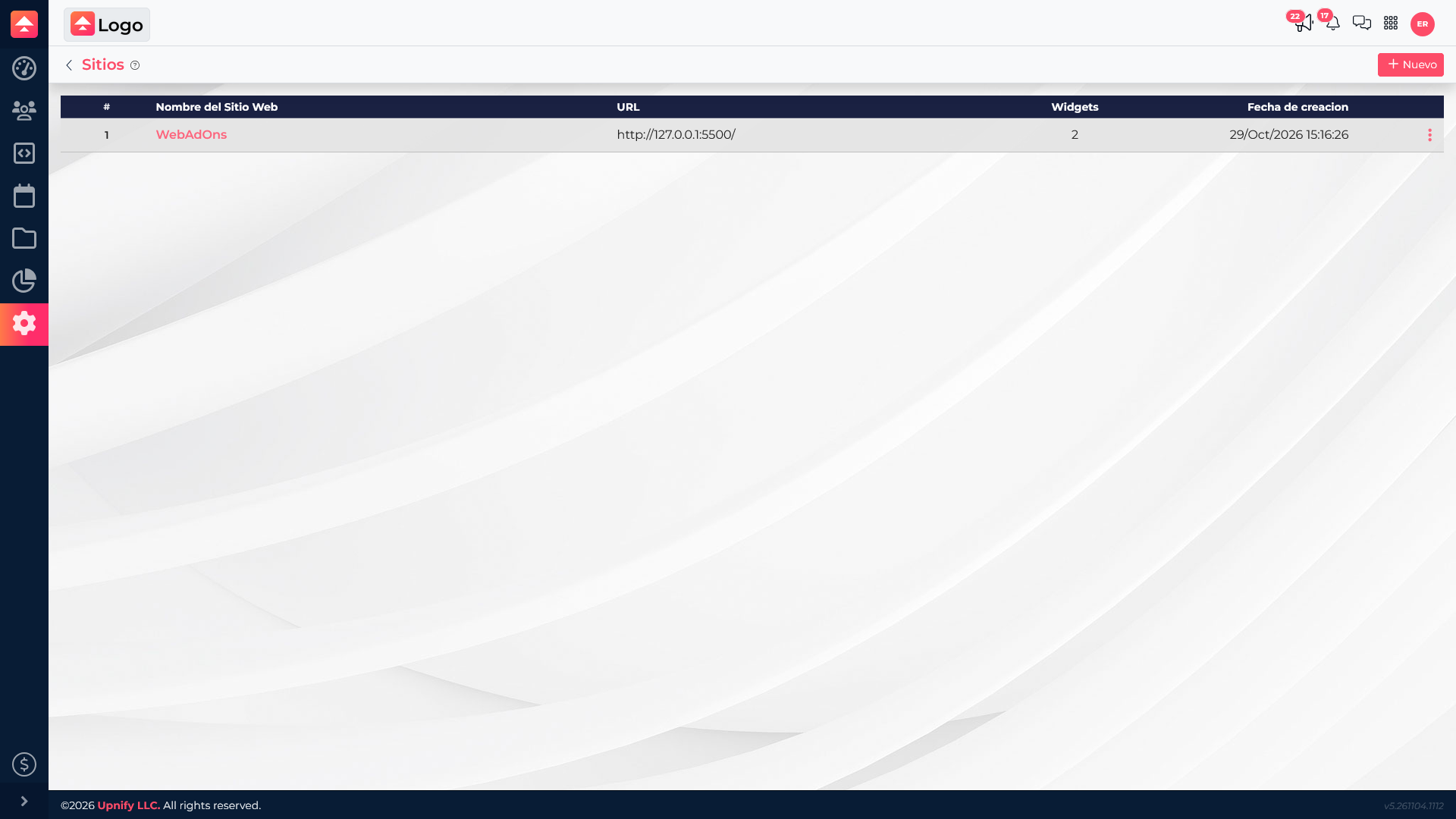
In Sites, register the address that will use Engage. The site must also have the Engage code installed so its associated widgets can load. The address helps organize the setup; the code allows Engage to work on the page. If the site is not integrated yet, complete that step before testing a widget.
2. Configure widgets for your goal
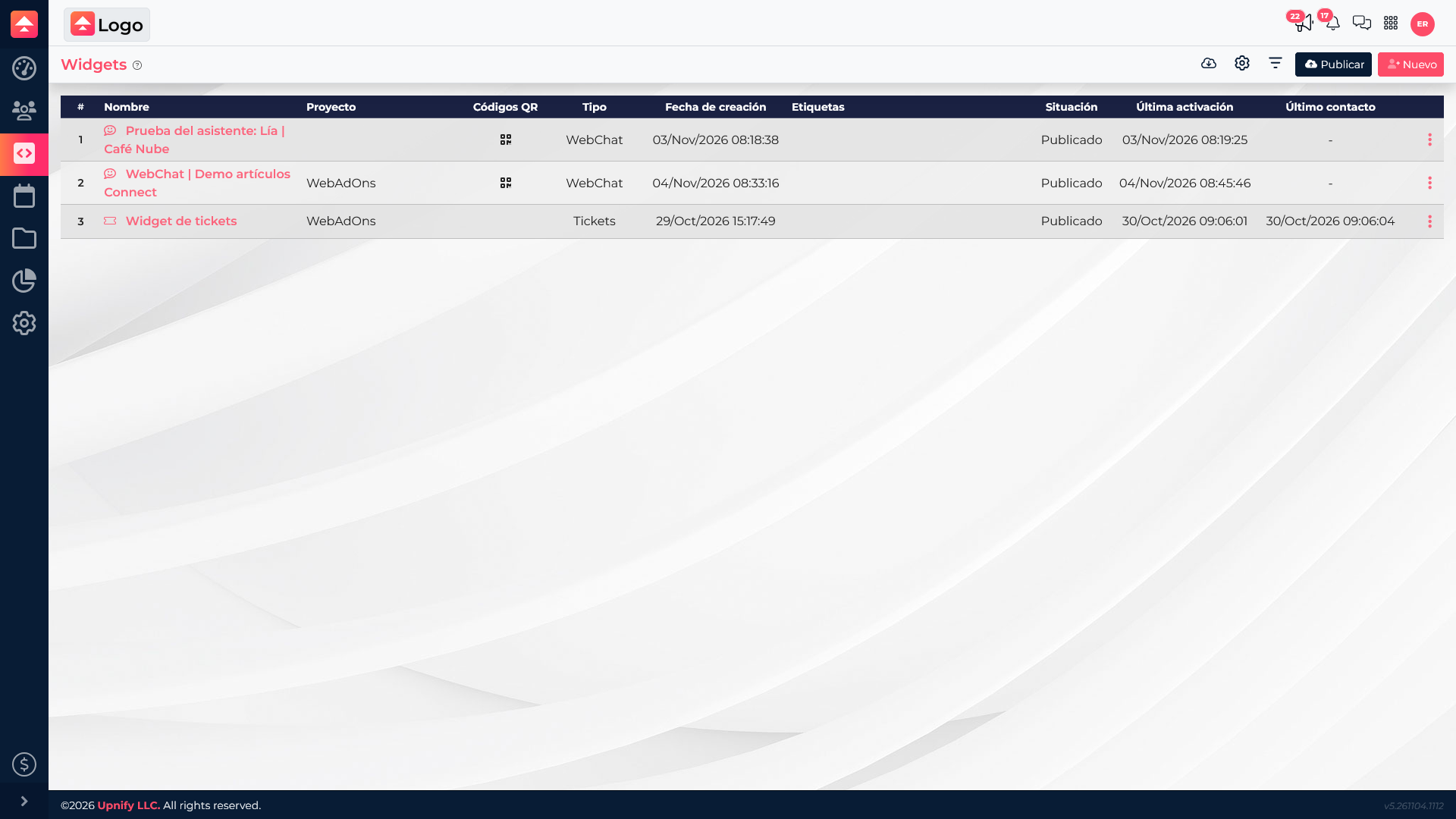
A widget is what visitors interact with. A form can collect details; a video or download presents resources; WebChat or a ticket widget can start a service interaction with another product. Configure the widget in Engage and associate it with the site where it should appear. Depending on the widget, you may set when it appears, such as after a delay or when someone clicks.
A widget does not replace other workflows: a chat can continue in Connect, and a ticket form can create a Flow task when that feature is configured.
3. Manage events and integrations when needed
Events are managed as Engage activities, with their own details, registrations, and attendance. They are not the same as the general widget list, although an event widget can present or promote the activity on a site.
Set up integrations only when a workflow needs to exchange information with an external service. For example, connect Zoom to organize virtual events. If you do not use a service, you can work with your site and widgets without adding that connection.
4. Review what happens
The dashboard helps review activations, prospects, and results by widget or page. An activation means a widget activated according to its configured condition; it does not guarantee that the visitor submitted a form. See the Engage credits article to learn when that activation is charged.