

Before publishing an Engage experience, register the website and link the widgets you want to show to it. This helps when you manage several domains or different experiences on Home, Products, or Contact pages.
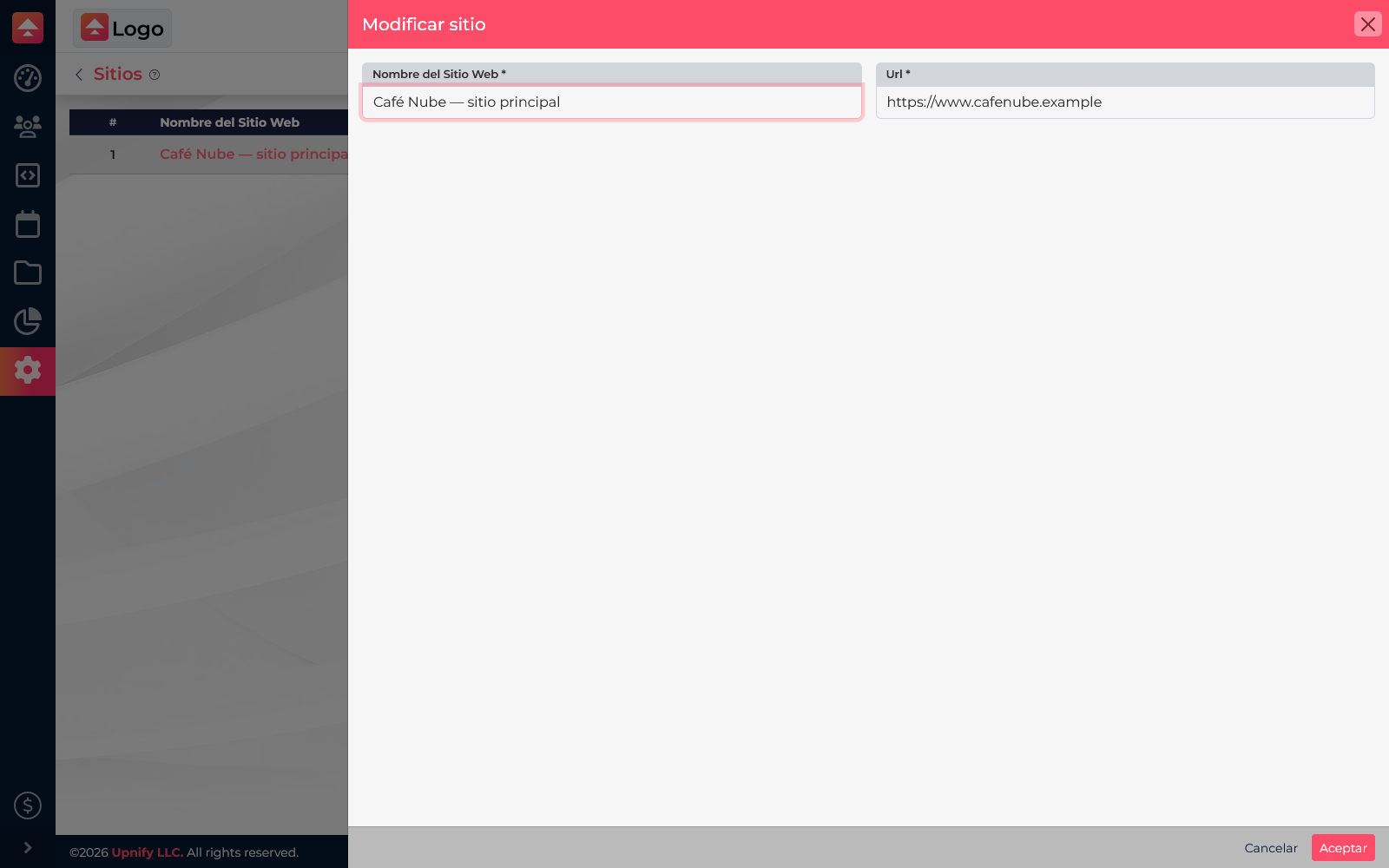
Example: use the name Café Nube — main website and the domain https://www.cafenube.example. In your account, use your company’s real public domain; this example domain is reserved and should not be published.
Register the website
Go to Settings > Sites, add a recognizable name, and enter the domain you will integrate. Use clear names if you manage several sites.
Associate the widgets
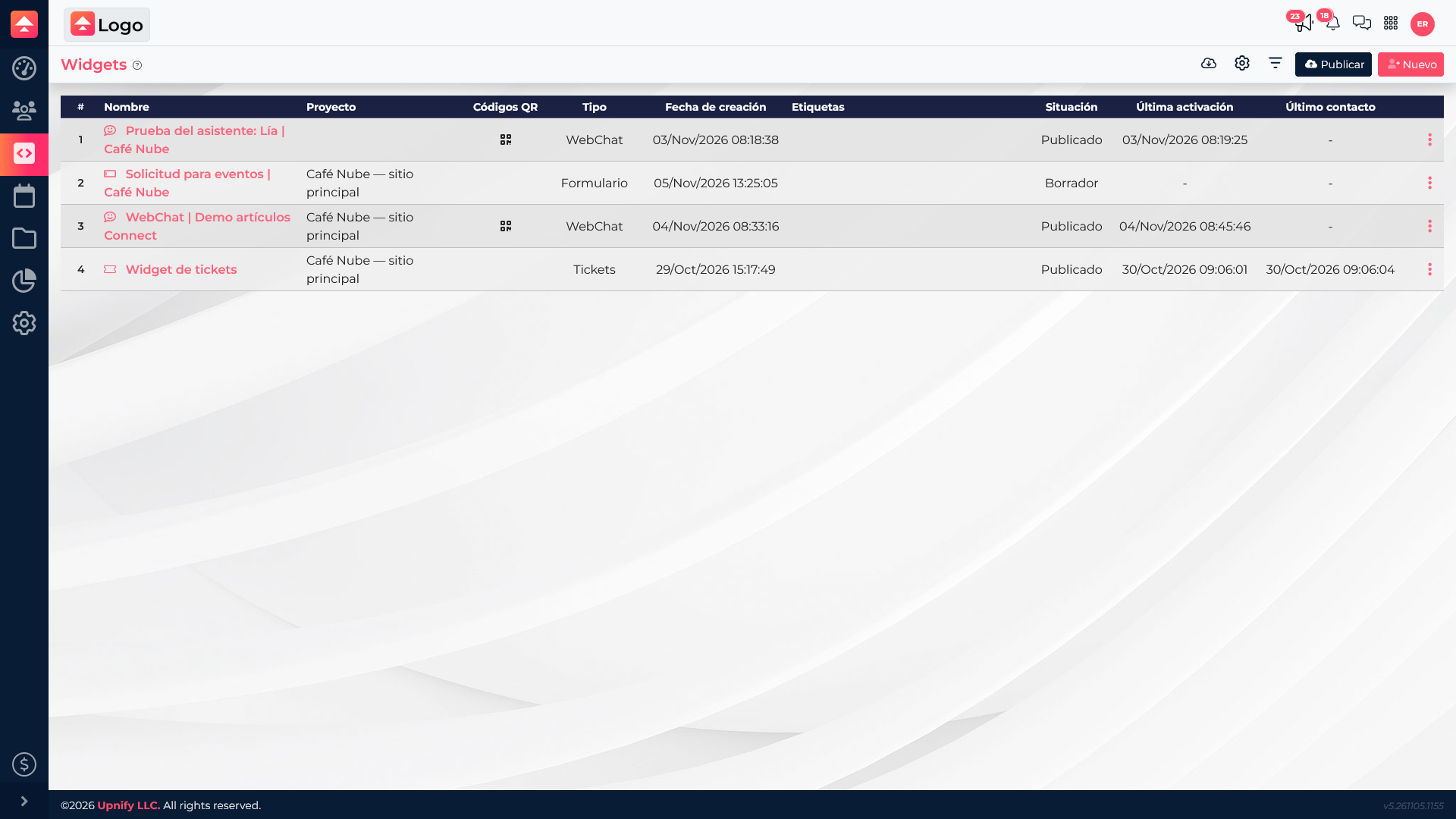
When creating or editing a widget, find the Project field, select the registered site, and save. Confirm it is the domain where you want the widget to appear. Then review the list to check the association.
Association and installation are separate steps
Registering the site and selecting Project organizes the relationship. To load a widget on a page, you must also install Engage code. Without it, a widget can be correctly associated and configured but remain invisible to visitors.
Example and troubleshooting
A company registers its domain as “Main website” and links it to a request form and WebChat. If the website is missing, confirm it was saved and that you are in the right company. If the widget is associated but not visible, check code installation and whether the widget is published.