

WhatsApp, Messenger, Instagram, and Telegram widgets add a shortcut to your website so visitors can open the selected channel and message your business. They are useful when you want to reduce the steps needed to make contact\u2014for example, placing WhatsApp on a sales page or Instagram on a page for a brand active on that network.
Before creating the widget
- Have the correct destination ready: a WhatsApp number, messaging page or account, Instagram profile, or Telegram username, depending on the selected type.
- Make sure the account is active and can receive messages.
- If you use a direct WhatsApp URL, WhatsApp\u2019s official guide says to include the full number in international format, without symbols or separators. Do not use someone\u2019s personal number without permission.
- A public Telegram bot link uses the format
https://t.me/bot_username. The bot is created and managed outside Engage.
Official references: WhatsApp: Click to Chat and Telegram: Bot features.
Configure each shortcut in Engage
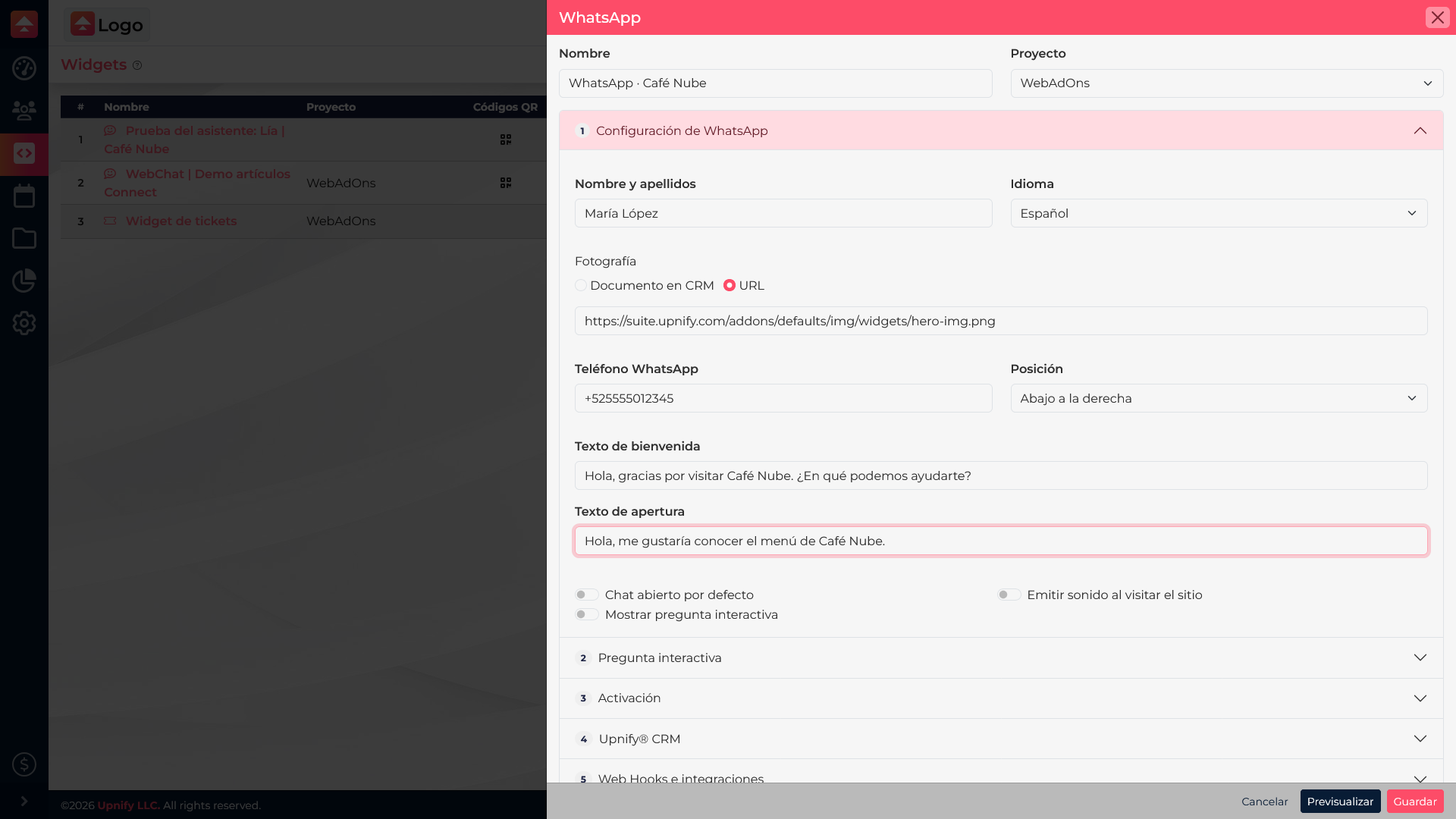
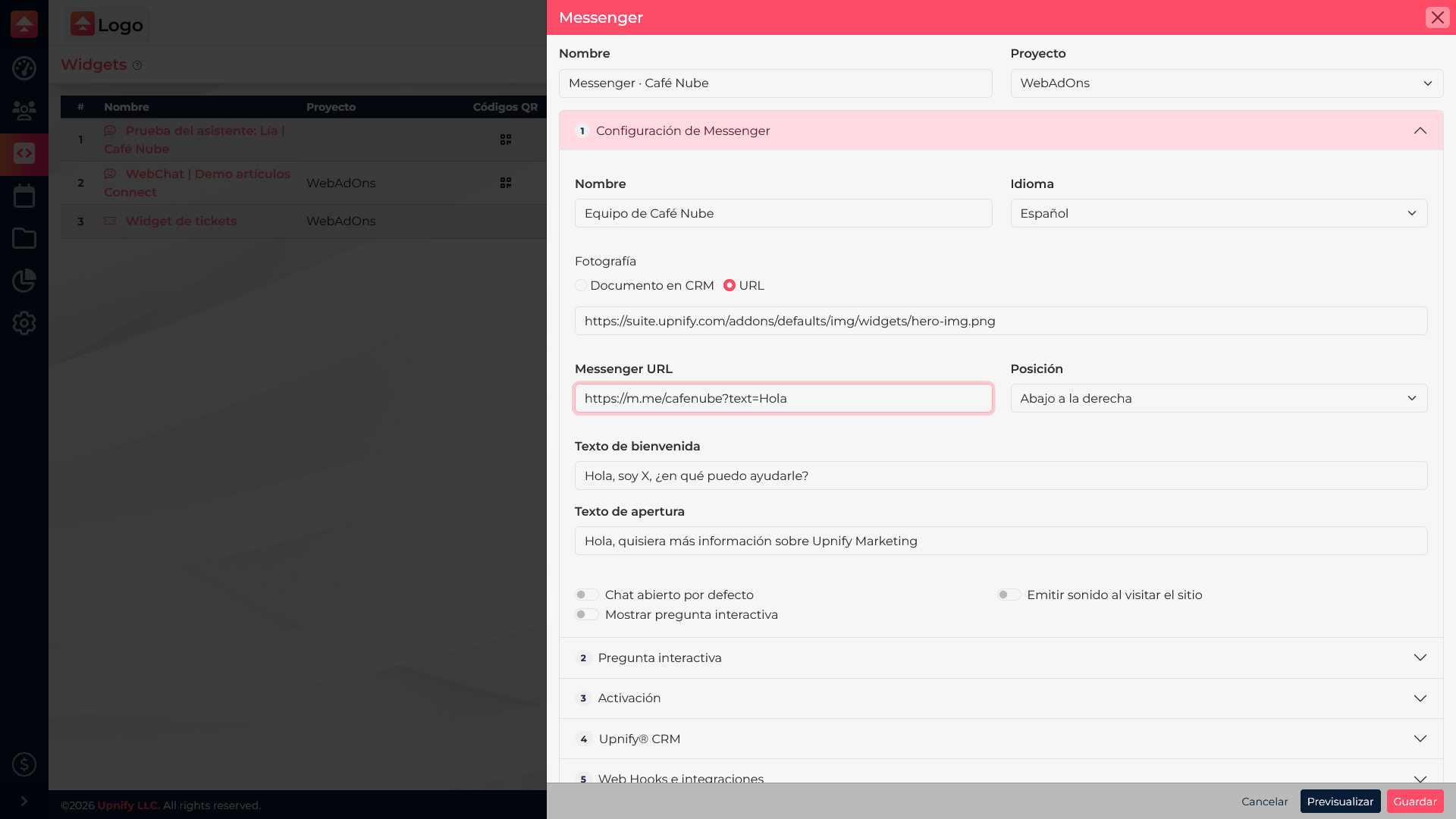
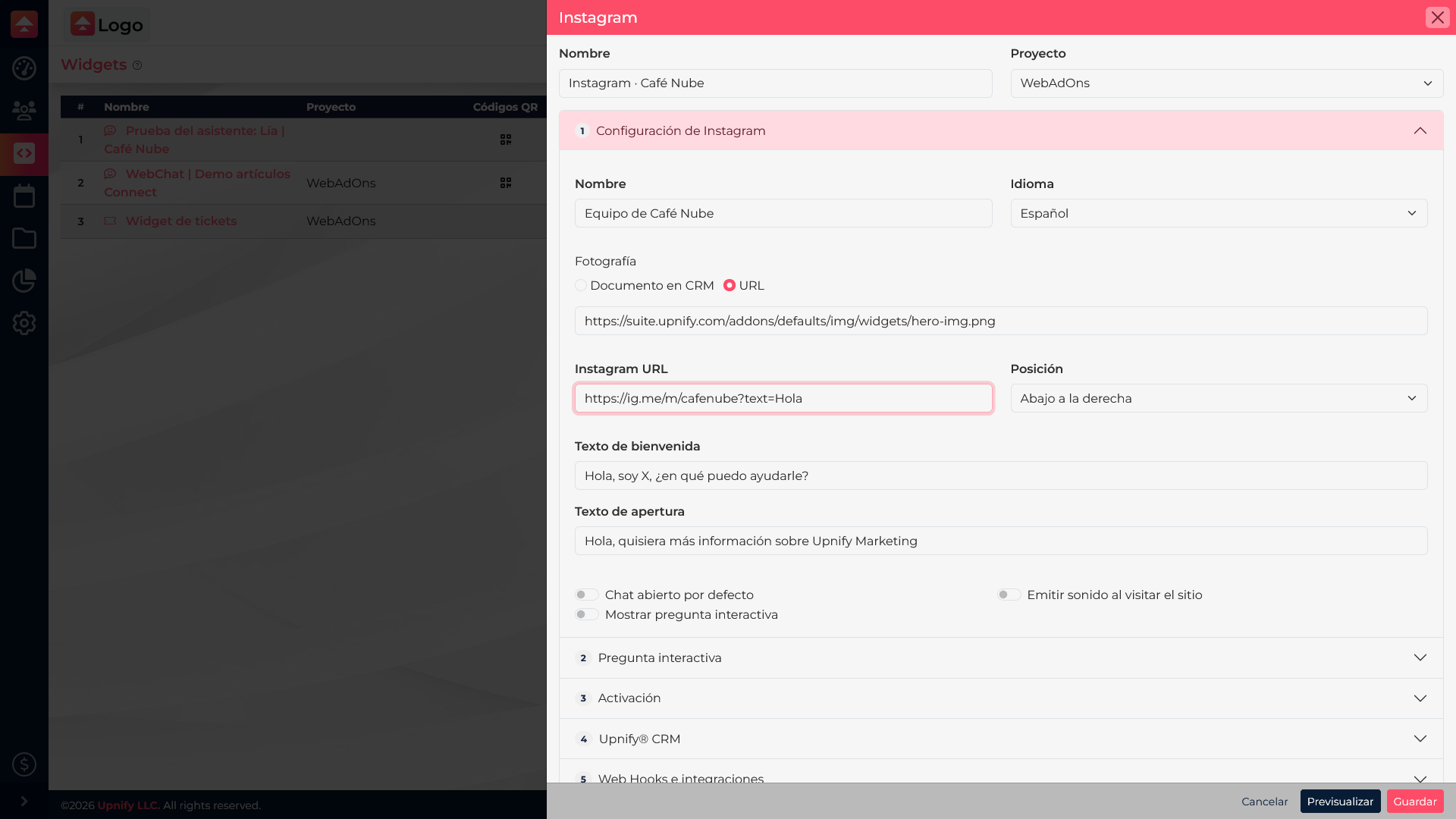
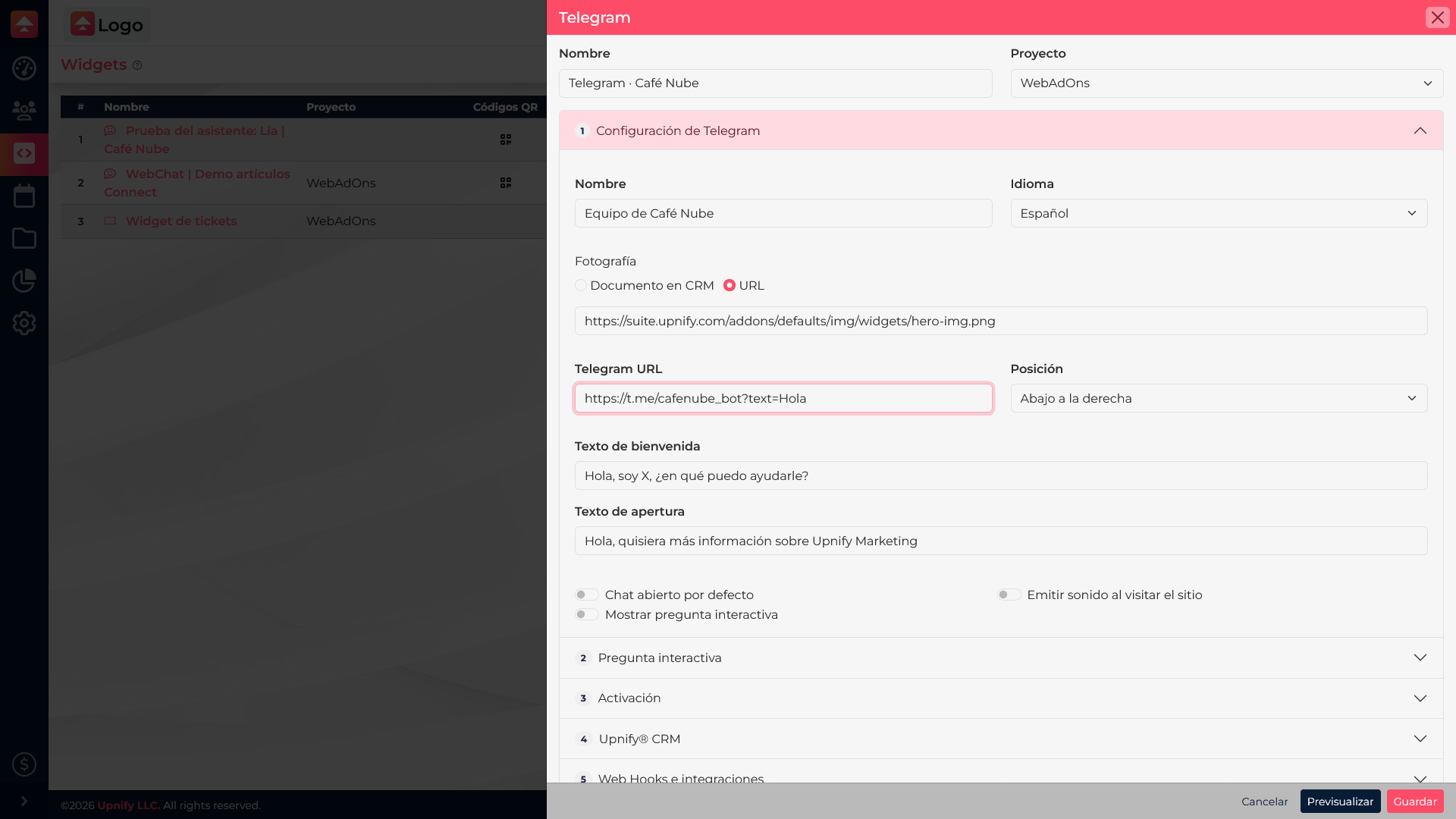
Go to Settings > Widgets > New, select the channel, and enter an identifying name, destination, and welcome or opening text if the form provides it. Set the language, image, and behavior options only when they improve the experience. Associate the widget with the right website and save.
Test the link as a visitor
- Save the widget and confirm it is active and associated with the expected website.
- Open the published page on a phone and a computer.
- Select the button and confirm it opens the correct channel, profile, or chat.
- Review the opening text, if configured, and make sure the visitor can continue to send a message.
If the wrong profile opens, check the destination saved in Engage. If the link opens the app but not the expected chat, verify the public username or number in the external service. To display the conversation in Connect, configure the channel integration and Connect permissions separately.