Upnify CRM
← Back to product

Engage · Settings

How to install Engage code and check that it works on your website

Add Engage to your pages and confirm the site detects the code before testing widgets.

A specialist integrates a three-dimensional digital element with a website

Published on November 4, 2026

Engage code lets your website load its configured widgets. Registering the domain helps organize it but does not replace installation: without the code, widgets will not appear on the page.

The example screenshots use a website named Café Nube — main website. Replace www.cafenube.example with your company’s public domain when testing the installation.

Before you begin: register the site and make sure you can edit it or ask its administrator to make the change.

1. Copy the code from Engage

In Settings, open the code installation section. Copy the complete snippet from the product; it contains company identifiers that should not be typed or changed manually.
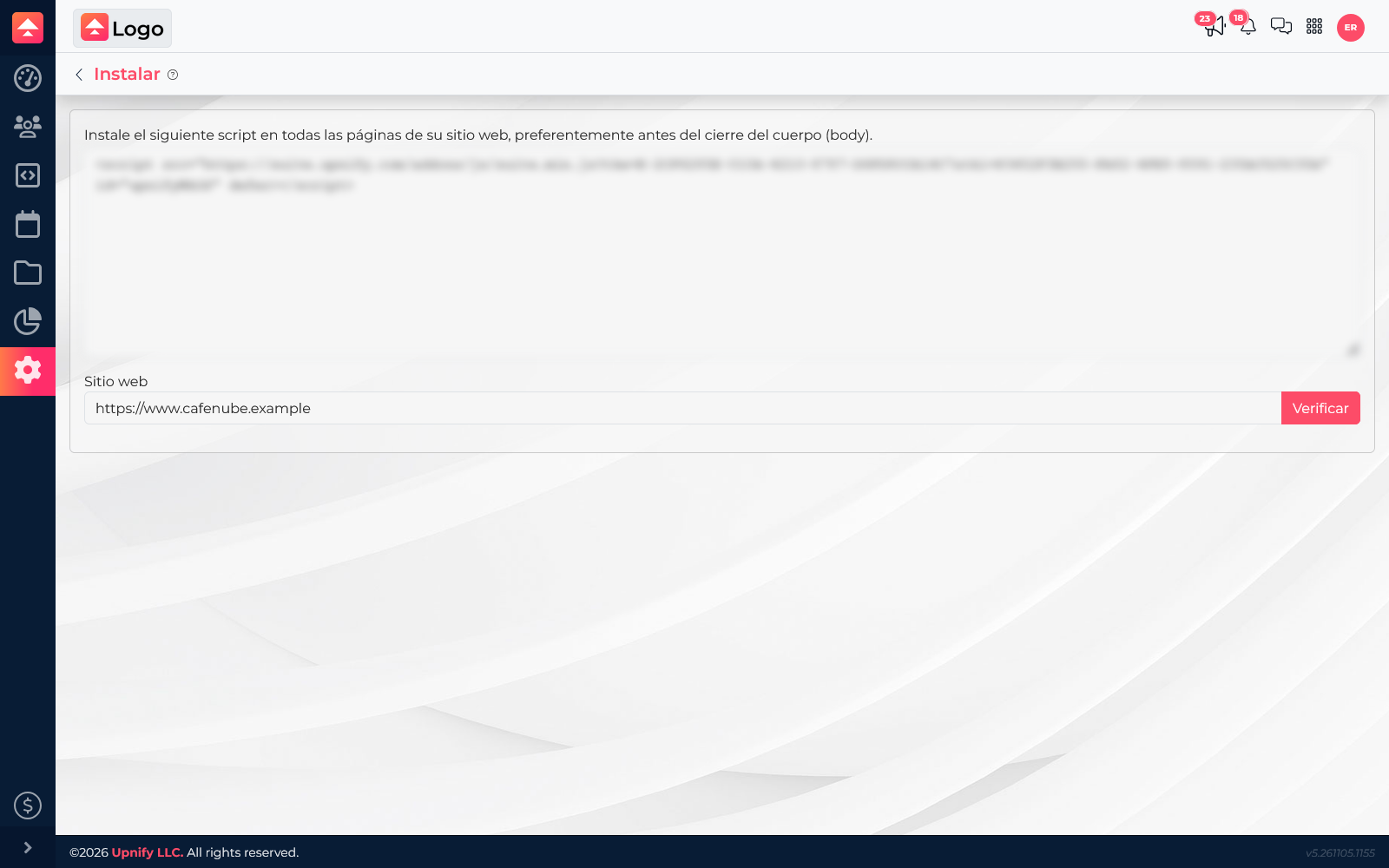
Engage installation screen with Café Nube website selected
Engage installation settings for the Café Nube website

2. Install it on the website

Paste the snippet into the global template, preferably before
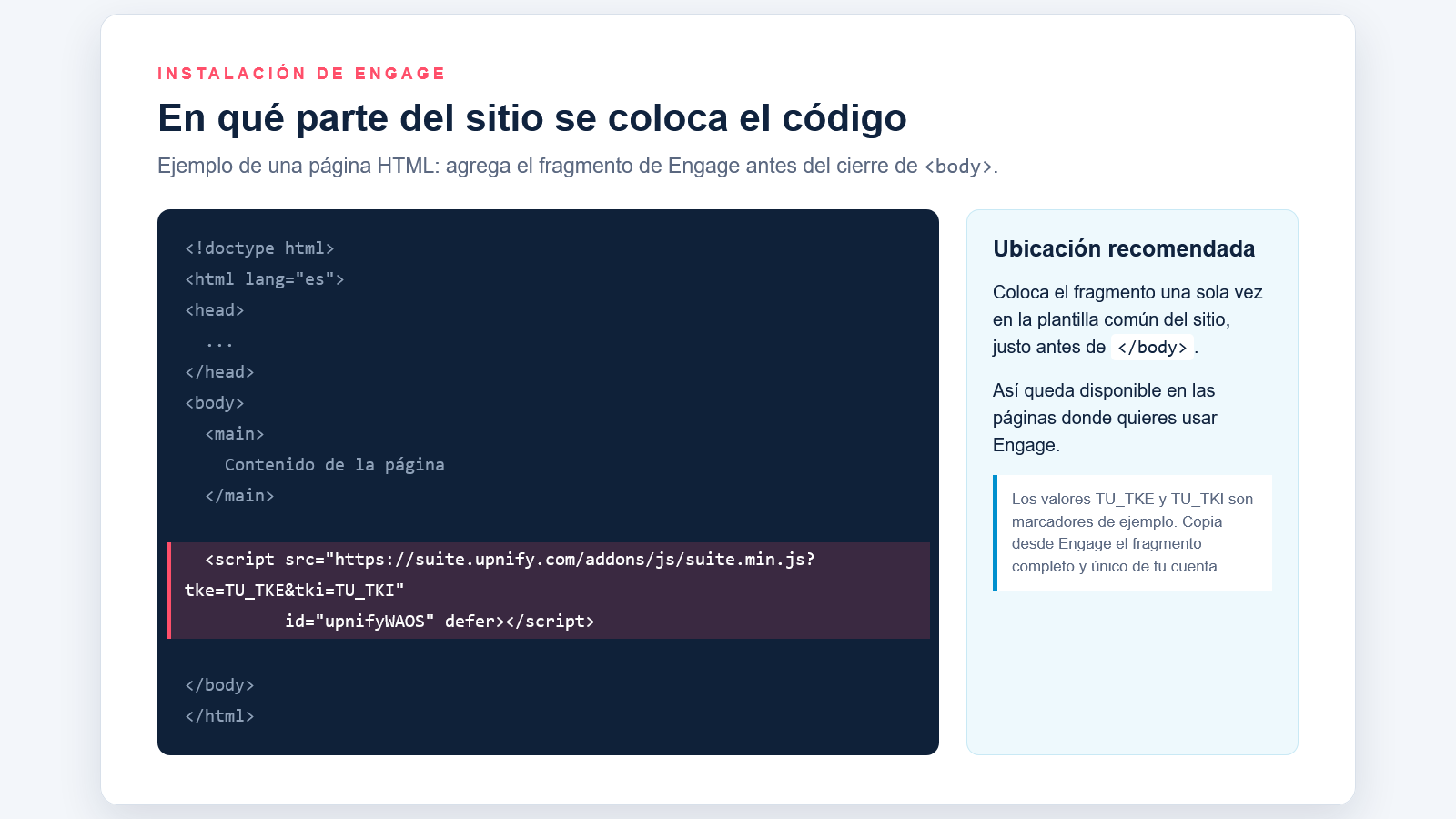
, so it can load on the pages where you use Engage. If you add it to one page only, it will be available there only. If you do not manage the site, send it to your developer. In WordPress, Wix, and other builders, the location depends on the platform and plan; use its official custom-code field.

In the website’s shared HTML template, paste the complete snippet once, immediately before . The image below is an editorial placement guide; always copy the unique code generated in your Engage account.

Engage HTML code example before the closing body tag
Visual example showing where code goes before the closing body tag

3. Verify a published page

Return to the installation screen, enter the full address of a public page where you added the snippet, and select Verify. Wait for Engage to respond. If it cannot find the code, check that the page is published and the snippet is in the HTML received by the browser.

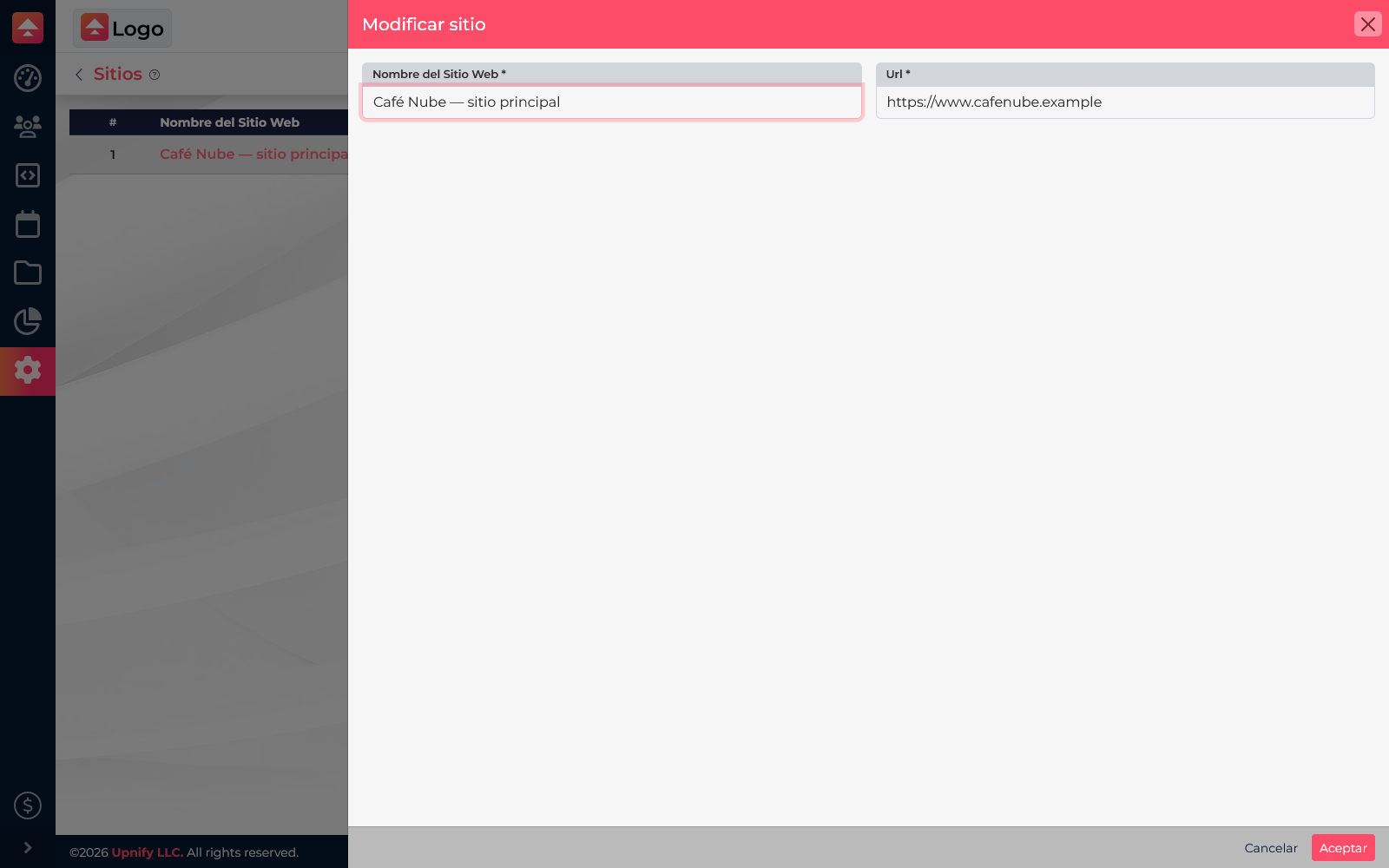
Café Nube website and fictional domain settings in Engage
Café Nube website settings and example domain

Code verification alone does not confirm that widgets are active. Also check that each widget is published, associated with the right website, and configured.

If verification fails