

Engage lets your team manage websites, widgets, and events. Enabling the product only for people who need it supports their work and helps control who can change company settings.
Review access
Open Settings > System Users to review users and find a person before changing their settings.
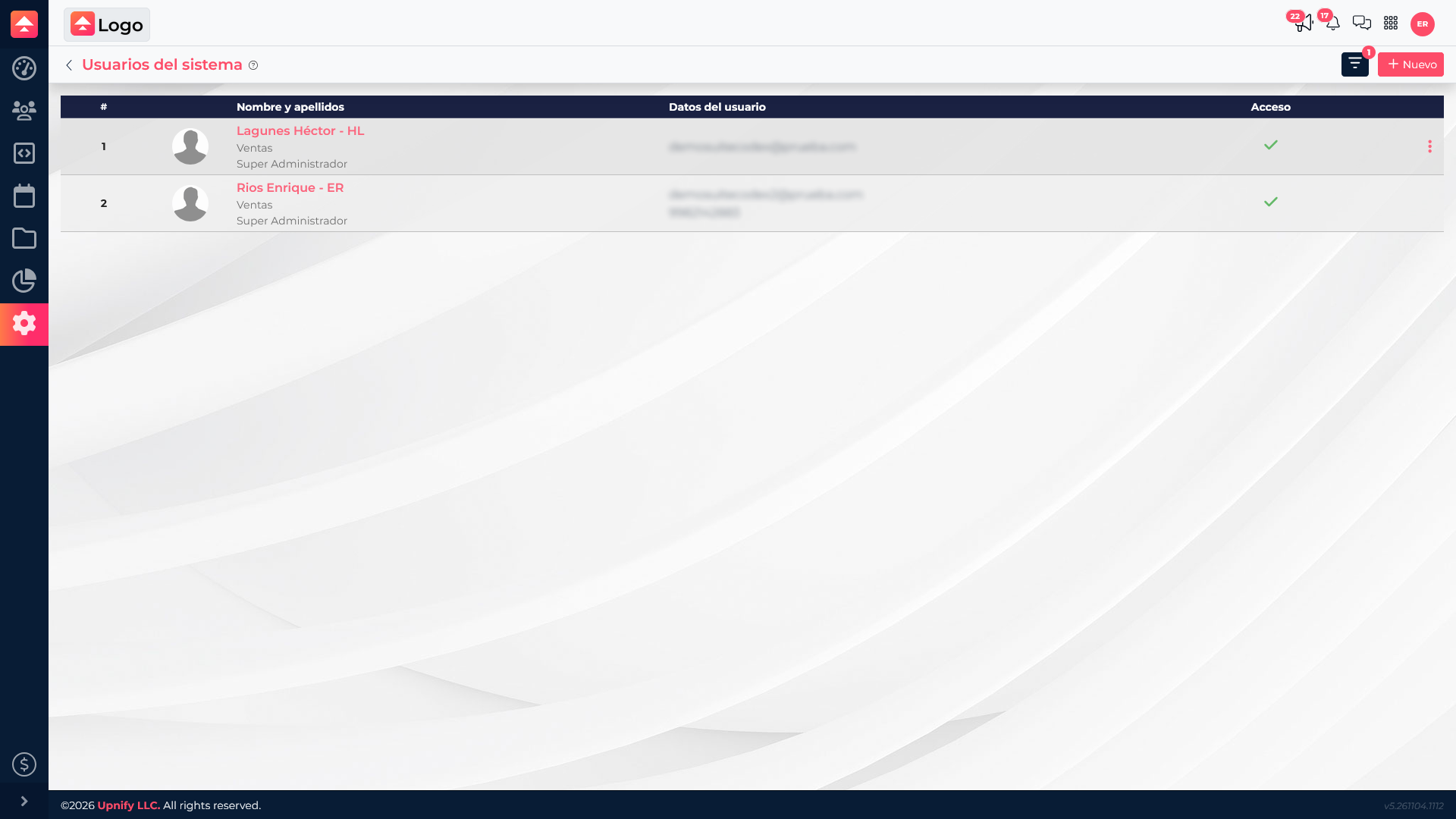
Add someone with Engage access
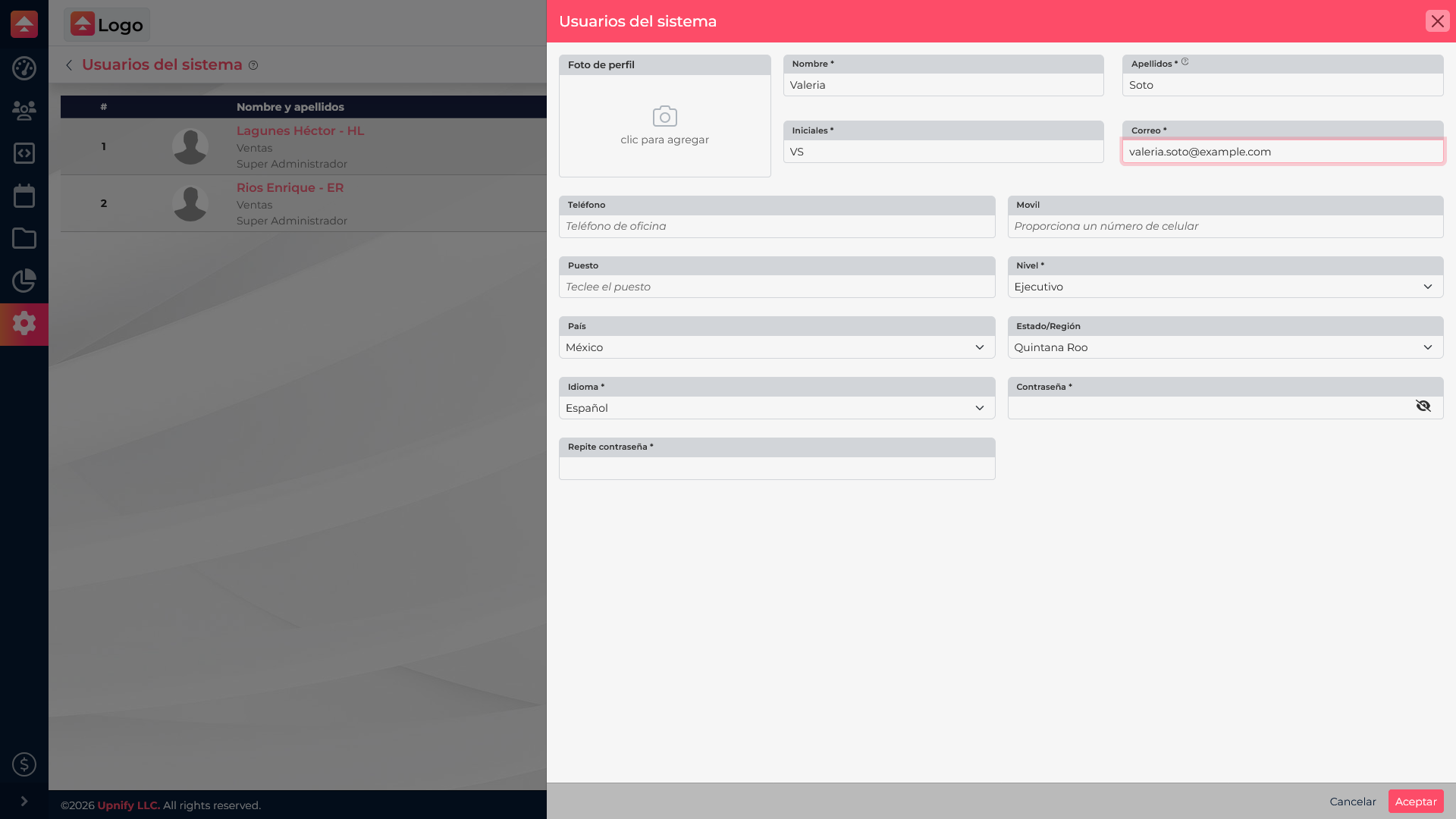
If the person is not registered for the company, select New and complete their name, initials, and email. Add a phone number or job title if useful, set an initial password, and choose the user level that fits their responsibilities. Under Applications, enable Engage and confirm the details before saving.
For example, enable Engage for the person managing campaigns and websites without granting access to products they do not use.
Grant or remove access
For an existing user, open the actions menu on their row. You can remove Engage access or grant it again when disabled. Removing Engage does not delete the person from Suite; it only prevents them from opening that product. This helps when their role changes or they stop managing the website.
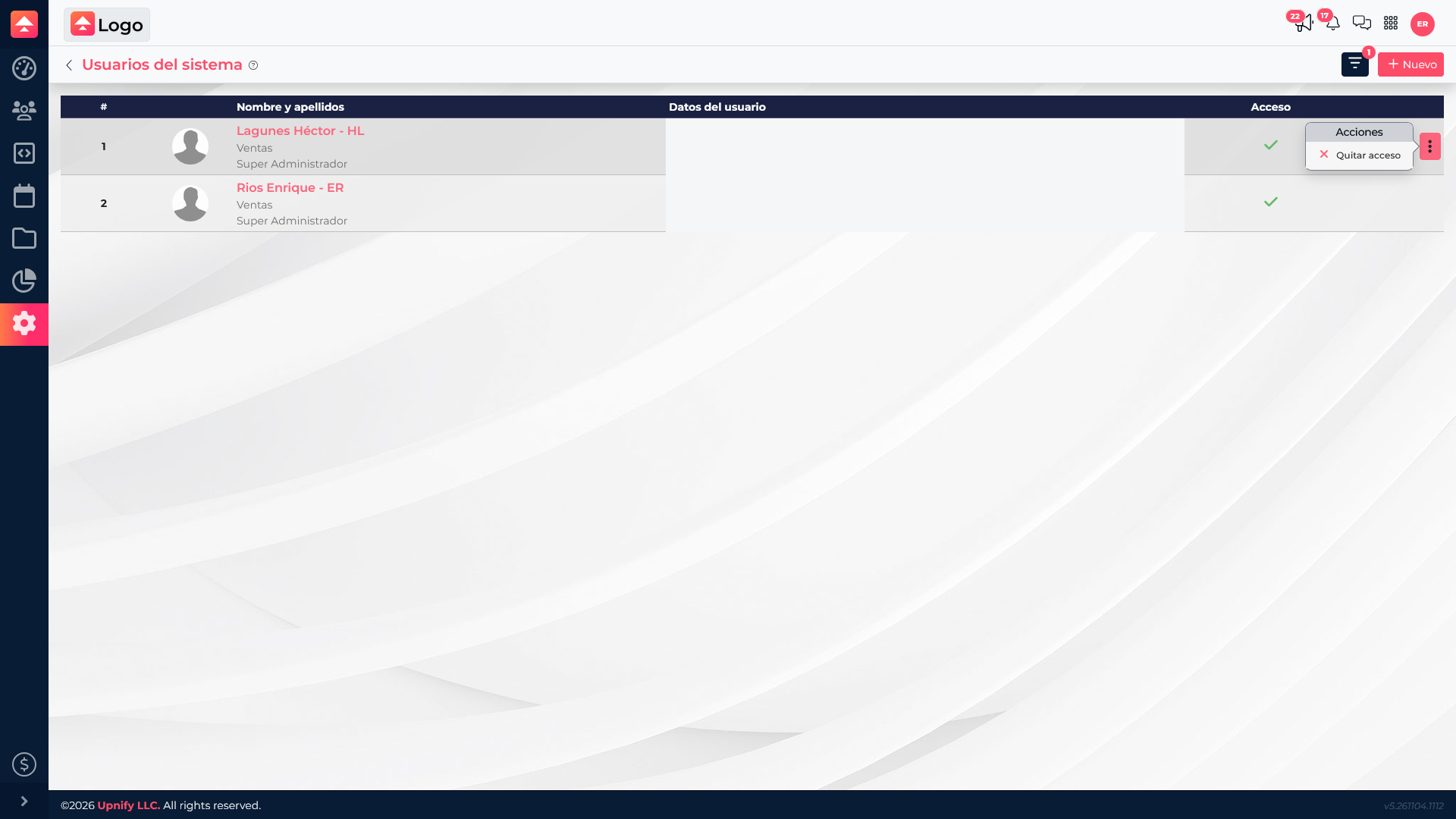
Review access when responsibilities change. Available actions also depend on the user level and company permissions.