

In ERP, a quote lets you present the products, quantities, and terms you are proposing to a customer. Once the customer approves it, you can convert it into an order to continue the commercial process and arrange fulfillment. This keeps the items offered and the items approved together in one workflow.
Before you begin, make sure the customer and contact exist, products have prices, and the taxes, currency, and payment terms you need are configured. If a product or price is missing, the document may be incomplete or need corrections.
Create a quote for a customer
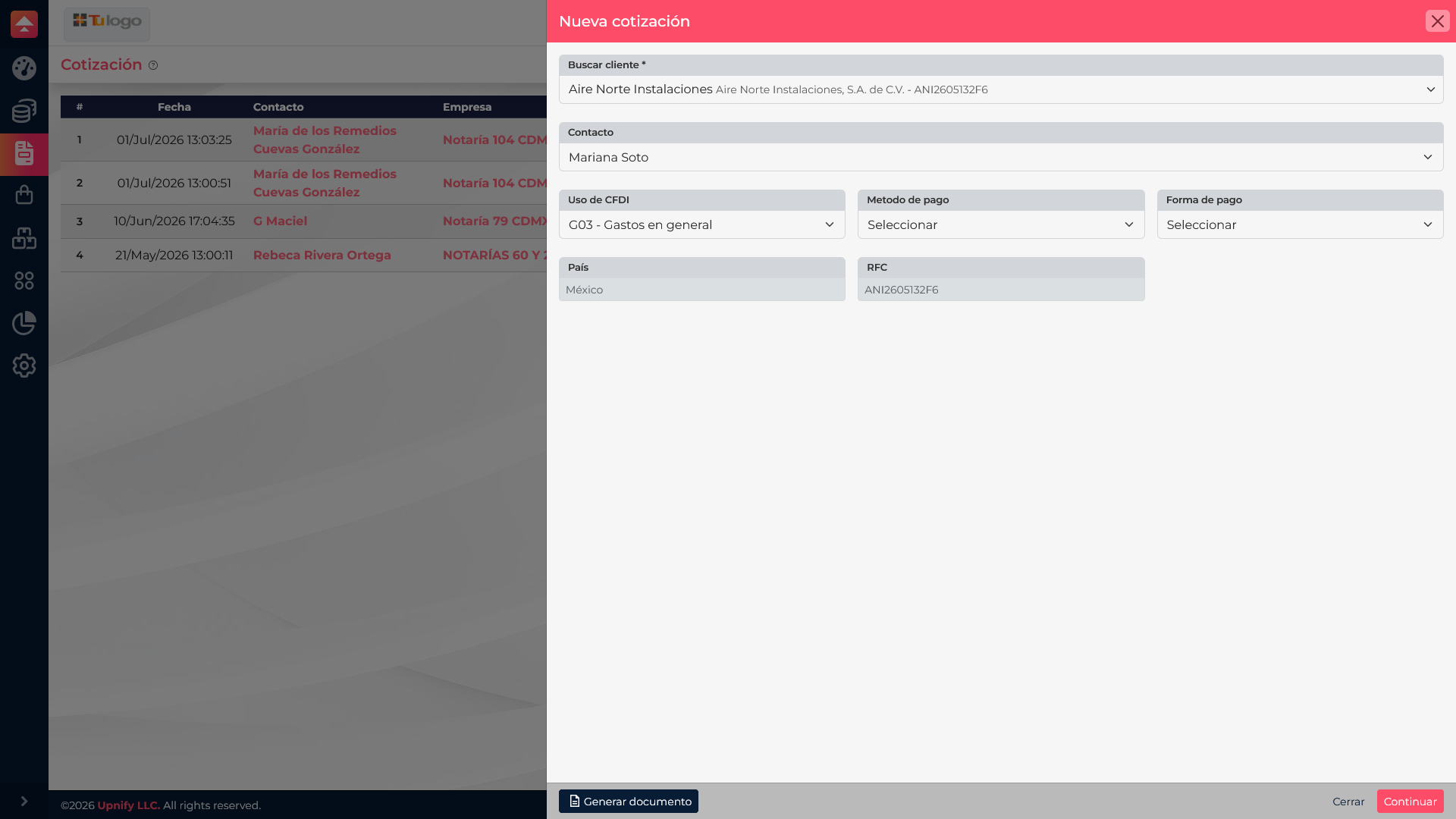
- In ERP, open Sales and go to Quotes. Select New.
- Find and select the customer. If the form offers the option, also choose the contact handling the transaction and the legal entity for the document.
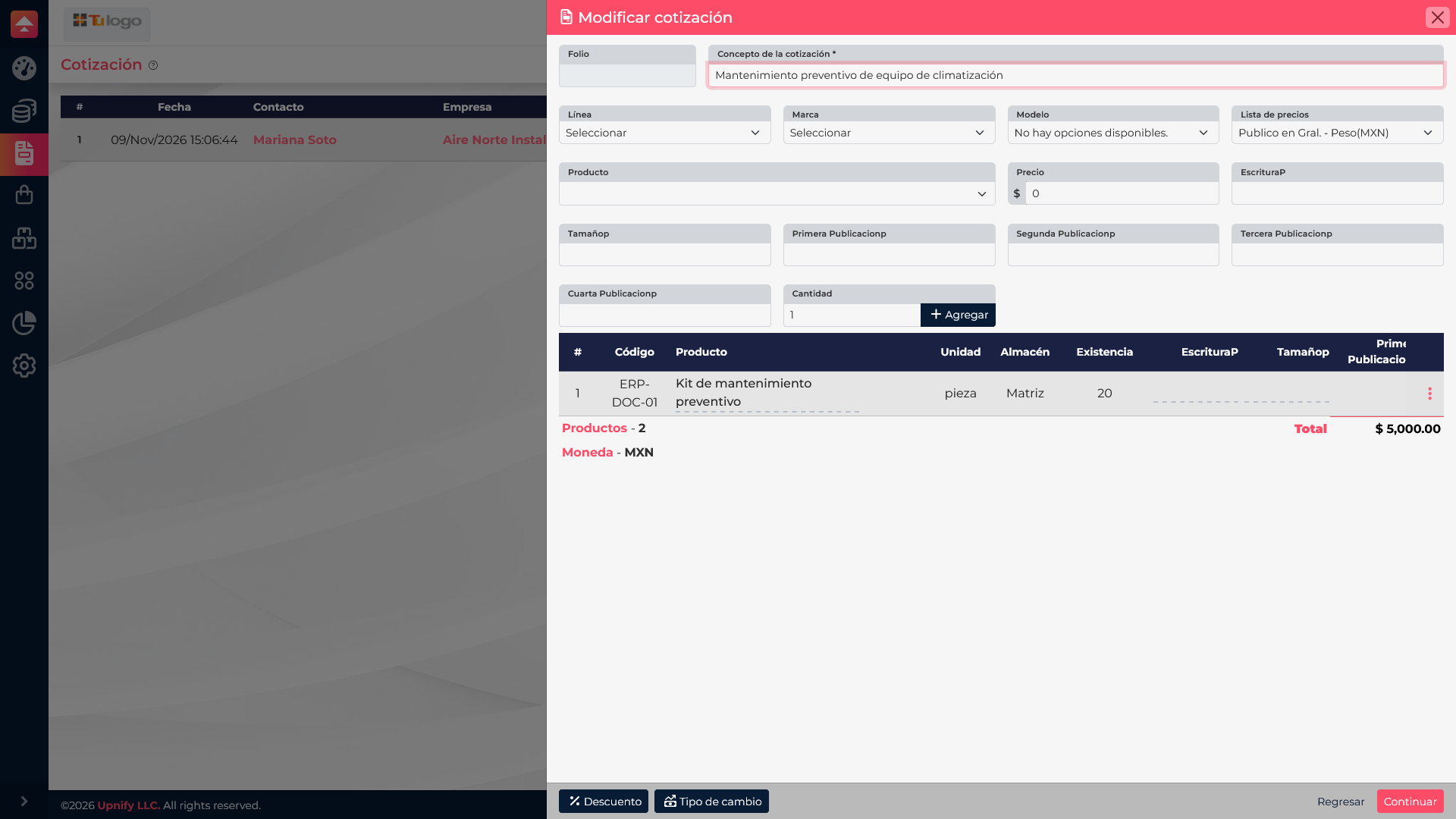
- Add products from the catalog. Check the description, unit price, and quantity; when applicable, review the price list, currency, discount, tax, and payment terms.
- Check the subtotal and total before continuing. Make sure the quantities match the request and the price matches the commercial agreement.
- Complete the requested quote details and review the summary. The proposal should reflect what you plan to present to the customer before converting it into an order.
Add products and review the amounts
A quote is made up of product lines. Each line shows what you are offering and in what quantity. If the customer needs multiple units, enter the quantity on the product line and check the resulting amount; avoid duplicating the same item when one line with a quantity is clearer.
For example, quoting two preventive-maintenance kits at $2,500 each gives a product subtotal of $5,000 before applicable taxes or discounts. The final total depends on the account\u2019s commercial settings and the options applied to the document.
Convert an approved quote into an order
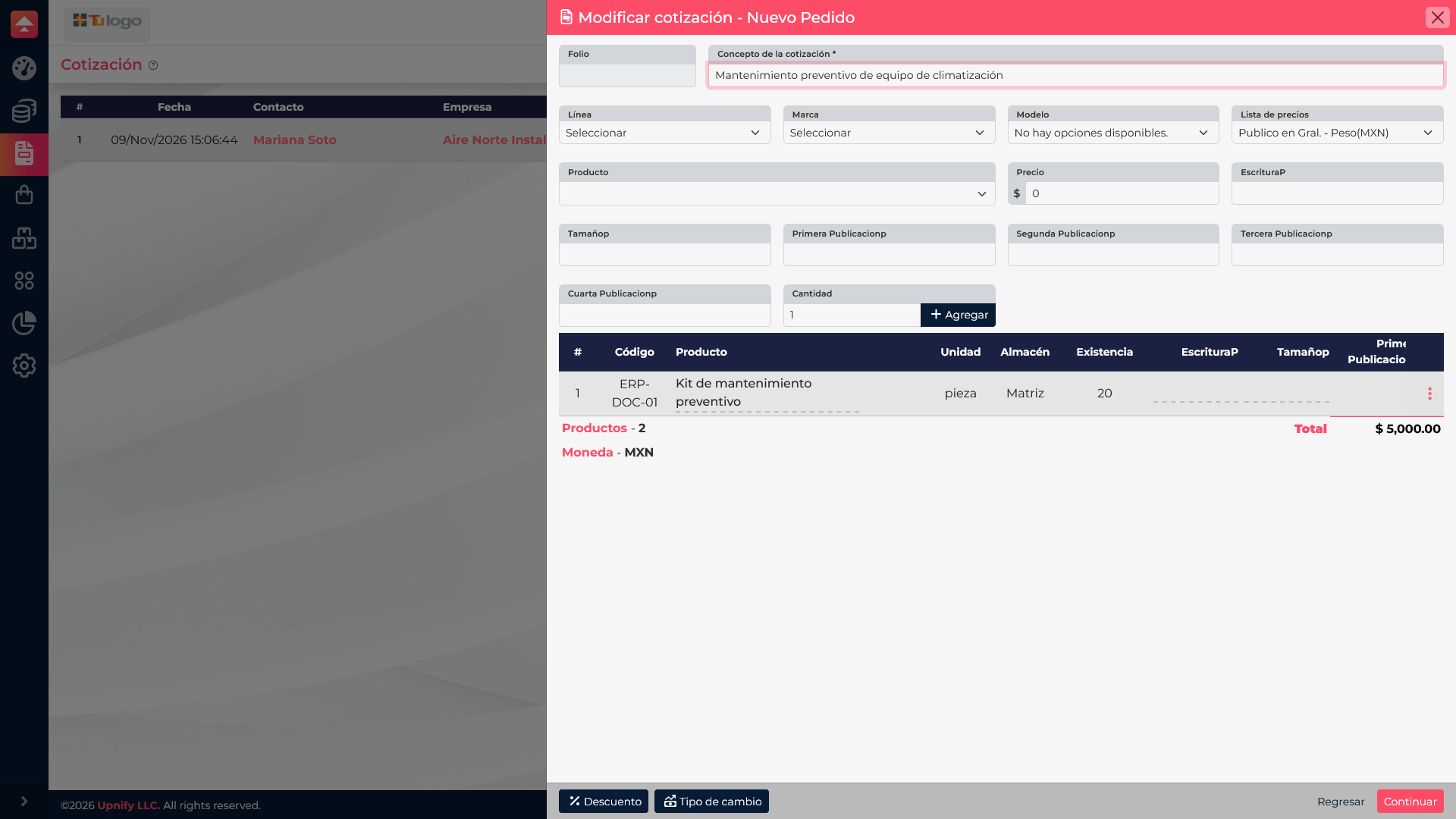
When the customer approves the proposal, find the quote in the list and open its action menu. Select Convert to order and review the information ERP prepared. Confirm the customer, products, quantities, and amount before accepting.
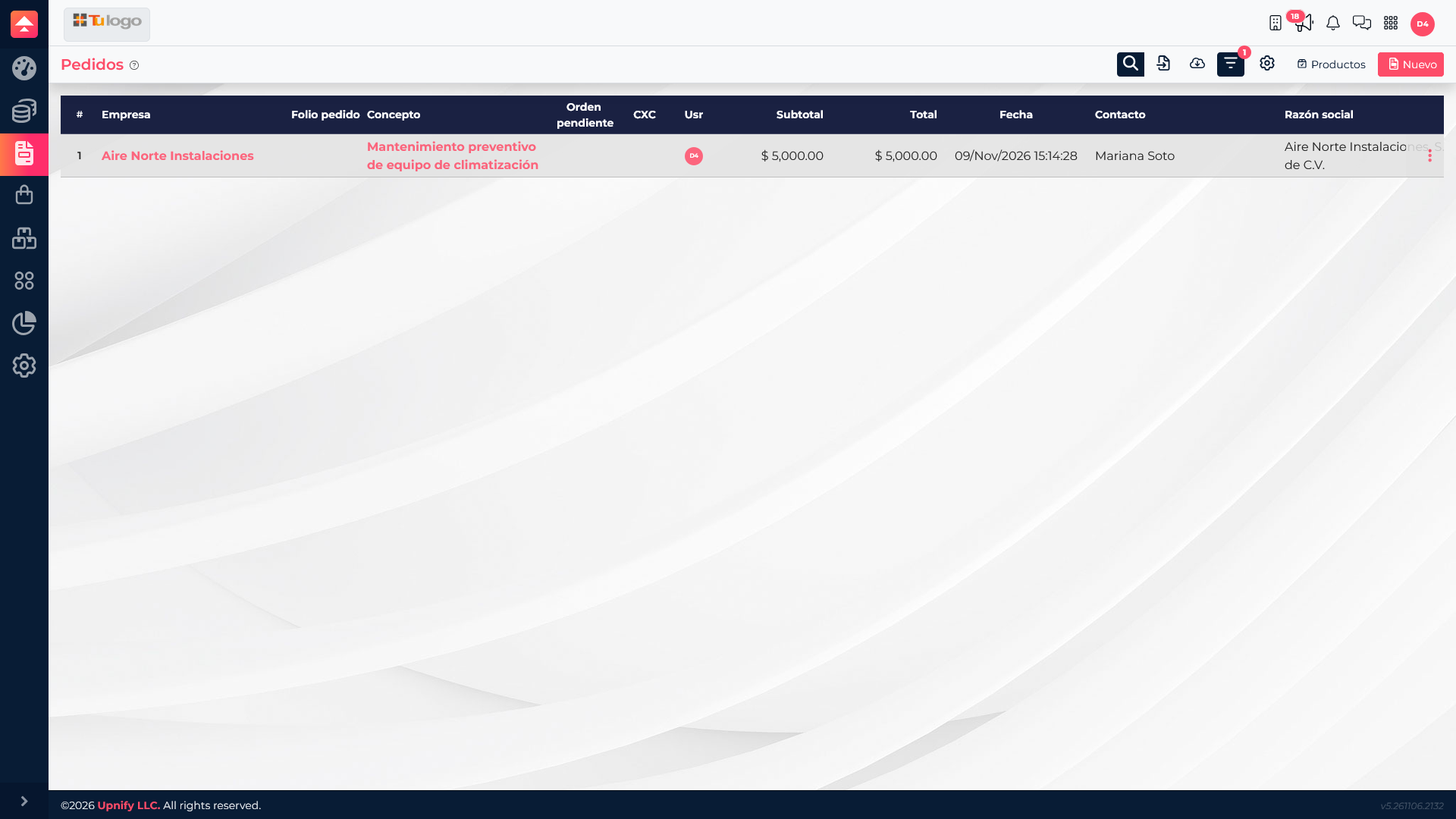
The conversion carries the quote\u2019s commercial details into the order so the team can continue the process. You can then find the order under Sales > Orders and continue with available actions, such as preparing fulfillment.
Find the order
In the order list, search for the customer or item to confirm that the transaction was recorded. Open the record to review its products, contact, and amounts. If fulfillment is not ready yet, the order keeps the commercial progress available while delivery is arranged.
What to check if you cannot complete the workflow
| What you see | What to check |
|---|---|
| The customer is missing | Confirm the customer exists in ERP\u2019s Customers catalog and that your user can access the record. |
| A product is missing or its amount looks wrong | Check that the product is active and has a price for the selected price list and currency. |
| The total does not match the agreement | Review quantity, price, discounts, and taxes on the document. |
| The convert-to-order action is missing | Check the actions for the correct quote and confirm it is still available for conversion. |