

To work in ERP, first sign in to Upnify Suite and open the ERP application assigned to your company. If you cannot see ERP or a specific screen, the cause may be product access, user permissions, or applied filters. Checking each one helps you identify the issue.
Open ERP
- Sign in to Upnify Suite with your user account.
- On the applications screen, select ERP and choose Enter.
- If ERP is missing, ask the Super Administrator to confirm that ERP is enabled for the company and that your user is active and assigned to the product.
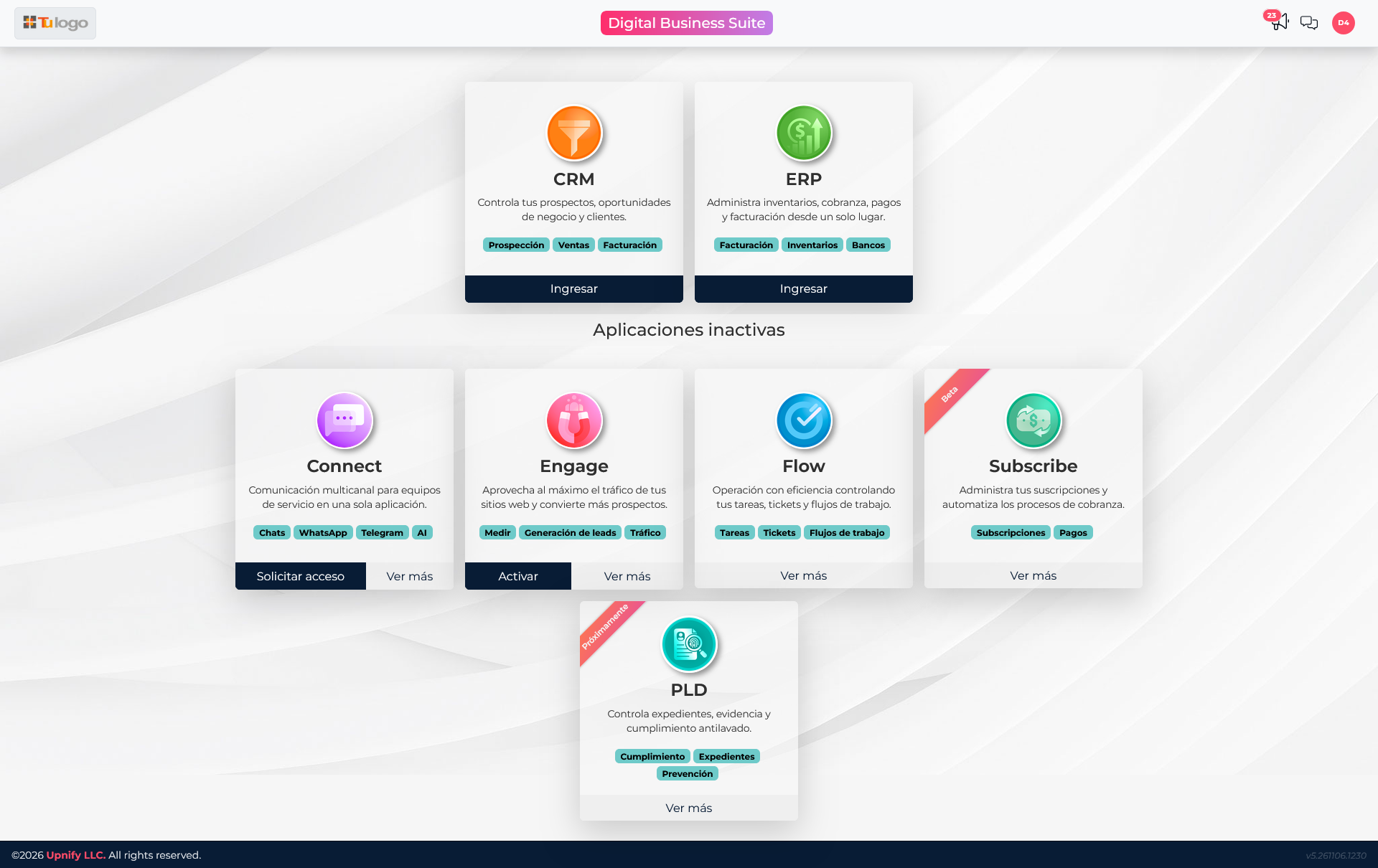
If you cannot open the product or a screen
Access to an application and access to its features can be configured separately. The Super Administrator can review the company license, user status, and assigned products. Administrators can manage the products under their responsibility, while other roles work with the access granted to them.
If ERP opens but you cannot enter a module or setting, tell the administrator the exact screen name and message you see. Ask them to check your profile, product access, and permission for that function. Do not share your password to resolve a permissions issue.
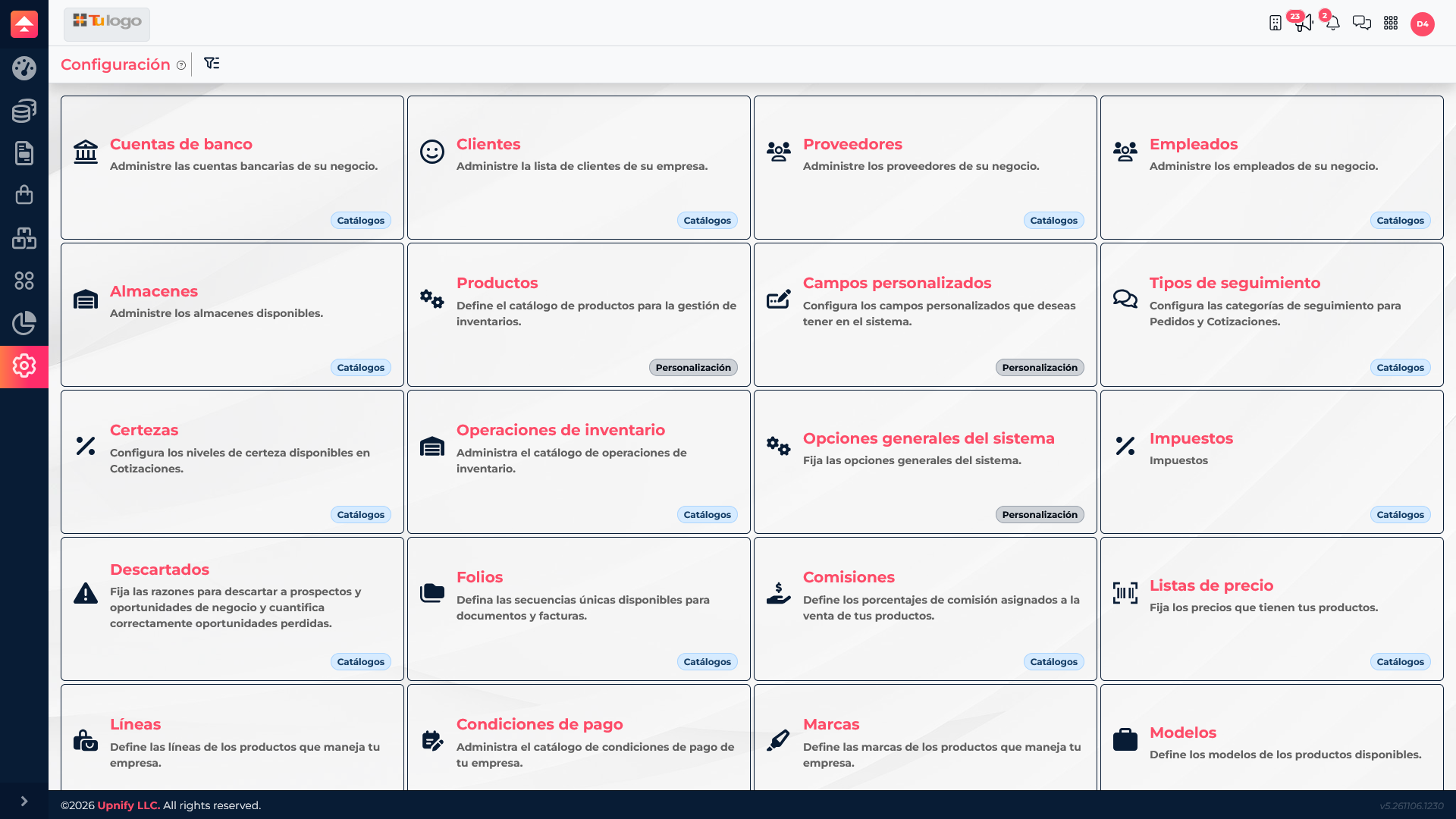
If a record is missing
| What to check | How to check it |
|---|---|
| Filters and search | Clear status, date, owner, warehouse, or category filters; then search by name or key again. |
| Correct section | Confirm whether you are looking for a product, supplier, customer, purchase, movement, or document; each type is viewed in its own module. |
| Company and context | Make sure you are in the correct company and that the record was saved in that context. |
| Relationship between products | A CRM contact and an ERP customer company may be linked, but they are not the same record. Search by both the person\u2019s and company\u2019s name. |
| Record status | Check whether it is active, canceled, archived, or in another status hidden by the current view. |
How to ask for help with useful details
When reporting the issue, include your user, company, product and screen, the record you expected to find, and the filters selected. Include the exact message or a screenshot without sensitive data. This helps the administrator distinguish a missing permission from a filter or a search in the wrong section.