

Attaching a file to the correct record saves your team from searching general folders later to prove what was purchased, sold, paid, or collected. The evidence stays with the operation\u2019s context: customer or supplier, concept, amount, date, and status.
In ERP, files for a purchase order, sale, receivable or payable, and bank movement are attached from different sections. First decide which record should keep the proof, then use Attach file from that record\u2019s details.
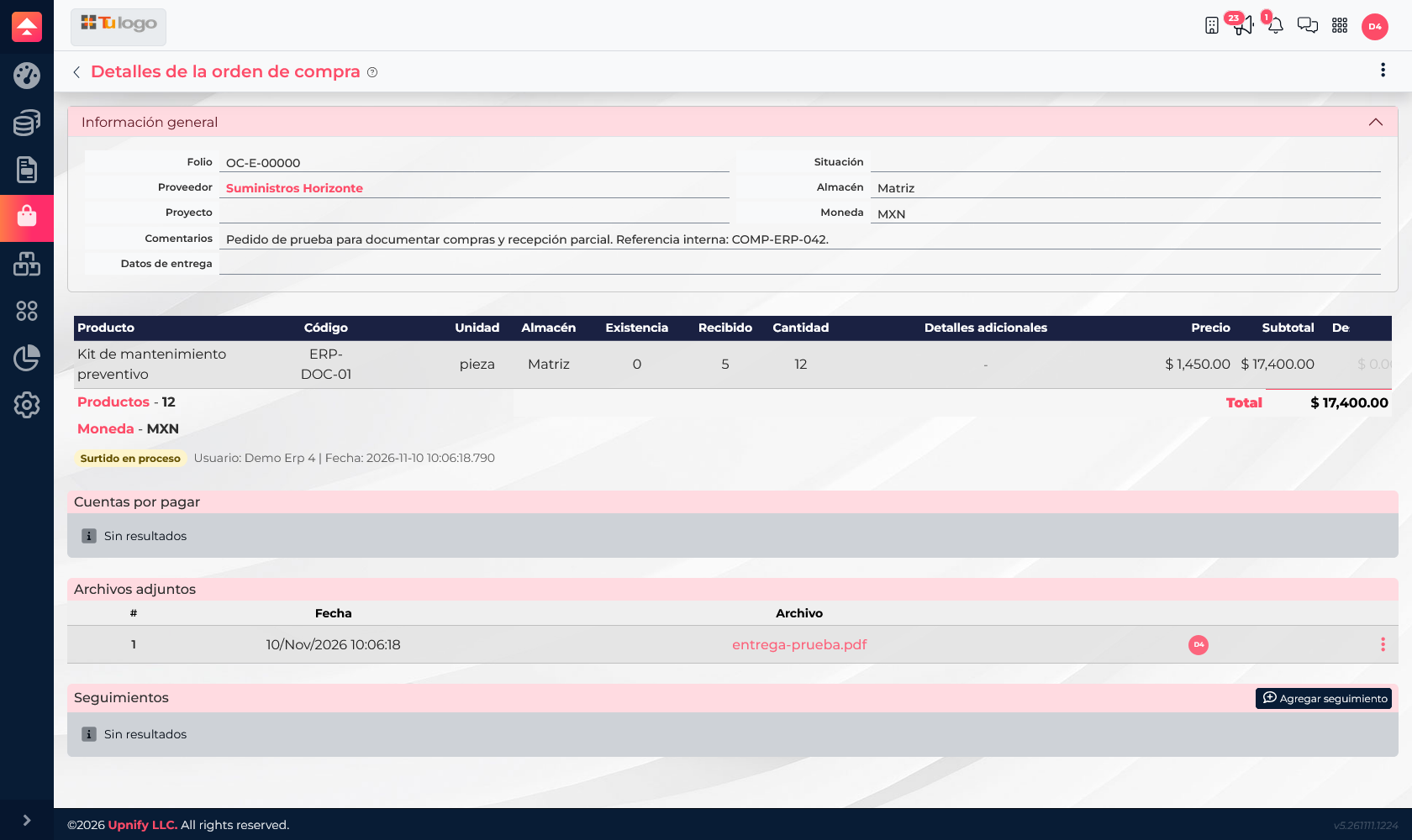
Where to attach by operation
| Record | What to keep | Where to find it later |
|---|---|---|
| Purchase order | Supplier quote, signed order, delivery evidence, or other purchase documents. | Open Purchases > Purchase orders, open the details, and review the file section. |
| Sale or order | Signed proposal, service proof, authorization, or sales supporting document. | Open Sales > Orders and find Attached files in the order details. |
| Invoice or receivable/payable | Tax XML or supporting documents accepted for that account. | Open the invoice or related account and review its file section; a purchase invoice XML has a dedicated field. |
| Bank movement | Bank receipt or proof in PDF format. | Open Finance > Banks and open the movement to review its attachments. |
Attach a file
- Find the correct record and verify the counterparty, concept, date, and amount. If several records look similar, open the details before attaching anything.
- In the file section, select Attach file.
- Choose the file from your computer or drag it into the upload area. Check its name and make sure it is the correct proof.
- Select Accept and wait for the upload to finish. Confirm the file appears in the list before leaving the record.
- To open it later, return to the same record and select the filename or its preview/download action.
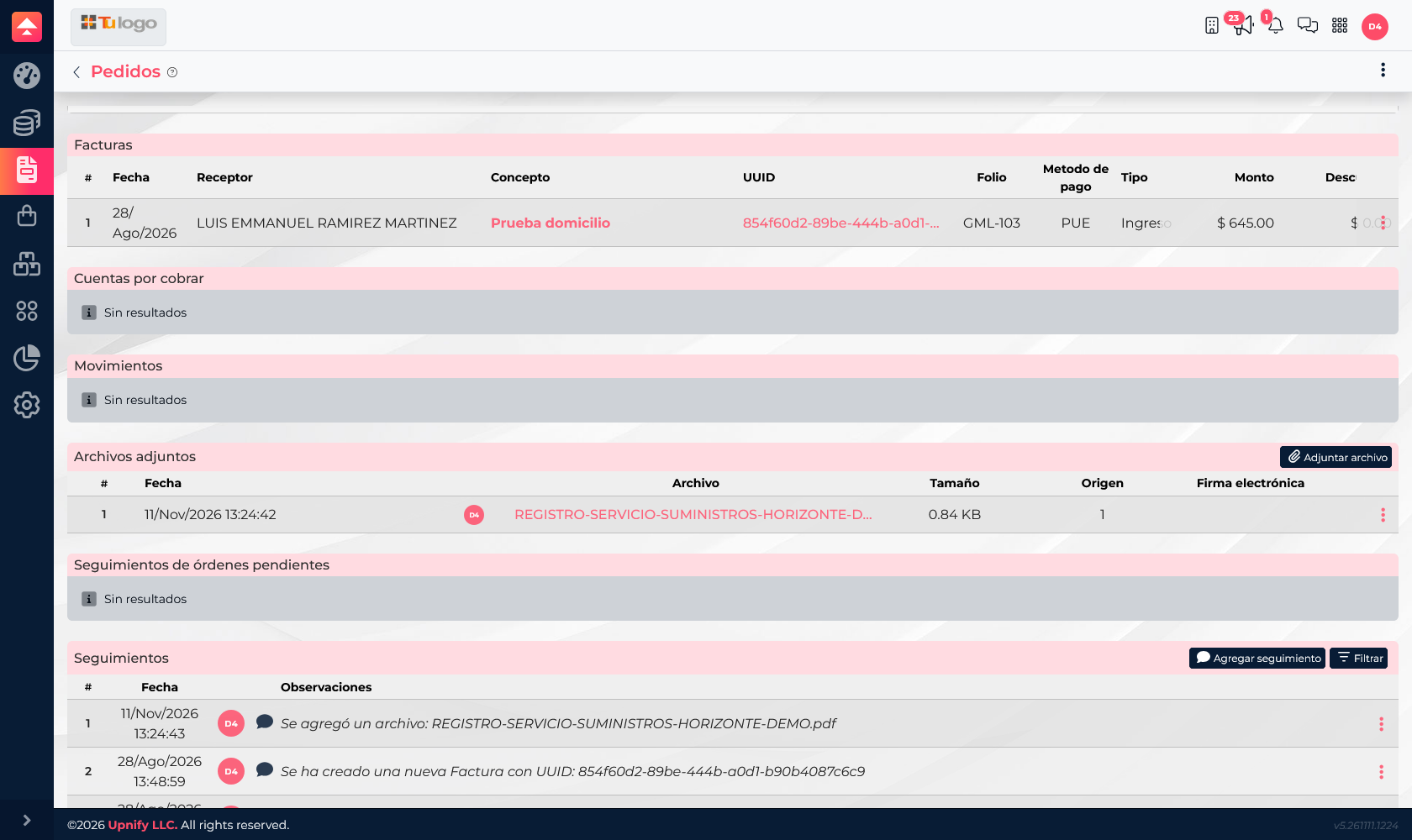
File types and limits by record
| Record or section | Supported files | Confirmed limit |
|---|---|---|
| Purchase order documents | PDF, PNG, JPG/JPEG, DOC, DOCX, and ZIP. | 10 MB per file; up to 10 files. |
| Invoice XML in a purchase | XML. | 10 MB; one file. |
| Sale or order attachments | PDF, Office documents, text, XML, images, audio, video, ZIP/RAR, and other types listed in the picker. | 10 MB per file; up to 10 files. |
| Accounts receivable or payable | XML, PDF, JPG/JPEG, and PNG. | 10 MB per file; up to 10 files. |
| Bank movement | PDF. | Multiple files are allowed; the form does not declare a maximum size or count. |
These limits apply to each attachment flow and may differ from the general ERP > Files library. If a file exceeds the size limit or uses an unsupported extension, the picker will not accept it.
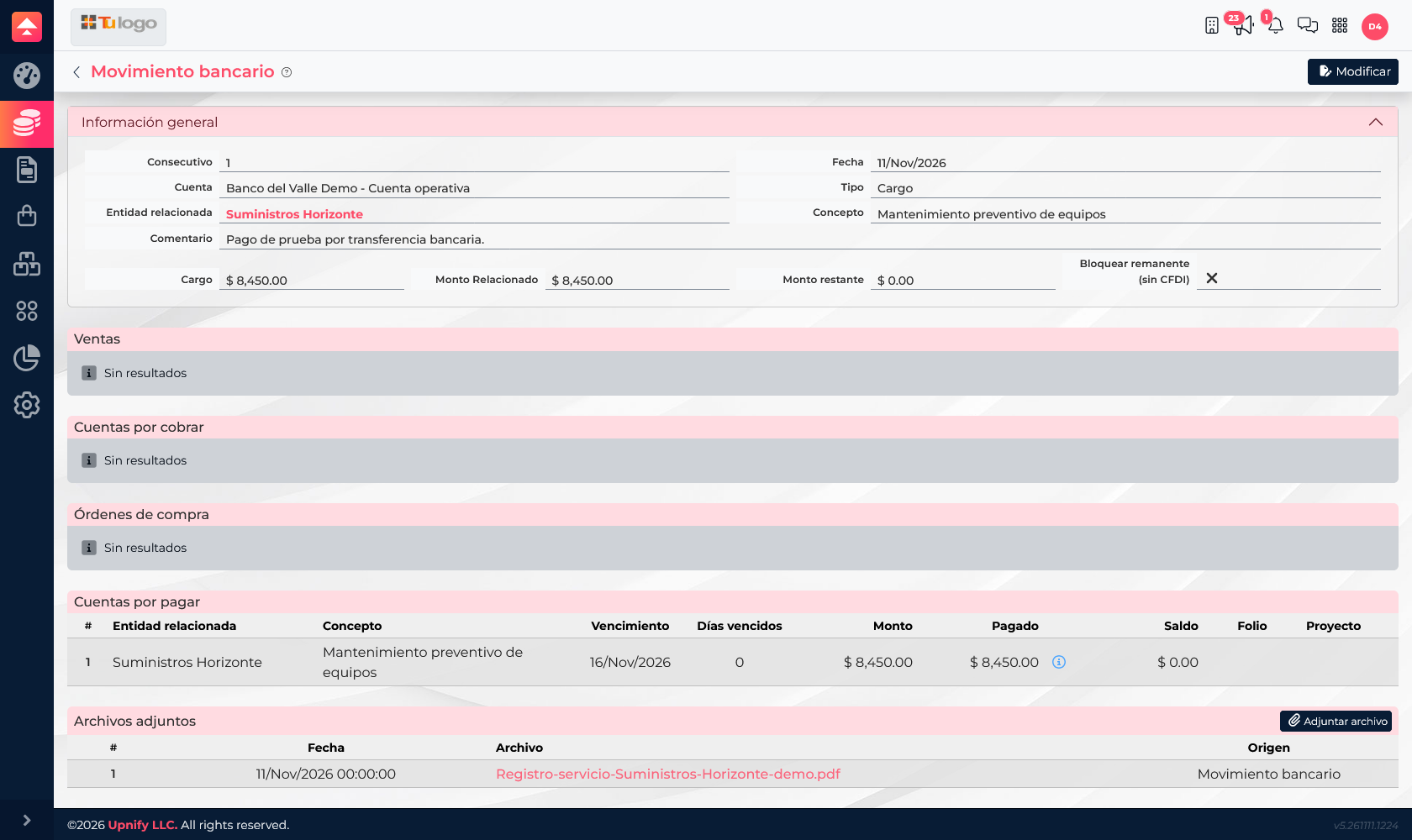
Keep evidence easy to find
- Use a useful filename, such as a folio, supplier, or document type; avoid generic names like final-file.pdf.
- Attach proof to its source record. If a payment settles a payable, the bank proof can live on the movement while obligation documents stay with the payable or purchase.
- Do not duplicate a charge by attaching or recording the same proof again. A file supports an operation; it does not create a payment or movement by itself.
- If you cannot find a file, confirm you opened the correct entity: a sale, invoice, receivable, and bank movement are related records, but they are not the same screen.
Example: For an equipment purchase, keep the order and delivery evidence on the purchase order. When payment is recorded, attach the PDF receipt to the bank movement and review the obligation under Accounts Payable. Each file then has the context that explains it.