

In ERP, a sales order, invoice, accounts receivable record, and fulfillment order may be related, but they are different documents. So \u201Ccancelling a sale\u201D does not always mean deleting the order: the result depends on which documents were created and which transactions have taken place.
This guide explains the Delete action available in Orders and what to check before using it. The deletion shown here is for a test order with no related invoice, receivable, or fulfillment order. It is not a demonstration of fiscal invoice cancellation and does not guarantee automatic reversal of inventory or financial activity.
What to check first
| Document or process | What it represents | What to check |
|---|---|---|
| Order | The commercial transaction and agreed products. | Description, customer, amount, and whether Delete is available. |
| Fulfillment order | Preparing or moving products for delivery. | Whether fulfillment is pending or warehouse movements exist. |
| Accounts receivable and payments | The balance and collections related to the sale. | Whether a receivable, advance, or payment exists and where its history remains. |
| Invoice or tax invoice | The fiscal document issued for the transaction. | Its fiscal status and the proper process before changing the order. |
A linked document may prevent deletion or require you to resolve it first. Do not assume stock returned to the warehouse, a receivable was voided, or a payment was refunded just because the order no longer appears.
Delete an order when ERP allows it
- Open ERP > Sales > Orders.
- Find the order and recheck its company, description, and total.
- Open the row actions menu and select Delete.
- Read the first prompt: \u201CDo you want to delete this order?\u201D
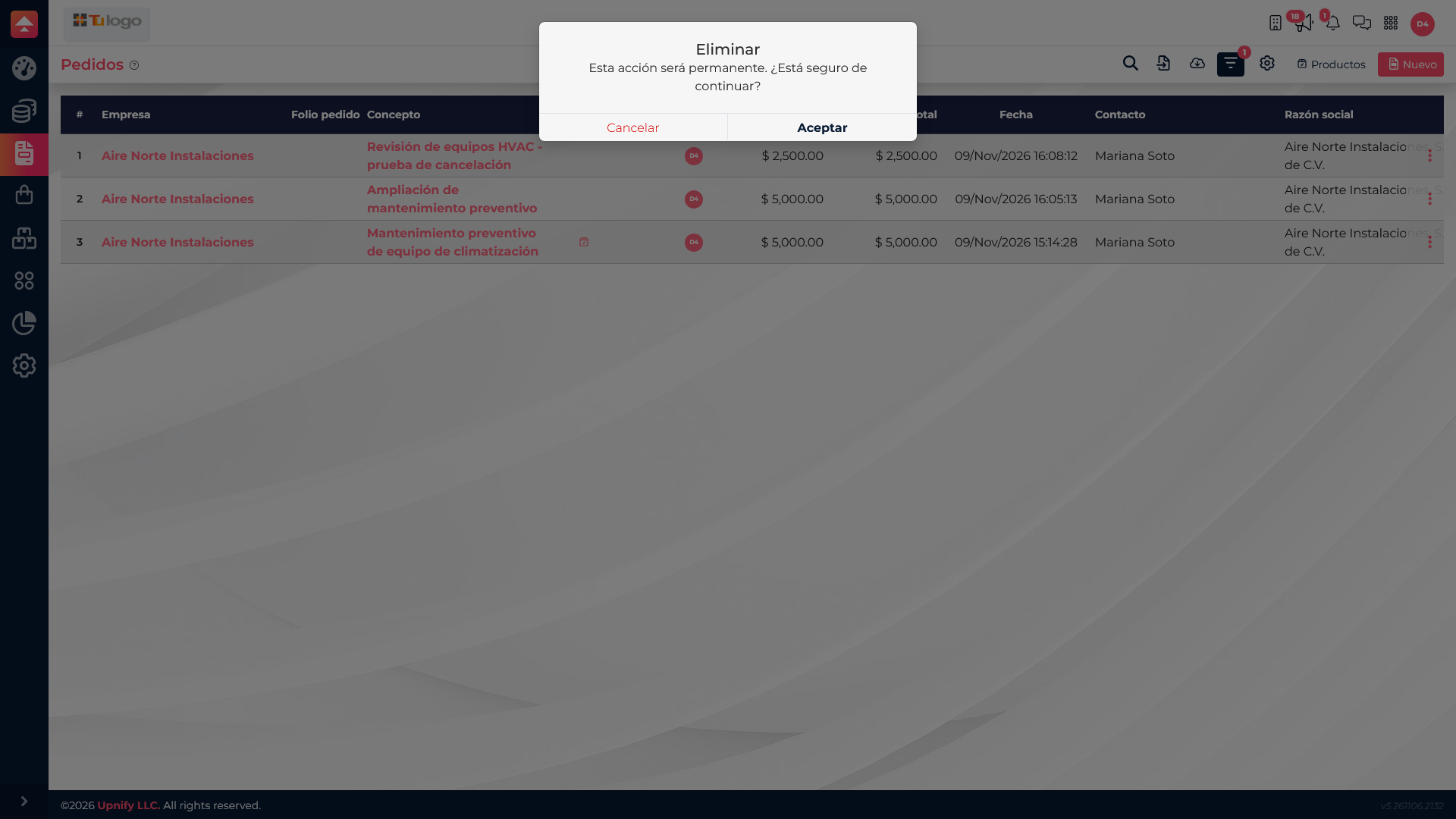
- If you are sure, continue and read the permanent-action confirmation before accepting.
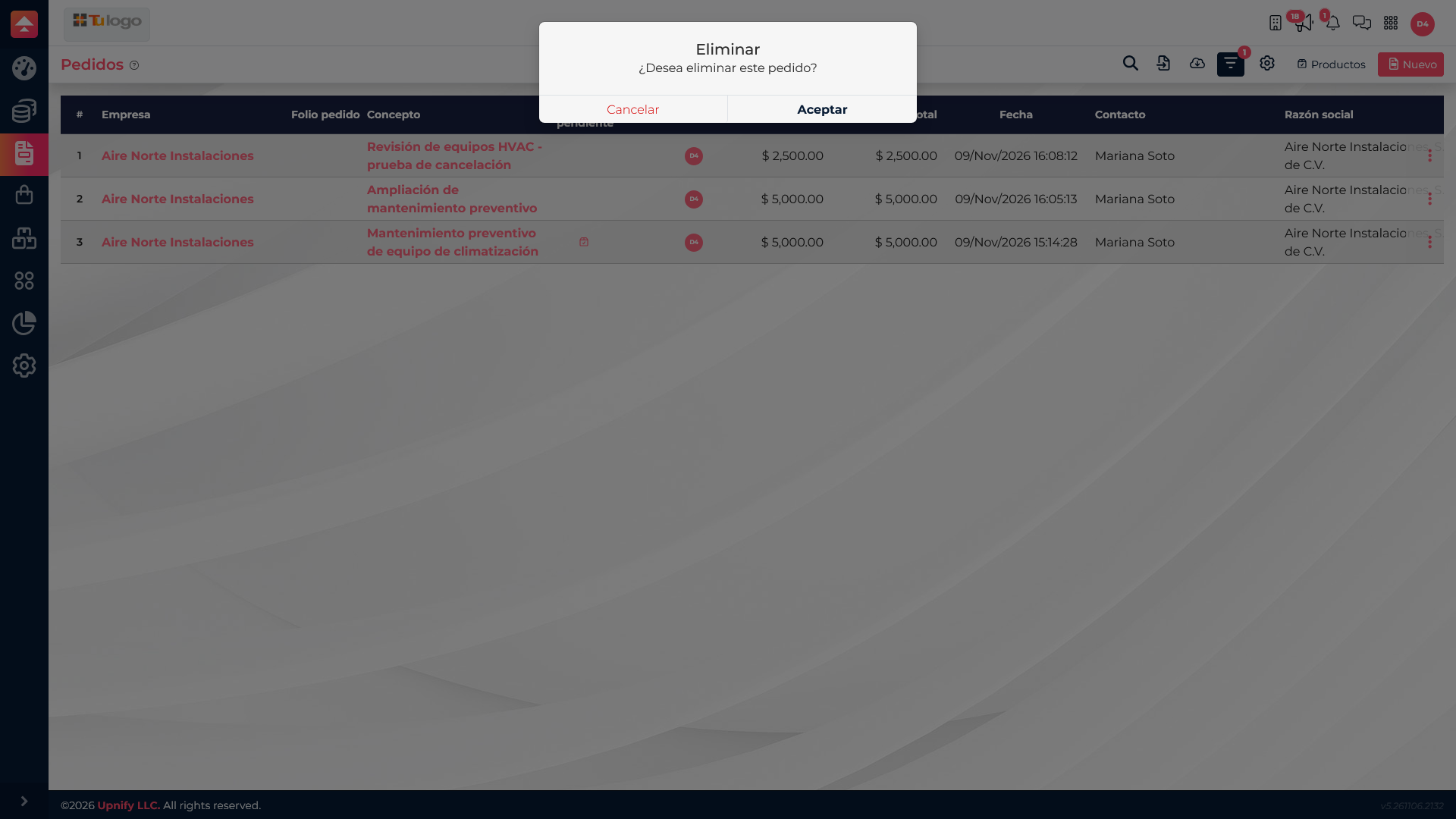
ERP asks for a second confirmation because the action is permanent. If you are unsure, cancel and check the related documents first.
Effects on inventory and finance
- Inventory: an order and fulfillment order are different. If products were prepared or shipped, confirm the effect in the warehouse document; do not assume deleting the order reverses those movements.
- Finance: a receivable, advance, or payment may keep its own status and history. Check the balance and use the relevant workflow for cancellations or refunds.
- Invoicing: deleting an order is not the same as cancelling a tax invoice. Check its fiscal status and follow the authorized invoice procedure.
Example: an order was entered by mistake and generated no invoice, receivable, or fulfillment order; if ERP allows Delete, you can confirm its removal. If an invoice was issued and the product was fulfilled, resolve the invoice and warehouse movements through their own workflows first. Do not use order deletion as a substitute.