

The stock screen helps answer practical questions before quoting, selling, purchasing, or transferring: how much is on hand, which warehouse holds it, and how much can be committed? ERP shows each product by location and distinguishes physical units from those already reserved for orders.
Open the stock view
- In ERP, open Inventory > Stock. This view lists the products and warehouses available to you.
- Search by product name or SKU. To check a location, filter by warehouse and confirm the product unit.
- Open the consolidated view for an overall picture, then return to the warehouse view when you need to locate the product.
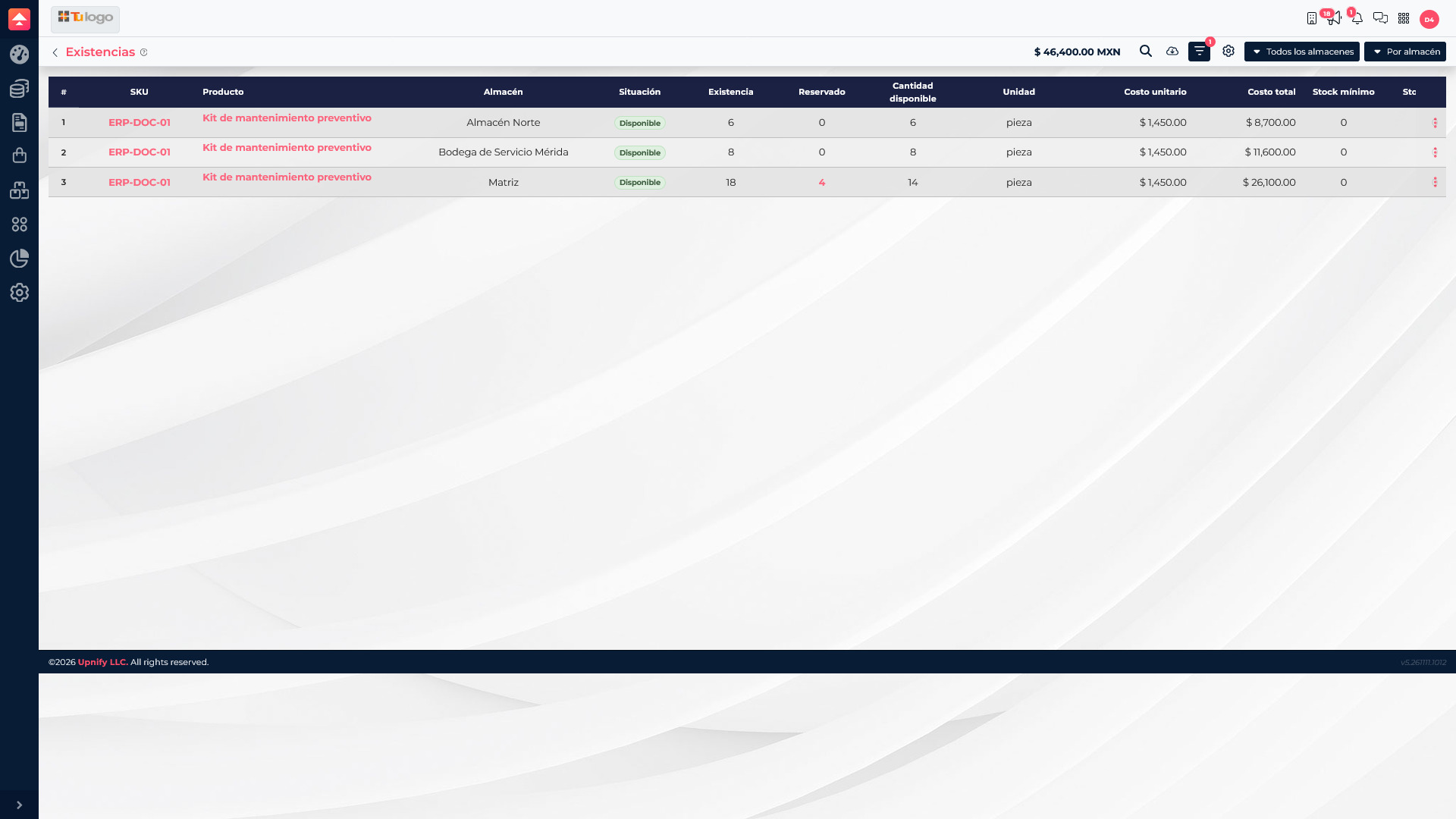
Understand the quantities
| Field | Meaning |
|---|---|
| On hand | Physical units recorded at that warehouse. |
| Reserved | Units set aside for orders; select the quantity to see which orders use them. |
| Available | Quantity left for new operations. In this view it equals on-hand stock minus reservations. |
For example, the Main warehouse has 18 Preventive Maintenance Kits on hand, 4 reserved, and 14 available. North has 6, and Mérida Service has 8. A company-wide total can include multiple locations, so confirm the warehouse before promising delivery.
Check availability at the warehouse that will fulfill the order. A high company-wide total does not mean the units are at the branch the customer needs.
If the quantity differs from what you see on the shelf, review the product movement history and check recent receipts, issues, transfers, and adjustments.