

The Bank accounts catalog lets you register the accounts your company uses as references in ERP financial operations. Clear labels help the team identify the right account when entering or reviewing a transaction.
For example, a company may distinguish its operating account from an investment or credit account. Recording each account\u2019s label, type, and currency reduces confusion when an operation allows an account to be selected.
Review the catalog
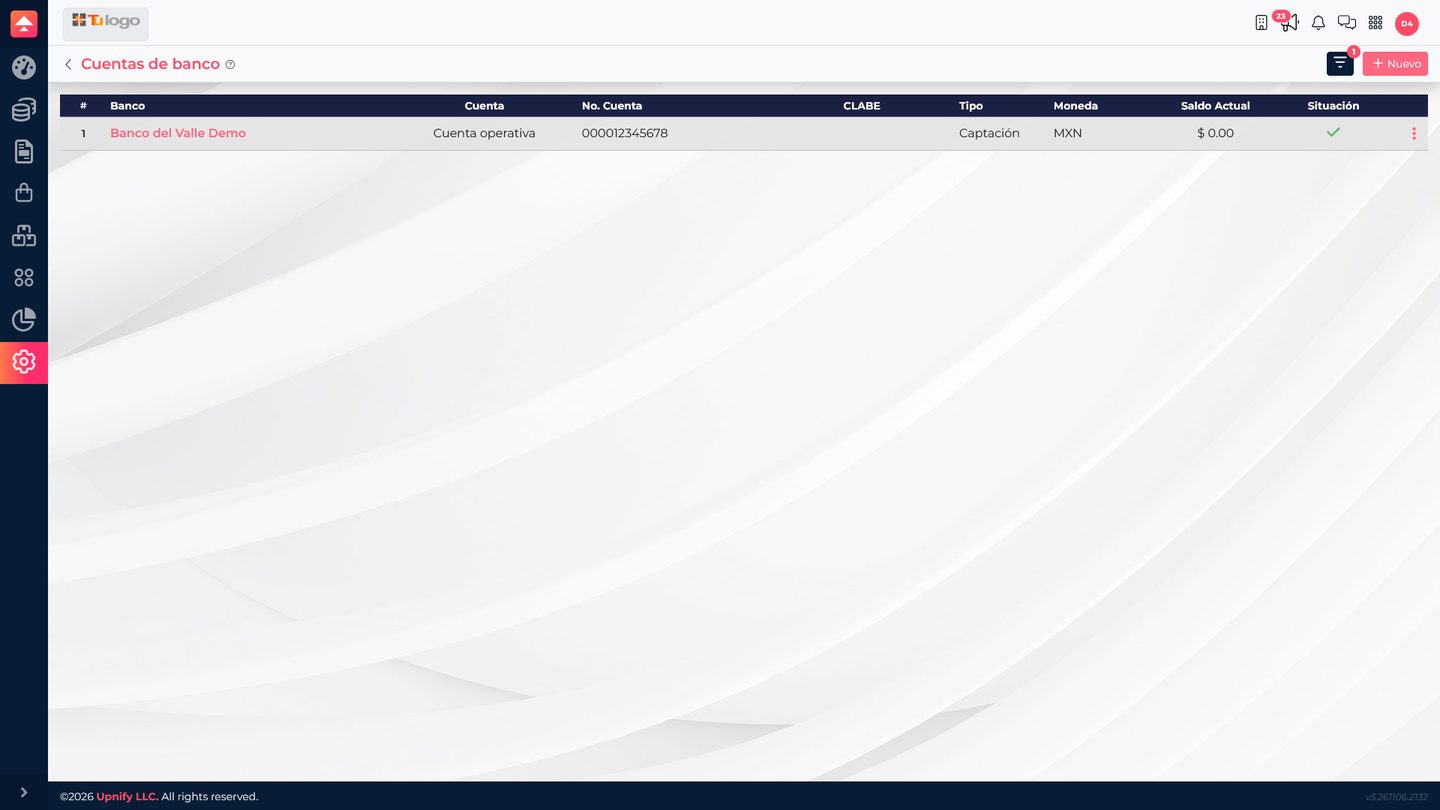
In ERP, open Settings > Bank accounts. Review existing entries before adding another and make sure you are not duplicating the same reference.
Add an account
- Select New.
- Enter the bank and an easy-to-recognize label, such as \u201COperating account.\u201D
- Enter the account number in its field.
- Select the available type\u2014deposit, investment, or credit\u2014according to your company\u2019s classification.
- Choose the currency and confirm it exists in ERP\u2019s currency catalog.
- Complete any additional identifiers requested, such as a local bank code when applicable, and save.
The sample account appears in MXN with a reference balance of zero. Use the catalog to identify the account; that balance is not a substitute for reconciling it with the bank statement.
Edit and use accounts
If a detail changes, open the record and correct only what is needed. Before changing the number or currency, check whether the account is already linked to documents. Confirm with your finance team which records should continue using it.
- The label should distinguish the account from others.
- The currency should match the actual account.
- Verify the number and identifiers with the responsible team.
- When recording an operation, select the right account and review the document before confirming.
Example: the team registers an \u201COperating account\u201D in MXN and an \u201CInvestment account\u201D in its applicable currency. When entering a transaction, the user can choose the right reference without mixing accounts with different purposes.