

The currency catalog defines which currencies ERP can use and the reference exchange rate available to operations that consult it. A clear setup helps distinguish local-currency amounts from amounts entered in another currency.
For example, a company may keep MXN as its base currency and enable USD for a price list or a transaction with an overseas supplier. A currency must be available in the catalog before it can be selected in a document.
Review available currencies
Open ERP > Catalogs > Currencies. Identify the currency set as the base and review which currencies are active. The base currency is the reference point; do not change it without checking the effect on company operations and records.
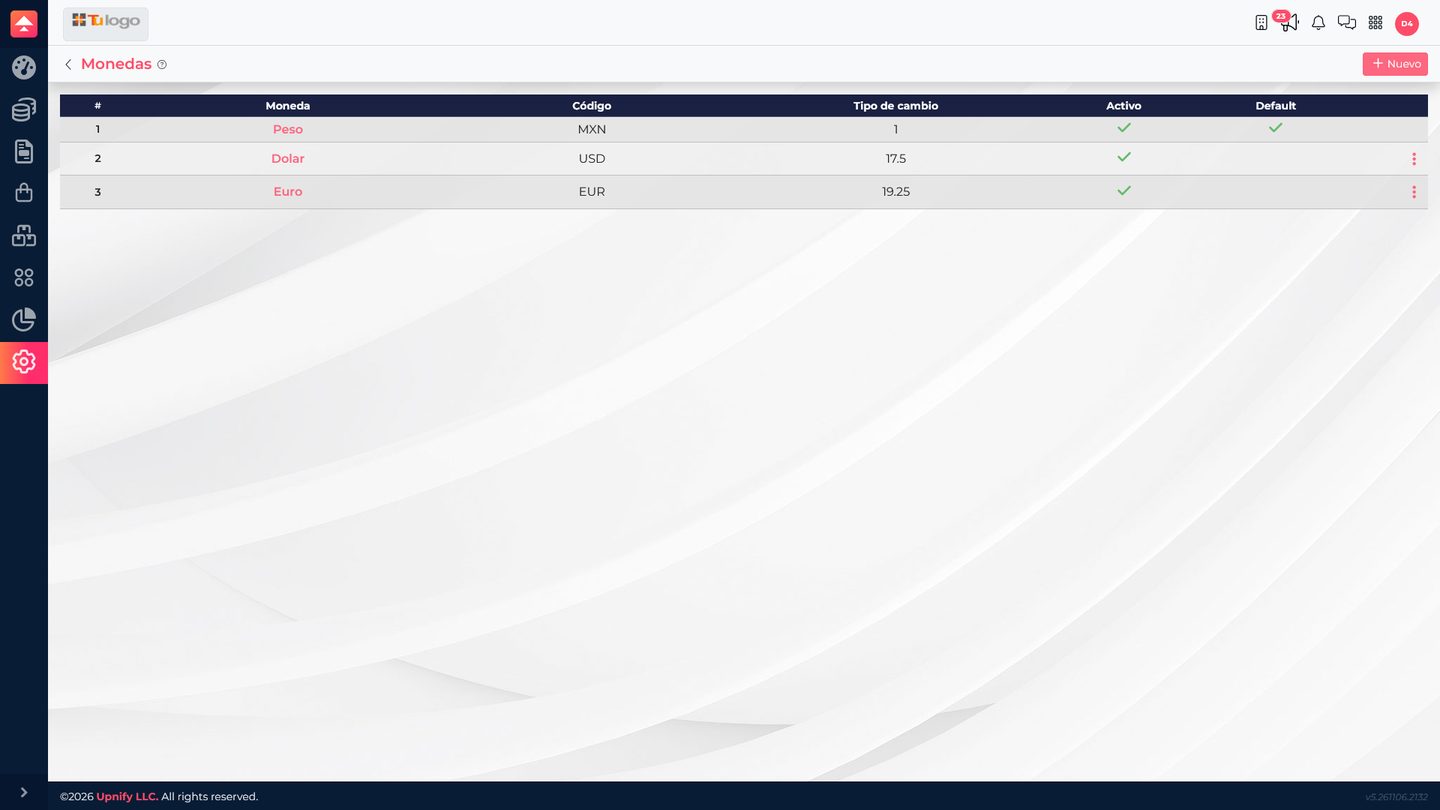
Add or update a currency
- Select New to add a currency your operation actually needs.
- Choose it and confirm its code and name.
- Enter the exchange rate in the format requested by ERP.
- Check which currency is the base and activate only those the team will use.
- Save and review the record again.
When updating a rate, follow your company\u2019s convention and confirm how ERP interprets the relationship between the base currency and the other currency. Do not use a demo value as a current quote: exchange rates change.
Where to check currency
When an operation or price list offers a currency, confirm it matches the amount\u2019s currency. If a conversion applies, review the exchange rate and result shown on the document before confirming. This matters for products, price lists, and bank accounts using different currencies.
- Avoid adding the same currency under different names.
- Review the rate when internal policy calls for an update.
- Check whether a document uses the base or an alternate currency before comparing amounts.
- Before deactivating a currency, check whether active records refer to it.
Example: the company keeps MXN as its base and enables USD for exports. The owner updates the reference value under the internal process; when entering USD prices, the team checks the currency and total before saving.