

Folios help identify and organize operational ERP documents, such as purchase orders and receipt or issue movements. The series makes the document type easier to recognize; the number distinguishes one document from another in that sequence.
For example, a series such as OC-E can help your team distinguish purchase orders from receipts, which use a different series. This creates a clear reference when reviewing operational documents.
These are not fiscal invoice folios
Folios on this screen belong to general ERP documents. They are different from the fiscal series and folios configured inside branches under Electronic invoicing. For invoices, see How to configure issuers, branches, invoice series, and folios in ERP.
What to configure
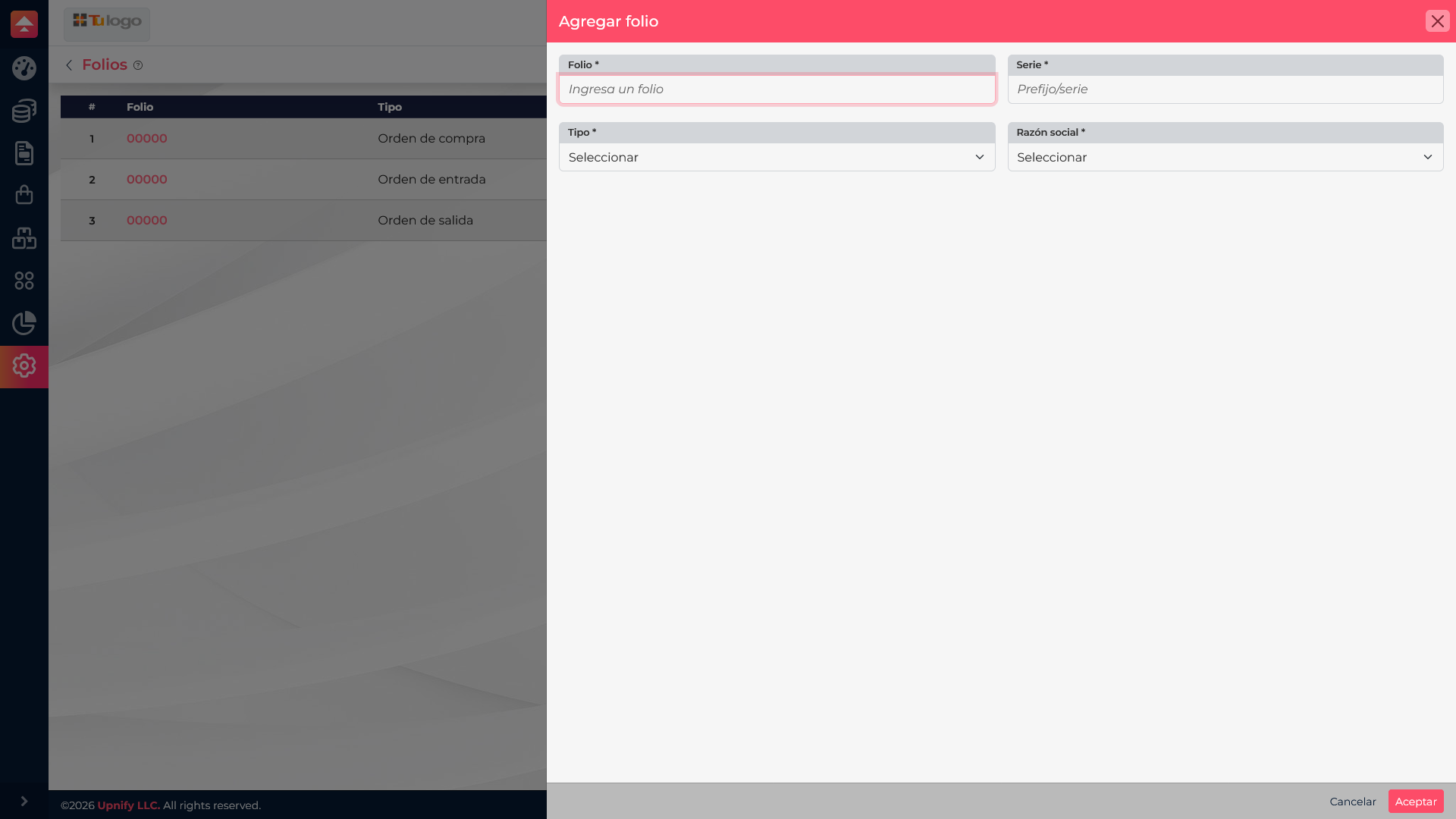
- Folio: the starting number for the sequence.
- Series: a short prefix that identifies the document, such as OC-E.
- Type: purchase order, entry order, exit order, or order.
- Legal entity: links the folio to the issuer available for the operation.
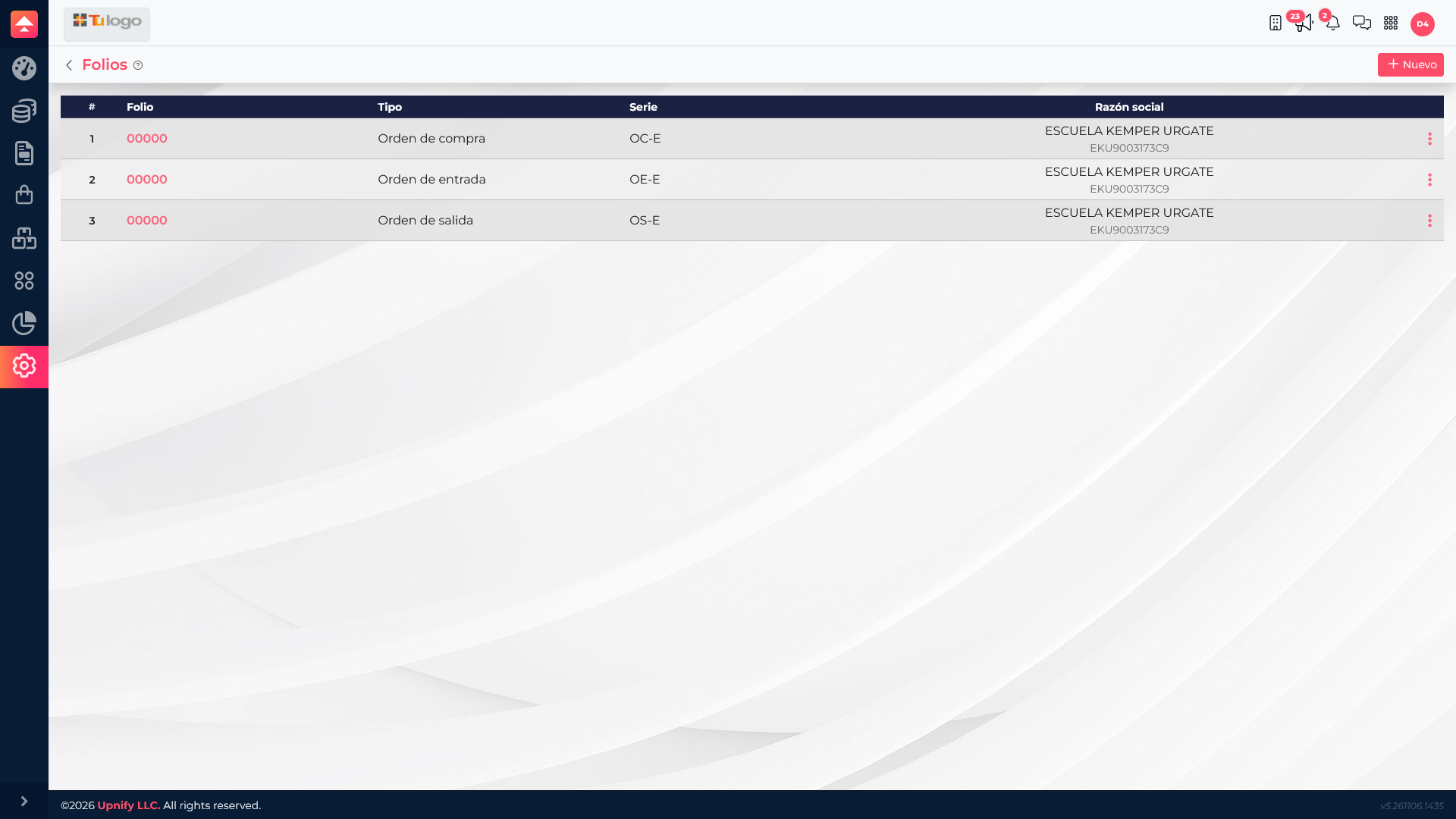
Create a folio
- In ERP, open Catalogs > Folios.
- Select New.
- Enter a starting number and a series your team can understand.
- Select the document type.
- Choose the available legal entity when applicable.
- Check that the number, series, and type are correctly associated before saving.
In the example catalog, OC-E, OE-E, and OS-E distinguish purchase orders, receipts, and issues. Agree on your company\u2019s series with the operations team and avoid using the same convention for different document types.
To review an existing setup, open the folio from the list. Then start the corresponding operation and confirm the document uses the expected type and series before continuing.