

Before recording purchases, orders, or sales, review three catalogs that help keep ERP financial data consistent: taxes, payment terms, and commissions. Each serves a different purpose and is configured separately.
A company may need an applicable tax, options such as \u201CDue upon confirmation\u201D or \u201CNet 30\u201D in documents that use that field, and a commission percentage to link to products.
Configure taxes
Open ERP > Catalogs > Taxes. Review current entries to avoid duplicates. Select New to add a tax and complete the fields for its type.
Depending on the selection, the form may distinguish local, transferred, or withheld taxes and ask for a calculation type, such as rate, fee, or exempt. A rate is a percentage; a fee is a fixed amount. Confirm the type before saving because it determines how ERP interprets the value.
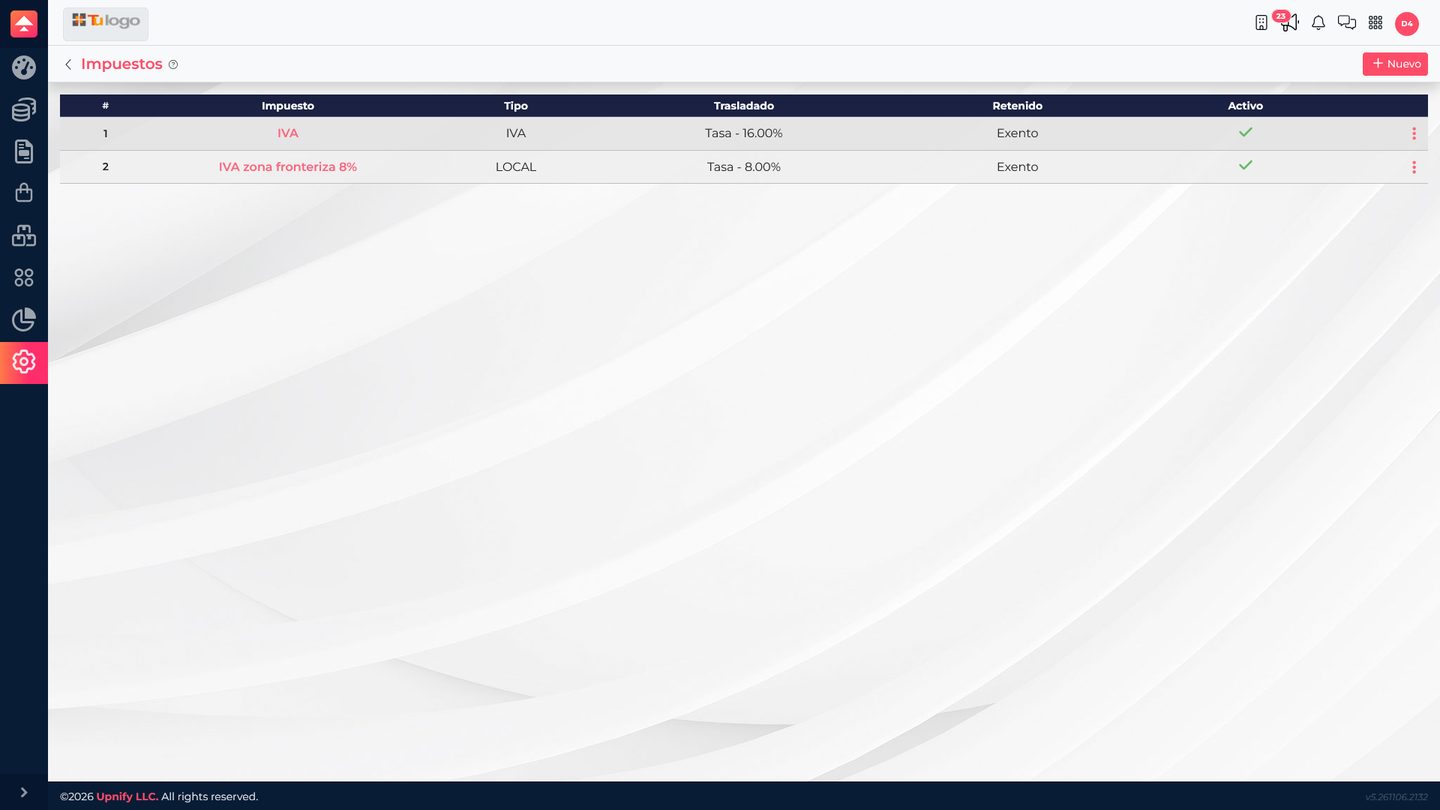
Set up only the concepts your company needs and validate their treatment with your accounting or tax team.
Prepare payment terms
Go to ERP > Catalogs > Payment terms. Add clear options such as \u201CDue upon confirmation,\u201D \u201CNet 15,\u201D or \u201CNet 30.\u201D Use a consistent naming convention so the team can select the right option in documents that include this field.
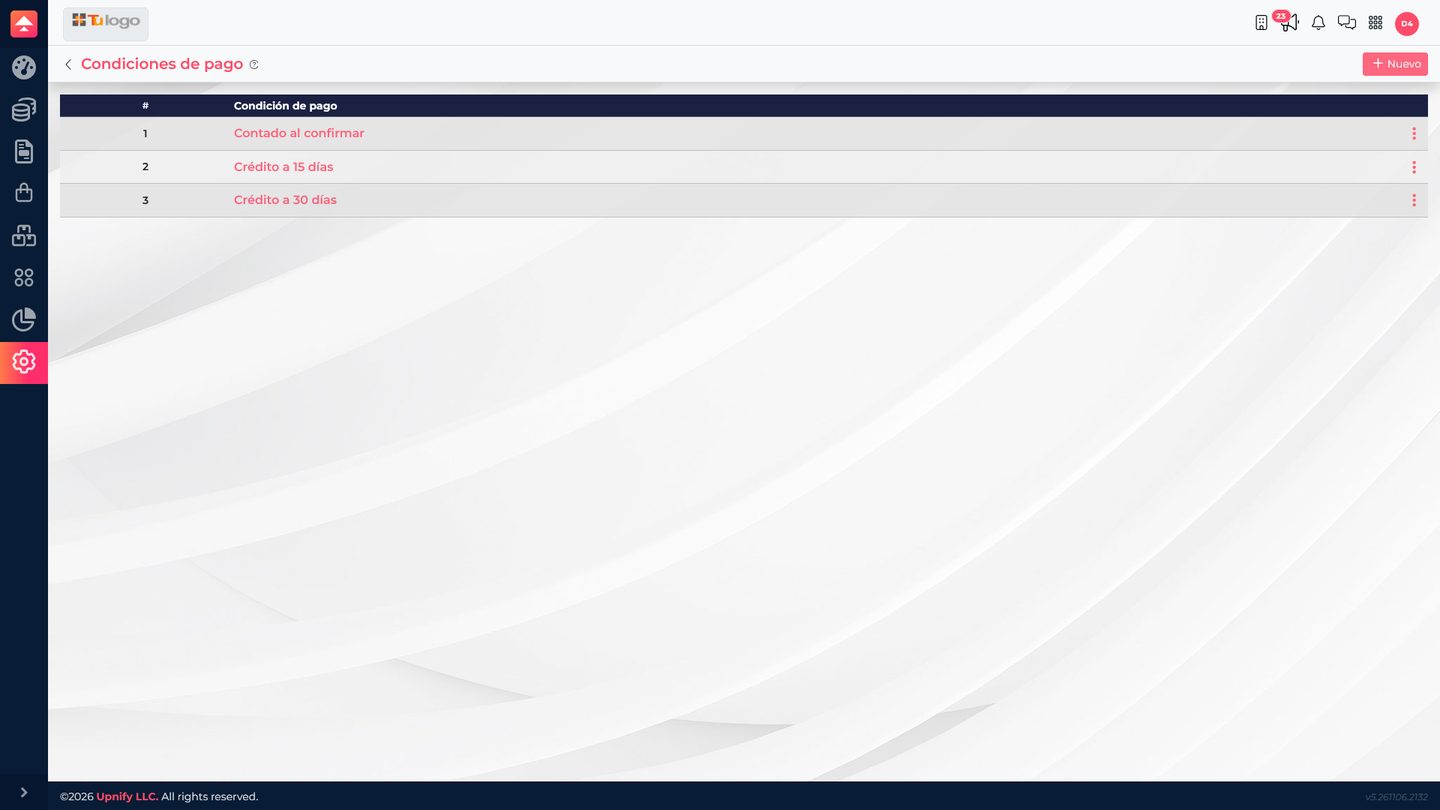
A payment term is a selectable reference. \u201CNet 30\u201D alone should not be taken to mean that a due date is scheduled automatically; check the behavior of the document where it is used.
Define commissions
In ERP > Catalogs > Commissions, add a recognizable name and enter the percentage. If your company uses different criteria, keep separate entries such as \u201CStandard commission\u201D and \u201CReferral commission.\u201D
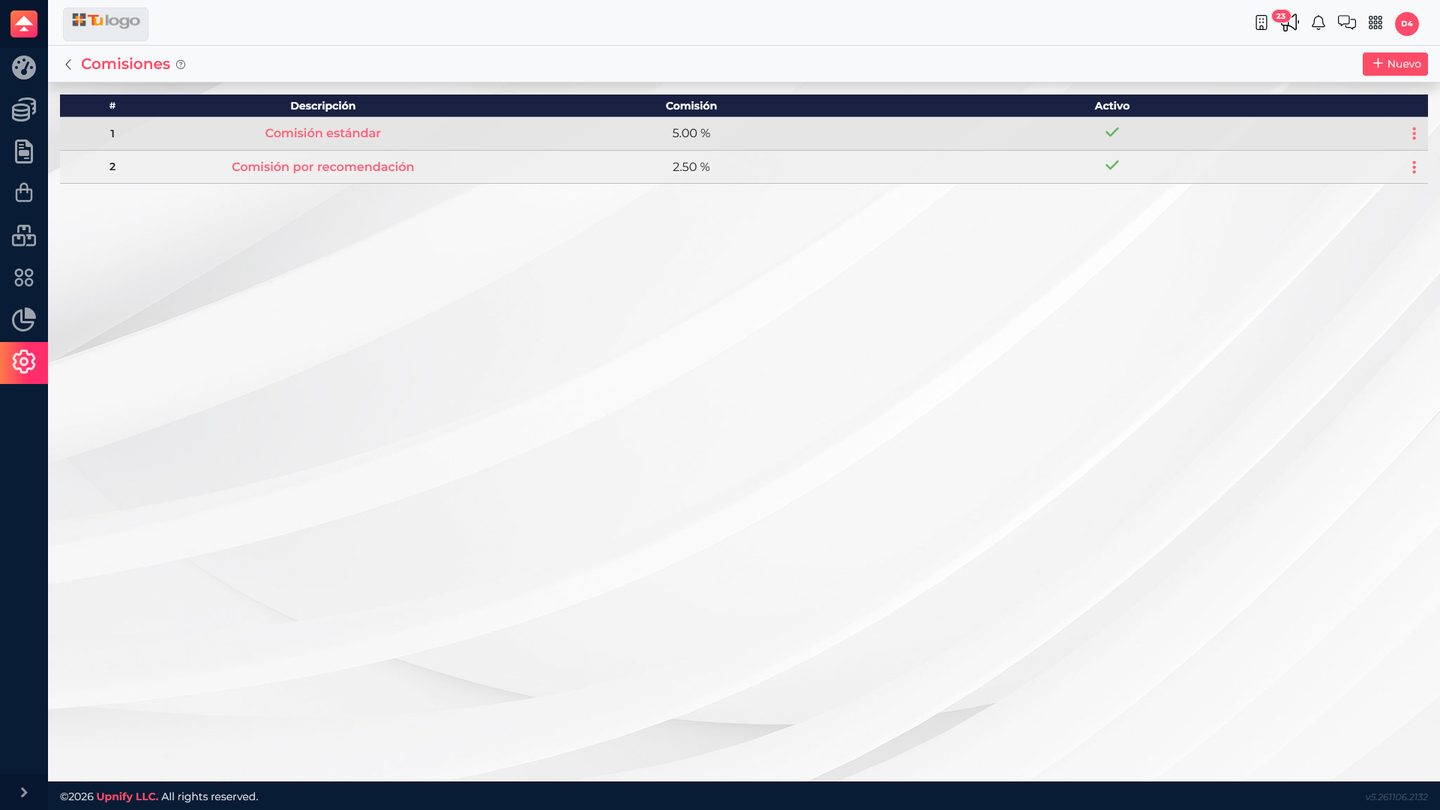
To apply it to products, open each record and review Prices, taxes, and commissions. Creating a percentage does not assign it to every product or mean a commission has been paid.
Review before using the catalogs
- Confirm each concept exists once and has a clear name.
- Check that each tax value uses the expected type.
- Try the payment term in a document that has this field.
- Link taxes and commissions to the appropriate products or operations.
- Validate rates and percentages with the responsible team.
Example: when preparing an order, the team selects the applicable payment term and uses a product with its taxes and commission linked. Each value comes from its own catalog and can be checked before confirmation.