

Inventory operations are the movement types you choose when recording stock changes. Clear names help distinguish a purchase receipt from a customer delivery and later explain why stock changed.
The catalog only prepares available options. Creating an operation does not change stock by itself: stock changes when you save a movement with an operation, product, quantity, and warehouse.
Configure the operations catalog
In ERP, open Settings > Catalogs > Inventory operations. Review current options and select New. Use a name that describes when it should be used and choose its type: receipt, issue, or adjustment. Save and check that it appears in the list.
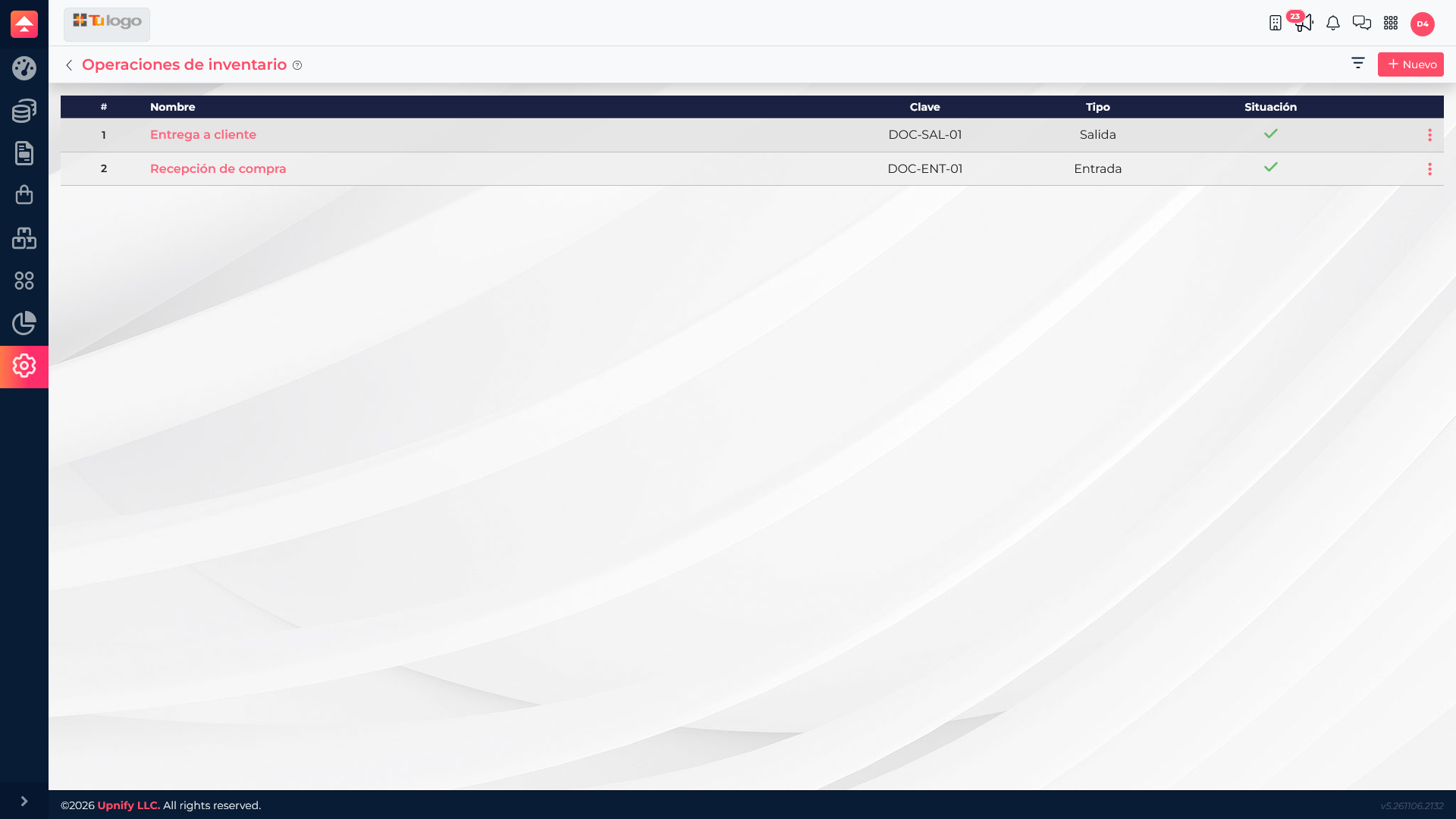
What each type does
| Type | Effect on stock | Example |
|---|---|---|
| Receipt | Adds units to the product in the selected warehouse. | Receive 25 maintenance kits. |
| Issue | Subtracts units from the selected warehouse. | Deliver 5 kits to a customer. |
| Adjustment | Sets the resulting stock quantity; it is not an amount to add. | After a count, enter that 20 units remain. |
A warehouse transfer affects both locations: units leave the source and enter the destination. Check both warehouses before confirming.
Record and review a movement
Open inventory movements and choose the matching operation. Select the product and warehouse; enter a quantity or resulting stock count according to the operation type, then complete the other required fields. Before saving, confirm that the movement reflects what physically happened.
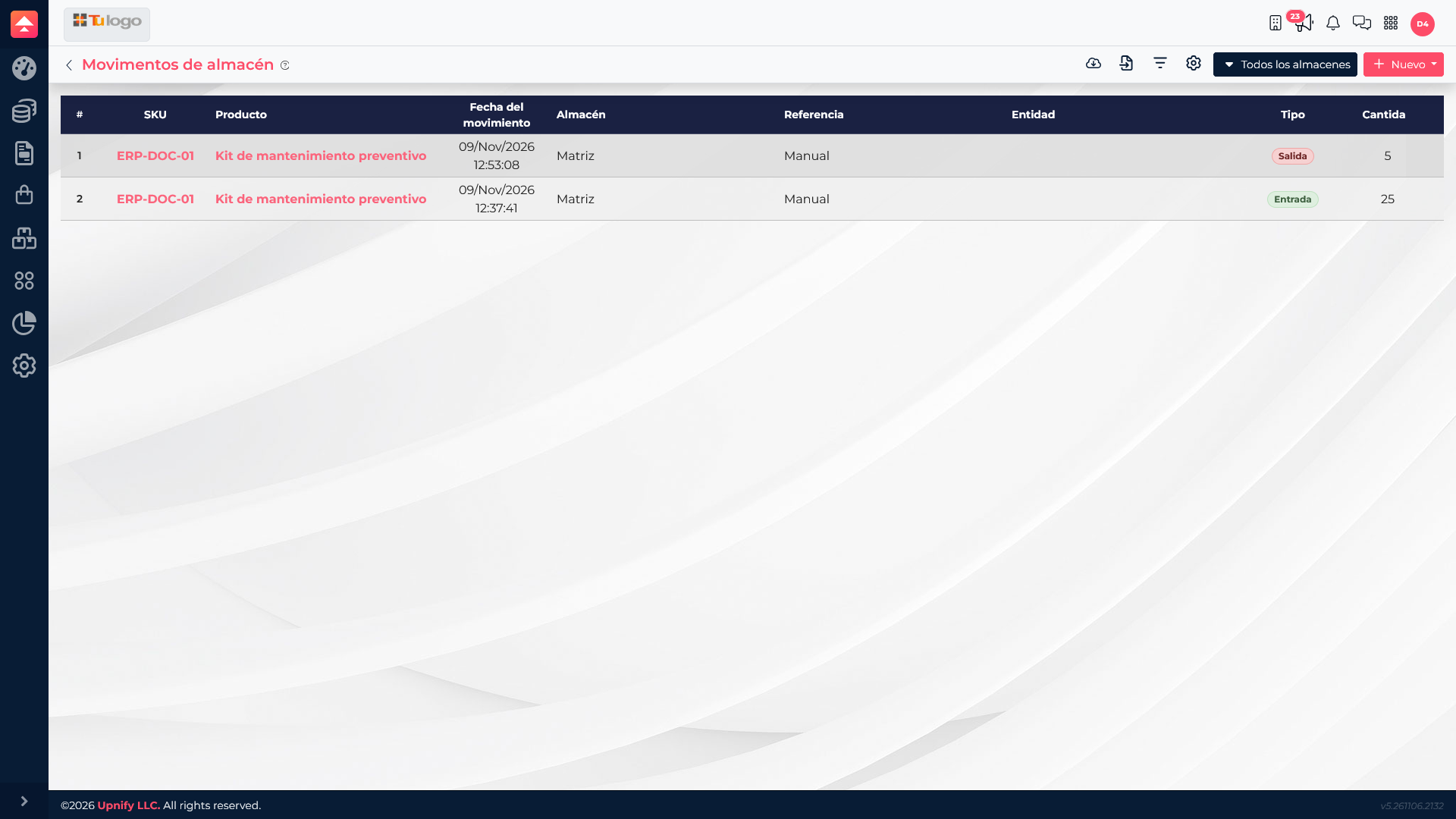
Check stock on hand
After saving, review product stock by warehouse. In this example, the Preventive maintenance kit received 25 pieces and then had 5 issued, so it shows 20 available at Matriz.
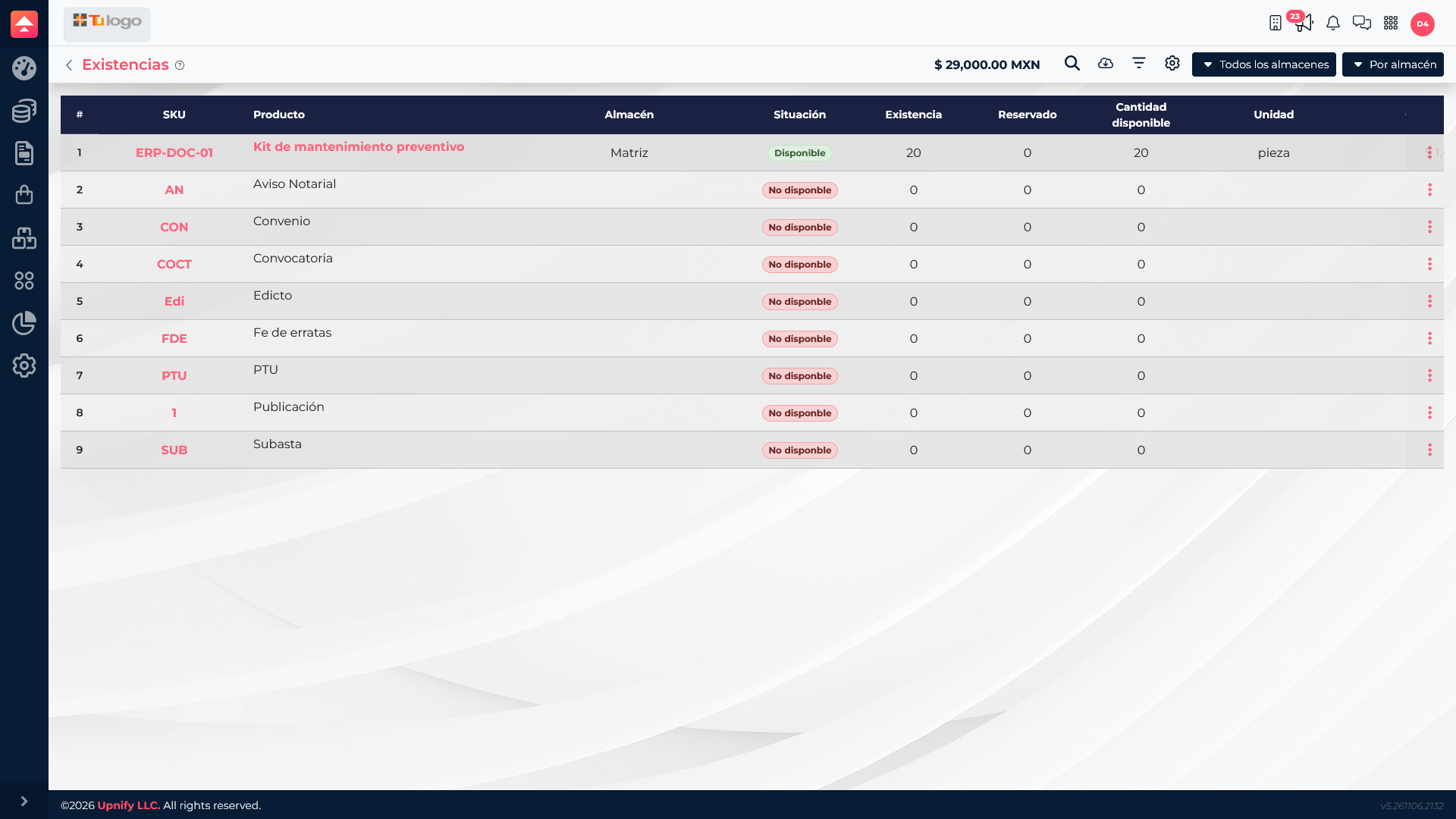
If the result does not match
- Review history and confirm the movement was saved for the right product.
- Check the warehouse: stock is tracked by location.
- Verify whether you chose receipt, issue, or adjustment. An adjustment uses the newly counted total.
- For a transfer, review both source and destination warehouses.
- Compare ERP with a physical count before recording another correction.
Consistent operation names and a review of history after saving help the team understand each change and keep inventory aligned with business activity.